
How to apply discounts on a handheld
BeingThis written.will walk through how to add a discount on a handheld: to one item, to several items at once, or to the whole check, and how to take a discount off again.
You'll start from an open order. If you'd like to see how to start one, click here: How to start a table.
Item level and check level discounts
There are two kinds of discounts, and they work a little differently:
- Item level discounts come off the items you pick. Because they come off the item, they're also taken off that item's reporting group on the sales reports. The discount shows under the item on the order.
- Check level discounts come off the guests' subtotal and don't look at the items. They show as their own line on the sales reports and in the Check Discounts part of the order, one line for each guest.
Note: The handheld lists only the discounts that fit what you picked - an item discount for appetizers only shows up when you discount an appetizer.
Click here to learn more about setting up discounts in Backoffice, or about adding discounts on a terminal.
Discounting one item
-
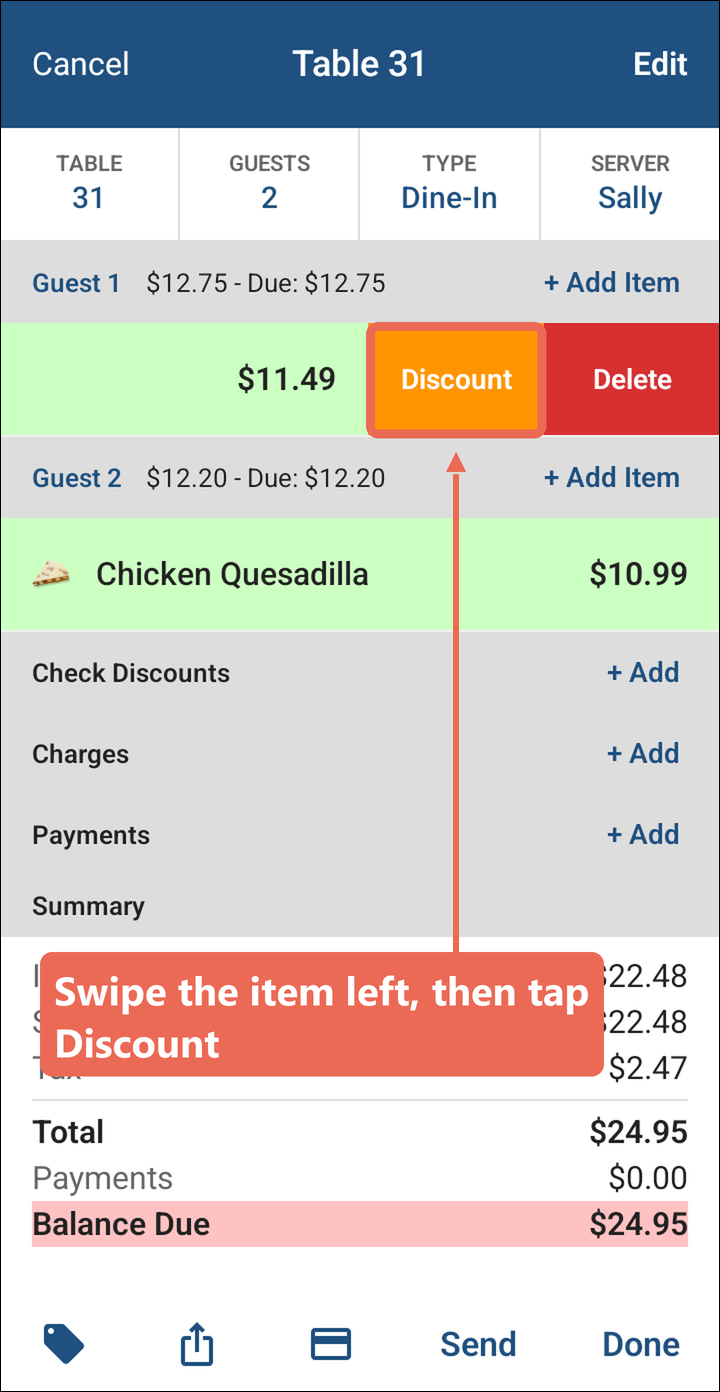
Swipe the item to the left and tap Discount.
-
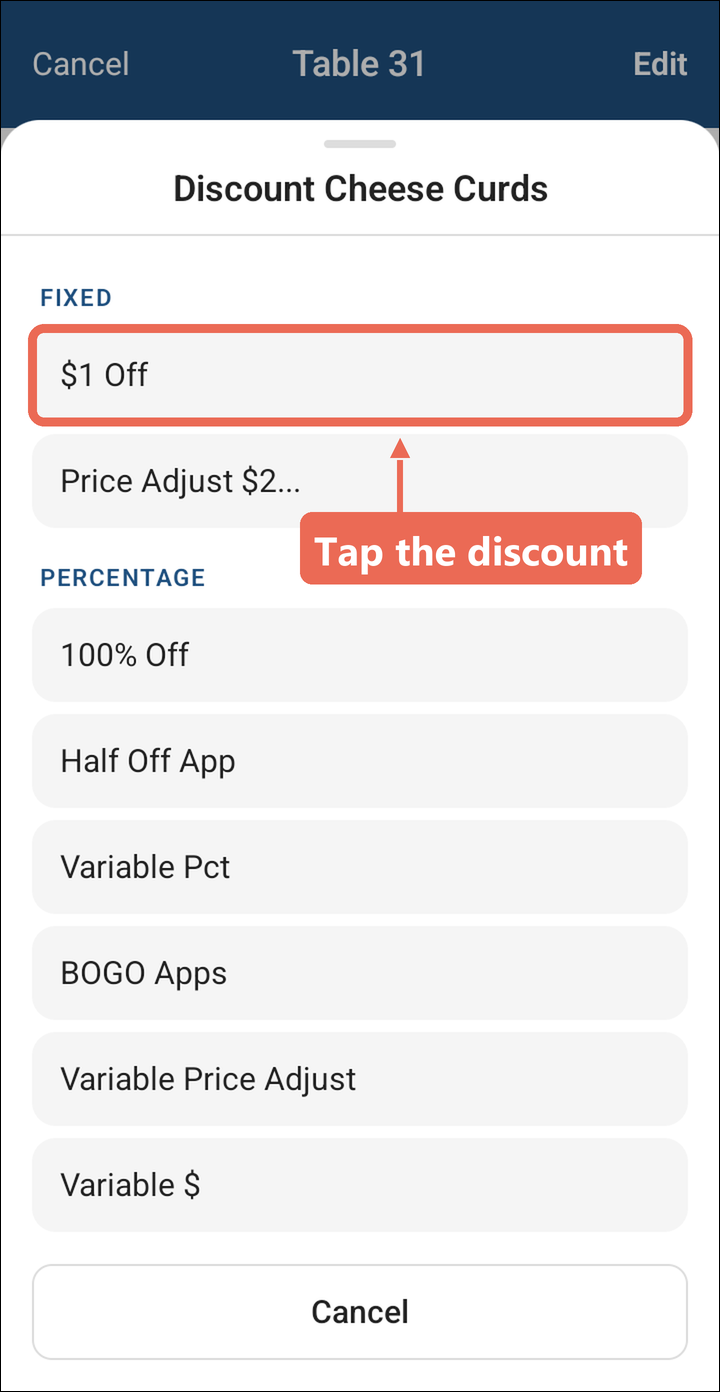
Tap the discount you want. The list is grouped the way your discounts are set up (here Fixed and Percentage).
-
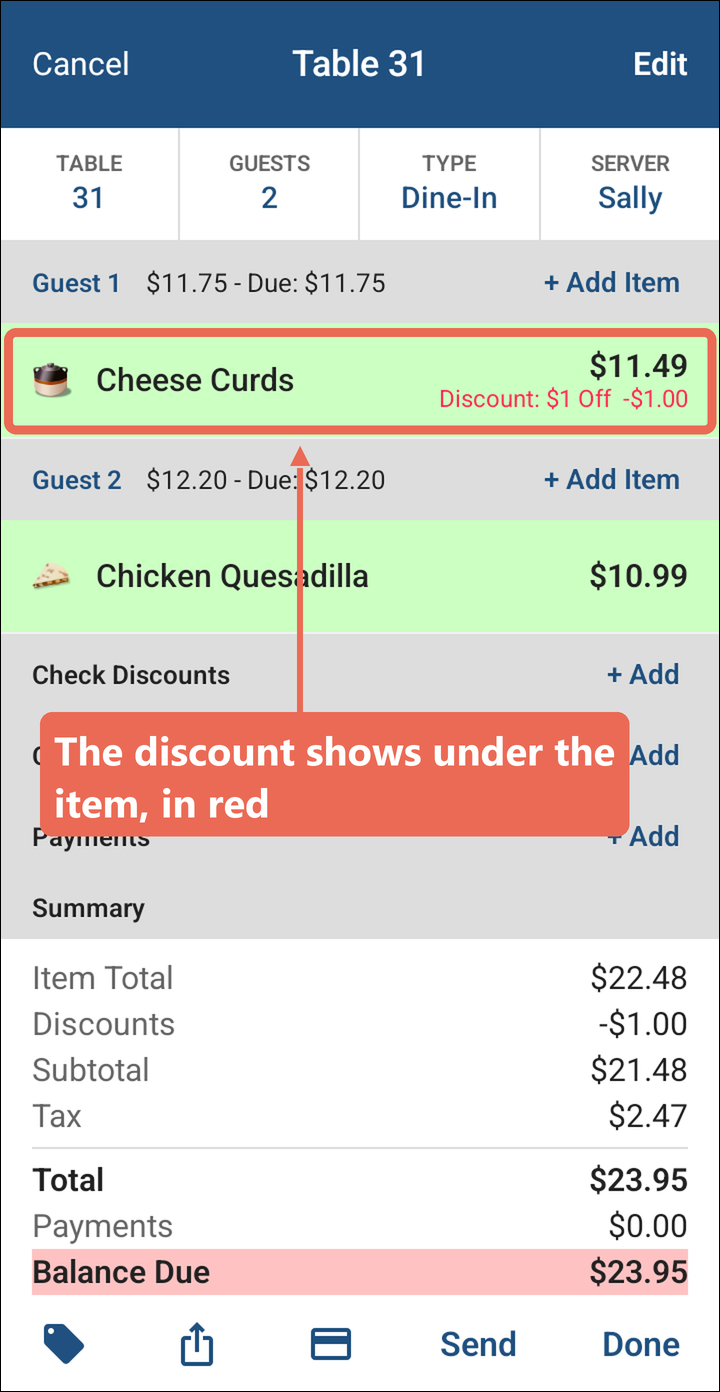
The discount shows under the item in red, and the guest's total goes down.
Discounting several items at once
-
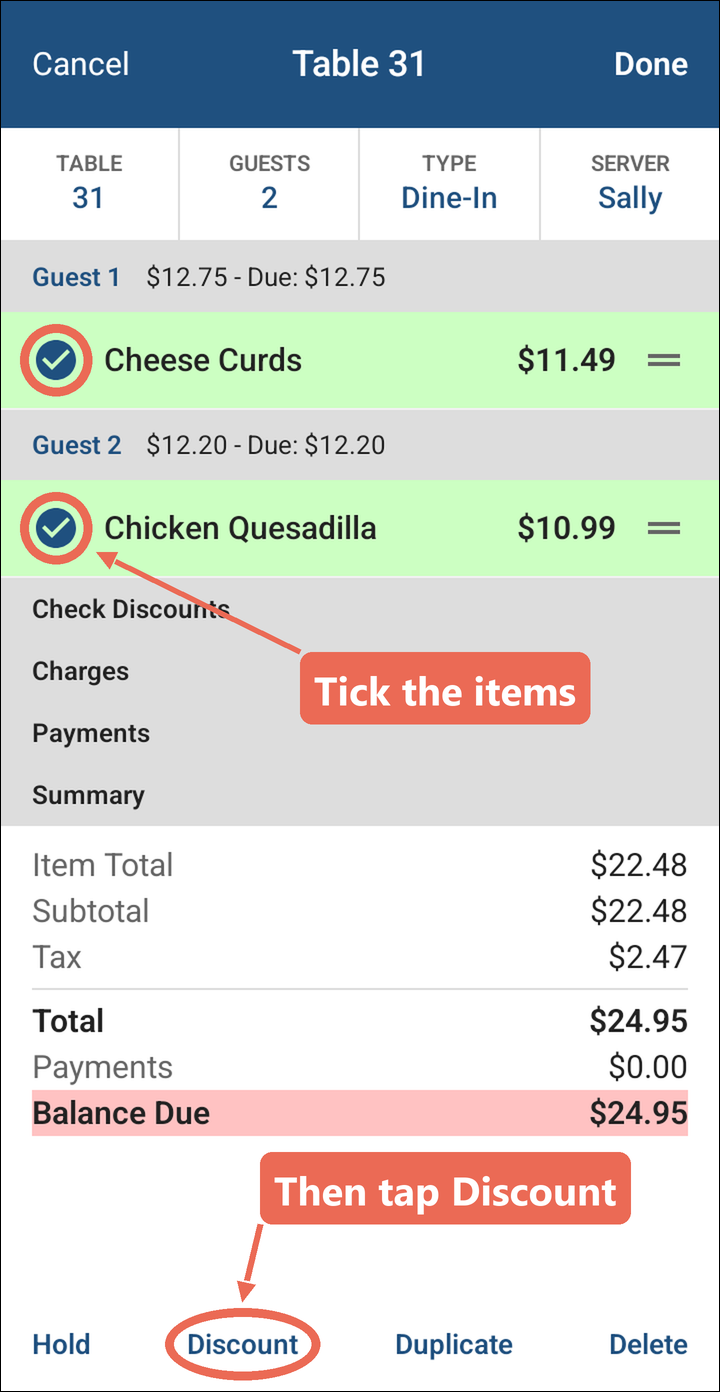
Tap Edit at the top right of the order.
-
Tap the circle next to each item you want to discount, then tap Discount at the bottom.
-
Tap the discount you want. It goes on every item you ticked.
Discounting from the item's own screen
-
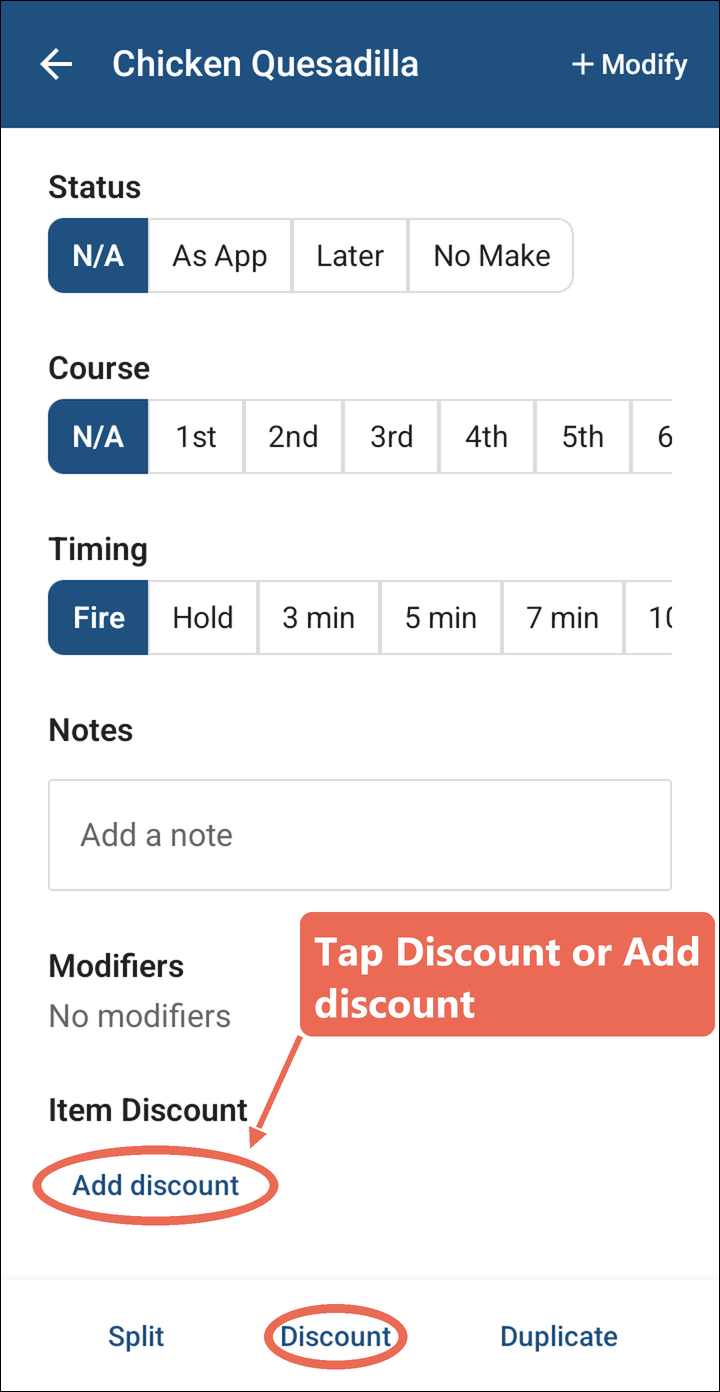
Tap the item on the order. Its own screen opens, with its name at the top.
-
Tap Discount at the bottom, or Add discount under Item Discount, then tap the discount you want.
Check level discounts
-
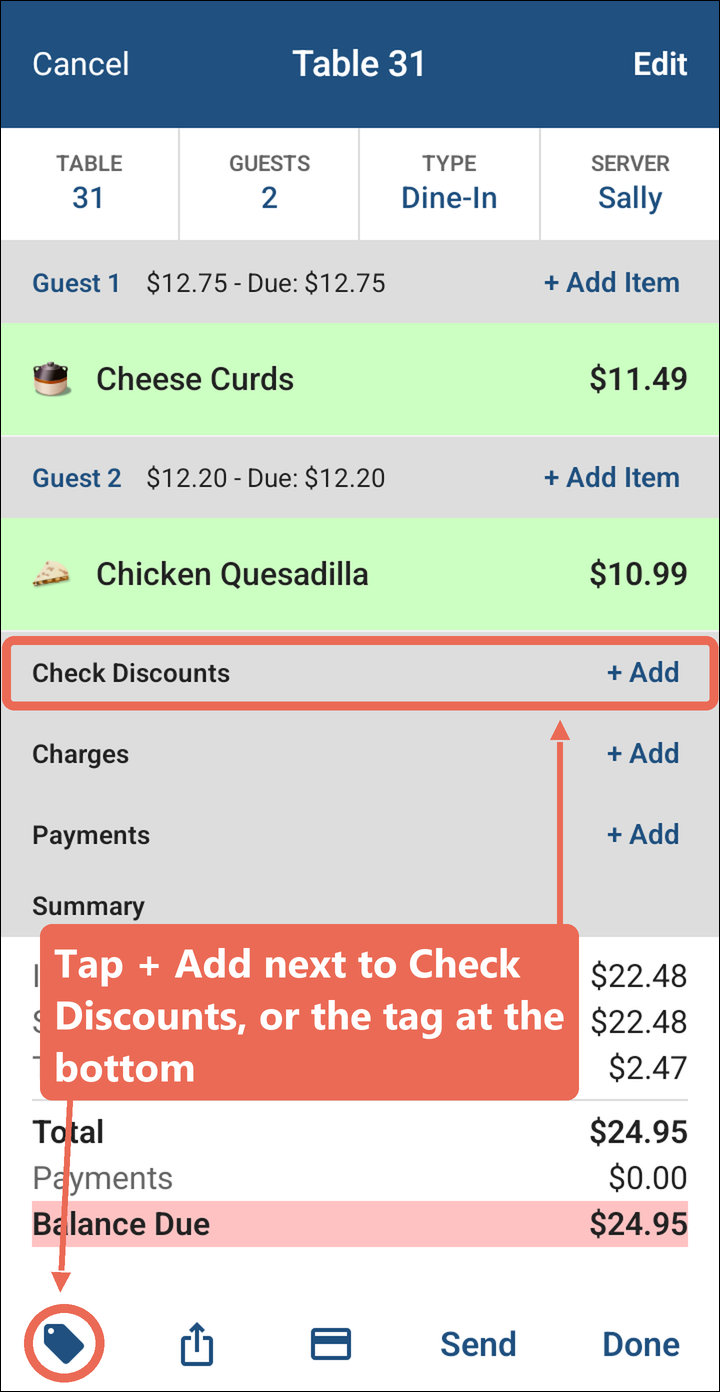
Tap + Add next to Check Discounts.
-
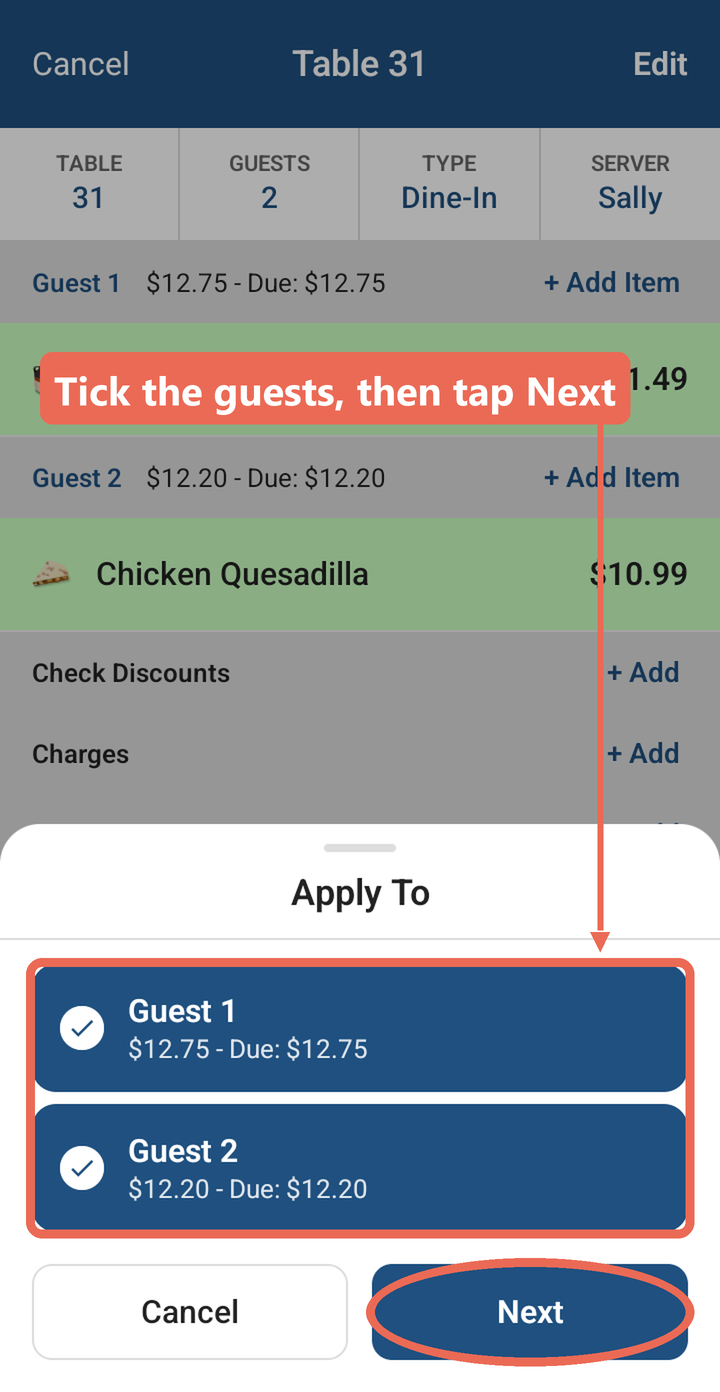
Tick the guests the discount is for, then tap Next. Only guests who still owe something are listed.
-
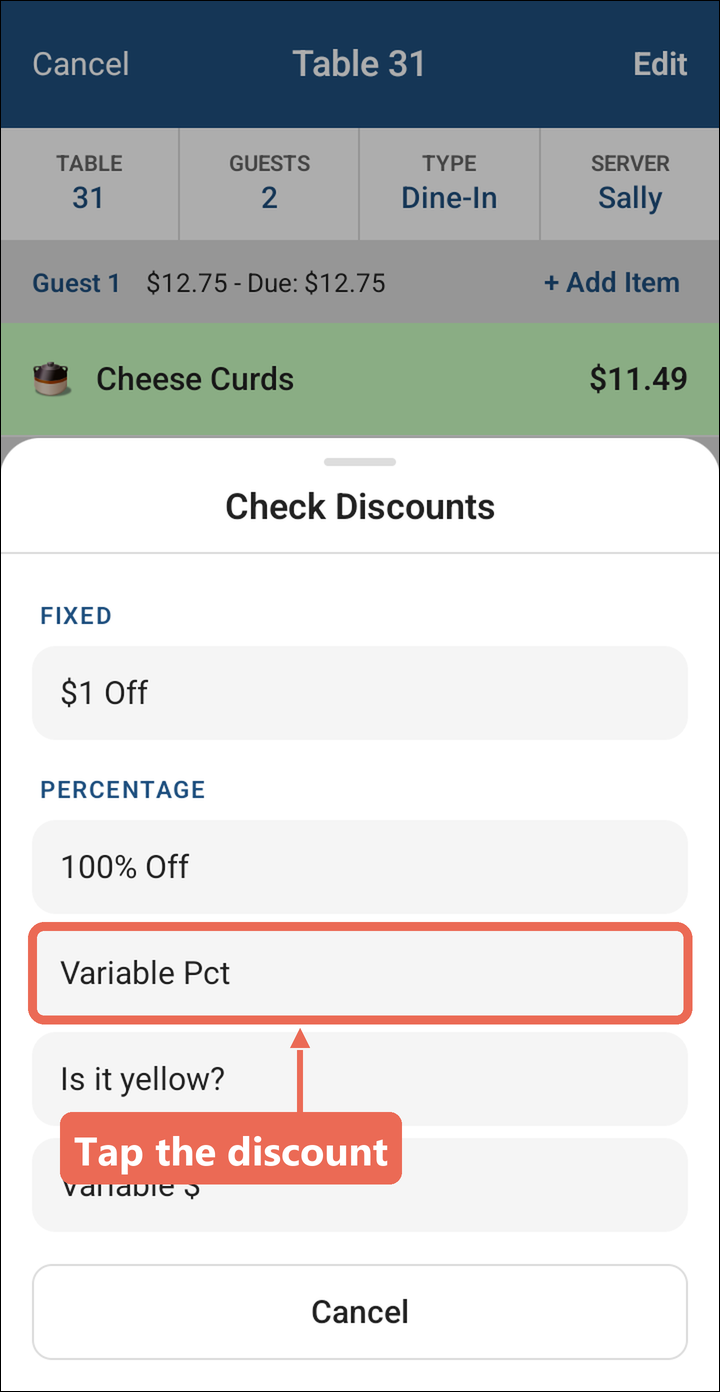
Tap the discount you want.
-
The discount shows under Check Discounts, one line for each guest you picked. A percentage comes off each guest's own subtotal - here 10% is $1.15 for Guest 1 and $1.10 for Guest 2.
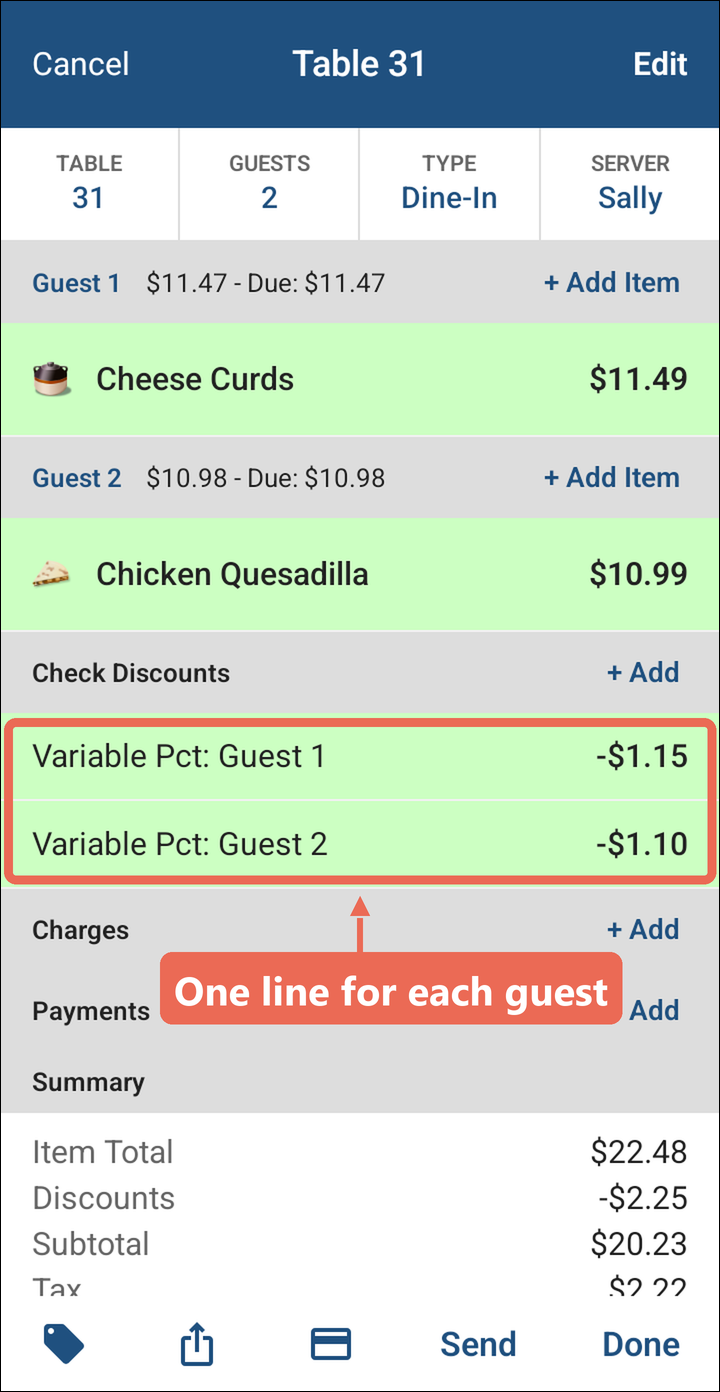
Pro tip: The tag button at the bottom left of the order starts a check level discount too.
Discounts that ask for an amount or a note
Some discounts don't have a set amount. After you tap one, the handheld asks for it.
Type the dollar amount (or the percentage) on the keypad and tap OK.
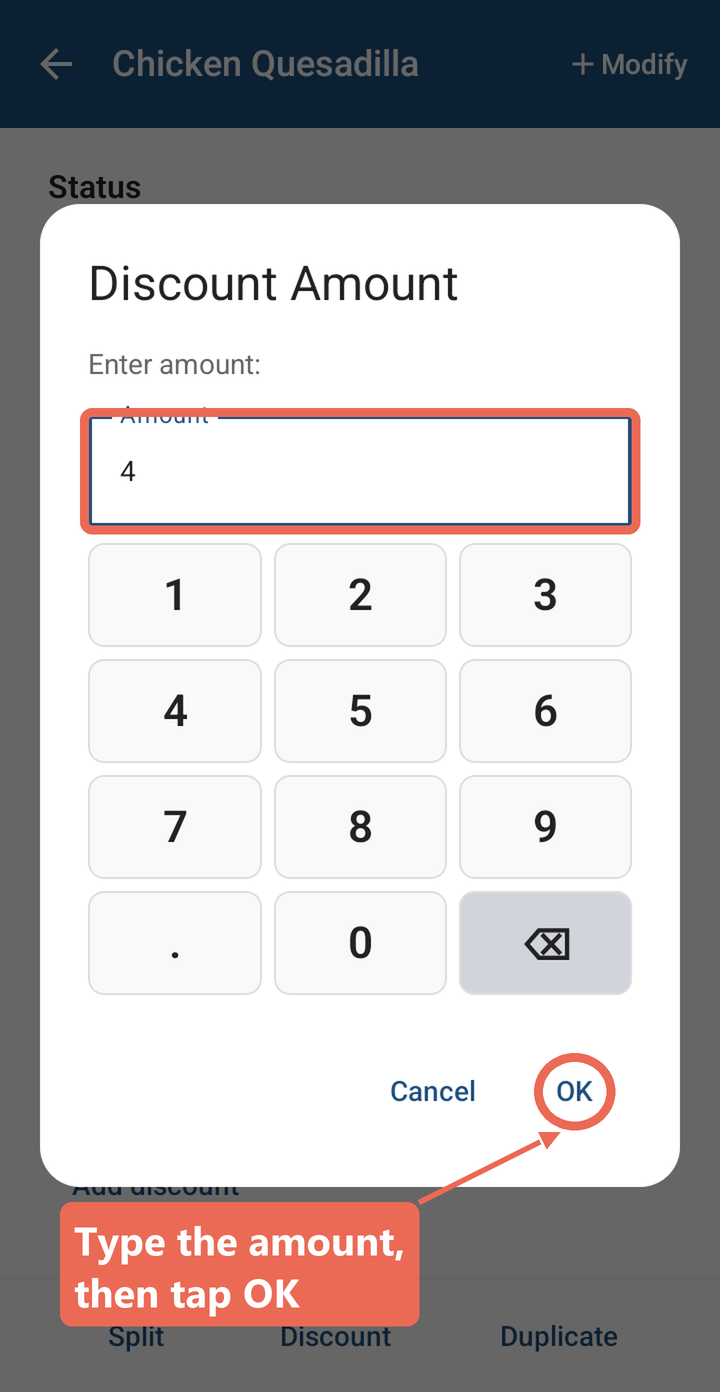
Note: Some discounts also ask for a Discount Note, like the reason for the discount. Type it and tap OK.
Discounts that need a manager
Discounts set up to need a manager only show on the handheld for people whose job role is allowed to give them. If a guest should get one, ask a manager: they can sign in on the handheld and add it, or add it on a terminal.
Removing a discount
-
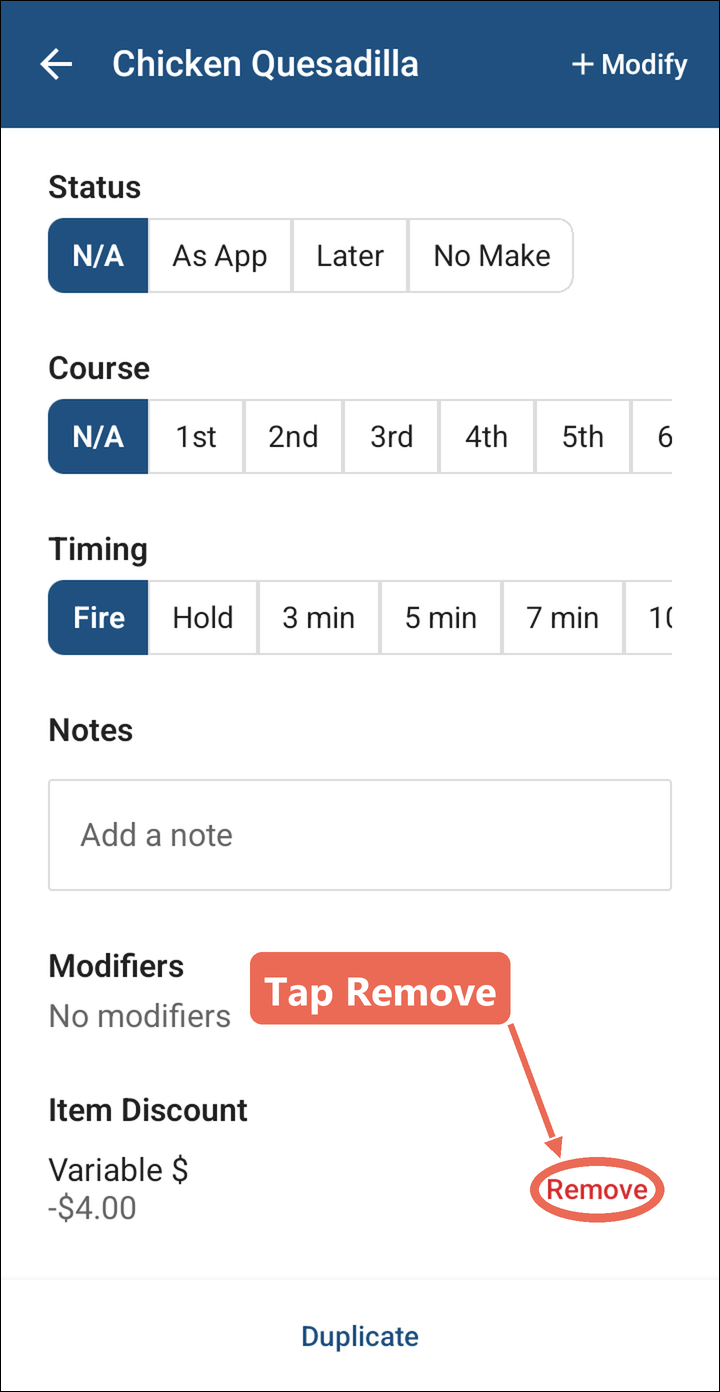
An item discount: tap the item, then tap Remove under Item Discount.
-
A check discount: swipe the guest's discount line to the left and tap Delete.
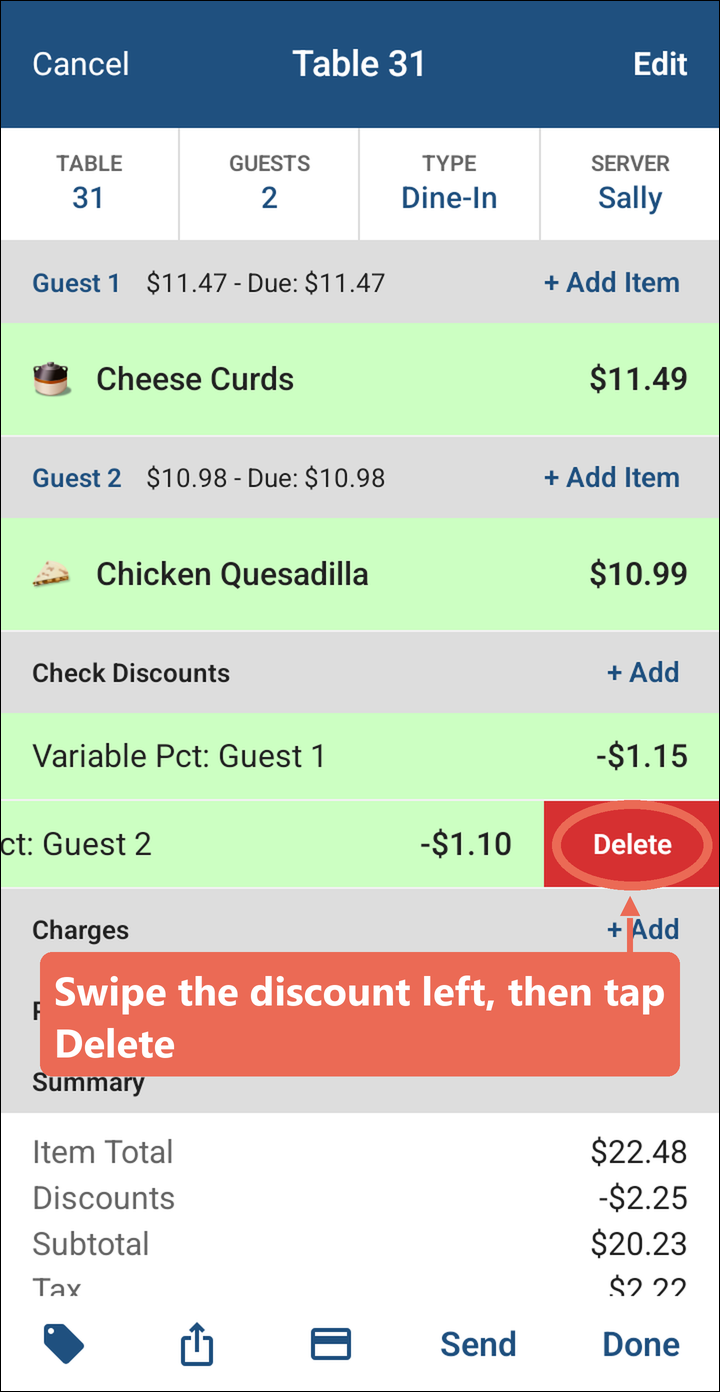
Note: Discounts you add or take off are saved when you tap Send or Done. On an order that was already sent, a removed check discount shows Deleted until you do.