
How to ring in items on a Handheld
BeingThis written.will walk through how to ring in items on a handheld: finding them on the menu, answering the item's questions (like temperature or side), what the colors mean, and taking an item off before it's sent.
You'll start from an open order. If you'd like to see how to start one, click here: How to start a table.
Opening the menu
-
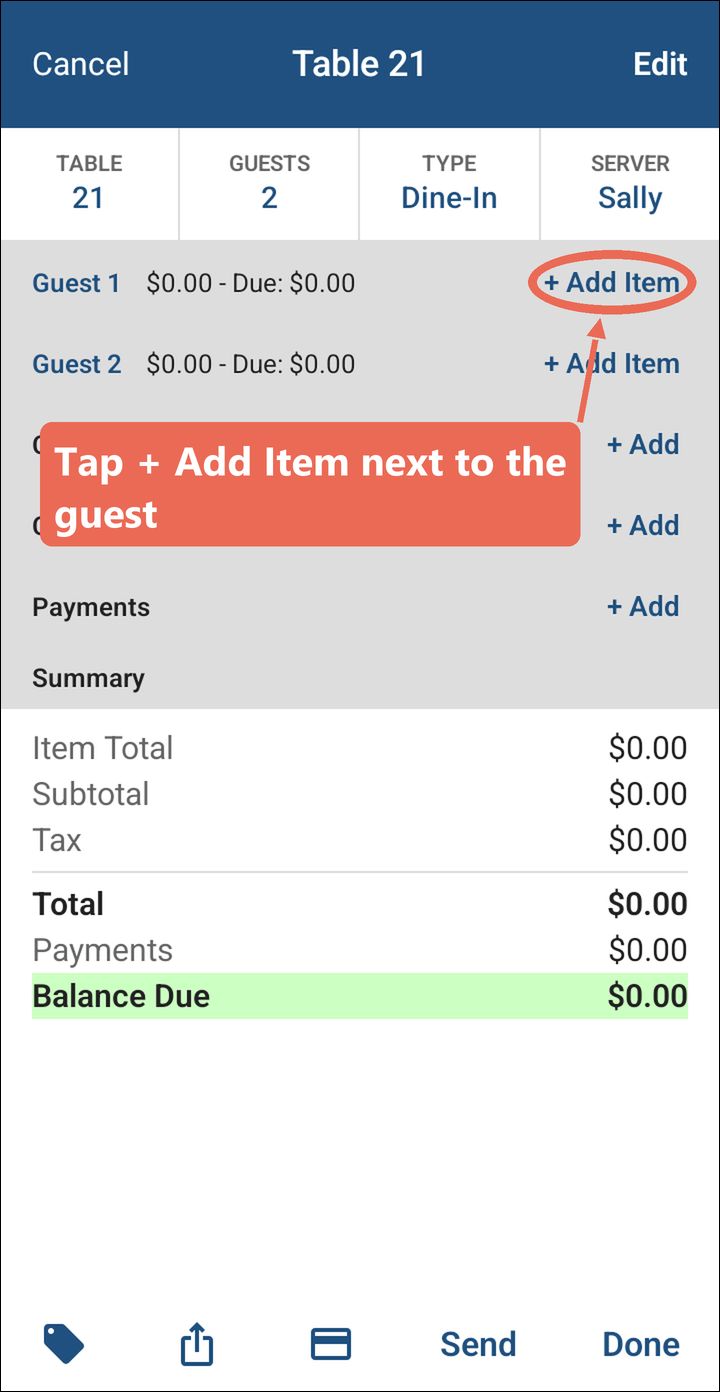
On the order, tap + Add Item next to the guest the item is for. The guest's number shows at the top of the menu - use the arrows next to it to switch to another guest without leaving the menu.
Categories and items
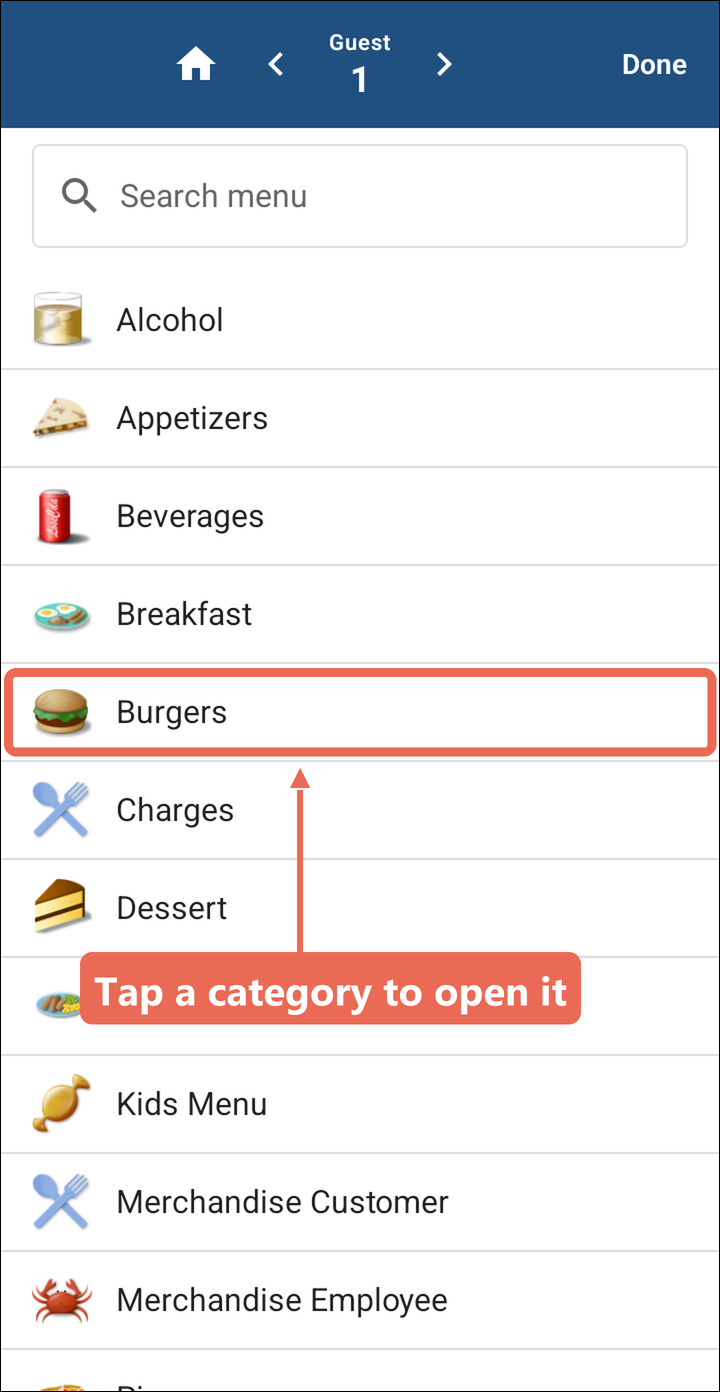
The menu starts with your categories (Appetizers, Burgers, Beverages and so on). A category has a picture and no + button; an item has a + button on the right.
-
Tap a category to open it.
-
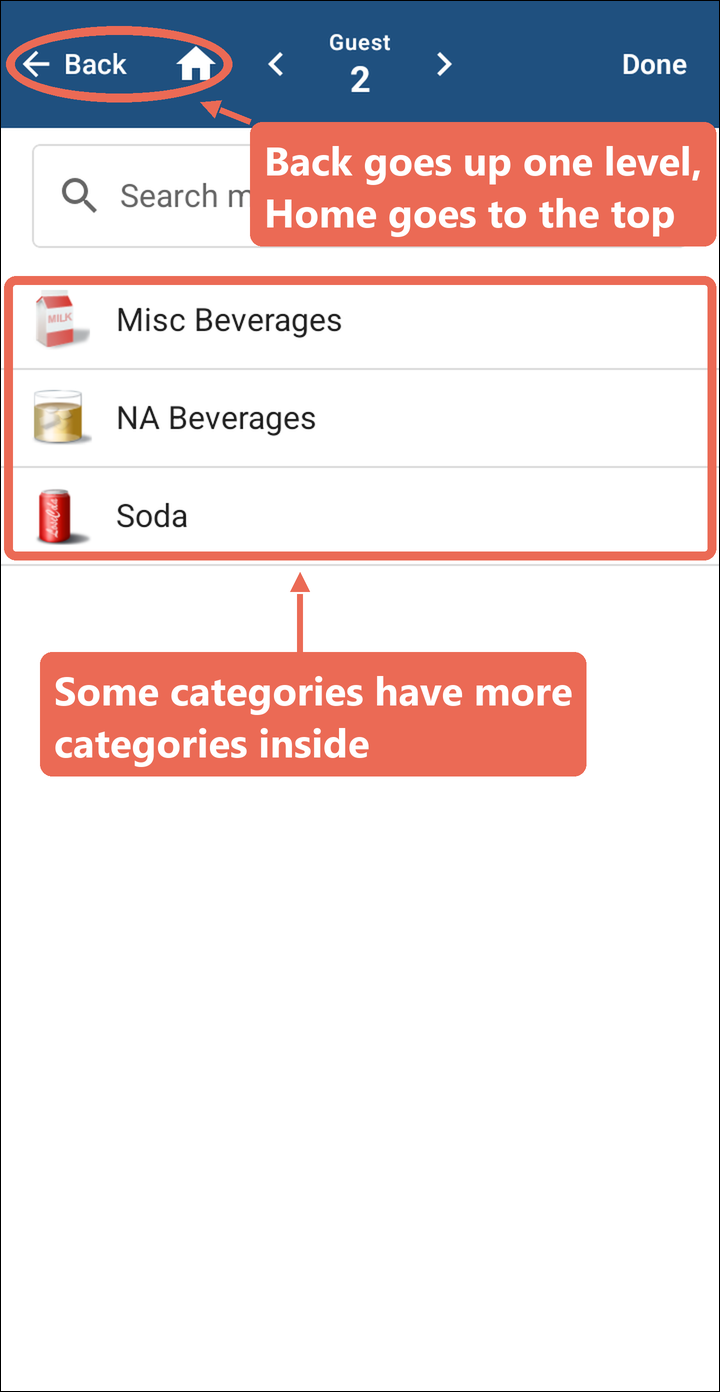
Some categories have more categories inside them - Beverages, for example, has Misc Beverages, NA Beverages and Soda. Keep tapping until you see the items.
- Back (top left) goes up one level.
- The house goes back to the first list of categories.
Pro tip: If you know the item's name, tap Search menu and type it instead. Click here to learn more about searching the menu.
Tapping an item or the + button
There are two ways to ring in an item:
-
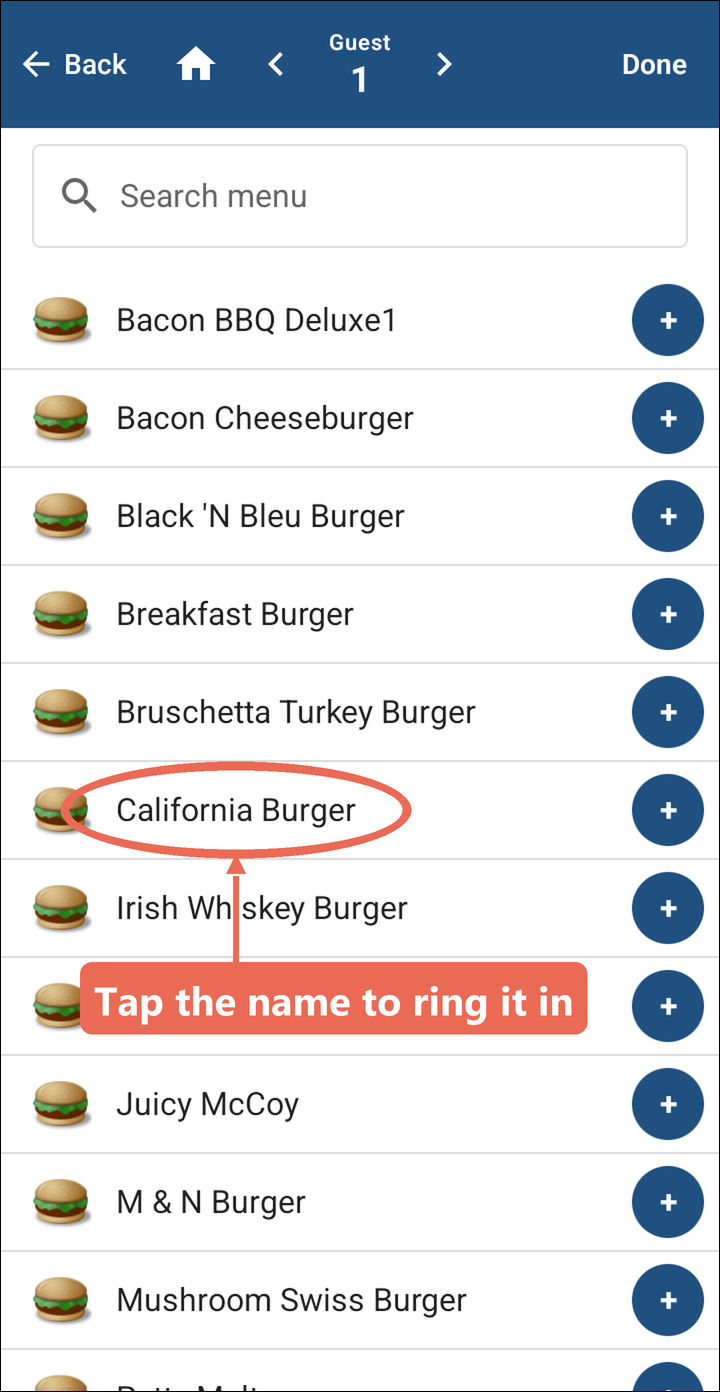
Tap the item's name when it's the only one you need. It's rung in for the guest and you go back to the order (after any questions the item asks - see below).
-
Tap the + button when you want more than one, or more items from the same category. The item is rung in and you stay on the menu. The button shows how many you've added - here, two Cokes.
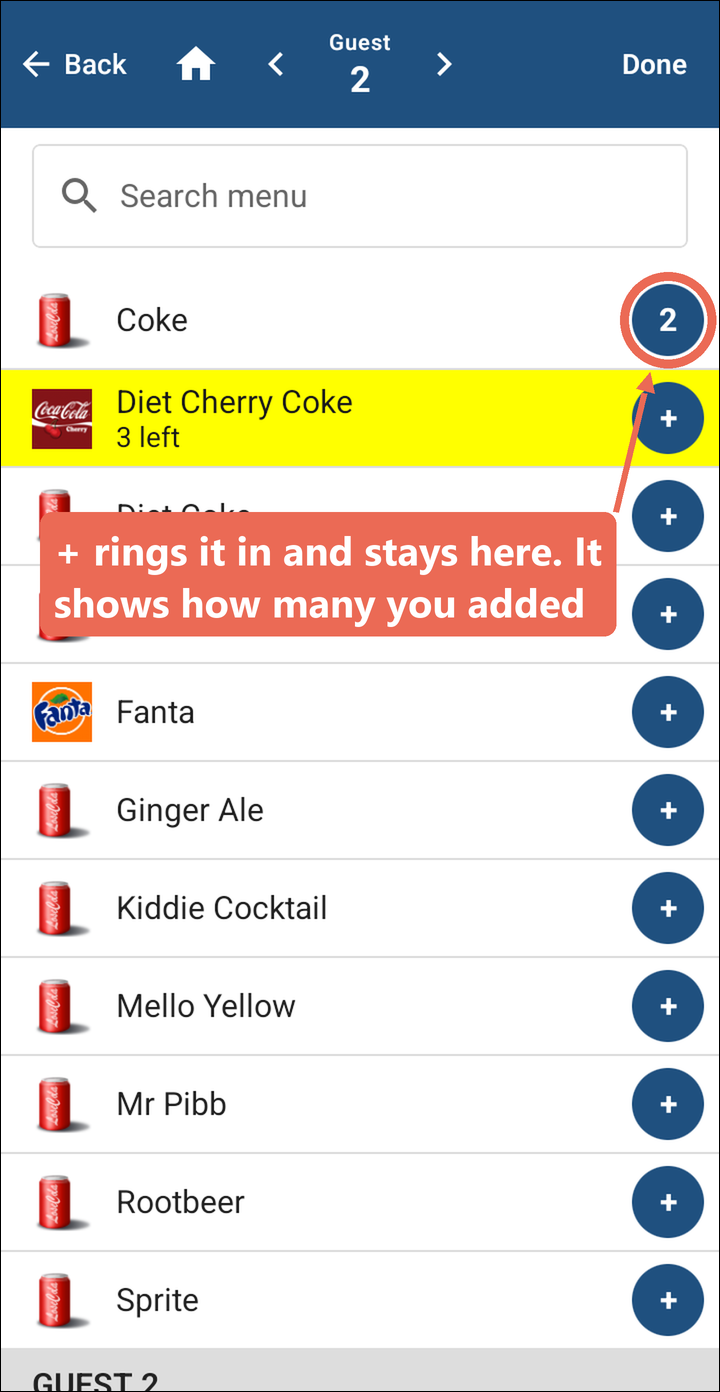
Note: Done at the top right of the menu takes you back to the order.
Answering the item's questions
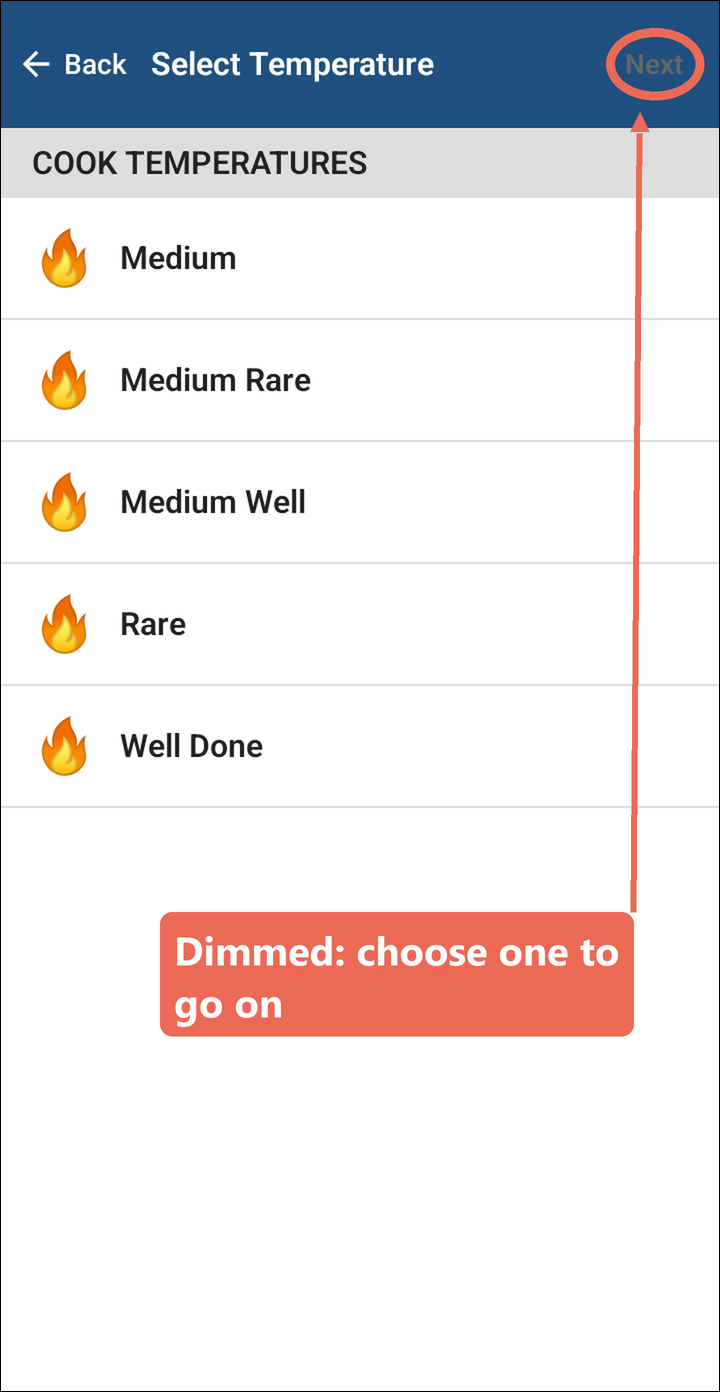
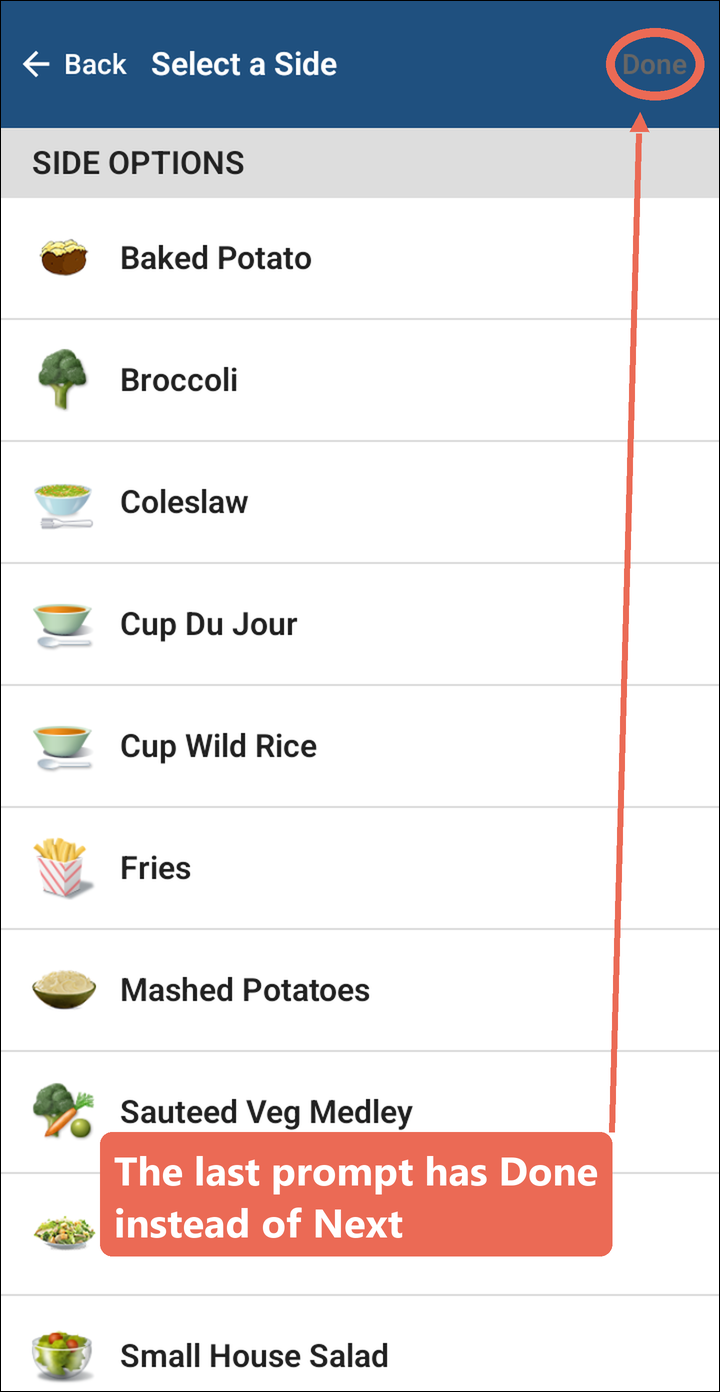
Some items ask questions before they're rung in, like a burger's temperature, cheese and side. The questions come one at a time, in the order they're set up for the item. The title at the top says which one you're on.
-
Tap your choice. When only one choice is allowed, the next question opens on its own.
-
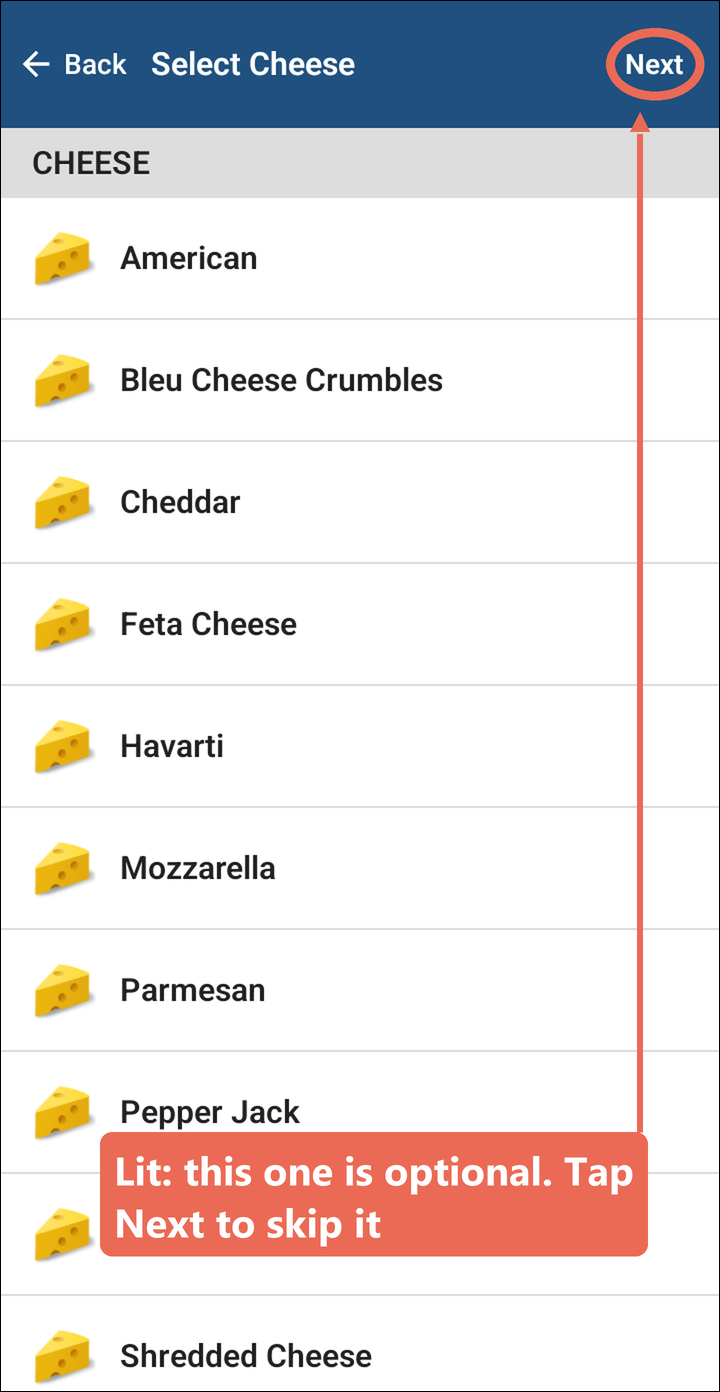
Look at Next in the top right corner to know whether you have to choose:
- Dimmed (grey): a choice is required. Next won't work until you pick one.
- Lit (white): the question is optional. Pick something, or tap Next to skip it.
-
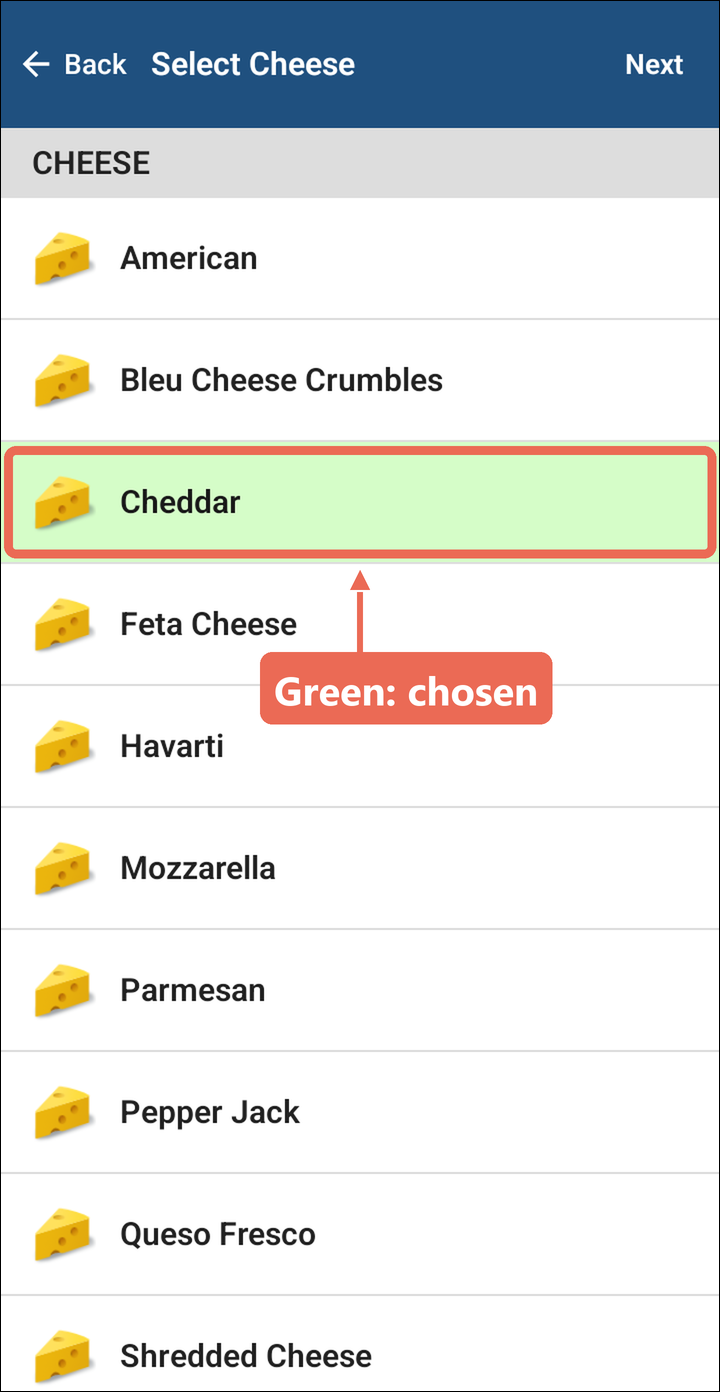
A choice you've picked turns green. Choices you haven't picked stay white.
-
The last question has Done instead of Next. It works the same way: dimmed means you still have to choose.
-
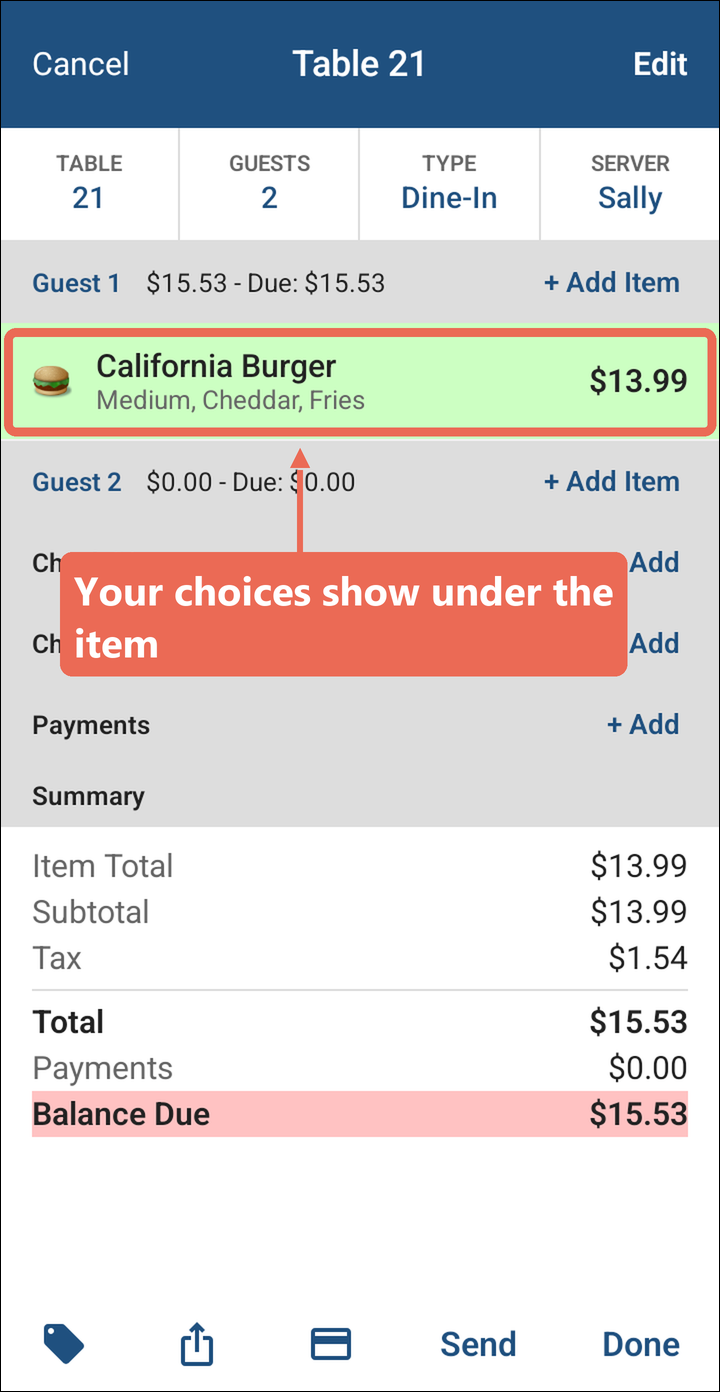
The item goes on the order with your choices under its name.
Note: Changed your mind? Tap Back at the top left to go to the question before. What you picked stays picked.
Click here to learn more about changing an item after it's on the order.
Items running low or 86'd
-
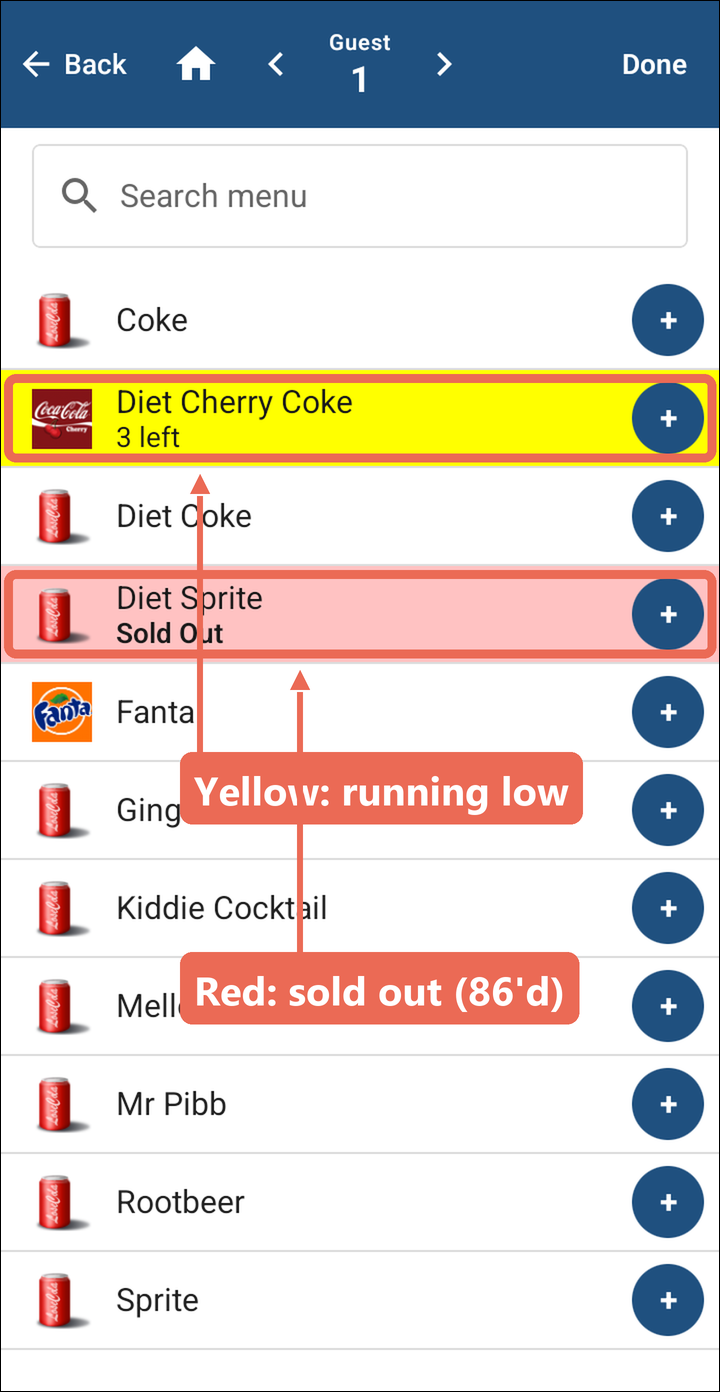
When an item is running low or sold out, the menu shows it in color:
- Yellow: running low. It shows how many are left (here, 3 left).
- Red: sold out (86'd). It says Sold Out.
-
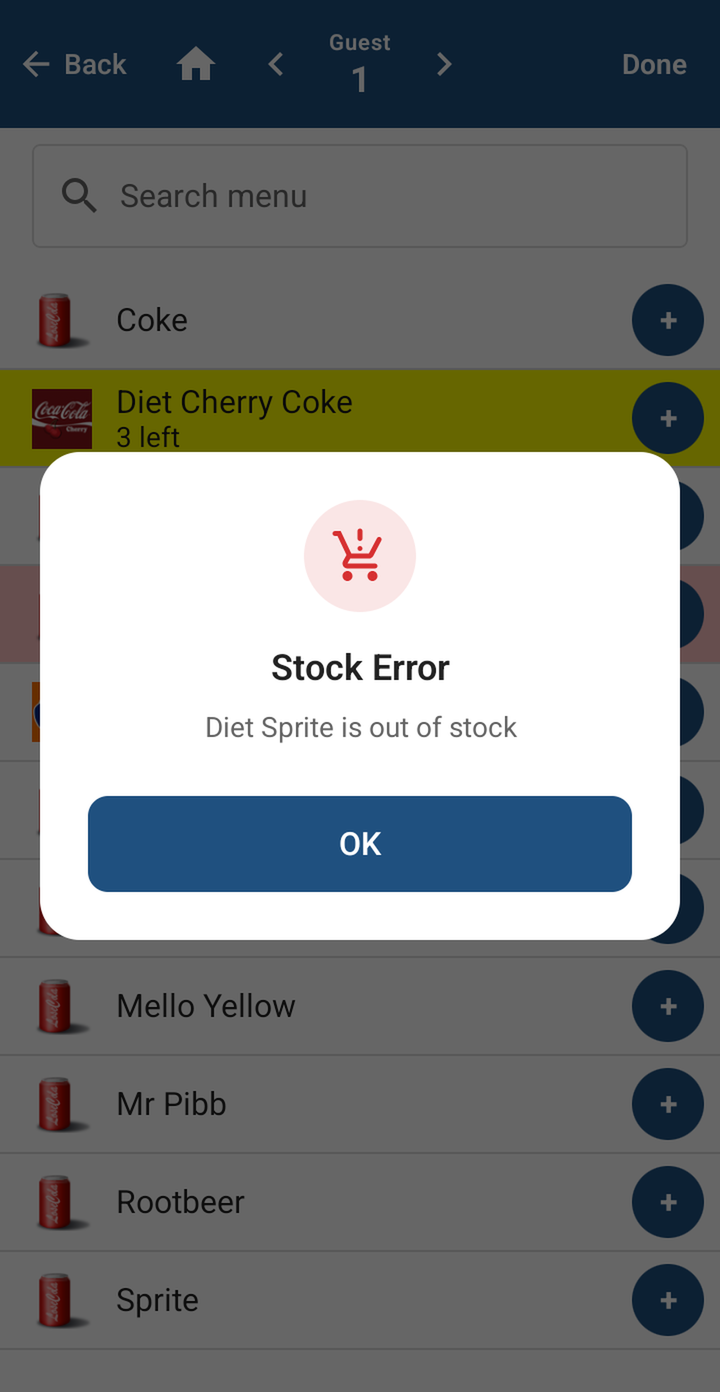
A sold out item can't be rung in. Tapping it shows Stock Error - tap OK and pick something else.
Click here to learn more about the 86 list.
Sent and not sent items
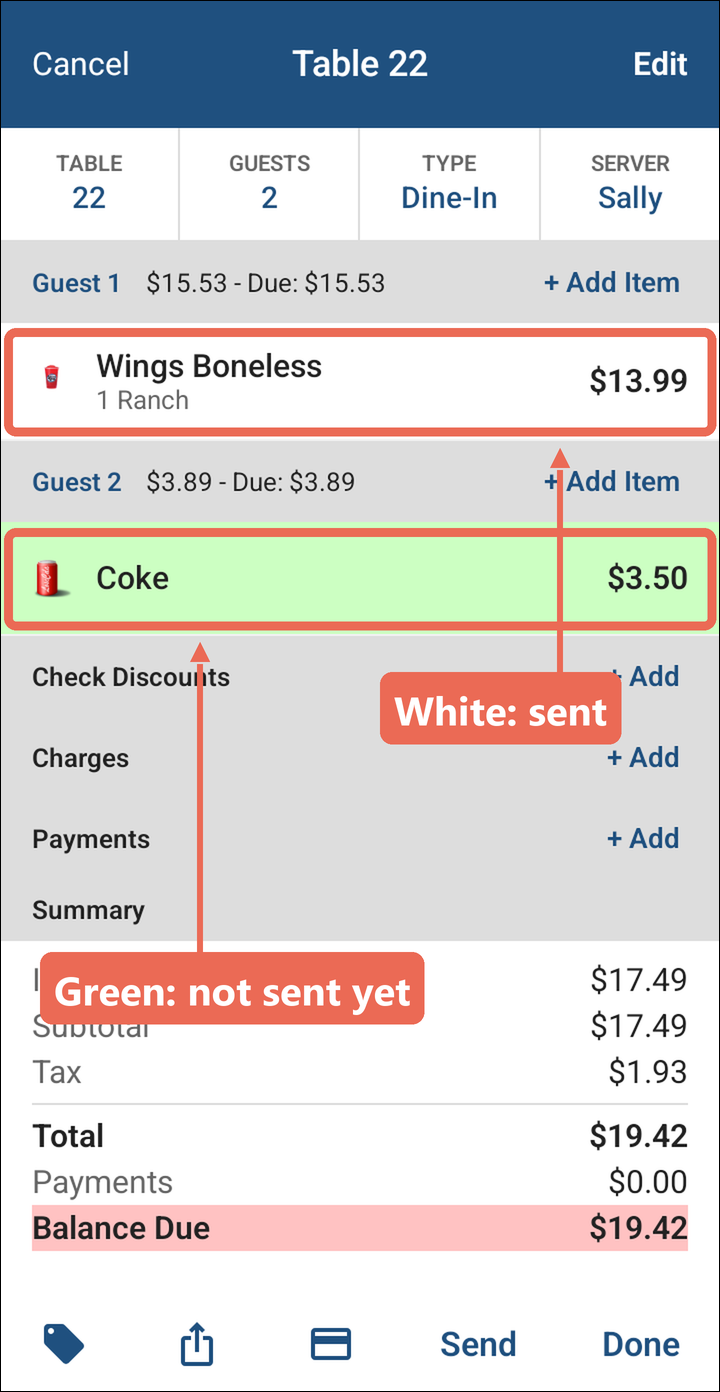
On the order, items you've just rung in are green until they're sent. Items that have already been sent are white.
Deleting an item before it's sent
Swipe the green item to the left and tap Delete. It comes off the order right away.
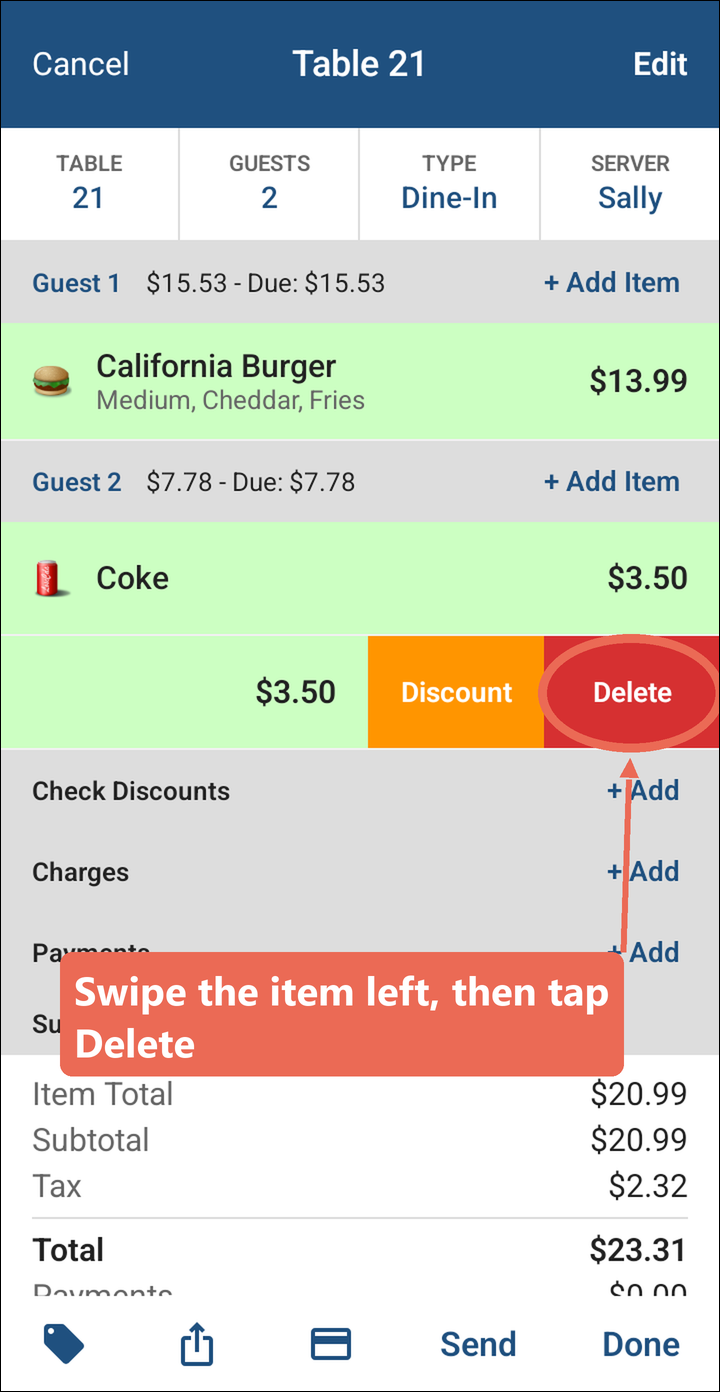
Note: Once an item is sent, it can't be deleted - it has to be voided, which needs a job role that's allowed to void.
Click here to learn more about deleting and voiding items.
Sending the order
When you're done ringing in, tap Send or Done at the bottom:
- Send: sends the order and stays on it.
- Done: sends the order and goes back to your Orders list.
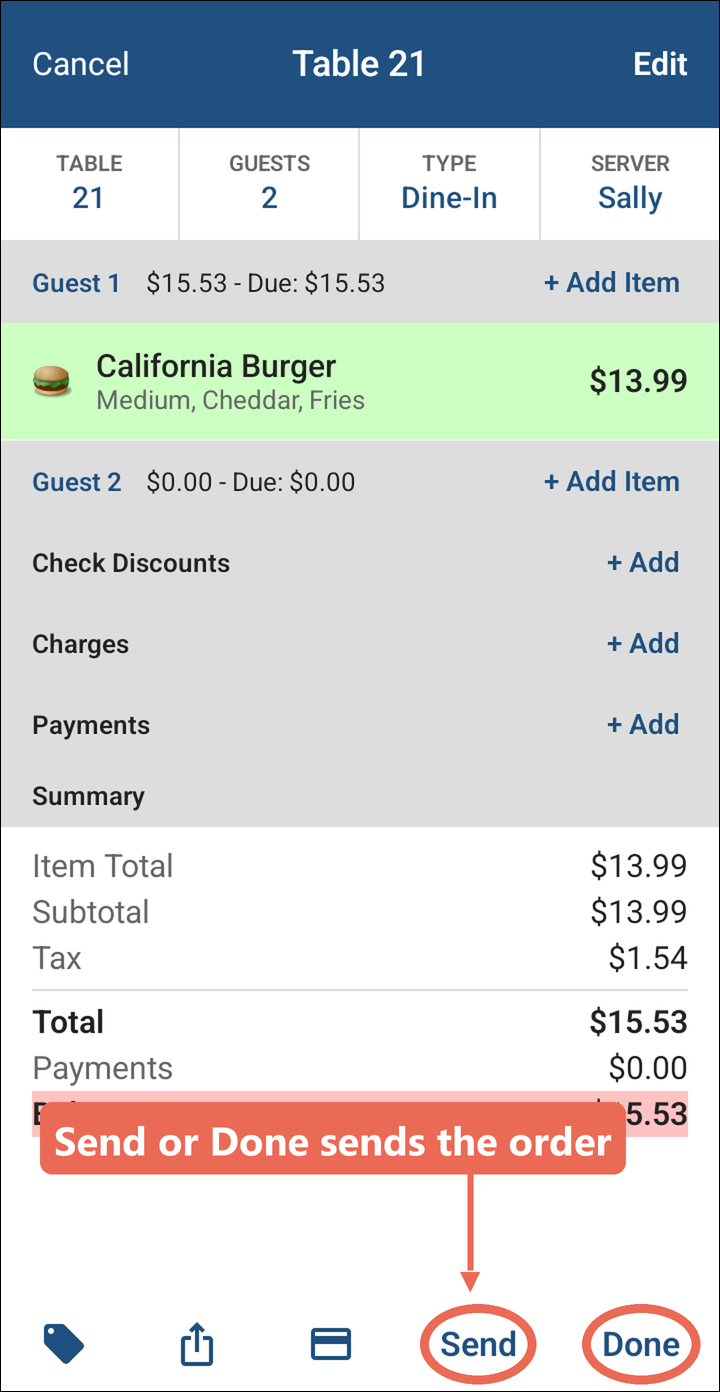
Cancel at the top left leaves without sending. It asks first - tap Yes only if you want to throw away what you just rang in.