
How to start and pay out a tab on a handheld
BeingThis written.will walk through tabs on a handheld: starting a tab with the guest's card, adding to it each time they order, and paying it out when they're done - all of it, split evenly, or a custom amount.
A tab keeps the guest's card on the order. Nothing is charged until you pay the tab out, so the guest can keep ordering on the same order.
Please click the link to see how to start and pay out a tab on the terminals.
Starting a tab
-
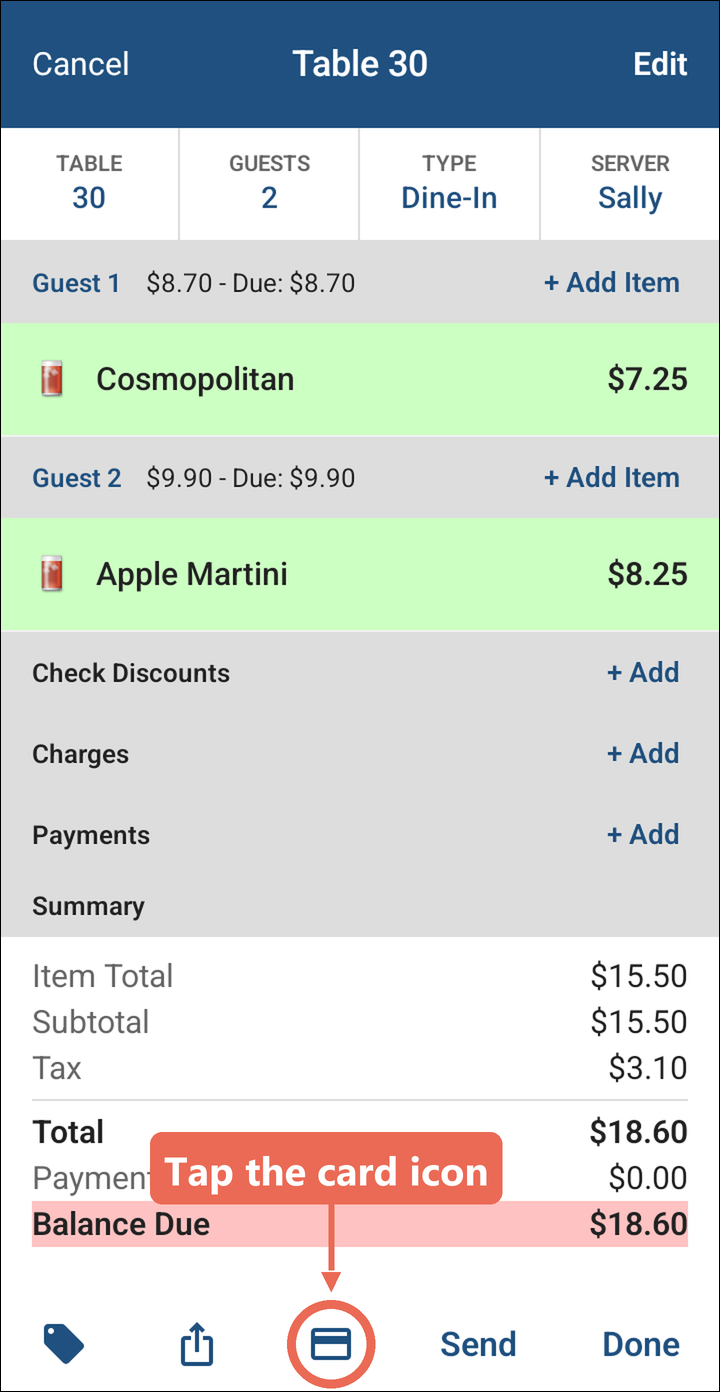
Open the guest's order, or start a new one, and ring in their first drinks. Then tap the card icon at the bottom of the screen.
-
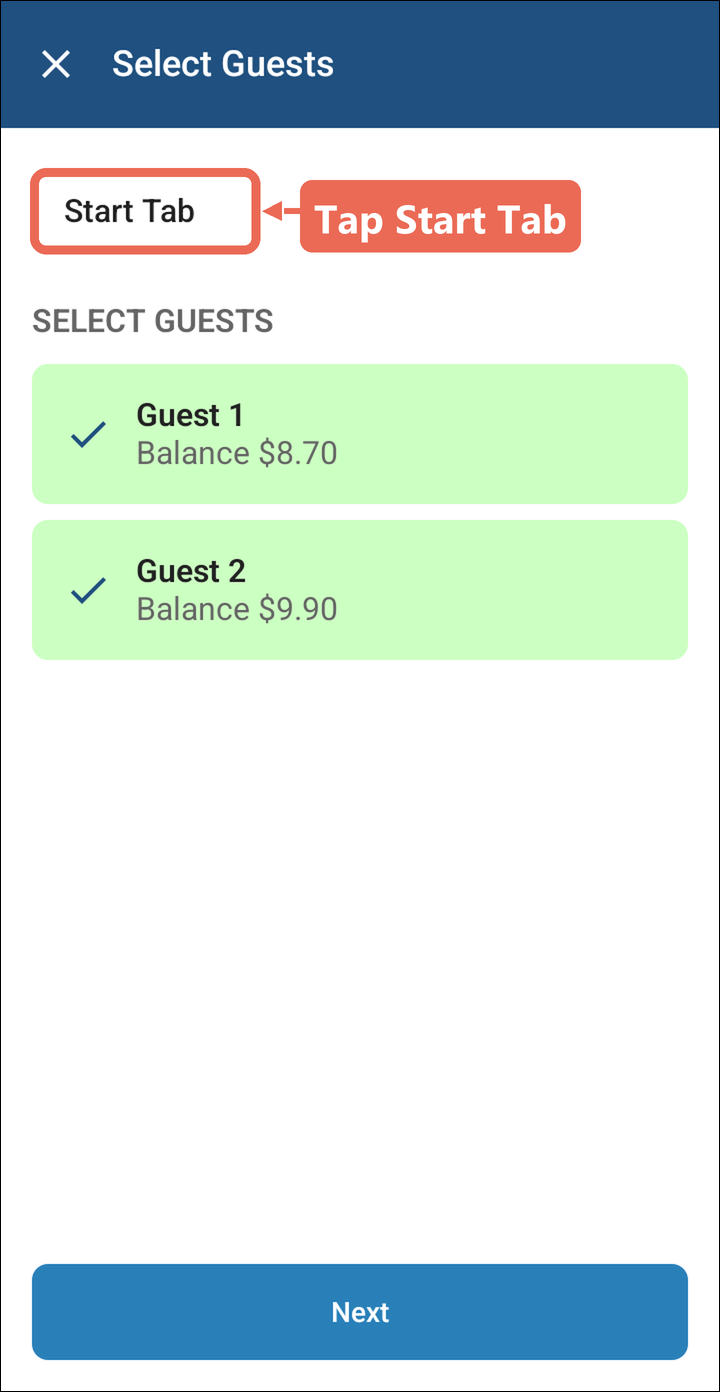
Tap Start Tab at the top of the Select Guests screen.
-
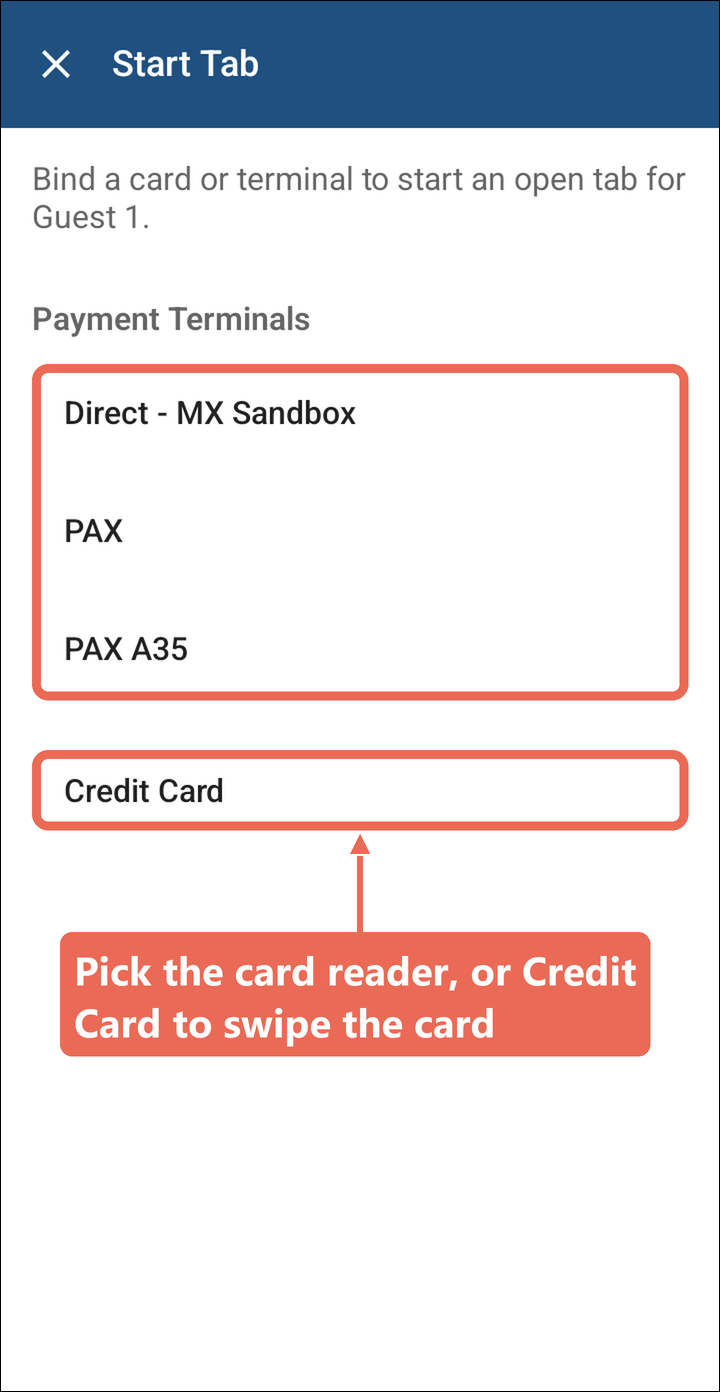
Tap the card reader the guest will use, or Credit Card, and the guest swipes, inserts or taps their card. A handheld with a card reader built in skips this screen and goes straight to the card.
-
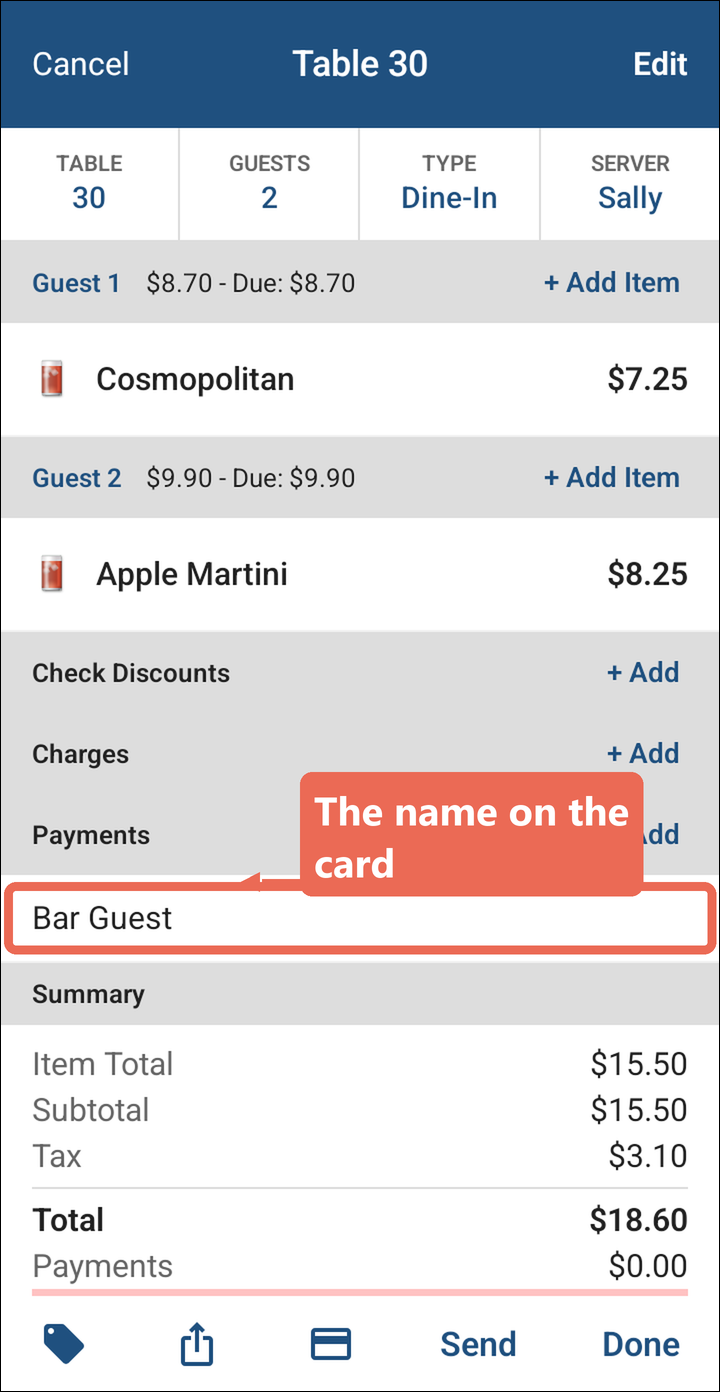
The tab is open. The name on the card shows under Payments on the order. Tap Send or Done.
Adding to the tab
Each time the guest orders again, add it to the same order.
-
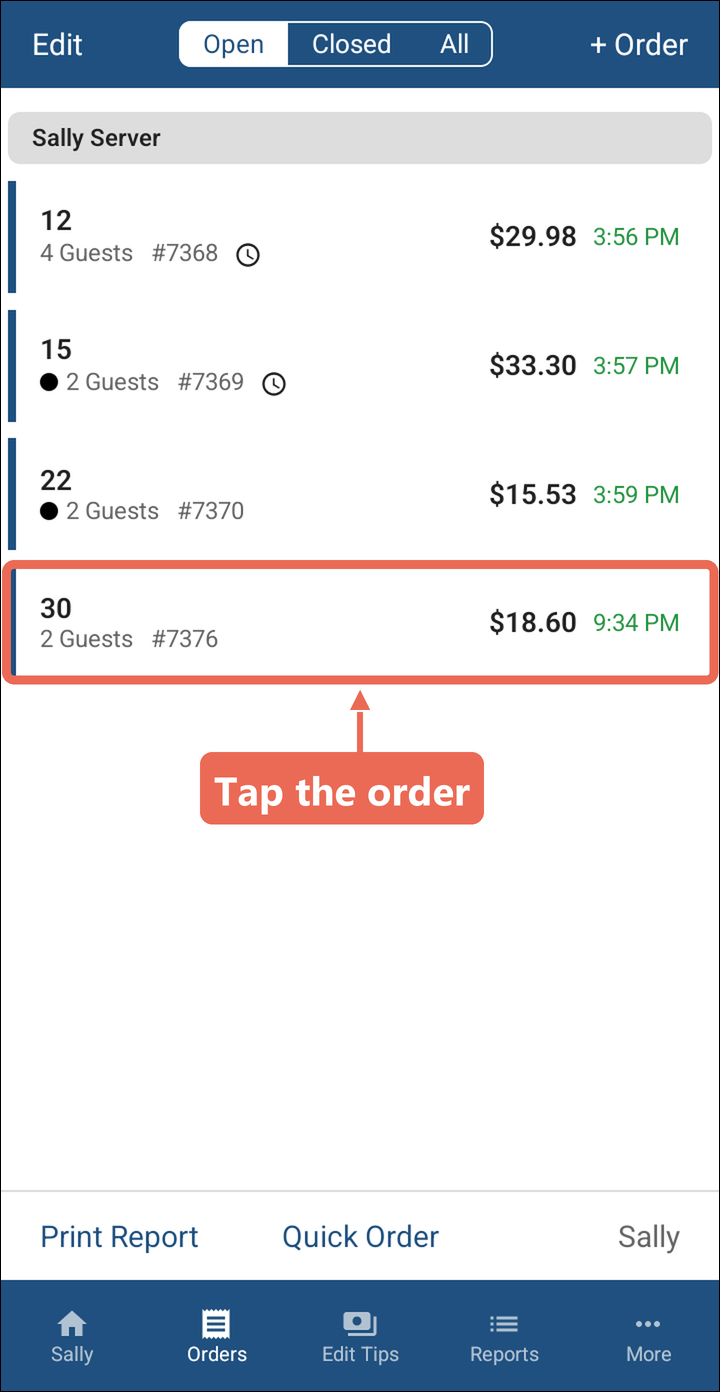
Tap Orders at the bottom of the screen and tap the guest's order.
-
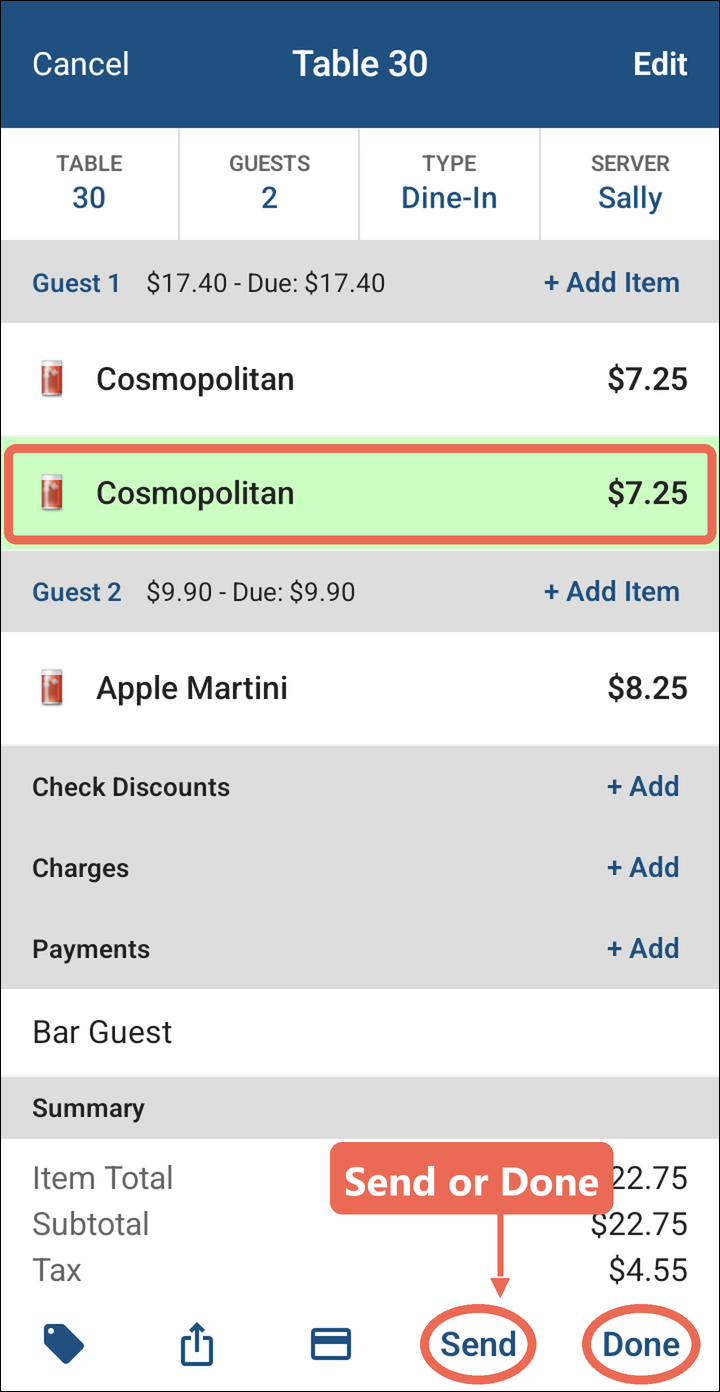
Tap + Add Item next to the guest, ring in what they ordered and tap Send or Done. The tab stays on the order, so you can do this as many times as you need.
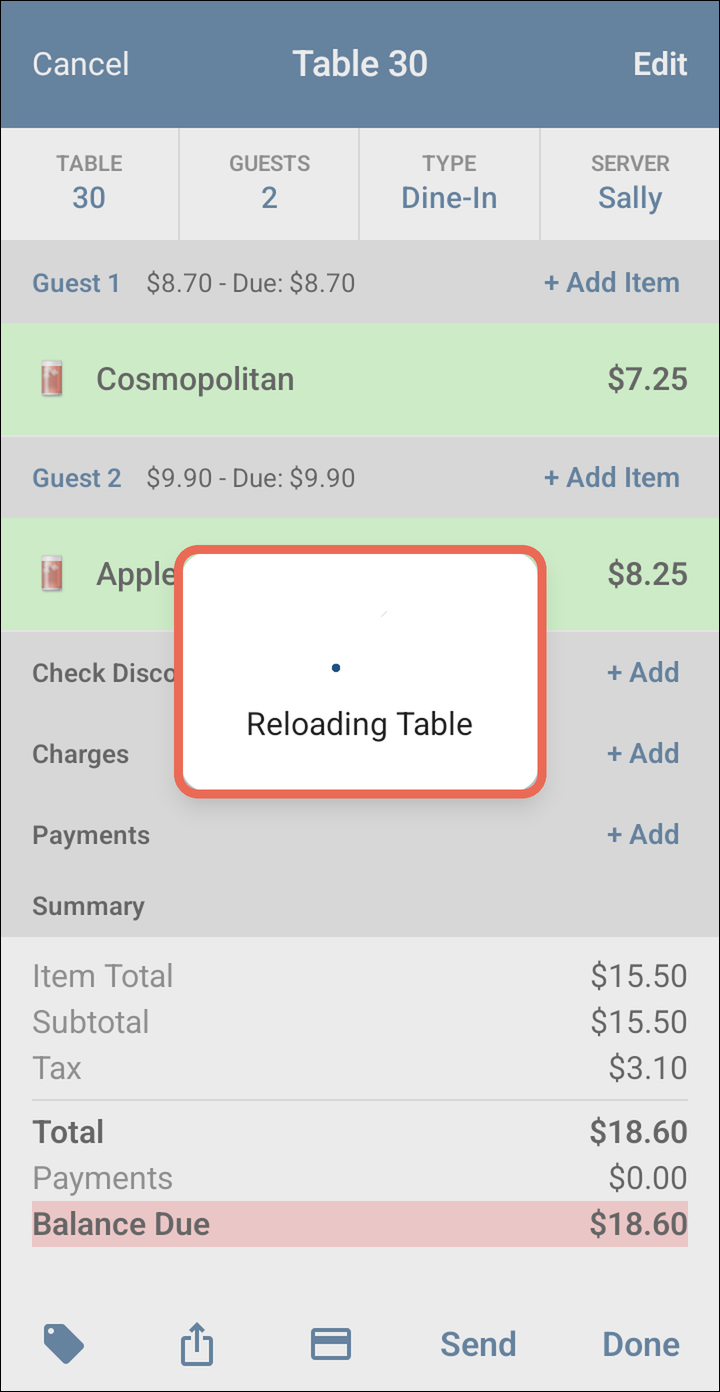
Send before you pay
Items you haven't sent yet show in green. You don't have to send them yourself before paying: when you tap the card icon, the handheld sends the order first (Sending Order, then Reloading Table) and then opens the payment. If the order can't be sent, the payment doesn't open: the handheld says so and offers Try Again.
Paying out the full amount
-
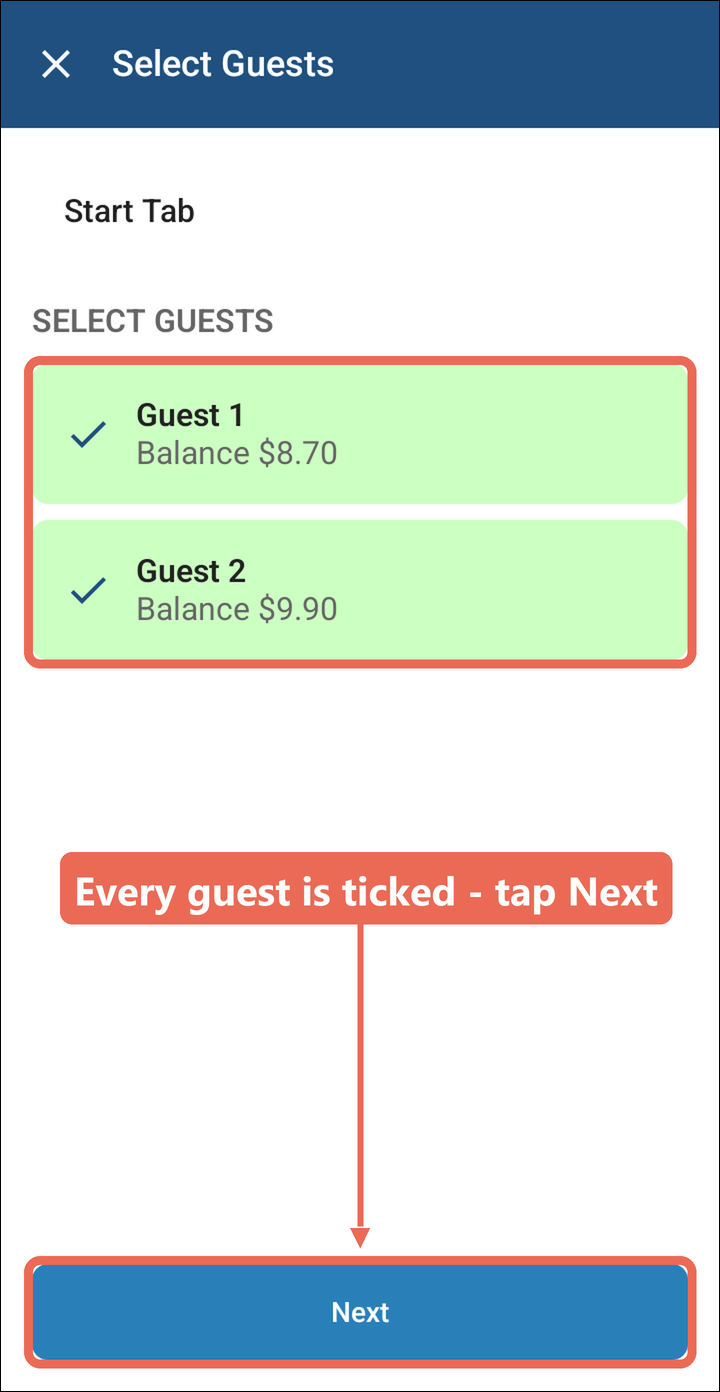
Open the order and tap the card icon. Every guest is ticked - tap Next.
-
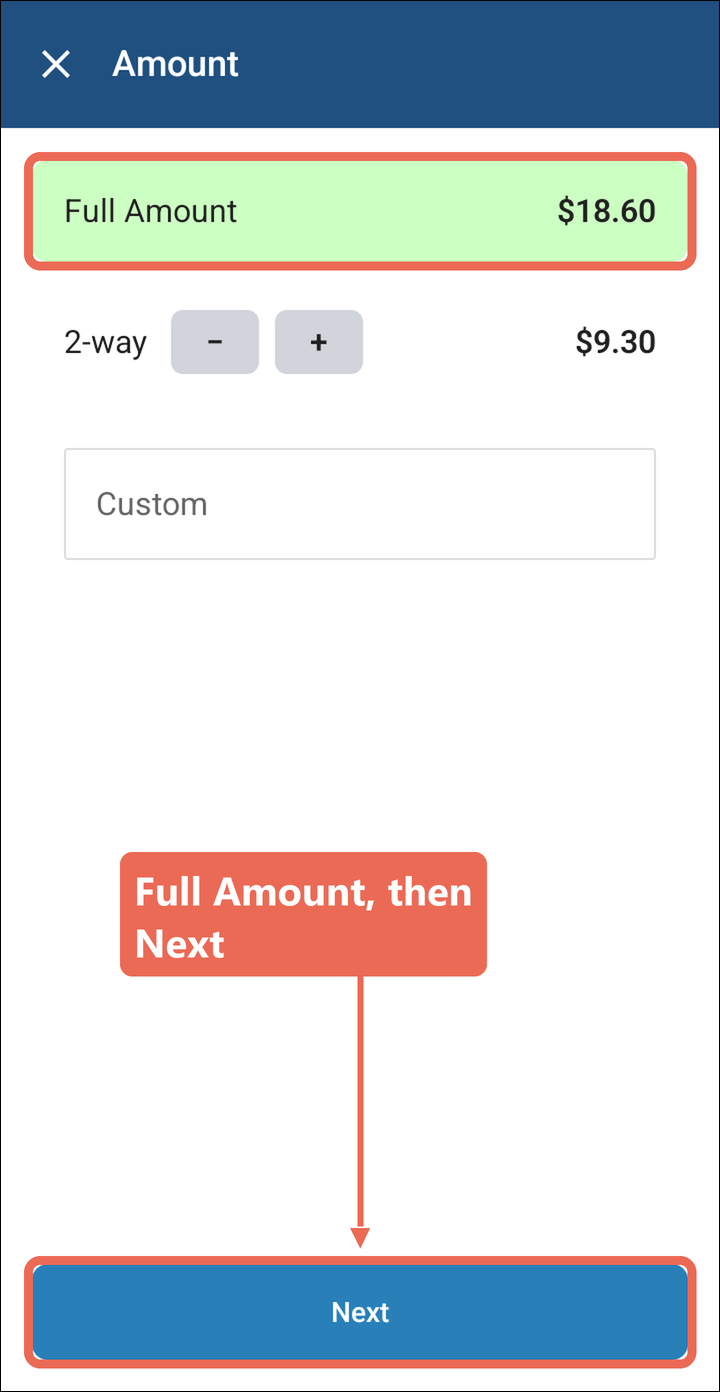
Full Amount is already picked. Tap Next.
-
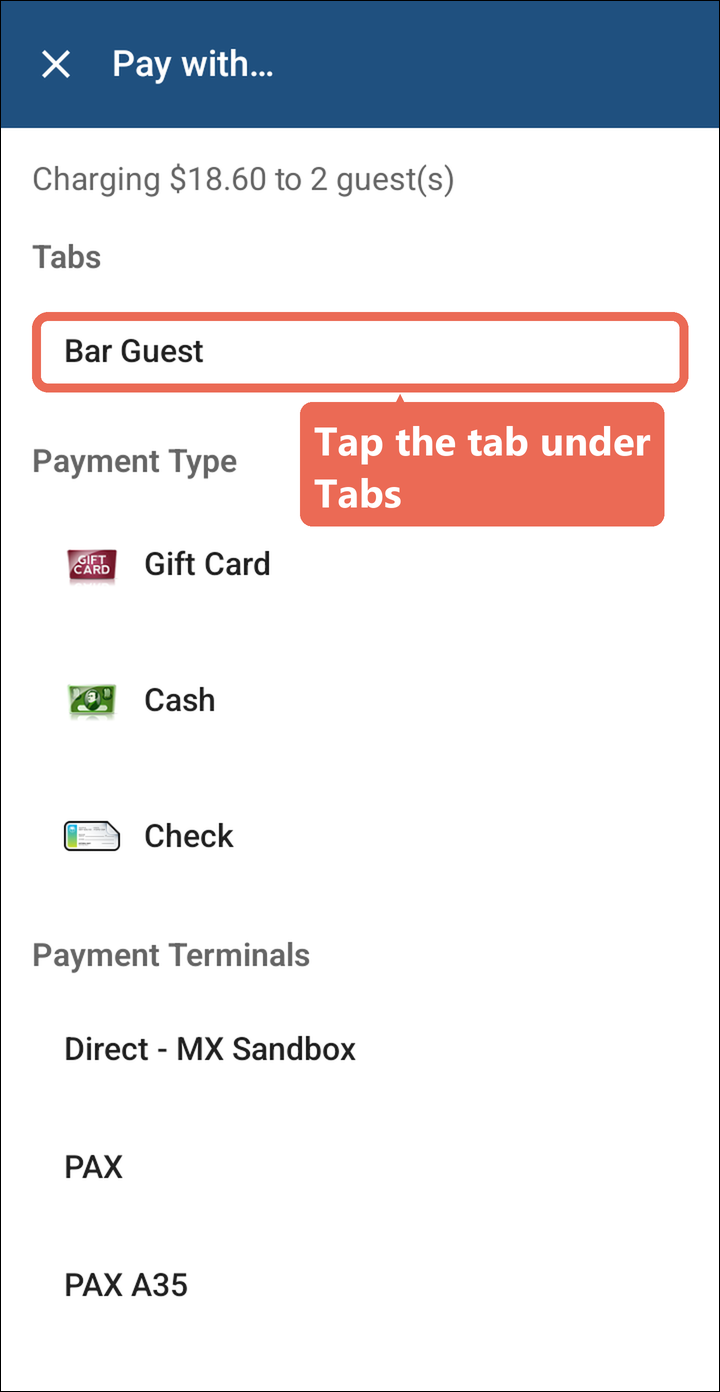
Under Tabs, tap the name on the guest's card.
-
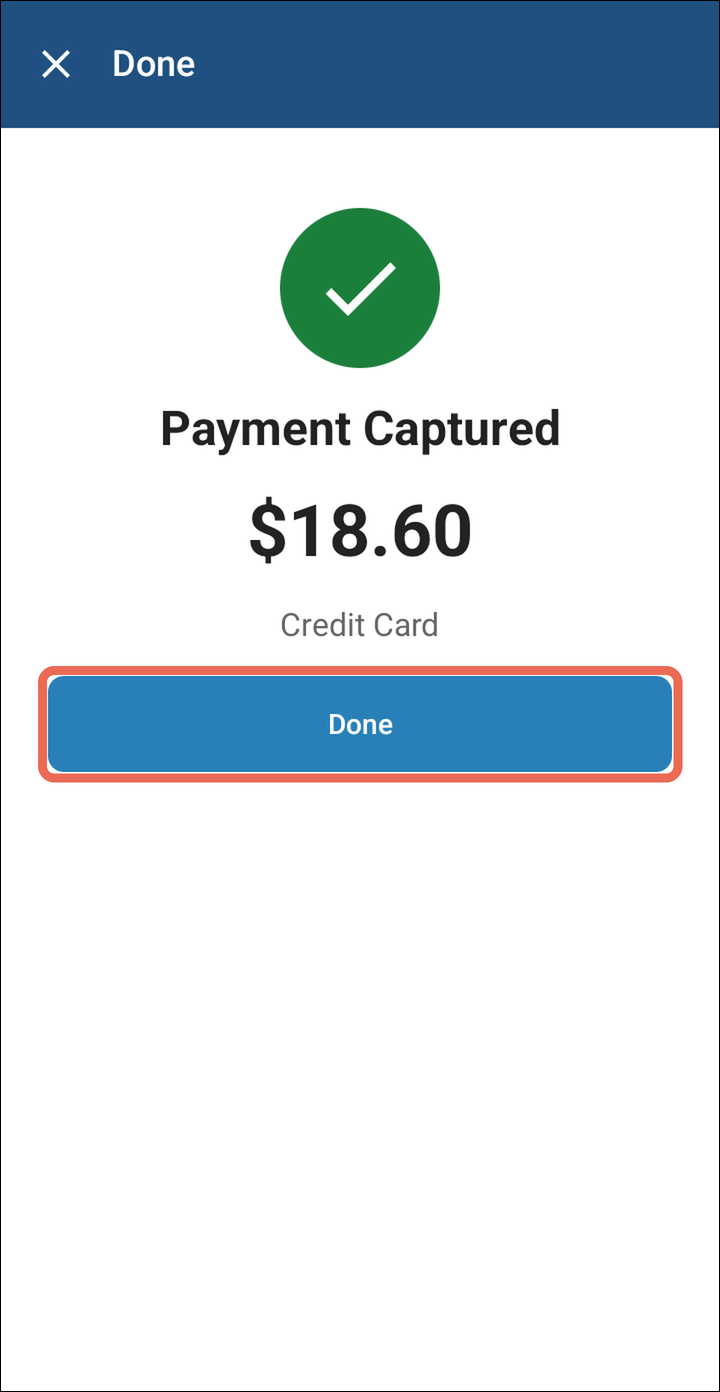
The card is charged. Tap Done - the order is paid and closes.
Note: Add the guest's tip later on the Edit Tips screen.
Click here to learn more about entering tips on a handheld.
Splitting the check evenly
When the guests want to split the check, the tab pays one share and the other shares are paid separately.
-
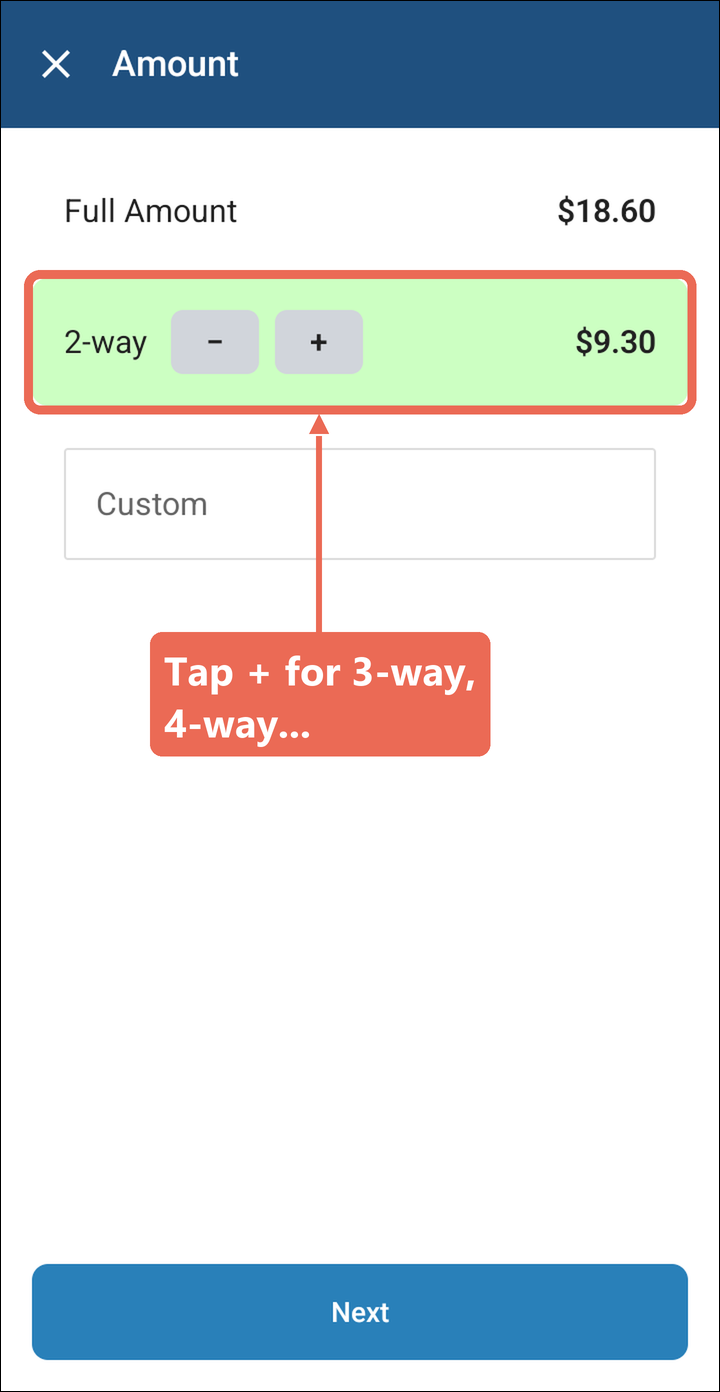
Open the order, tap the card icon and tap Next. Tap 2-way to split the check in two. Tap + for 3-way, 4-way and so on - each share shows on the right. Tap Next.
-
Under Tabs, tap the name on the guest's card. The card is charged for one share. Tap Done.
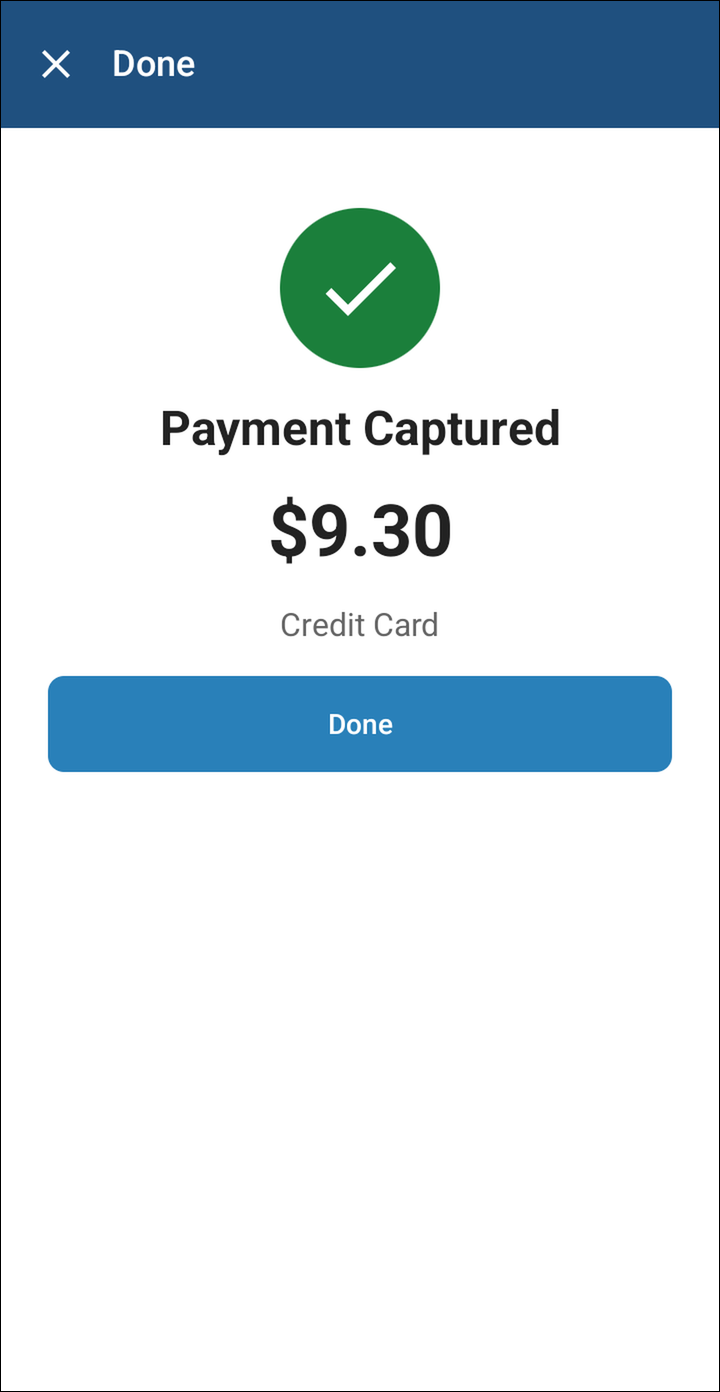
-
For the next share, tap the card icon again and tap Next. What's left shows as Full Amount - with a 2-way split that's the other share; with more shares, type the share in Custom. Tap Next. Tap the way this guest is paying - Cash, or their own card on the card reader. Do the same for each share until the order closes.
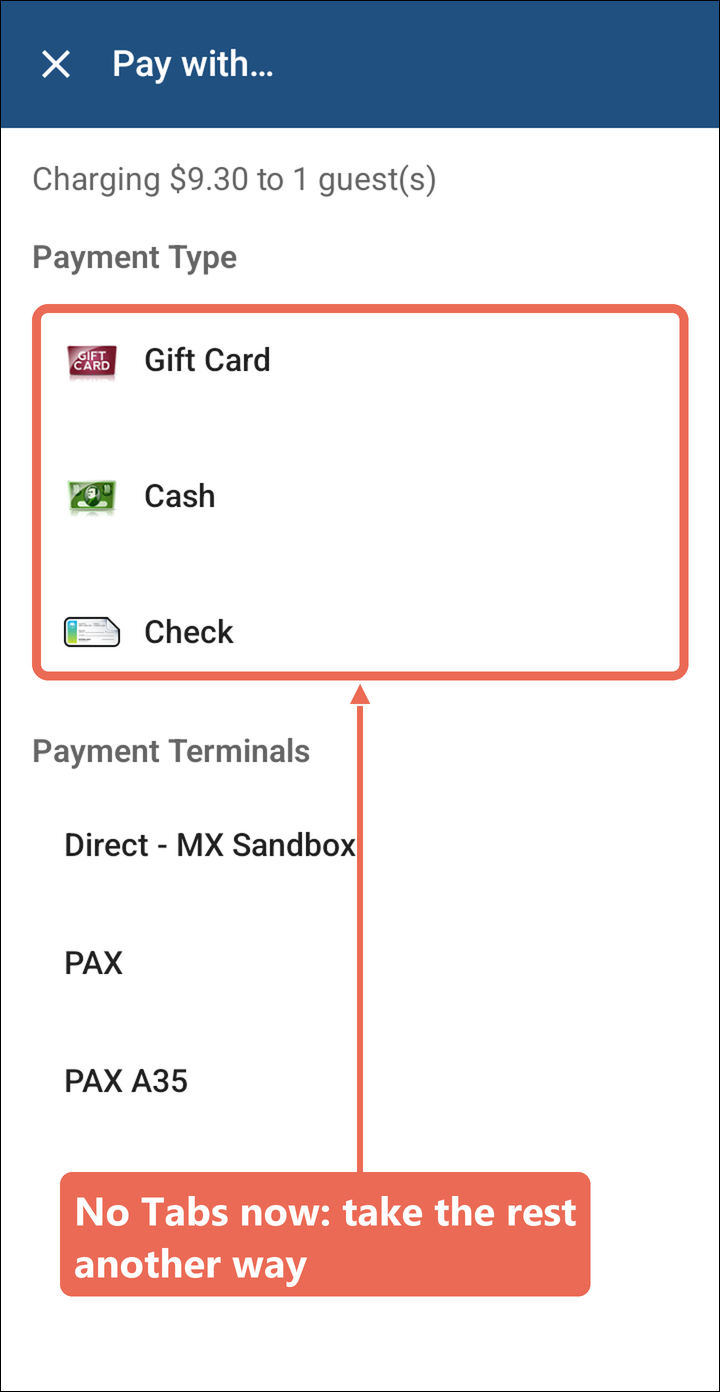
The tab's card is charged once. After it pays a share or a custom amount, it no longer shows under Tabs - the rest of the check is paid another way.
Paying a custom amount
When the guest wants to put only part of the check on their card, pay a custom amount.
-
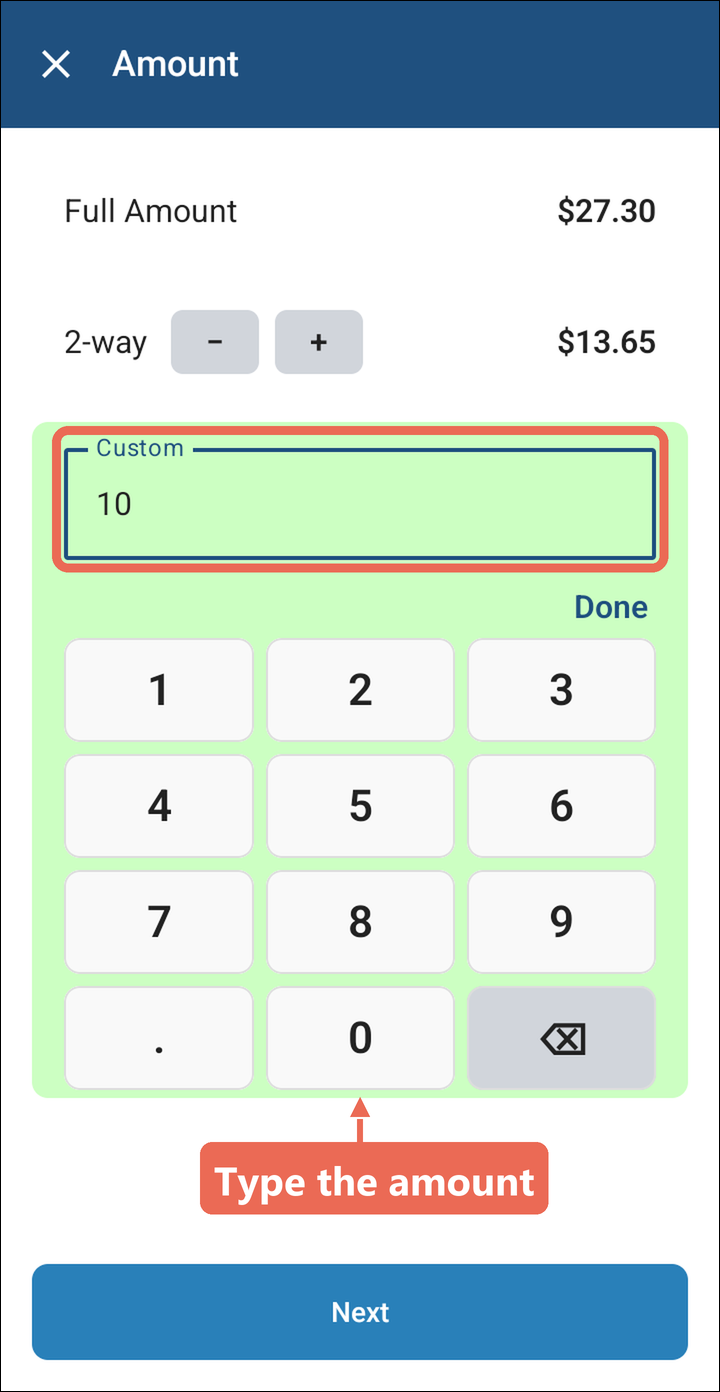
Open the order, tap the card icon and tap Next. Tap Custom, type the amount and tap Next.
-
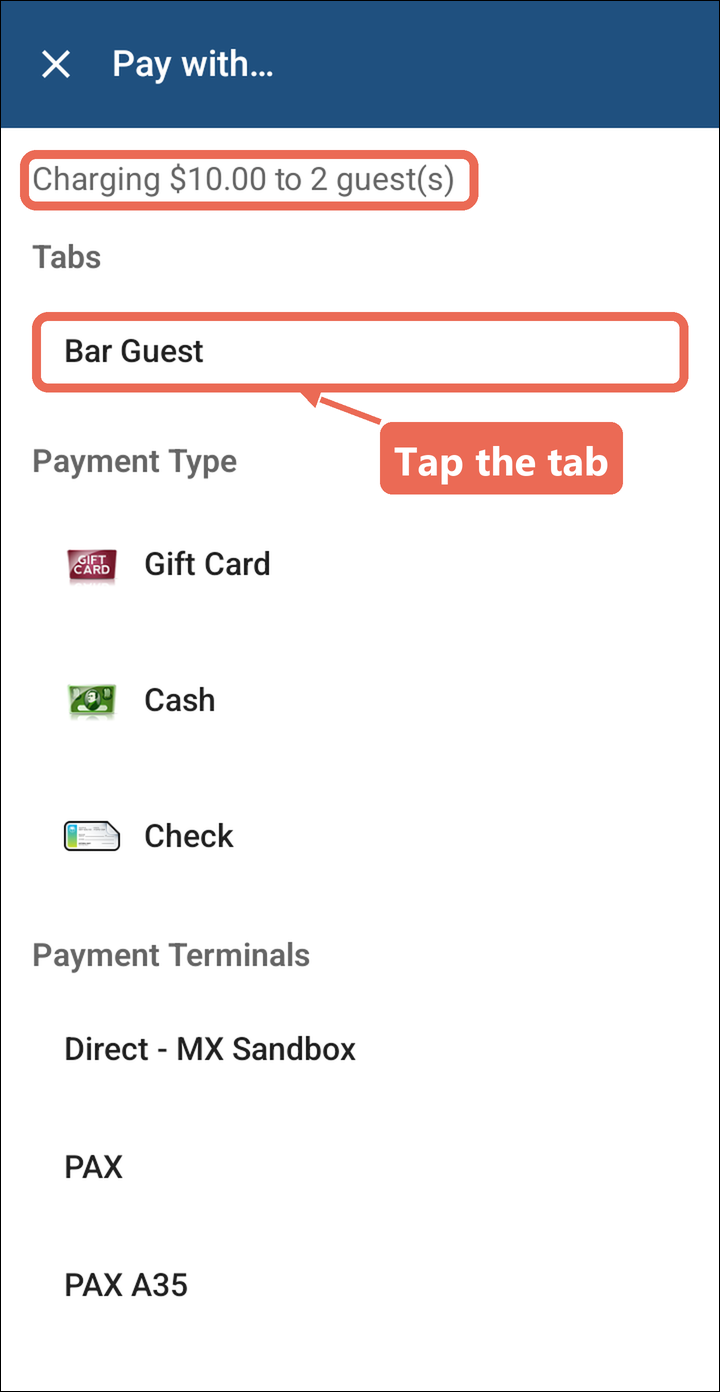
The amount shows at the top. Under Tabs, tap the name on the guest's card, then tap Done.
-
The rest of the check is still due. Pay it another way, as in the next section.
Paying with cash and giving change
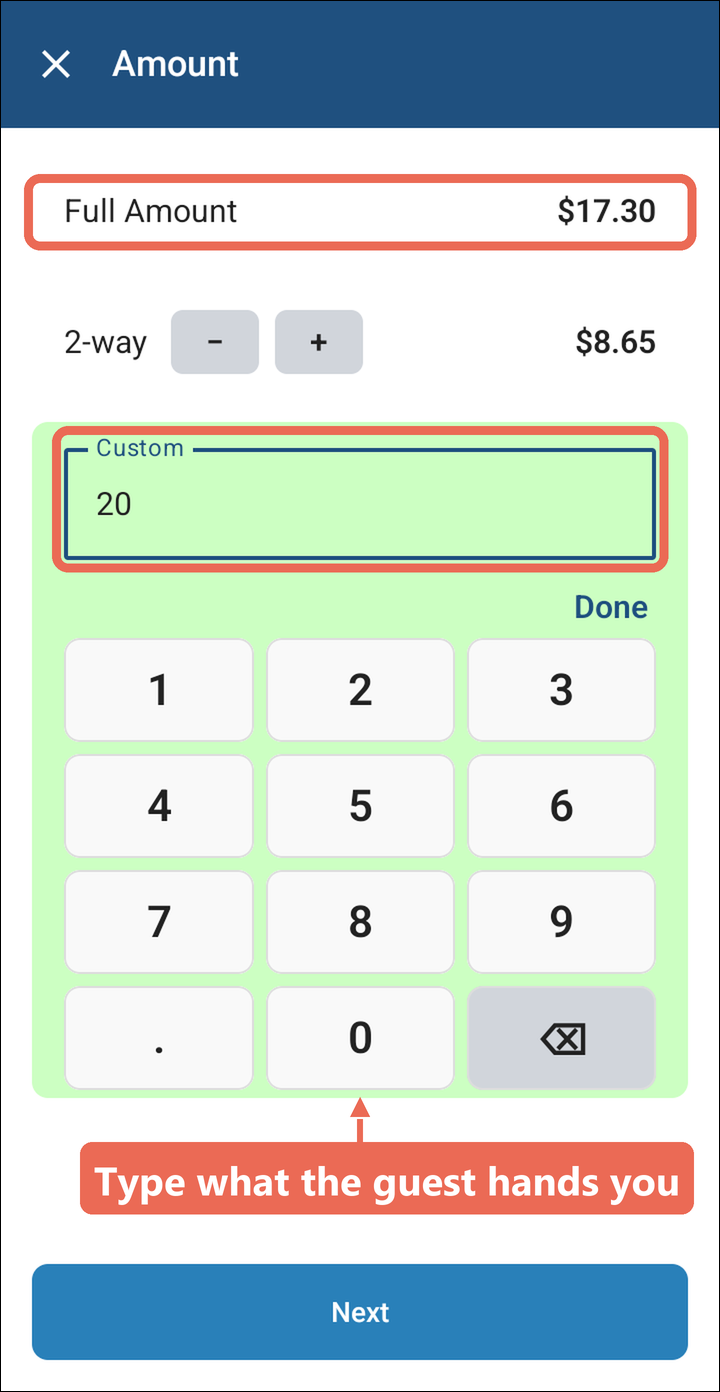
When the guest hands you more cash than is due, enter what they hand you and the handheld shows the change.
-
Open the order, tap the card icon and tap Next. Tap Custom, type the amount of cash the guest handed you and tap Next.
-
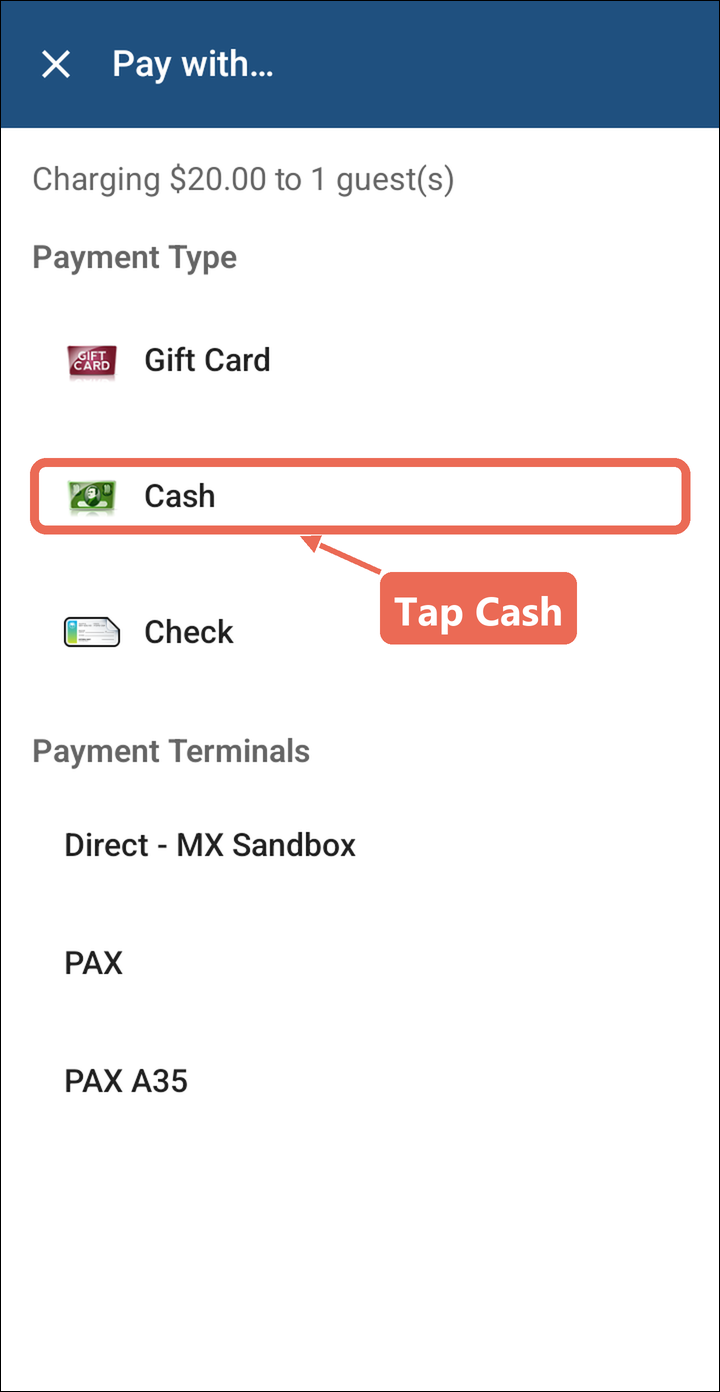
Tap Cash.
-
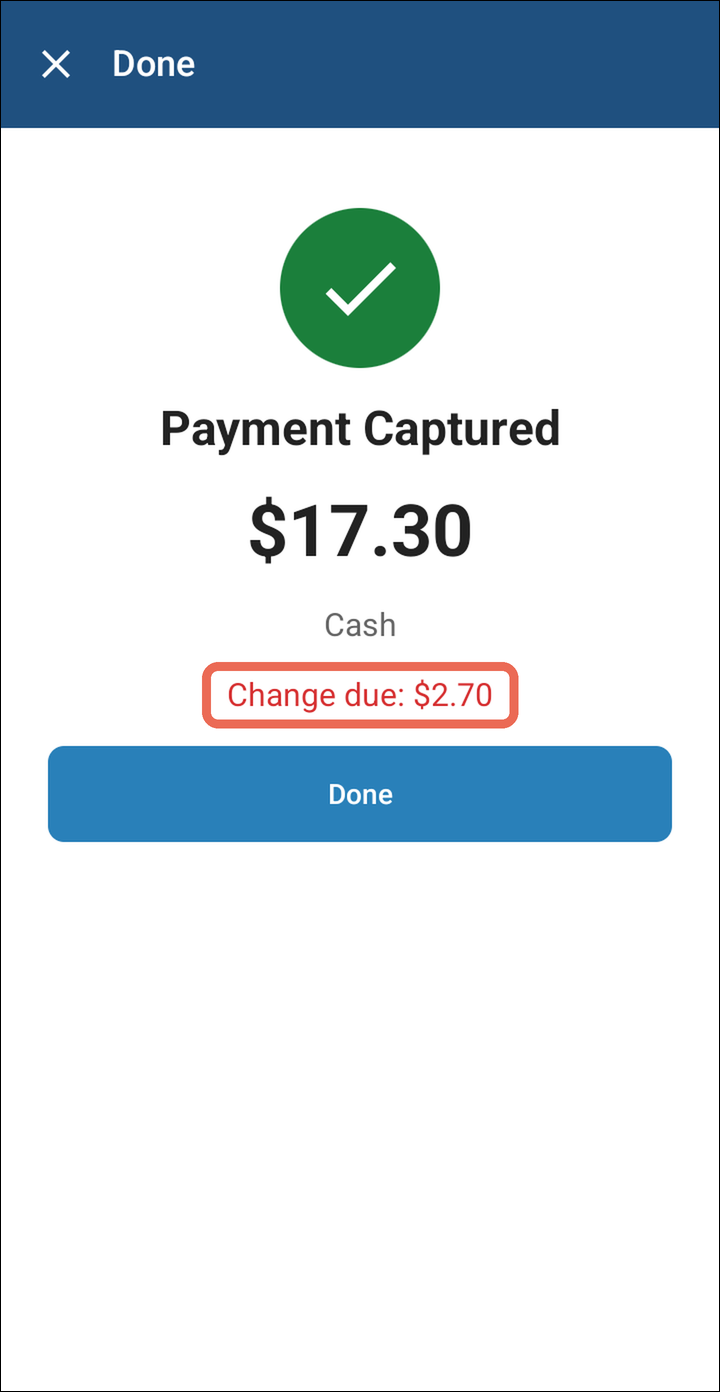
The handheld takes what was due and shows the Change due in red. Give the guest their change and tap Done.
When the guest pays another way
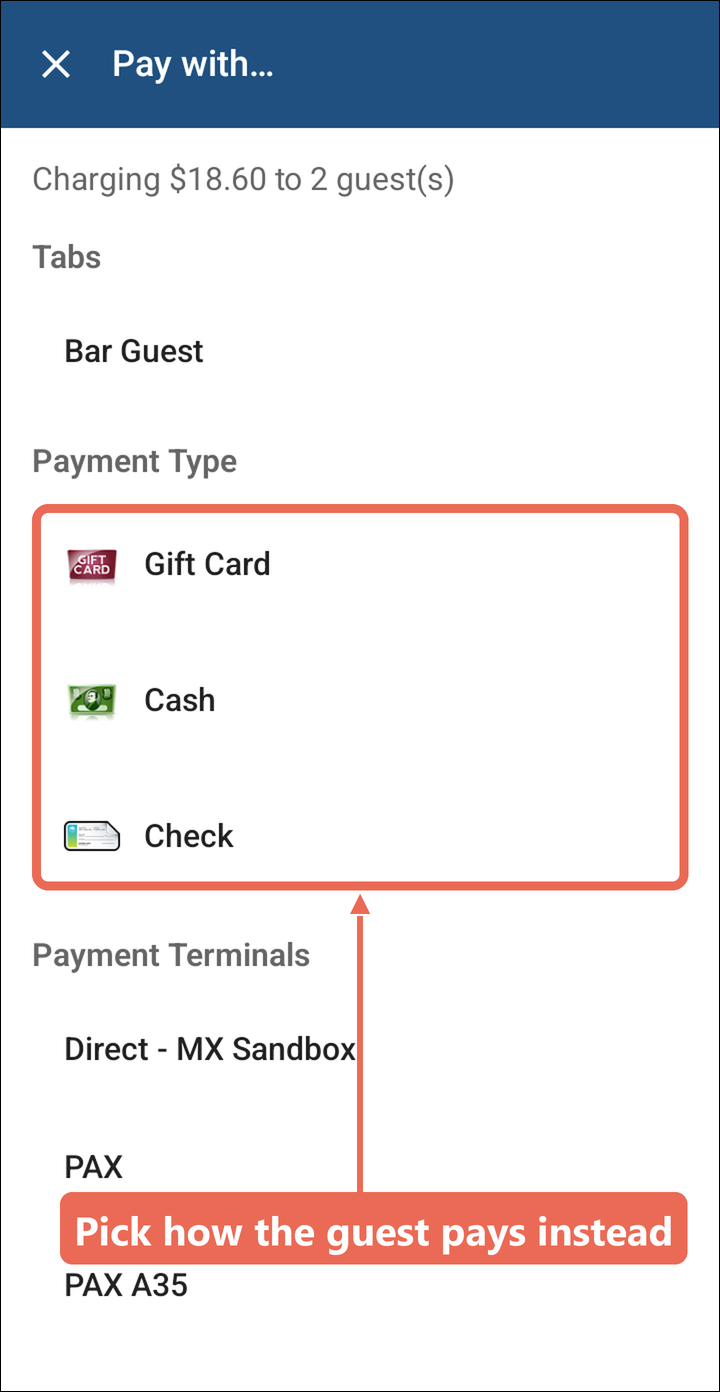
If the guest wants to pay with cash or a different card instead of the tab, take that payment as usual.
-
Open the order, tap the card icon, tap Next, pick the amount and tap Next.
-
Tap the way the guest is paying under Payment Type or Payment Terminals instead of the tab. The order closes and the tab's card isn't charged.
Click here to learn more about closing a table/order from a handheld.