
The Handheld Modify screen
BeingThe written.Modify screen is where you change one item on an order: tell the kitchen when to make it, put it in a course, add a note, see which changes cost extra, and split it between guests. This will walk through each part of it.
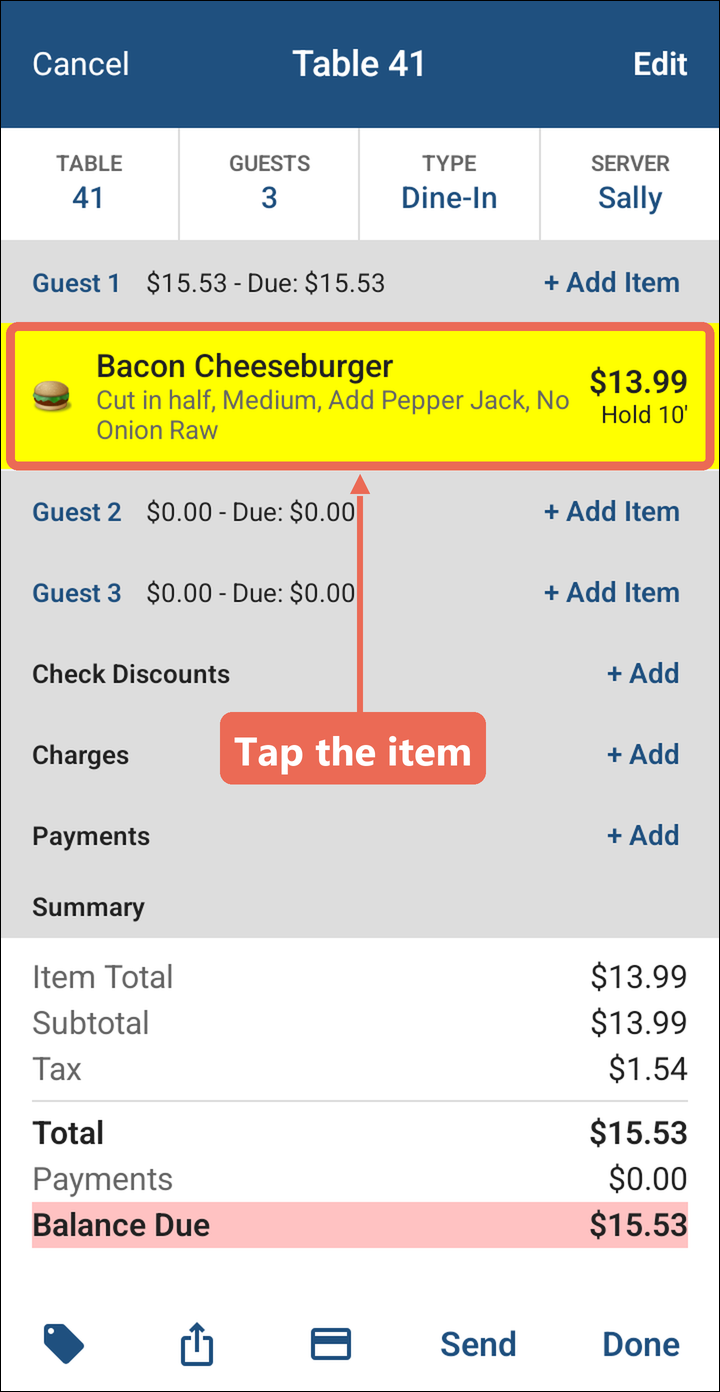
To get there, open the order and tap the item. The screen opens with the item's name at the top.
Screen layout
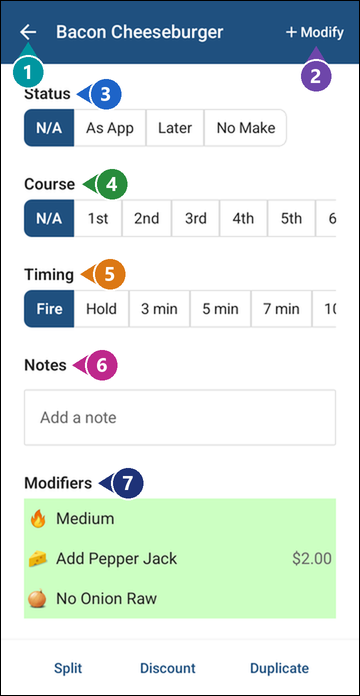
1. Back arrow - Goes back to the order.
2. + Modify - Adds or changes the item's modifiers.
3. Status - Tells the kitchen when to bring the item out, or not to make it.
4. Course - Puts the item in a course.
5. Timing - Sends the item to the kitchen now, or holds it.
6. Notes - A note for the kitchen about this item.
7. Modifiers - The changes to the item, with the price of the ones that cost extra.
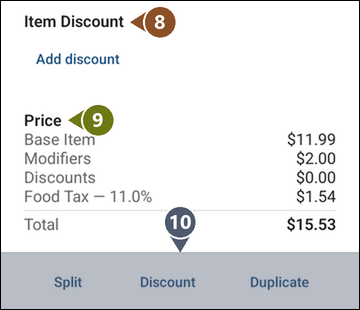
8. Item Discount - The discount on this item. Tap Add discount to give one.
9. Price - How the item's price adds up.
10. Buttons - Split, Discount, Duplicate, and Comp and Void if your job role allows them.
Note: Scroll down to see the bottom of the screen. The Course and Timing rows are wider than the screen: slide them left to see the rest of the choices.
Status
Tap a status to pick it. The handheld saves it and goes back to the order.
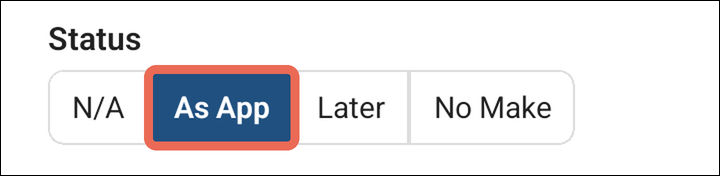
- N/A: no status. The item comes out with the rest of the order.
- As App: the item comes out before the main course, as an appetizer. It prints on its own kitchen ticket that says ***As App*** at the top.
- Later: the item comes out after the main course, like a dessert. It prints on its own kitchen ticket that says ***Later*** at the top.
- No Make: the item doesn't need to be made. Use it when the guest already has the item but it still needs to go on the bill.
Example: A guest orders a burger but wants it brought out first, with the table's drinks. Tap the burger, then As App, and the kitchen gets it on its own ticket.
Course
Courses are often used for banquets and parties, so the kitchen makes each part of the meal in order. Tap the course the item belongs to (1st to 12th), or N/A for no course. The handheld saves it and goes back to the order.
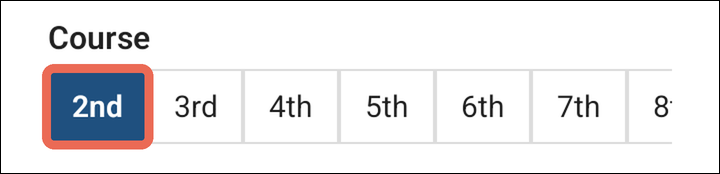
When the order is sent, the kitchen ticket shows the whole order with the course number in front of each item. When it's time for the next course, fire it with Fire Course on a terminal. Click here to learn more about courses on a terminal.
Timing
Timing decides when the item goes to the kitchen once you send the order. Tap a choice; the handheld saves it and goes back to the order.
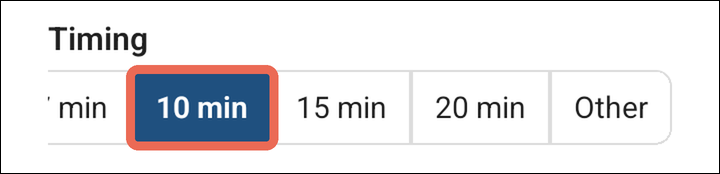
- Fire: the item goes to the kitchen as soon as you send the order. This is how every item starts.
- Hold: the item waits and doesn't go to the kitchen until someone fires it.
- 3 min to 20 min: the item waits that many minutes, counted from when it was rung in, then goes to the kitchen by itself.
- Other: the same, for any number of minutes. Type the minutes and tap OK.
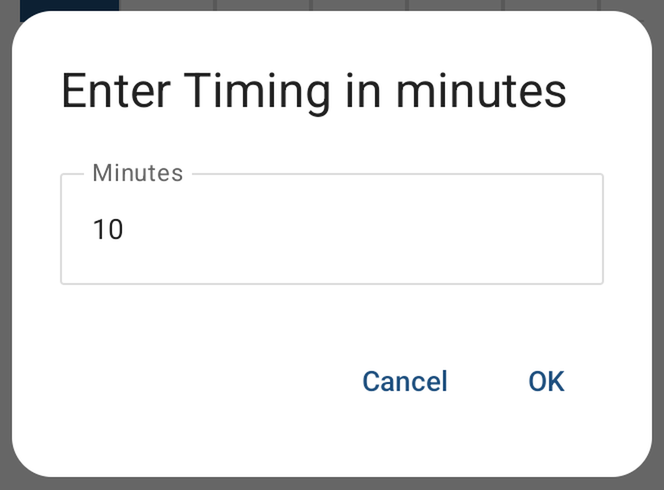
Example: A table orders salads and burgers. The salads stay on Fire and the burgers get 10 min, so the kitchen starts the burgers while the guests eat their salads.
On the order, a held item turns yellow and says Hold, or Hold 10' for one held 10 minutes.
Note: Once the item has gone to the kitchen, Timing says Printed and can't be changed. To have the kitchen make it again, use Refire on the order screen.
Notes
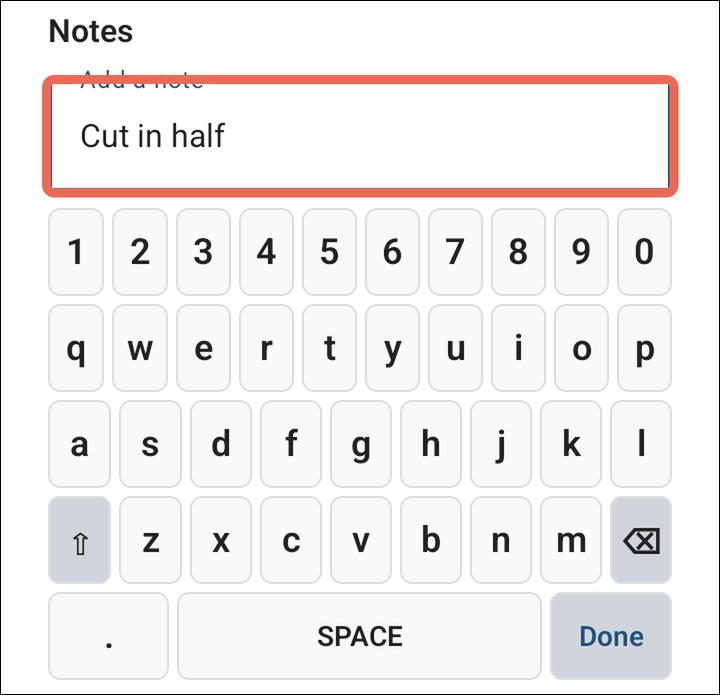
Tap the box under Notes, type the note on the keyboard and tap Done. The note prints for the kitchen with the item, and shows under the item on the order, before its modifiers.
Modifiers
The Modifiers box lists every change to the item. A modifier that costs extra shows its price on the right; one without a price is free. Changes that haven't been sent to the kitchen yet are green.
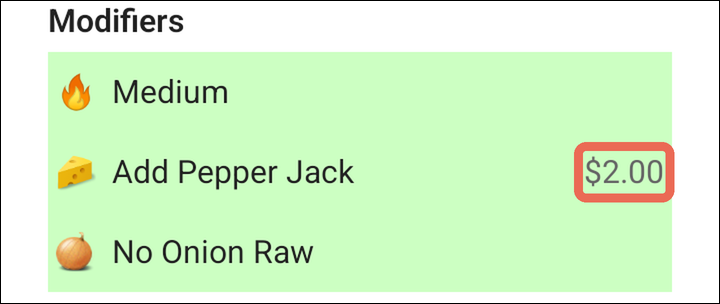
Example: On this Bacon Cheeseburger, Add Pepper Jack costs $2.00, so the burger goes from $11.99 to $13.99. Medium and No Onion Raw have no price, so they're free.
Pro tip: Whether a modifier costs extra is set up in Backoffice, for each modifier.
To add or change modifiers, tap + Modify at the top right. Click here to learn more about modifying an item on a handheld.
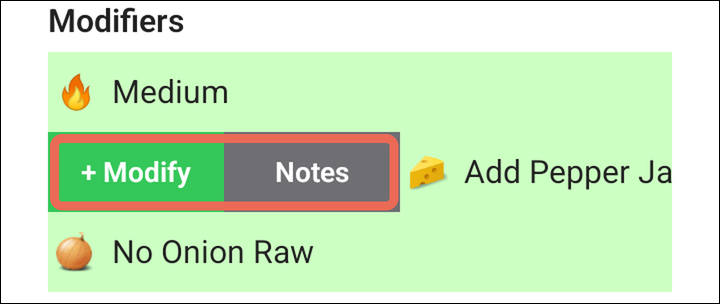
Slide a modifier to the right to see:
- + Modify: adds a modifier under that modifier.
- Notes: a note on that modifier.
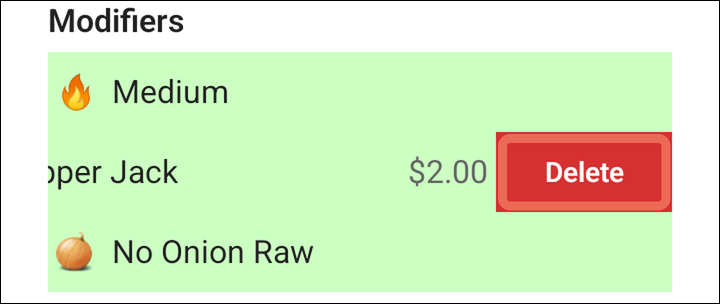
Slide a modifier to the left and tap Delete to take it off. Once it has been sent to the kitchen, the button says Void instead.
Price
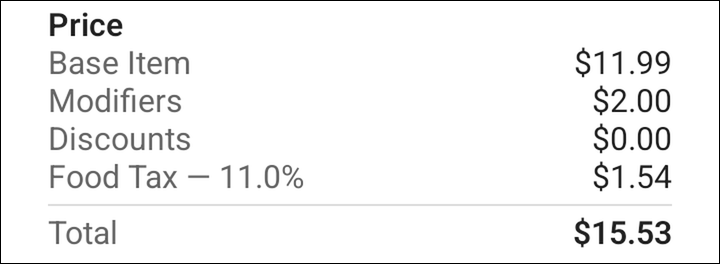
The bottom of the screen shows how the item's price adds up:
- Base Item: the item's own price.
- Modifiers: what the modifiers that cost extra add.
- Discounts: what the item discount takes off.
- Tax: the item's tax and its rate.
- Total: what the guest pays for this item.
Splitting an item between guests
Use Split when guests share an item and each pays part of it.
-
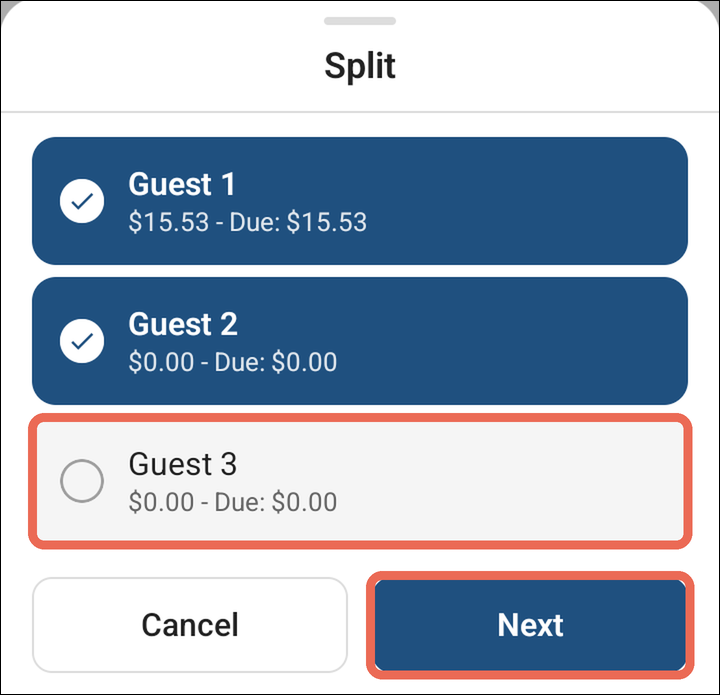
Tap Split at the bottom of the screen. The list of guests opens with every guest ticked.
-
Untick any guest who isn't sharing the item, then tap Next.
-
The item is split evenly. Each guest gets their part, marked Split 1/2, Split 2/2 and so on.
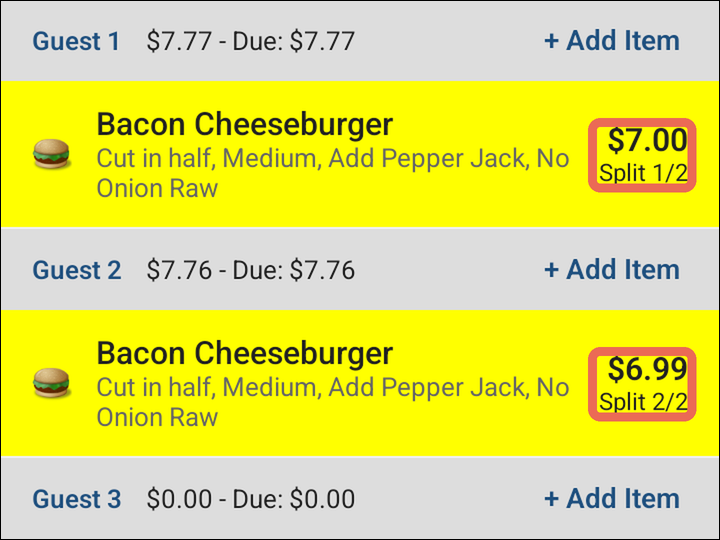
Pro tip: To move a part of the split to another guest, tap Edit on the order and drag it onto that guest.
Note: Split isn't there for an item that has a discount or has been paid.
The other buttons
Saving your changes
Status, Course and Timing are saved as soon as you tap them. For notes and the rest, tap the back arrow when you're done. Then tap Send or Done on the order so the kitchen gets your changes.
Note: Once an item has been paid, it can't be changed.