
The Handheld Welcome Screen
BeingThe written.Welcome screen is the first screen you see after you log in on a handheld. It shows who is logged in, the handheld's settings, the billboards from your managers and the items running low. This will walk through each part of it.
To come back to it from anywhere, tap your first name at the bottom left of the screen.
Screen layout
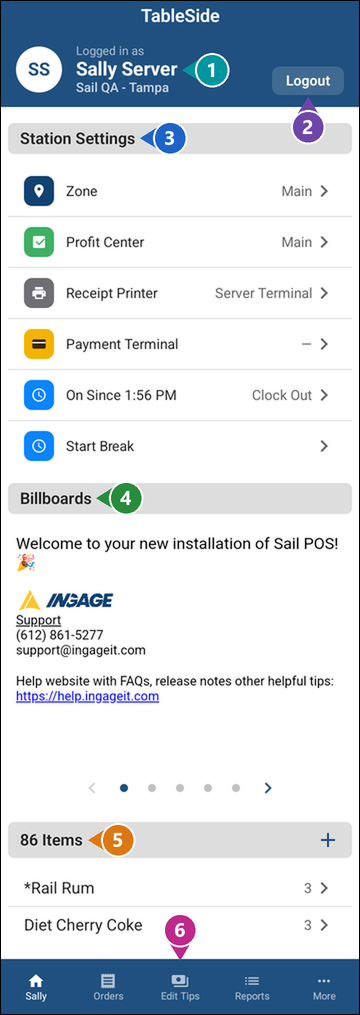
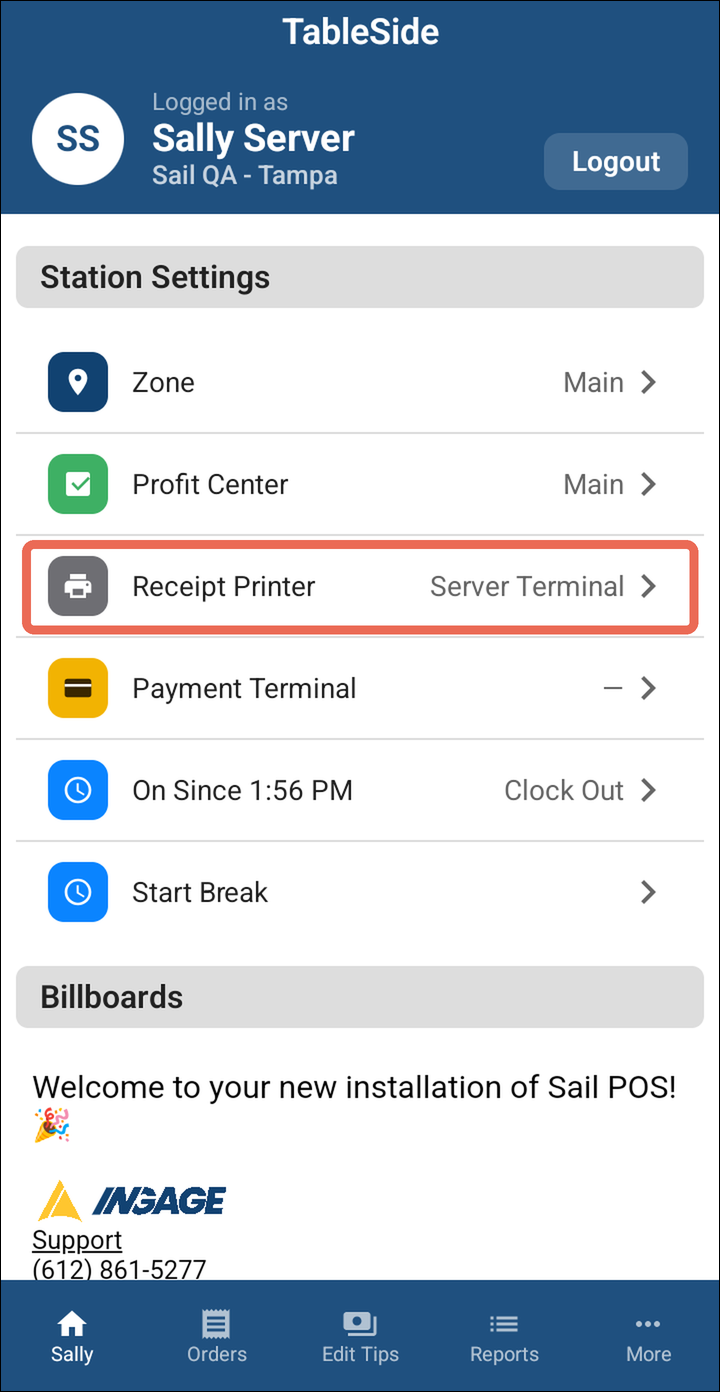
1. Logged in as - The name of the person logged in, and the location the handheld is at.
2. Logout - Logs you out so the next person can log in.
3. Station Settings - The handheld's settings: the profit center and zone it's working in, the receipt printer and payment terminal it uses, and your time clock.
4. Billboards - Messages for the staff, such as specials or what's on tap this week.
5. 86 Items - Items that are running low or sold out.
6. Bottom bar - Moves between the handheld's screens: your first name (this Welcome screen), Orders, Edit Tips, Reports and More.
Note: The screen is longer than the handheld. Scroll up to see the billboards and the 86 list.
Logging out
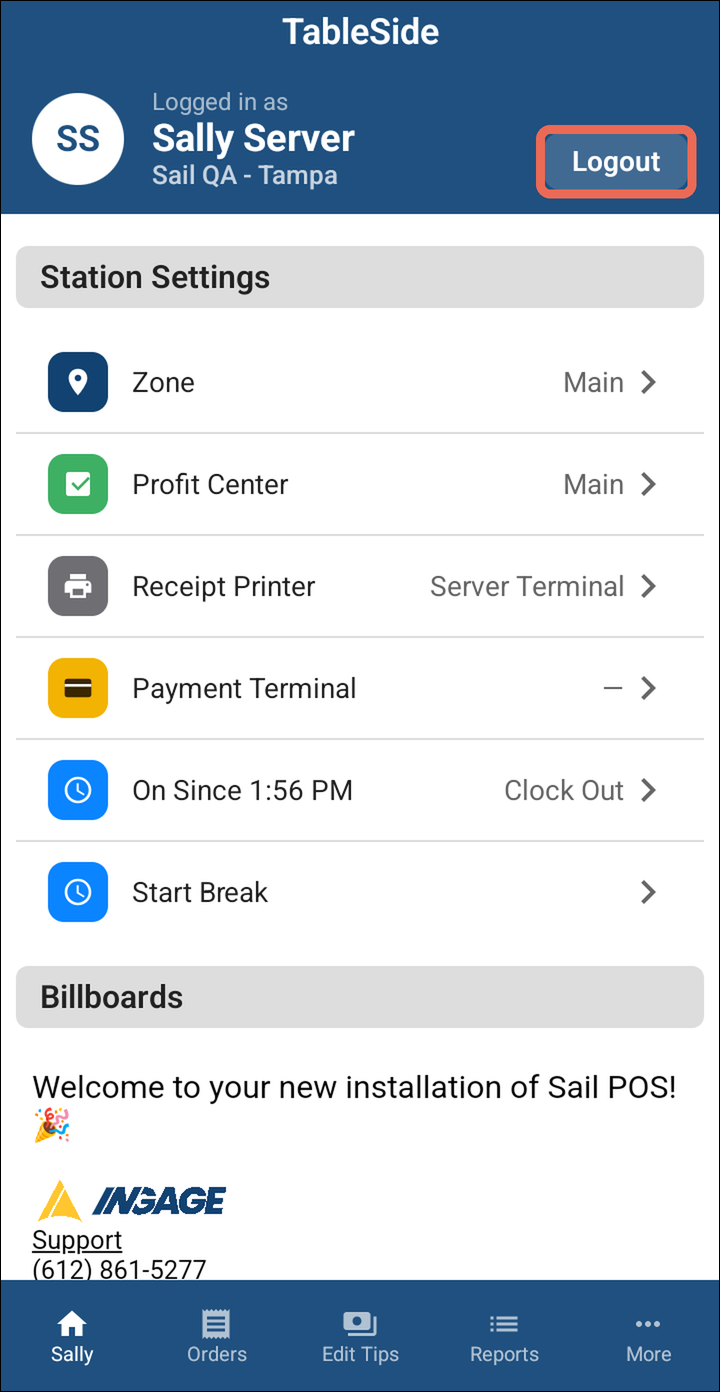
Tap Logout at the top right. The handheld goes back to the login screen, ready for the next person.
Pro tip: Always log out when you hand the handheld to someone else, so nothing gets rung in under your name.
Station Settings
Each row shows what's picked now on the right. Tap a row to change it.
Note: A row only shows when there is something to choose from. For example, if your location has only one profit center, you won't see Profit Center.
Profit Center
For locations with more than one profit center (for example, Main and Patio), pick the one you're working in. The items you ring in on this handheld are recorded under that profit center, so its sales show in the right area on your reports.
-
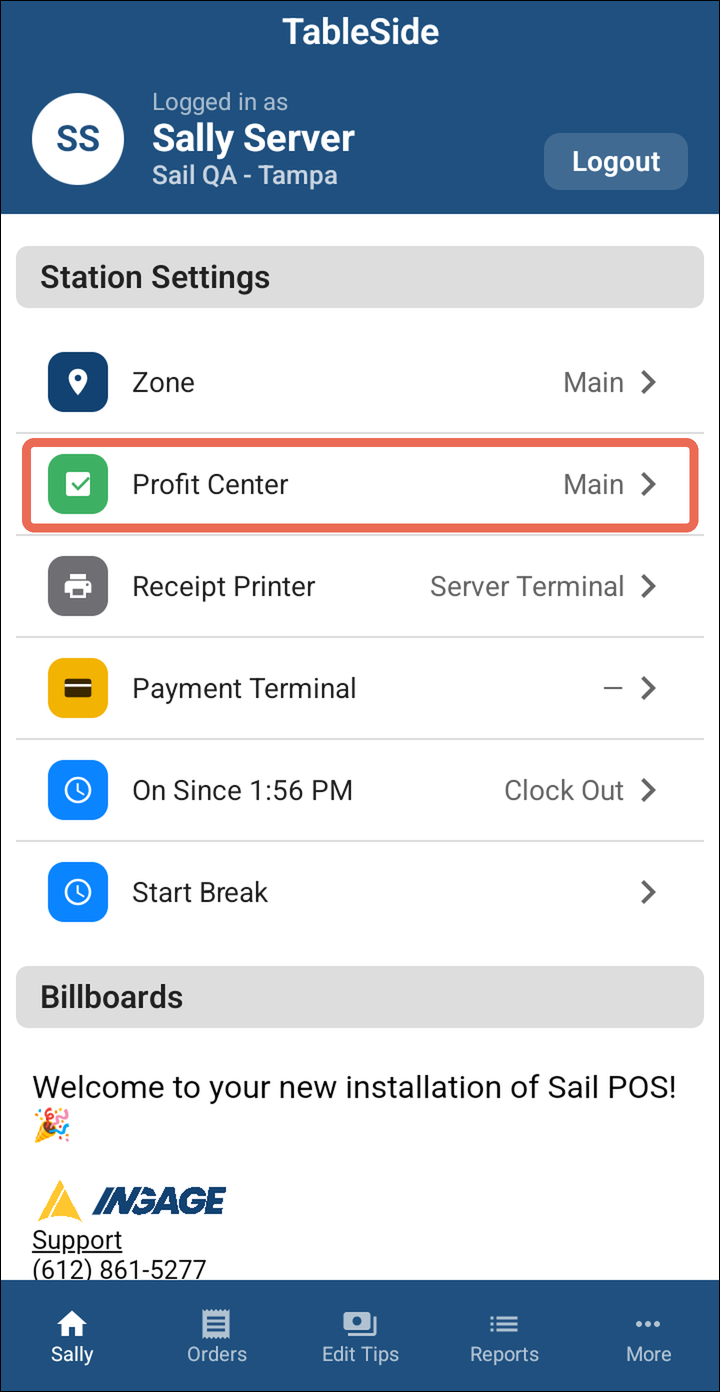
Tap Profit Center.
-
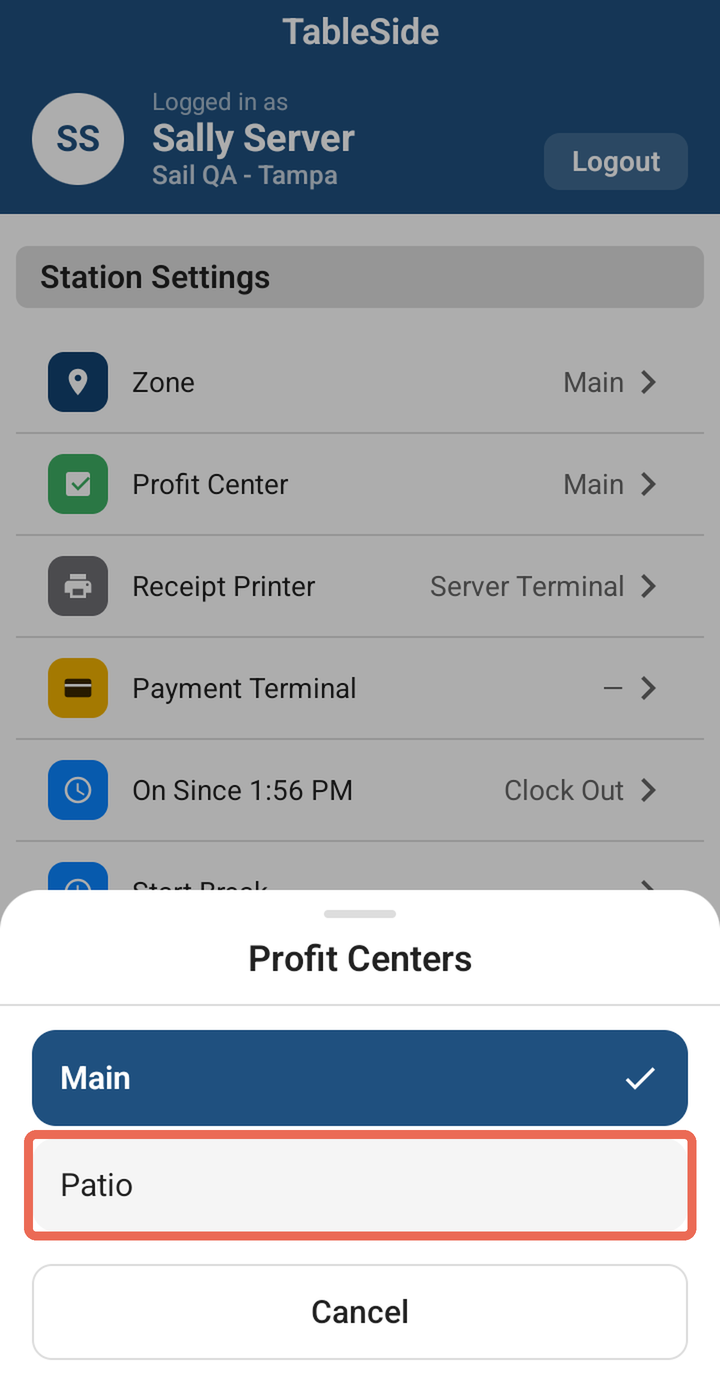
Tap the profit center you're working in. The check mark shows the one you have now. Its name then shows next to Profit Center.
Changing your receipt printer
Pick the guest check printer your receipts print to.
-
Tap Receipt Printer.
-
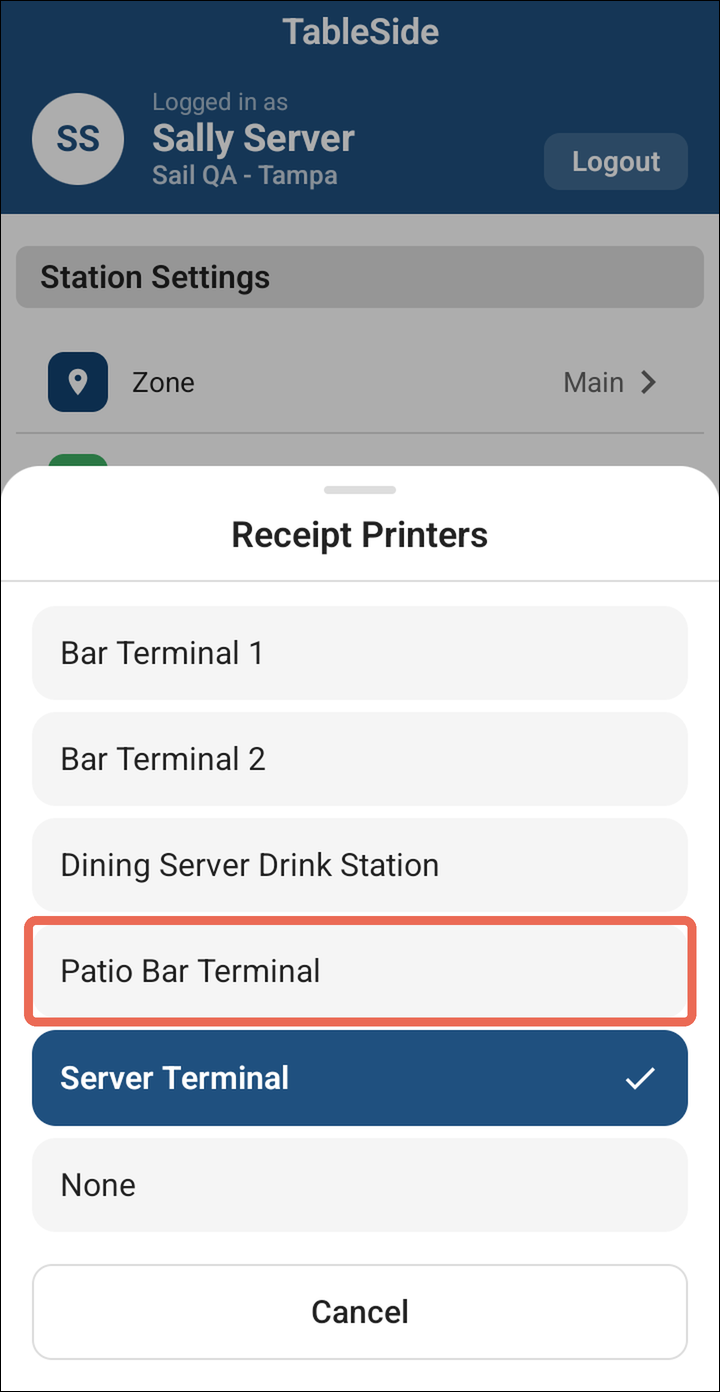
Tap the printer you want. The check mark shows the one you have now.
If you'd like to learn more about picking a receipt printer, click here.
Zone, Payment Terminal and the time clock
- Zone: The area of the restaurant this handheld is working in. Tap it to pick another one.
- Payment Terminal: The card reader this handheld uses for card payments. Handhelds with a card reader built in don't show this row.
- Clock In / Clock Out: Shows Off the Clock or the time you clocked in (On Since). Tap it to clock in or out. Clocking out also logs you out.
- Start Break: Starts your break and logs you out. You're still on the clock; your break ends when you log back in.
Billboards
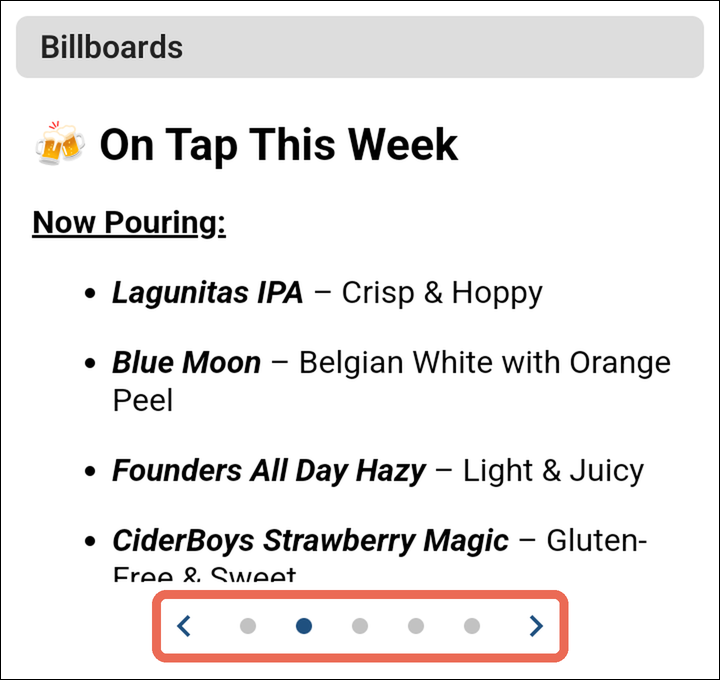
Billboards are messages your managers set up in Backoffice, such as specials, events or what's on tap. When there is more than one, tap the arrows under the billboard (or swipe it sideways) to see the next one. The dots show which one you're on.
If you'd like to learn how to set up billboards in Backoffice, click here.
86 list
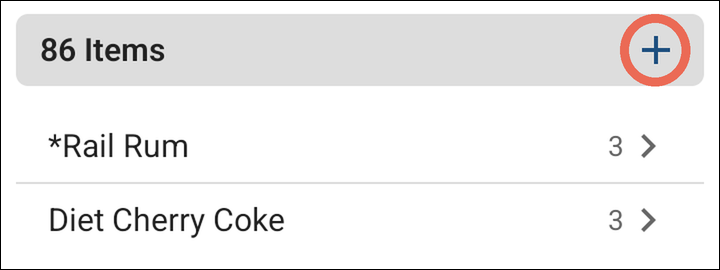
Under 86 Items are the items that are running low, with how many are left, or Sold Out. Only items with a low count show here. If you're allowed to change the 86 list, tap + to add an item, or tap an item to change its count.
If you'd like to learn how to adjust the 86 list from a handheld, click here.
Refreshing the screen
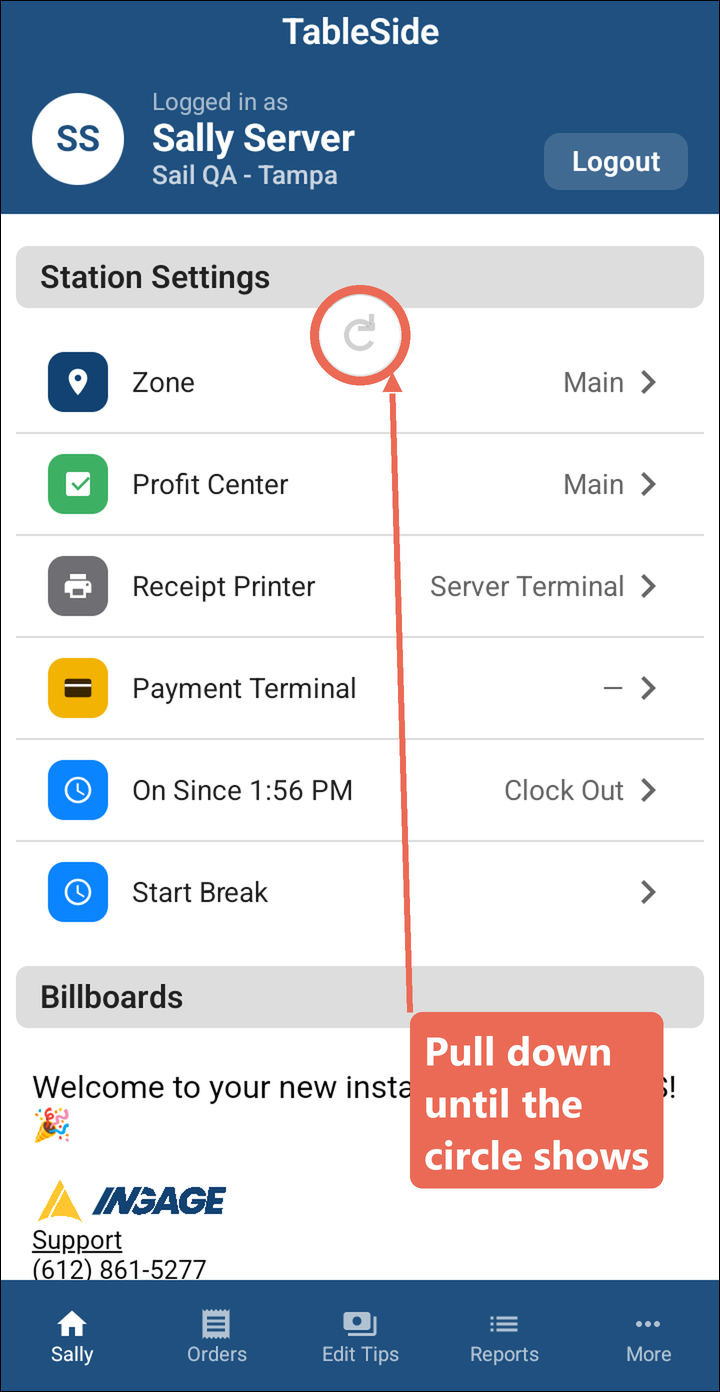
The Welcome screen updates each time you come back to it. To update it while you're on it (for example, to see the latest 86 list), pull the screen down from the top until a circle shows, then let go.
Note: This only updates the Welcome screen. If menu or setup changes made in Backoffice aren't showing on the handheld, refresh its cache instead. Click here to learn how.