
How to attach a customer account to an order
BeingThis written.document will walk you through finding a customer and attaching them to an order on the terminal, starting from the check header at the top left of the order screen.
Attaching a customer puts their name, phone number and account on the order. You can then see their credit limit and balance, and put the order on their account to pay later.
Which orders can have a customer
A customer can only be attached when the order type is set to Linked To Customer in Backoffice. Which order types those are depends on how your store is set up. Pickup, curbside and delivery orders often are, and dine-in orders usually aren't.
Some order types ask for the customer as soon as the order starts. When that happens, the Customer Search window opens by itself. Find the customer as shown below.
Opening Customer Search from the check header
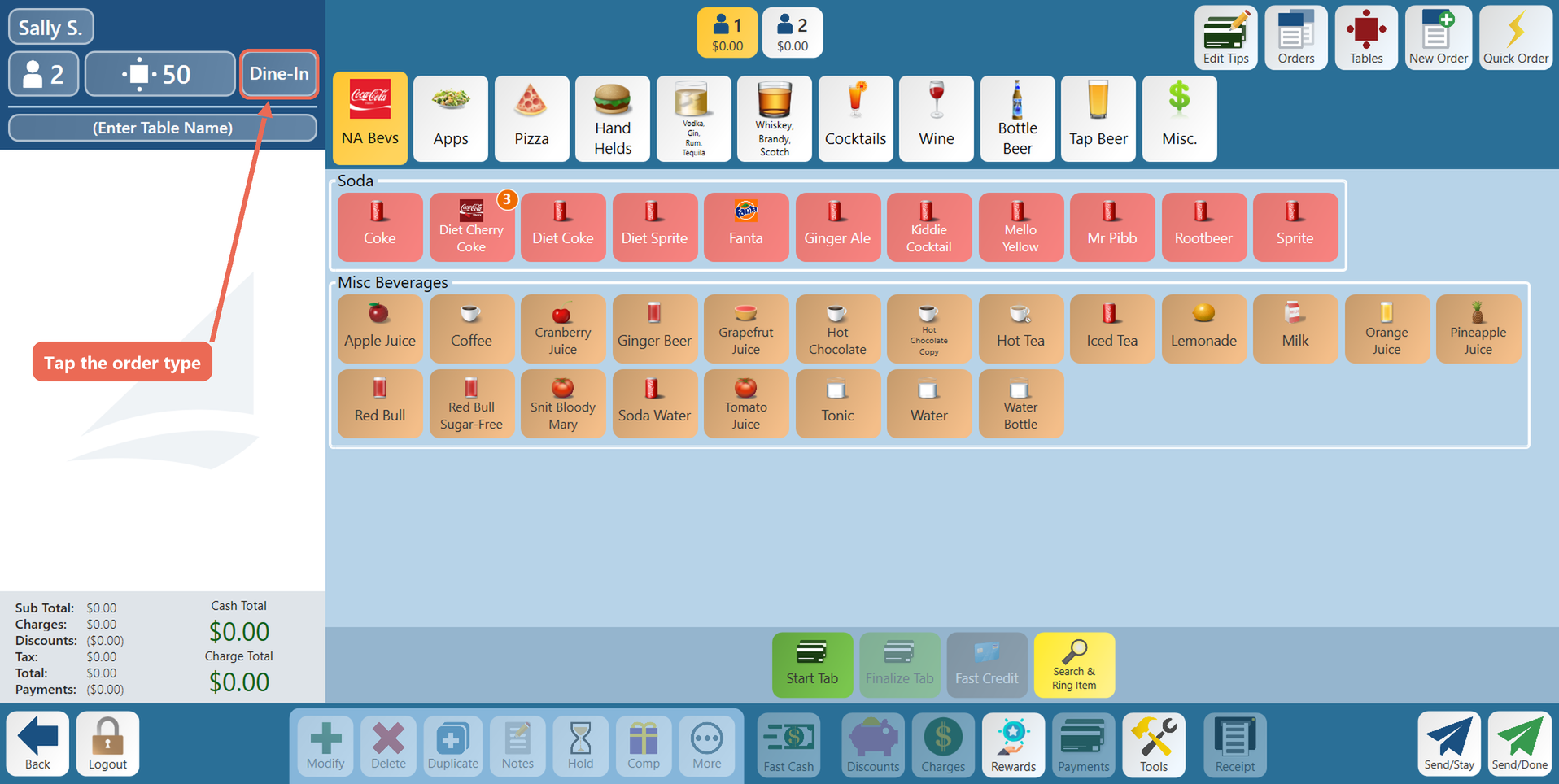
1. Start the order. In the check header, tap the order type.
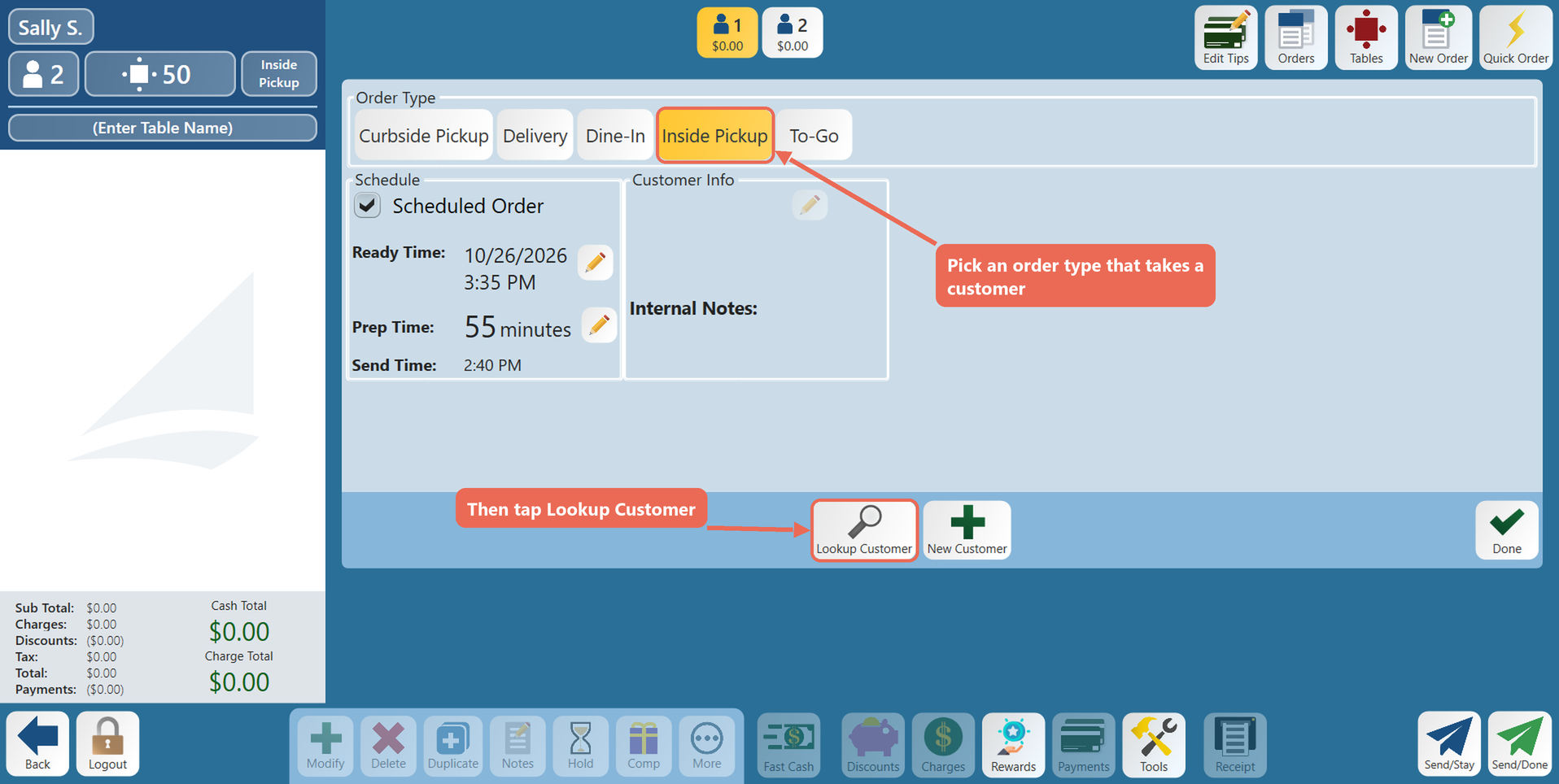
2. The Order Type screen opens. If the order type you need isn't already highlighted, tap one that takes a customer. The Customer Info box and the Lookup Customer and New Customer buttons appear. Tap Lookup Customer.
Finding the customer
1. In Customer Search, type part of the customer's name, phone number or account number. Matching customers show in the list on the right as you type.
2. Tap the customer in the list.
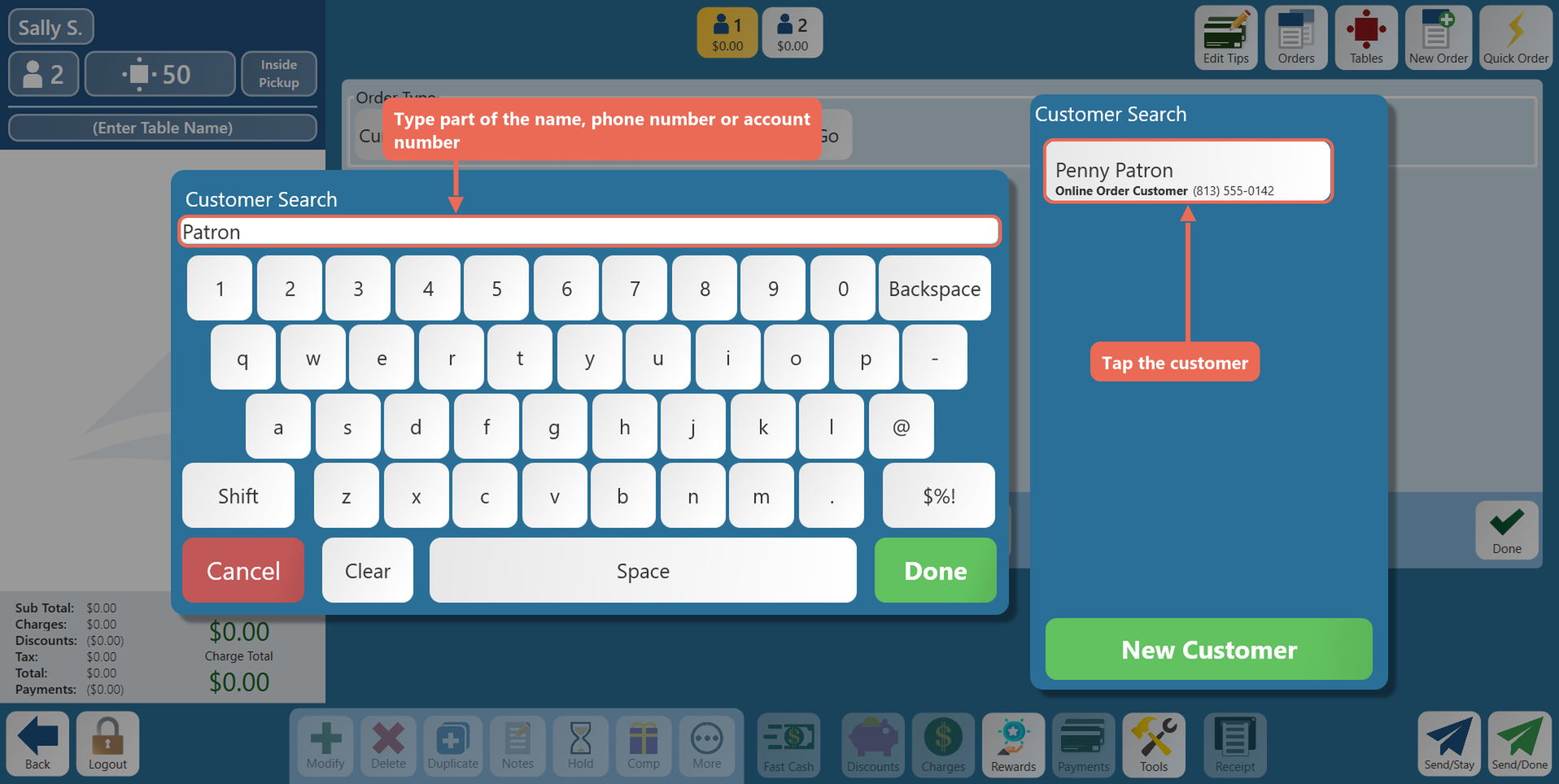
Pro tip: Typing the customer's whole phone number or account number and tapping Done attaches them straight away when only one customer has that number.
When the customer isn't found
1. If the customer isn't in the list, tap New Customer.
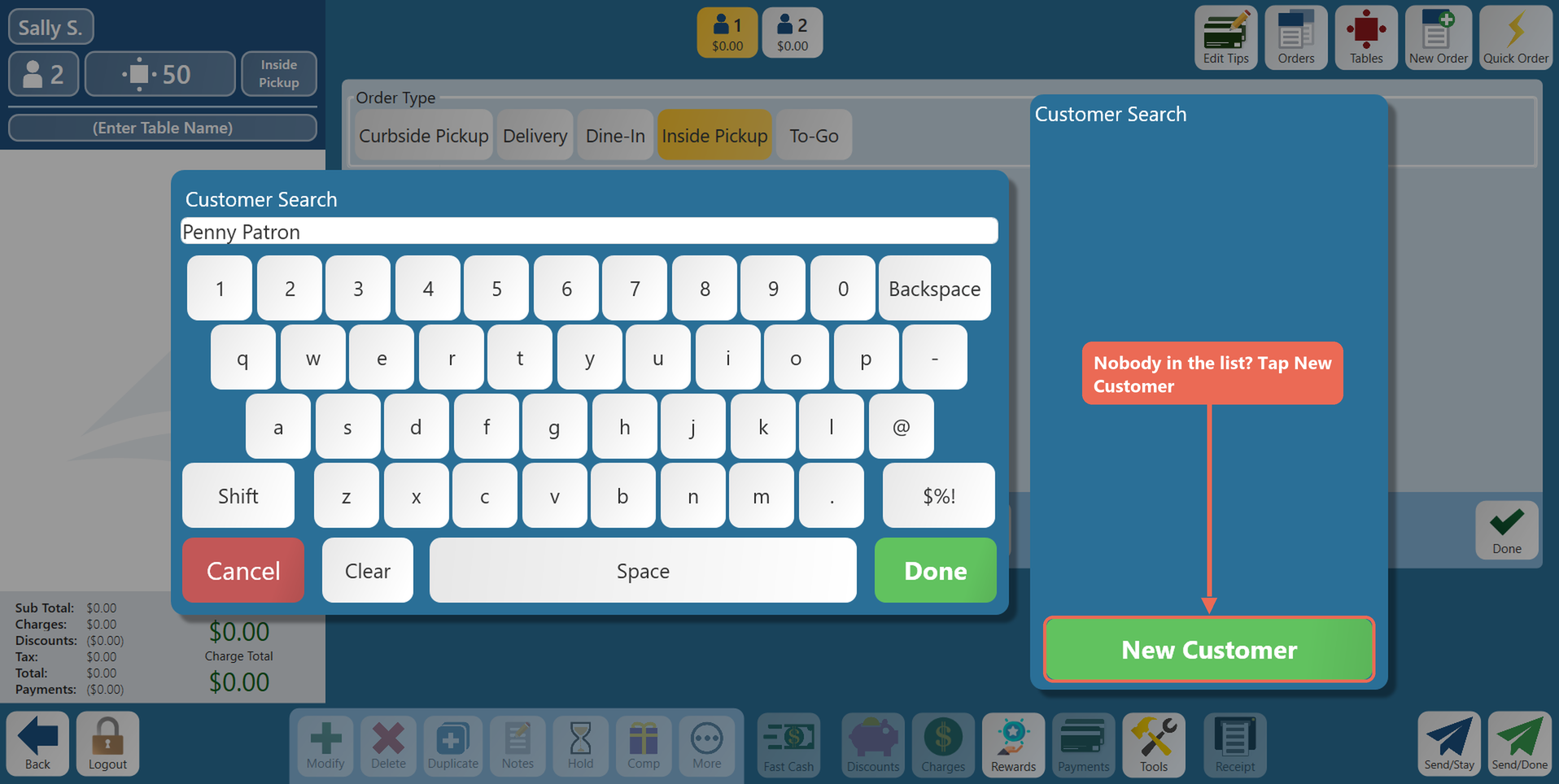
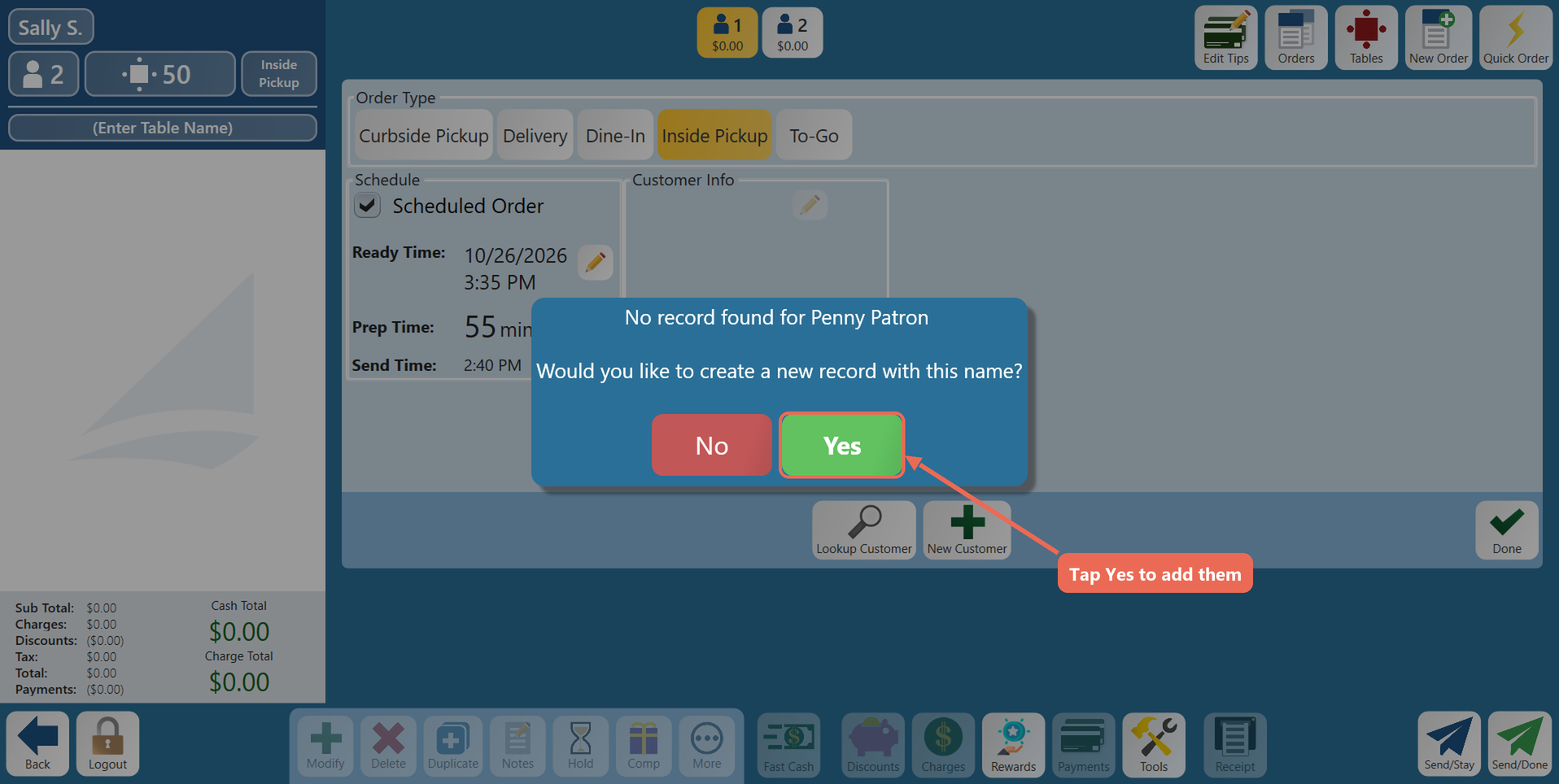
If you tap Done instead, the terminal tells you no record was found and asks whether to create one. Tap Yes.
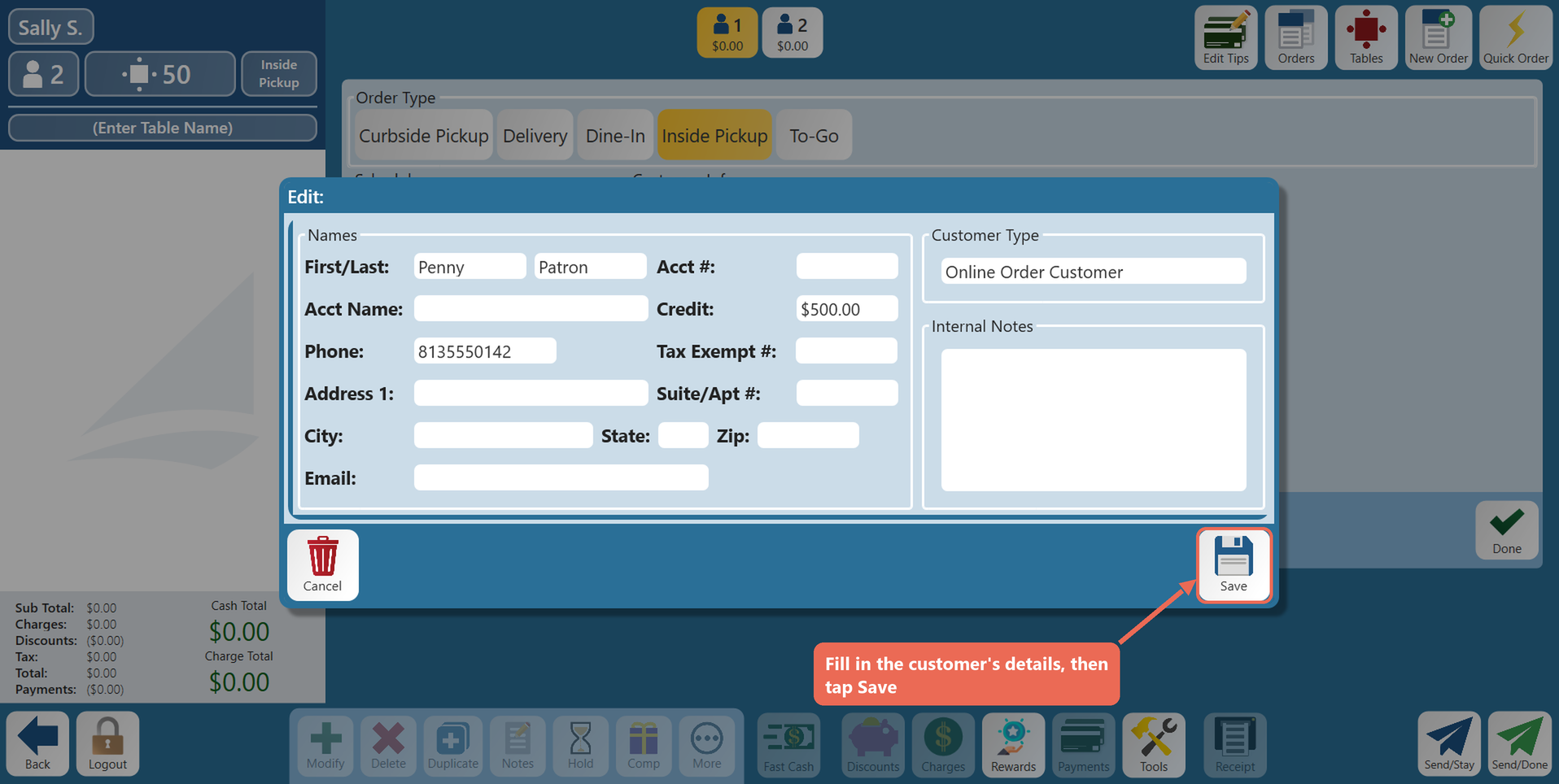
2. The customer window opens with what you typed already filled in. Fill out the window:
- First/Last: the customer's first and last name (required).
- Acct Name: the name on the account, such as a business or group. Leave it blank to use the customer's first and last name.
- Phone: the customer's phone number. You can search by it next time.
- Acct #: an account number, if your store uses them. You can search by it next time.
- Credit: the credit limit - how much the customer can put on their account.
- Address, Email and Internal Notes: optional.
3. Tap Save. The new customer is attached to the order.
Checking the customer on the order
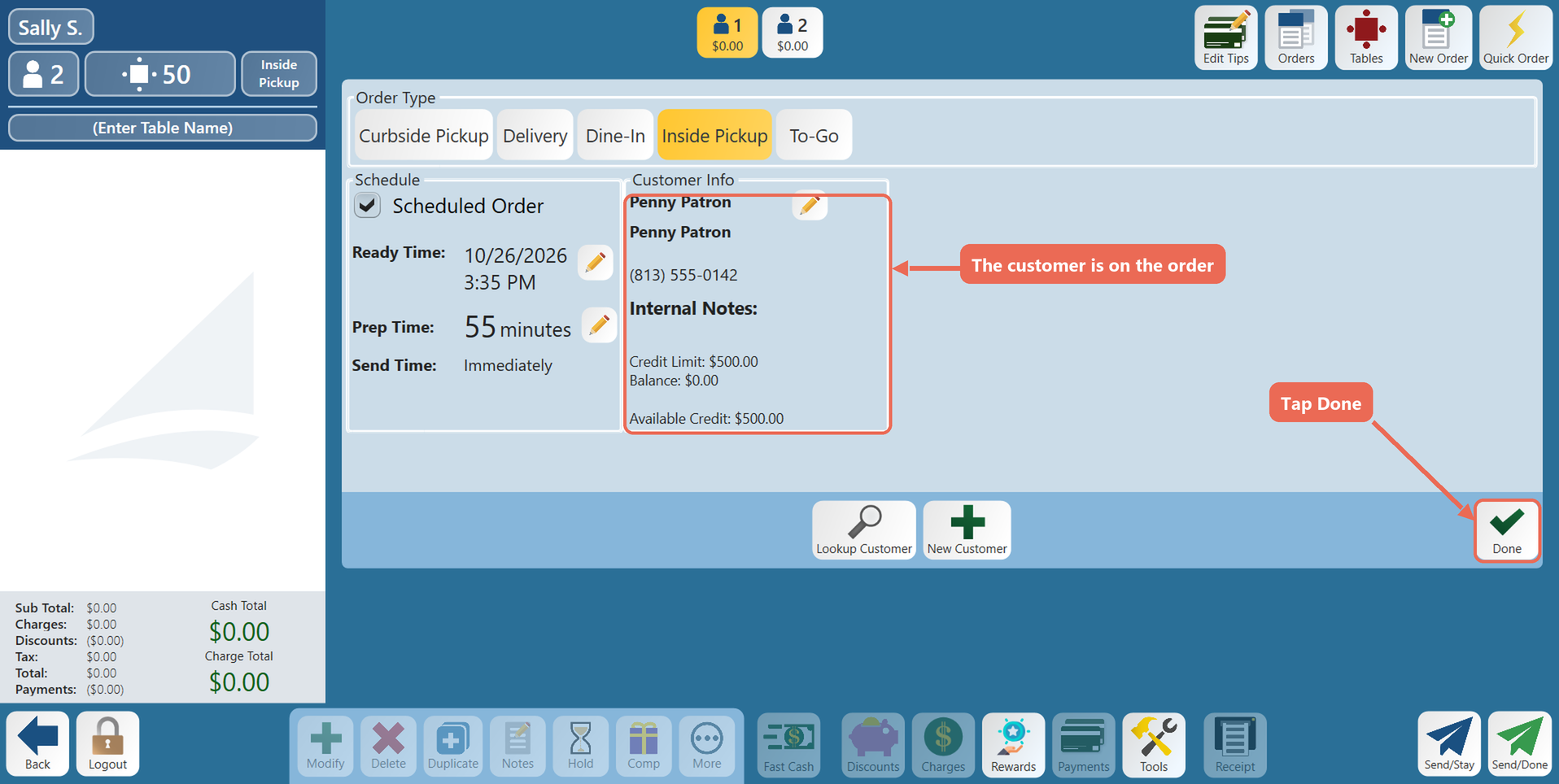
1. The customer shows in the Customer Info box: their name, phone number and internal notes. If they have a credit limit, you also see their Credit Limit, Balance and Available Credit. To change their details, tap the pencil next to their name. Tap Done to go back to the order.
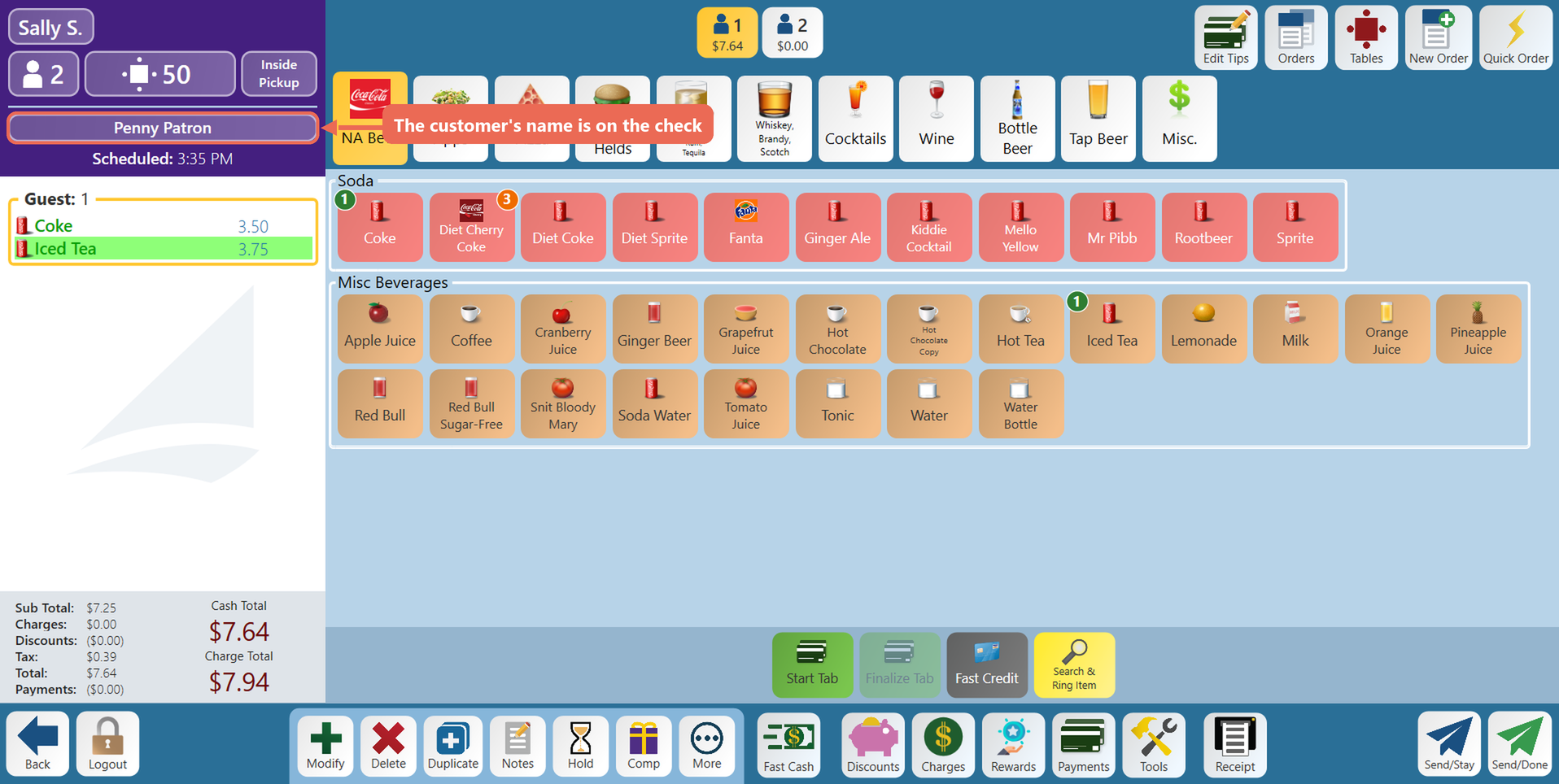
2. The customer's name now shows on the check. Ring in the order as usual.
Putting the order on the customer's account
When the customer pays later, put the order on their account instead of taking a payment.
1. Tap Payments, then tap Customer Account under Payment Options. The customer's name shows under the button. Tap the full amount, and it goes on their account.
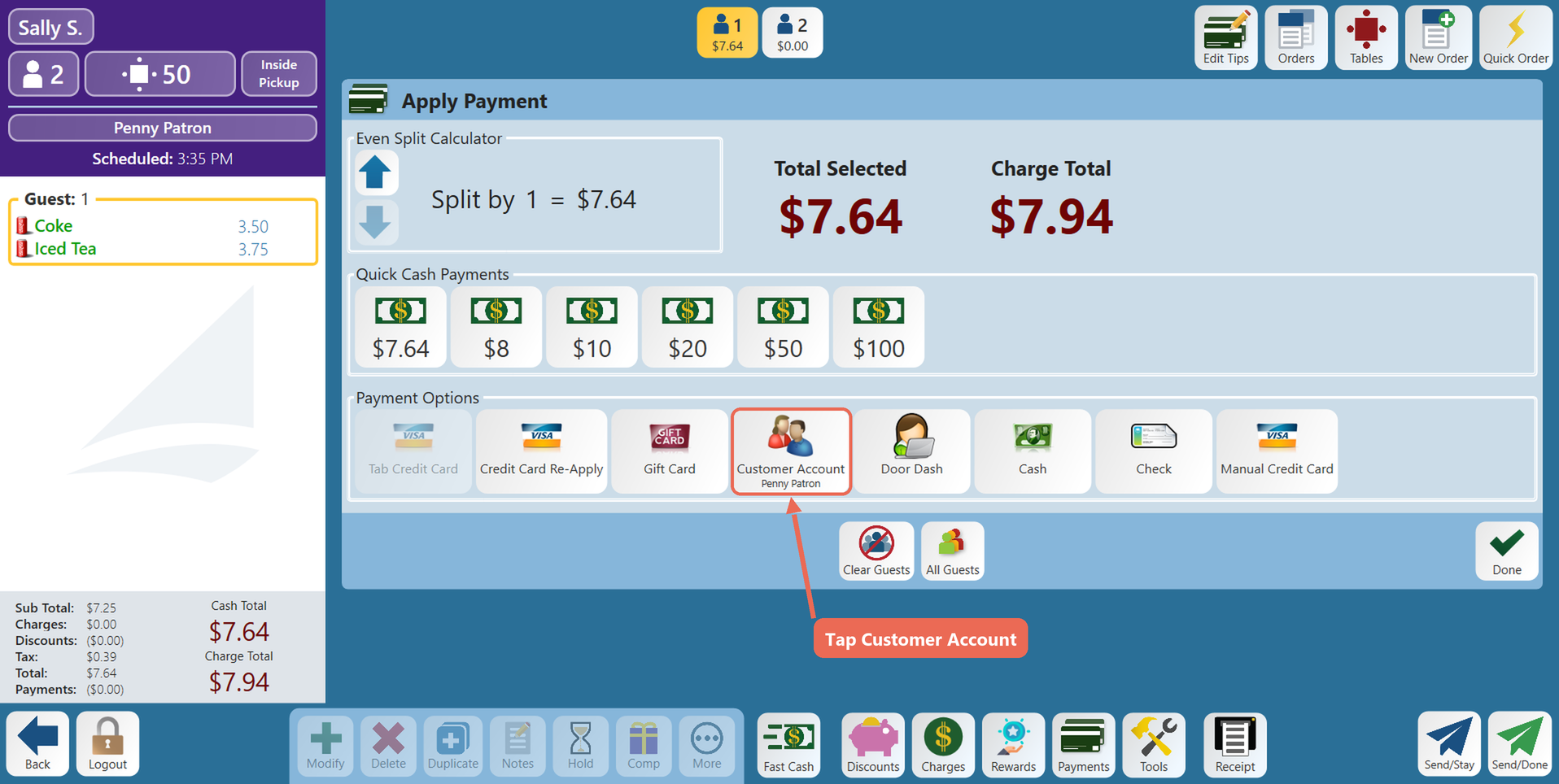
Note: The Customer Account button only works when the customer has a credit limit or money on their account. If it says Customer has no credit, ask a manager to set a credit limit in Backoffice.