
How to print a delivery ticket from the Dispatch screen
BeingThis written.document will show you how to print a delivery ticket from the terminal's Dispatch screen. The ticket is the order's receipt, to send out with the driver so they have the customer's name, phone number and what's in the order.
To learn how to set up delivery and dispatch in Backoffice, click here to learn more about Delivery & Dispatch.
Before you start
- Permissions you need: your job role needs View Dispatch Screen (Backoffice --> Staff --> Job Roles --> Tasks --> POS --> Front of House --> Dispatch).
- Where it prints: the ticket prints on your terminal's receipt printer.
Opening the Dispatch screen
On the home screen, tap Dispatch.
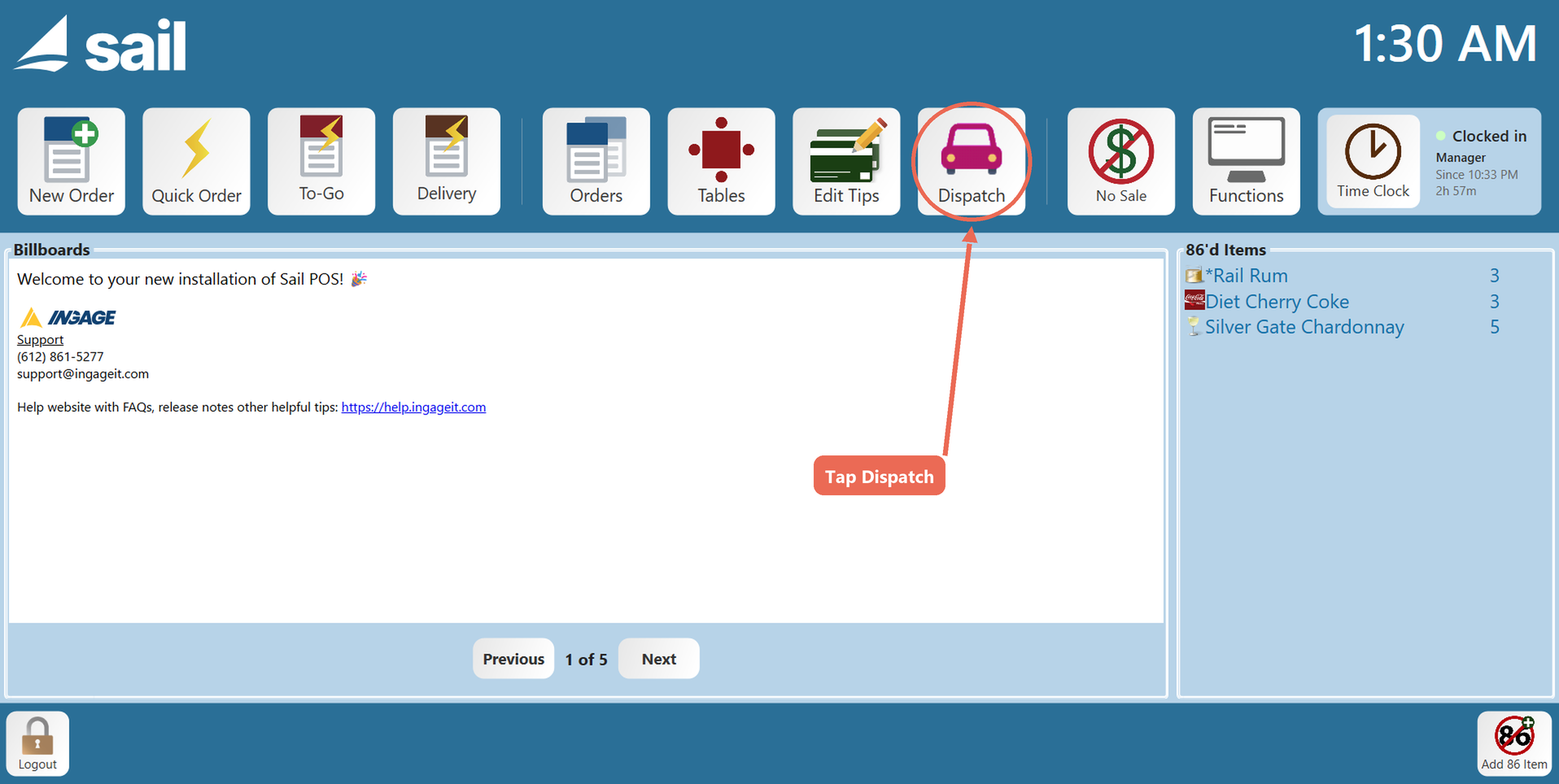
The Dispatch screen shows the orders waiting for a driver to start with. To find an order that's already out with a driver, tap Showing Unassigned Orders at the top and pick another list. Click here to learn more about viewing unassigned, en route, and delivered orders.
How to print a delivery ticket
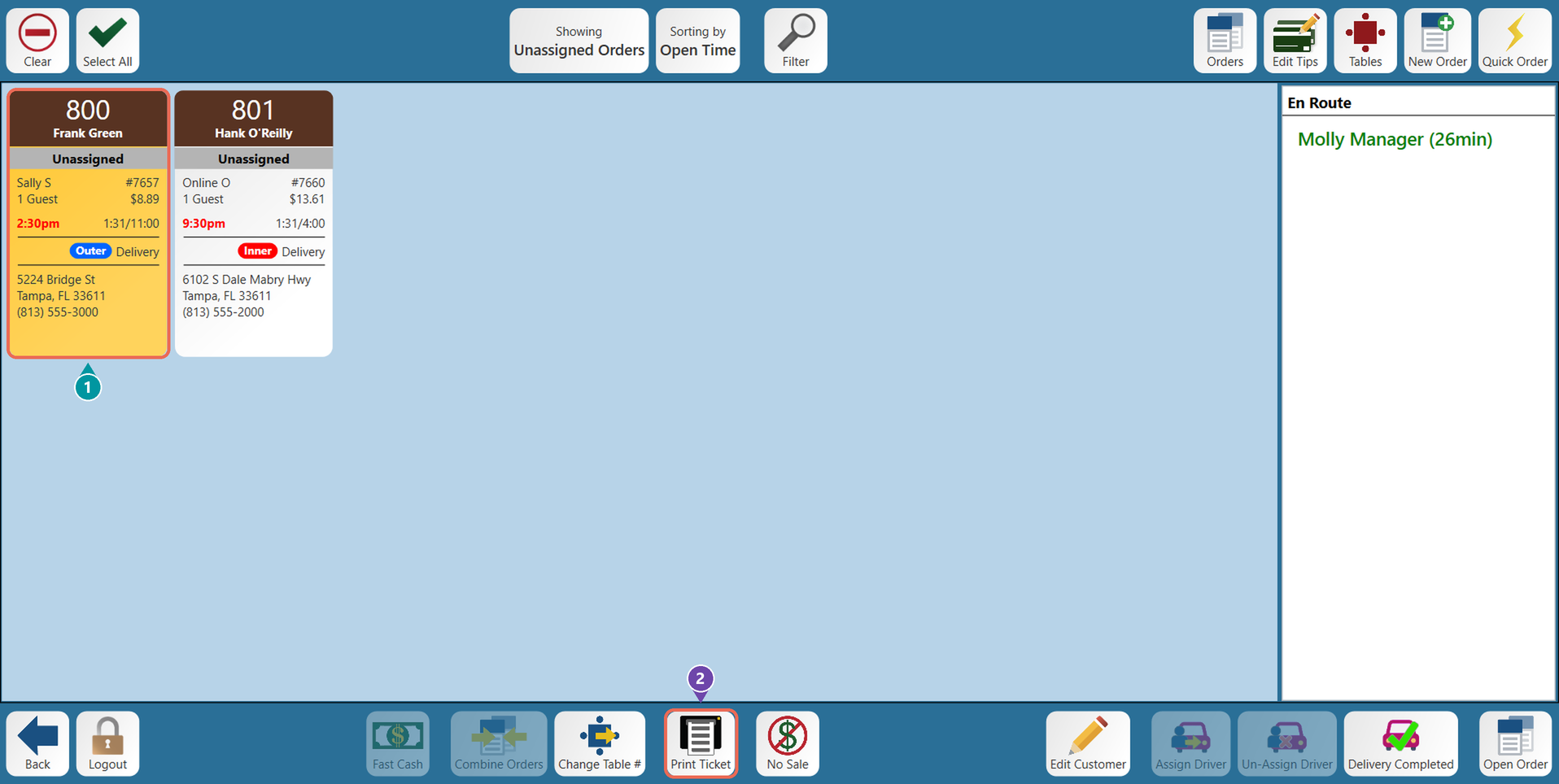
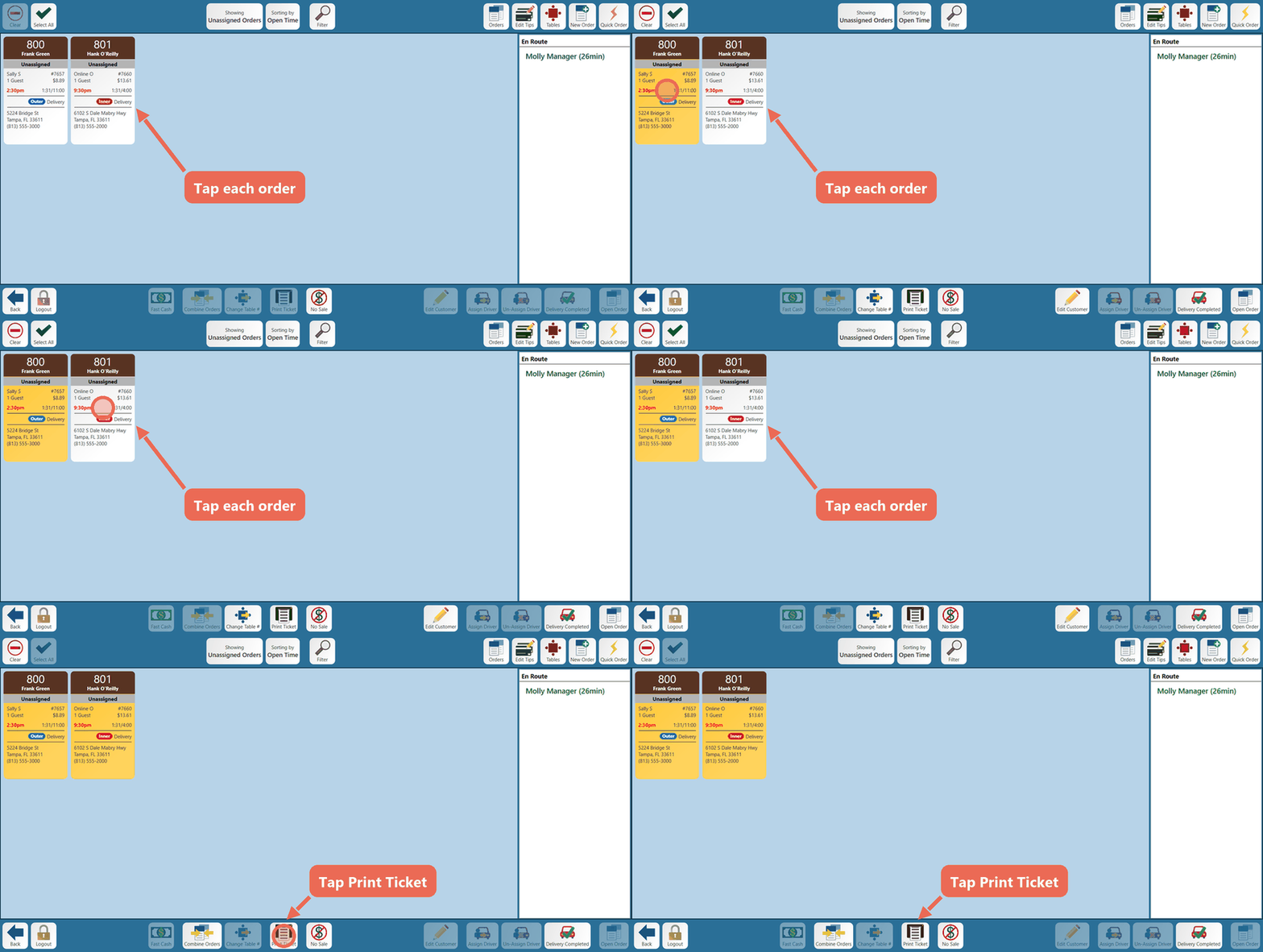
1. Tap the order. It turns yellow. Tap it again if you picked the wrong one.
2. Tap Print Ticket. The ticket prints in your terminal's default receipt type.
How to pick another receipt type
1. Tap the order.
2. Press and hold Print Ticket. The Select Receipt Type window opens.
3. Tap the receipt type you want to print.
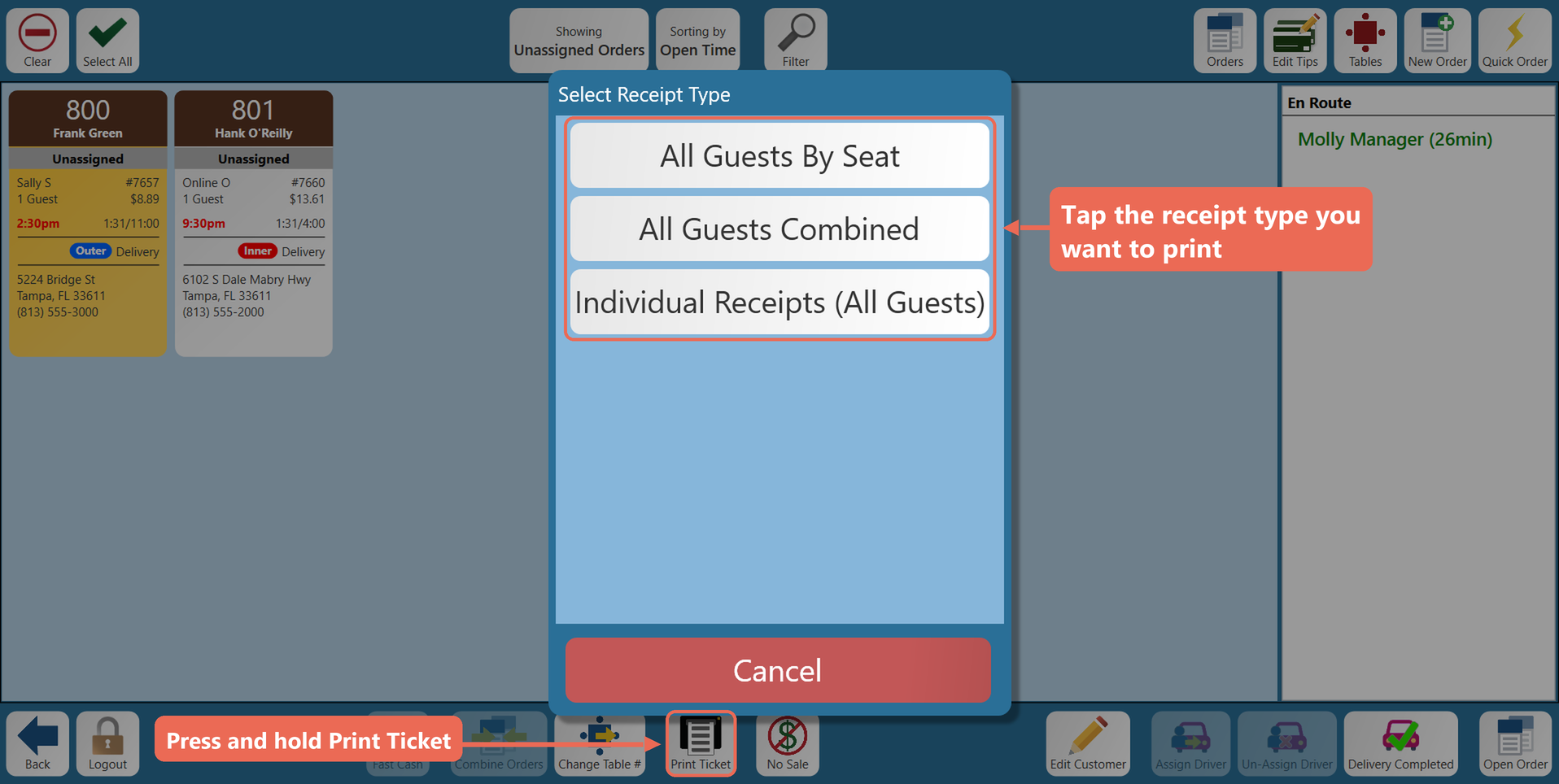
Individual Receipt (Selected Guest) isn't in this list - for that one, open the order. Click here to learn more about the receipt types in How to print a receipt, or to learn how to change your terminal's Default Receipt Type.
How to print several tickets at once
When a driver is taking more than one order, you can print all of their tickets together.
1. Tap each order you want a ticket for. To print every order on the screen, tap Select All.
2. Tap Print Ticket (or press and hold it to pick the receipt type for all of them). Each order prints its own ticket.
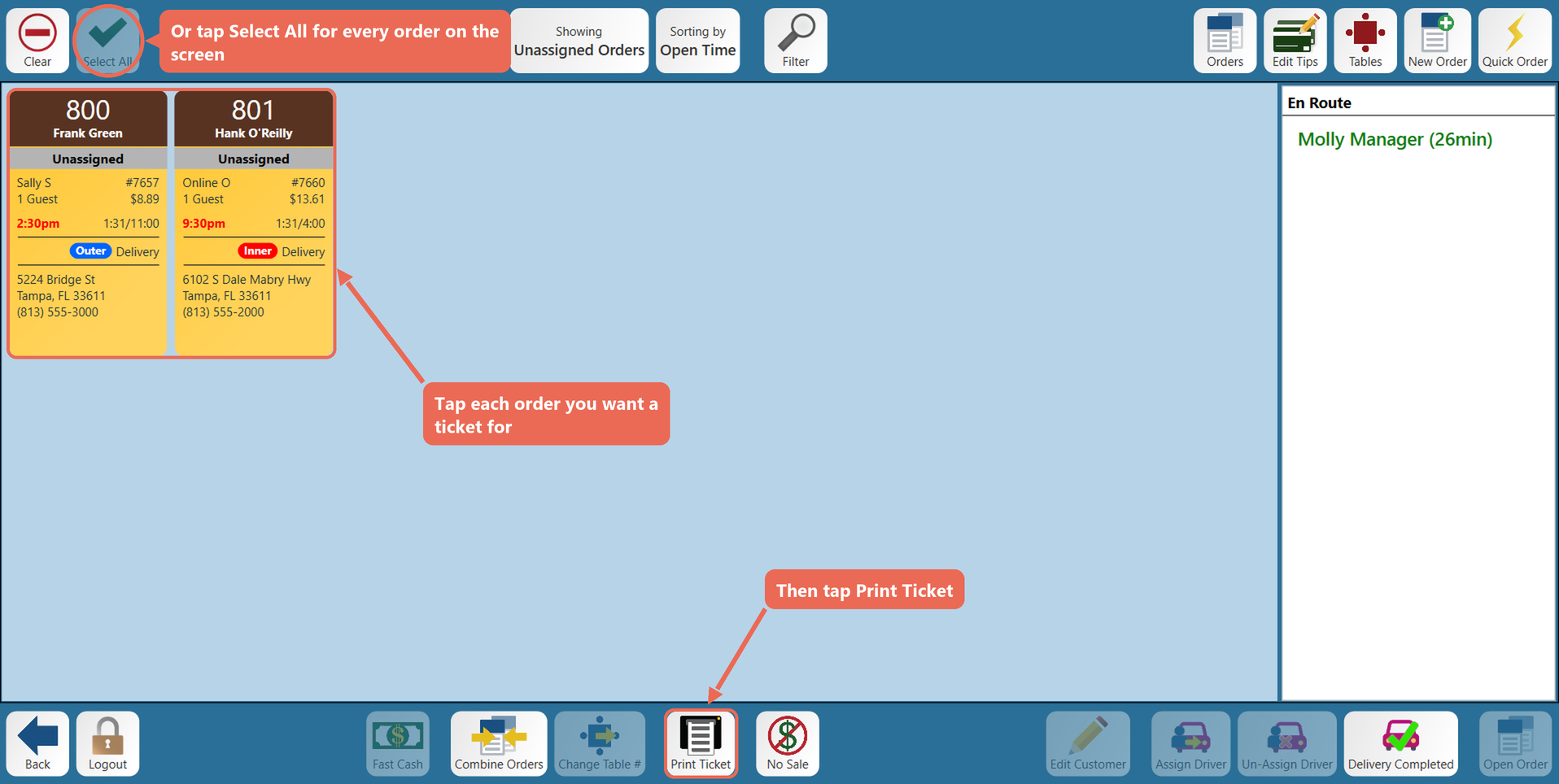
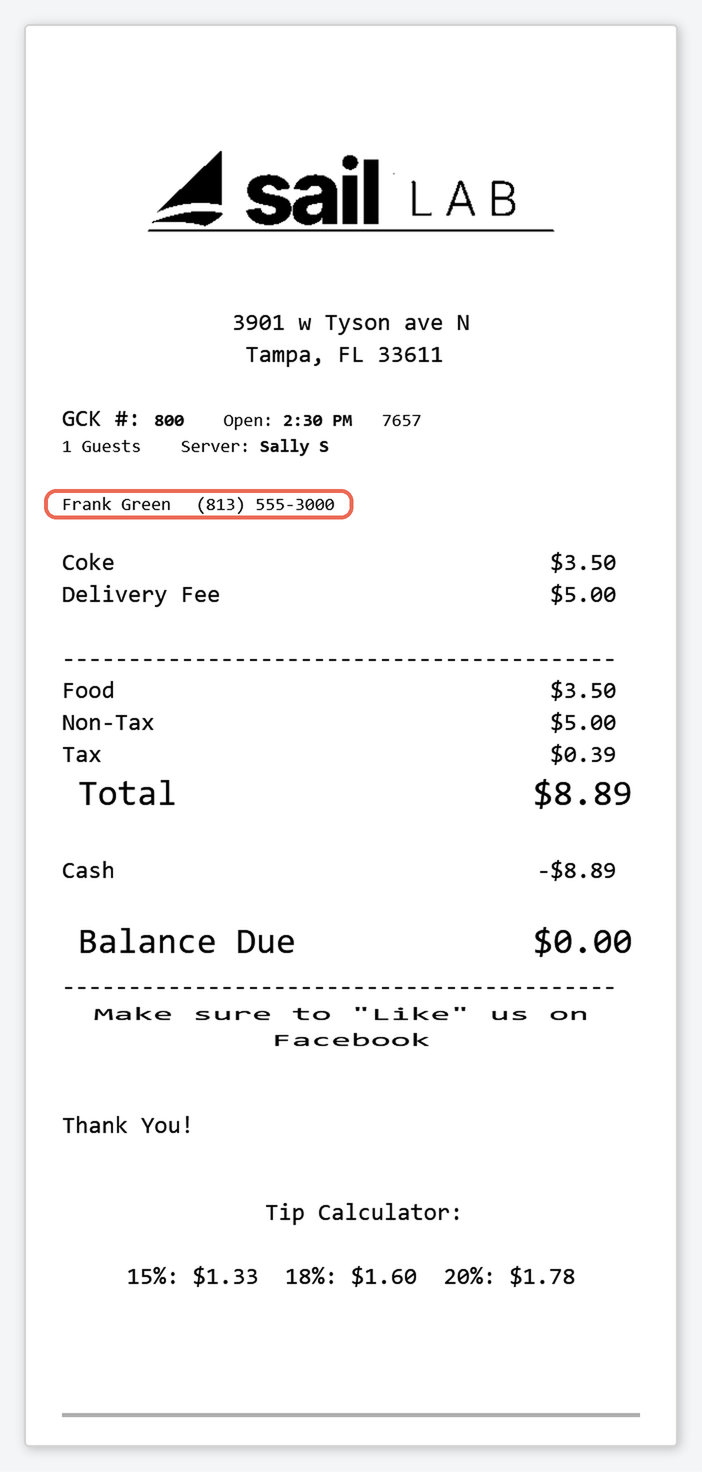
Here's what it looks like:
What the delivery ticket looks like
The ticket has the customer's name and phone number at the top, then the items, the delivery fee and the total. If the order is already paid, like an online order, it shows the payment and a Balance Due of $0.00, so the driver knows there's nothing to collect.
Good to know
- Print Ticket is grey until you tap an order.
- Printing doesn't change the order: it stays on the Dispatch screen, and you can print it again whenever you need to.
- To send the order out once it's printed, assign it to a driver. Click here to learn more about assigning and un-assigning a driver.