
How to reprint a credit card receipt
BeingThis written.document will show how to reprint a credit card receipt (the card slip) on the terminal - for example when a guest lost their slip or needs another copy to sign. There are 3 ways to do it:
- From the Edit Tips screen
- From inside the order
- From the Tools screen (the last card payment on this terminal)
Note: Your job role needs the Reprint CC Receipt permission. Without it, the Reprint CC Receipt and Print Last Customer CC buttons are greyed out or don't show - ask your manager.
From the Edit Tips screen
-
On the home screen, tap Edit Tips.
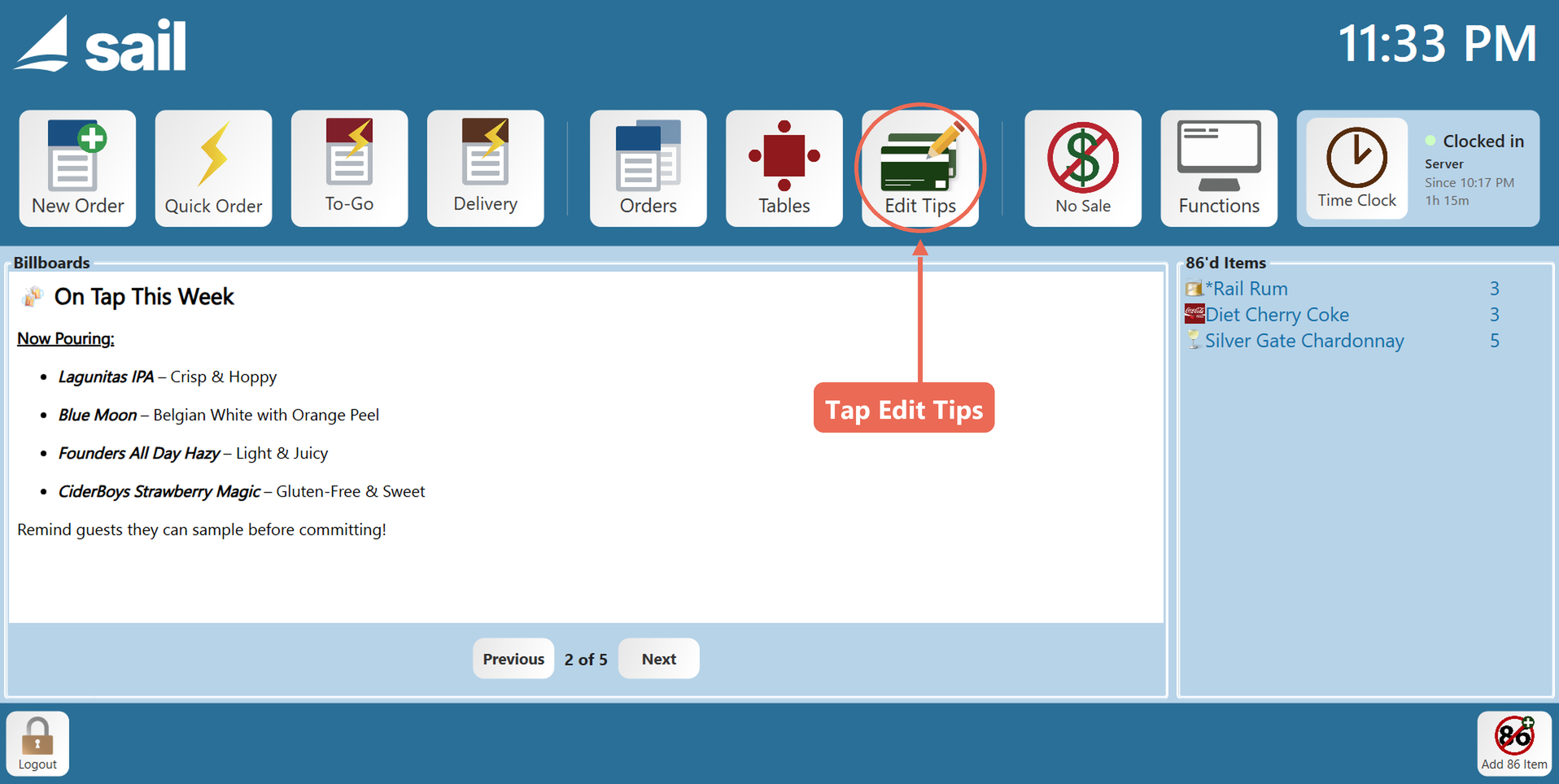
-
Tap each payment you want to reprint (it turns yellow), then tap Reprint CC Receipt. A slip prints for each payment you selected.
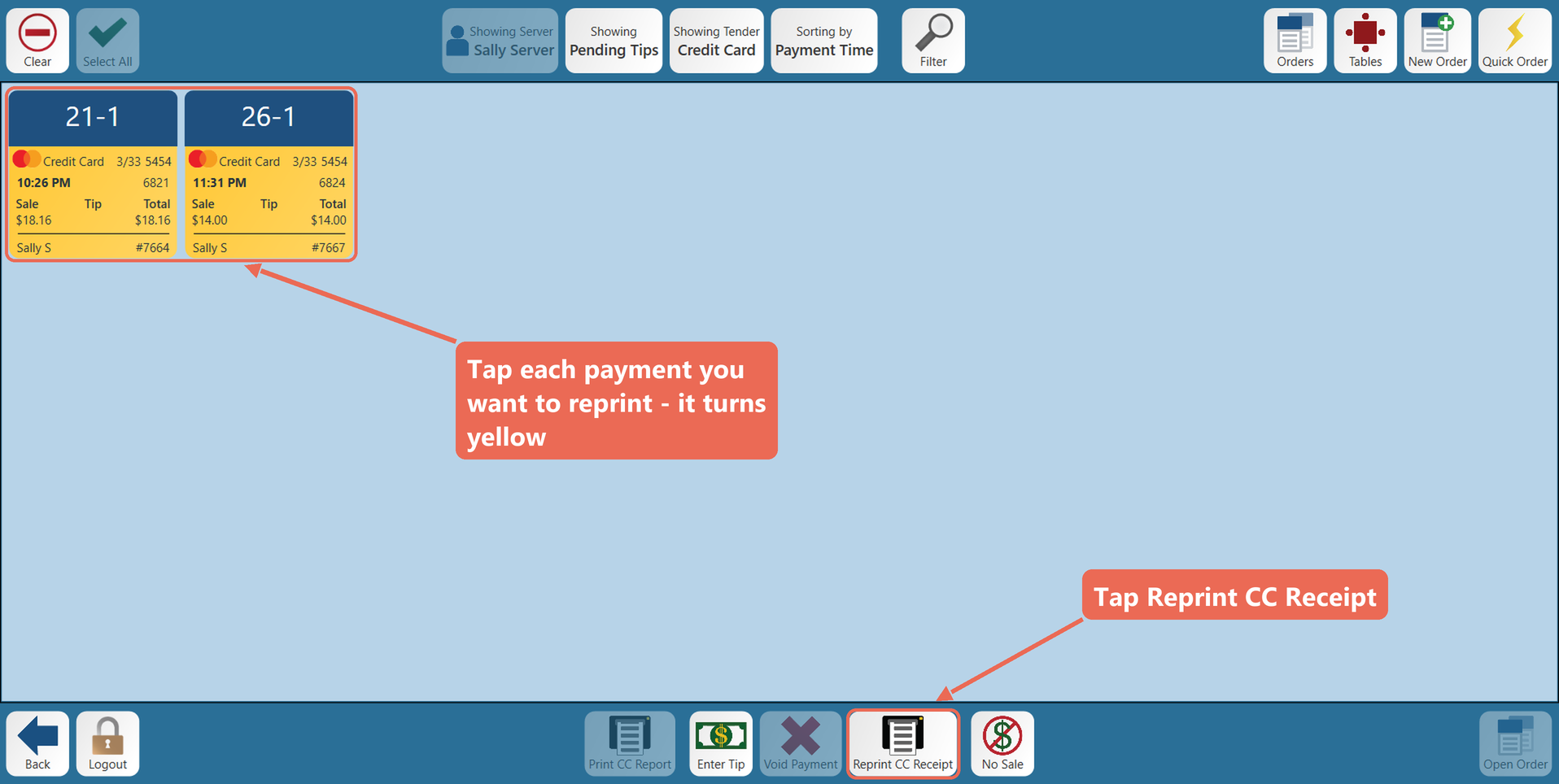
If you don't see the payment, it may be filtered out: Edit Tips shows the payments still waiting for a tip to start with. Tap Showing at the top and pick All to see the payments that already have a tip.
From inside the order
-
Open the order. A paid order is closed, so on the Orders screen tap Showing Open Orders at the top, then Closed.
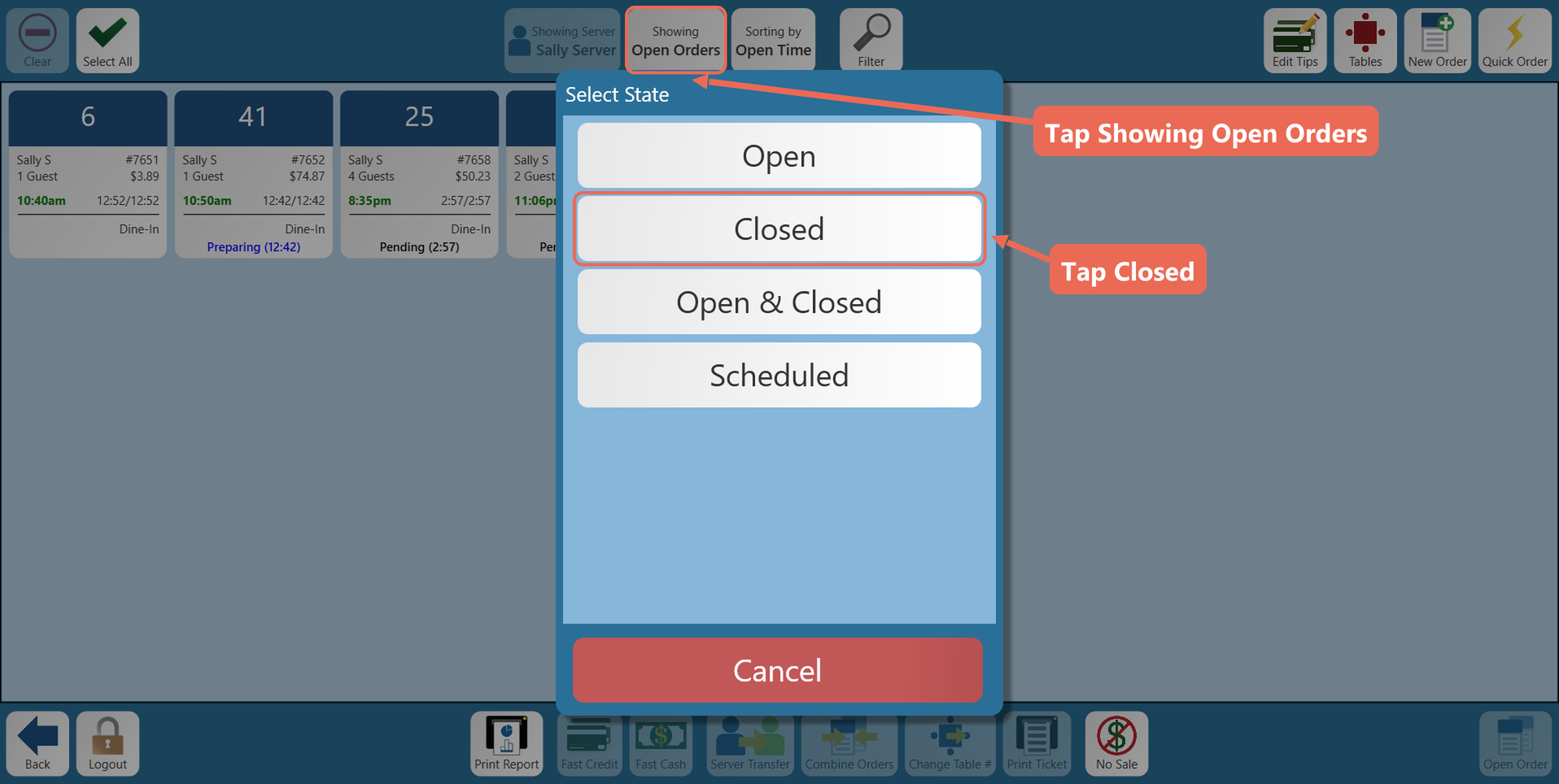
-
Double tap the order to open it.
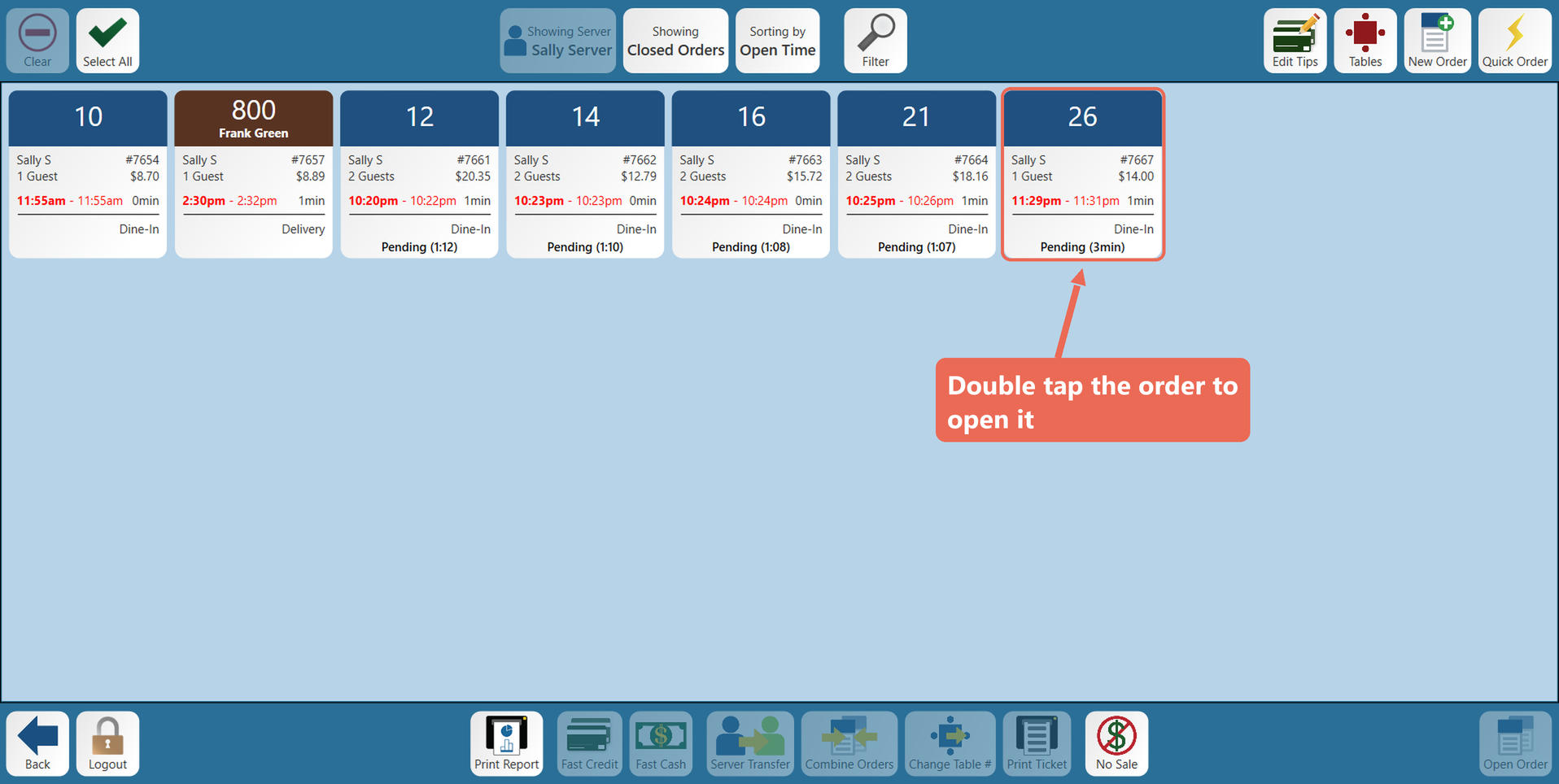
-
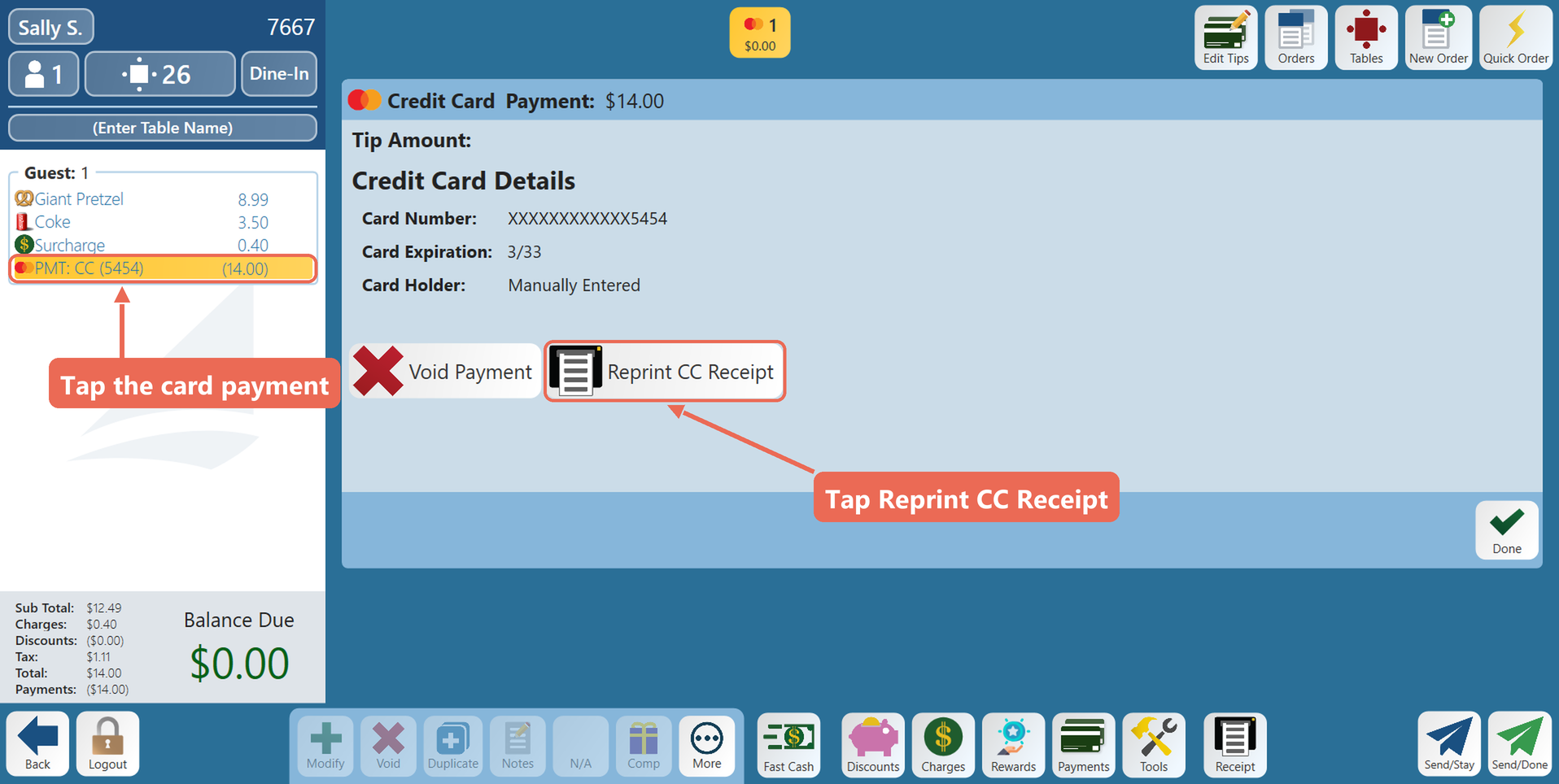
Tap the card payment on the check. Its details open on the right. Tap Reprint CC Receipt.
From the Tools screen
Print Last Customer CC reprints the slip of the last card payment taken on this terminal, whichever order it was on - handy when the guest you just ran a card for asks for their copy.
Inside any order, tap Tools on the bottom toolbar, then tap Print Last Customer CC under Last Transaction.
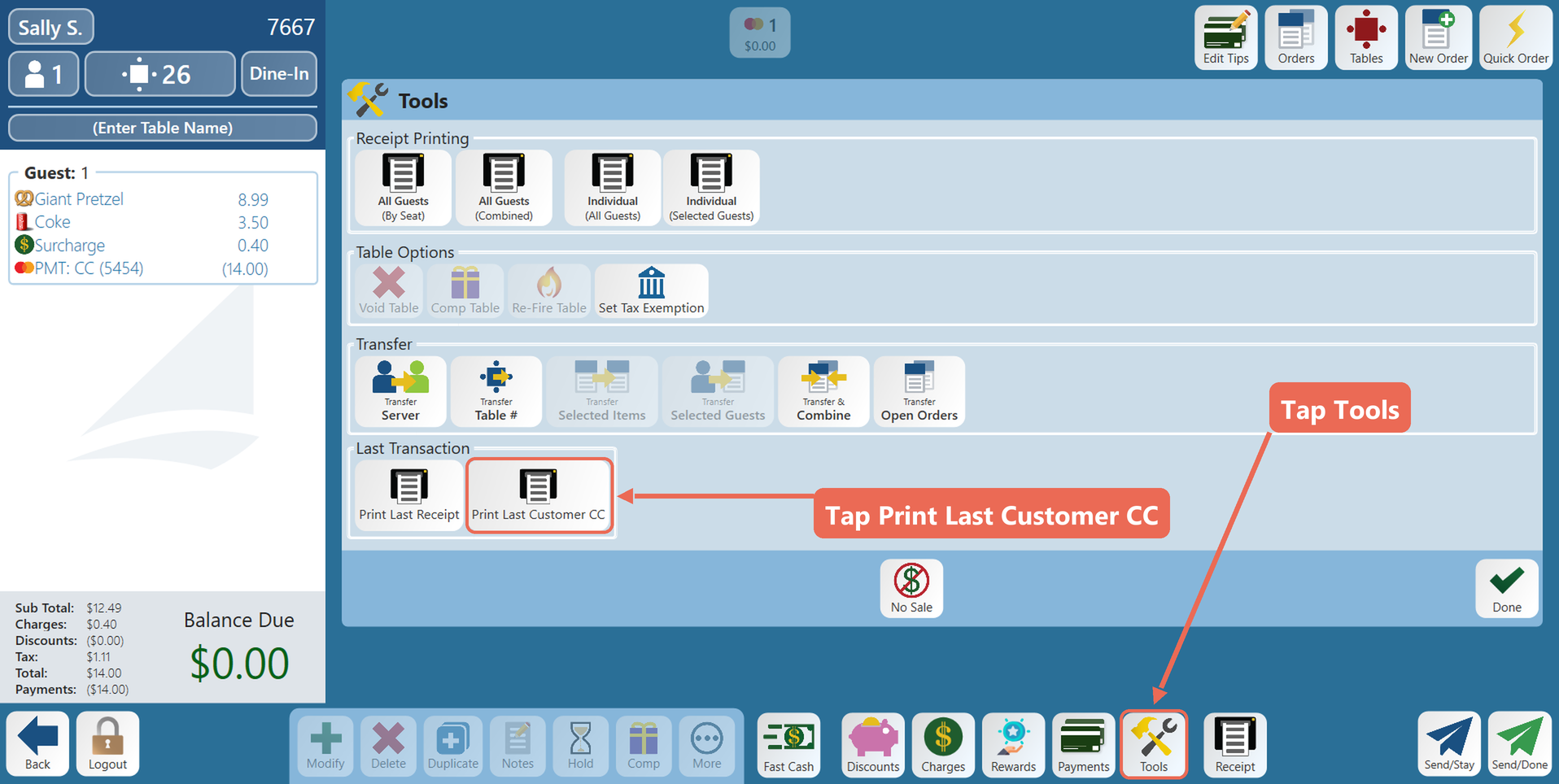
Note: Print Last Customer CC is greyed out until a card has been run on this terminal. After the terminal restarts, it has no last card payment until the next card is run - use the Edit Tips screen or the order instead.
What prints
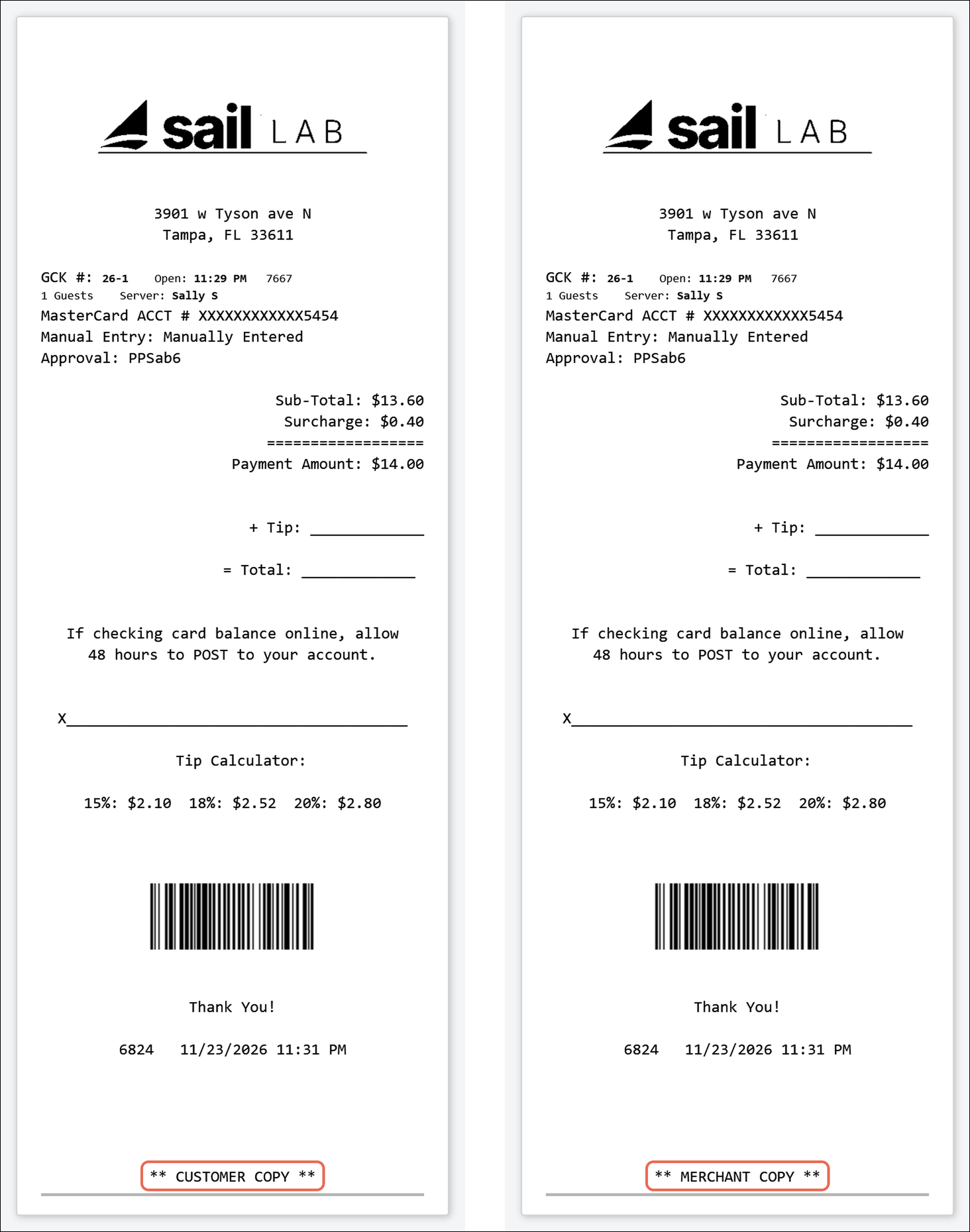
- Edit Tips and inside the order: two slips for each payment - the customer copy and the merchant copy.
- Print Last Customer CC: the customer copy only.
The bottom of each slip says which copy it is.
Using a handheld? You can reprint a card slip from the handheld's Payments screen - click here to learn more.
Click here to learn more about the Edit Tips Screen, the Tools screen, how to view a closed order and how to print a receipt.