
The Handheld Payments screen
The Payments screen lists the payments taken on your orders. From here you add tips, reprint a credit card slip and, with manager rights, void a payment. This will walk through each part of it.
To get there, tap Edit Tips in the bar at the bottom of the screen.
Screen layout
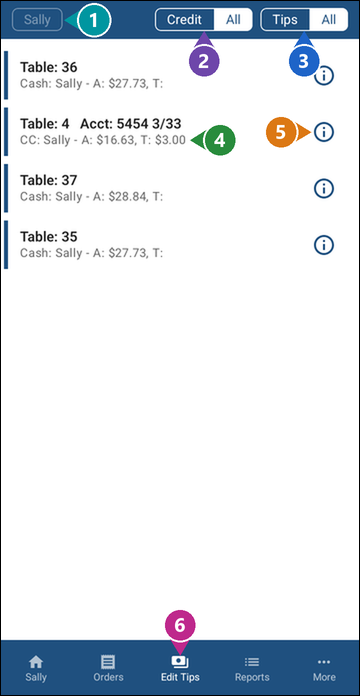
1. Server button - Shows whose payments are in the list. A manager can tap it to see another server's payments. For a server it's grey.
2. Credit / All - Shows only credit card payments, or every payment.
3. Tips / All - Shows only the payments that still need a tip, or every payment.
4. A payment - Each payment shows:
- Table: the table the payment is on.
- Acct: the last four digits of the card and its expiry date (credit cards only).
- CC or Cash: how the guest paid, then the server's name.
- A: the amount paid.
- T: the tip. It's empty until a tip is entered.
5. The i icon - Opens the payment's options: Enter Tip, Void Payment and Reprint Receipt. You only see the options your job role allows.
6. Edit Tips - Opens this screen.
Note: Pull the list down to refresh it.
Credit / All and Tips / All
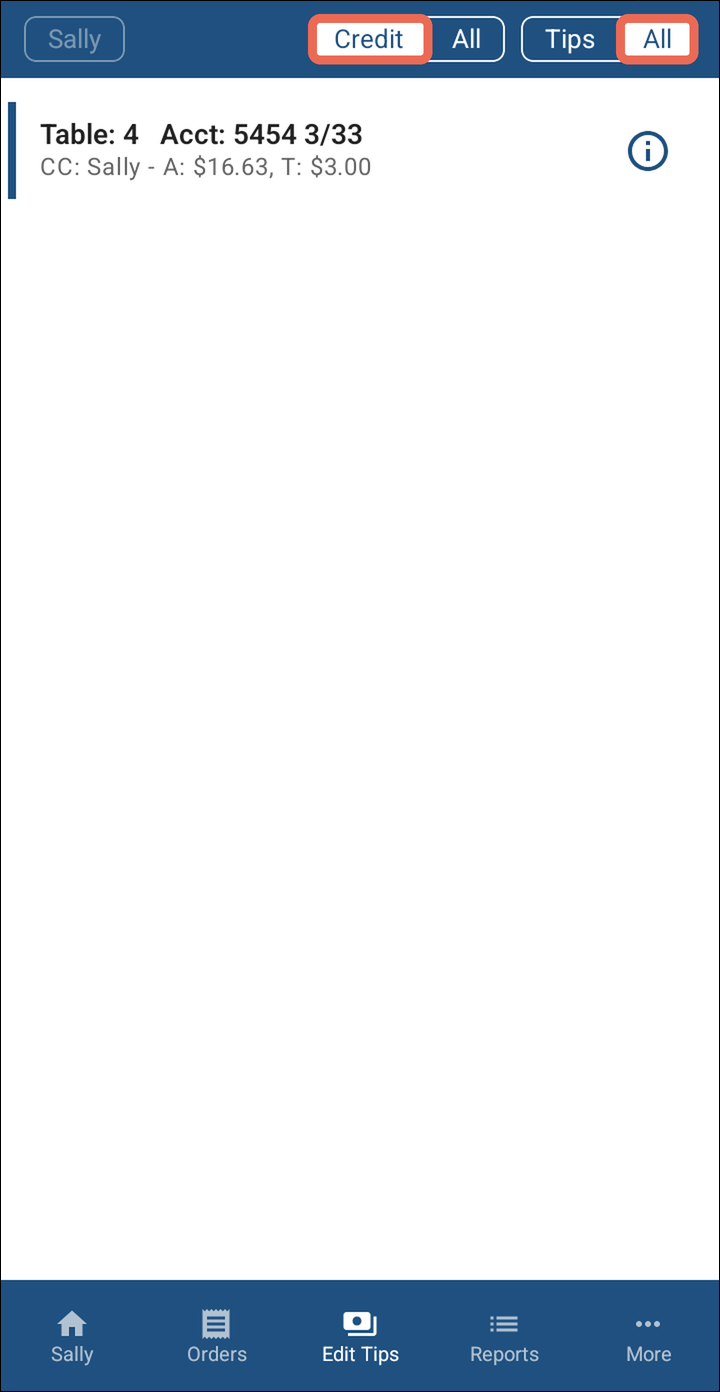
The two buttons at the top pick which payments show. The white side is the one picked.
- Credit: only credit card payments. All: cash and every other payment too.
- Tips: only the payments that don't have a tip yet. All: payments that already have a tip too.
The screen opens on Credit and Tips, the card payments still waiting for a tip. Once you enter a tip, that payment leaves the list.
Example: Sally has a card payment on table 4 with a $3.00 tip, and cash payments on tables 35, 36 and 37. With Credit and Tips picked she sees "No payments to show". With Credit and All she sees the table 4 payment. With All and All she sees all four.
Reprinting a credit card slip
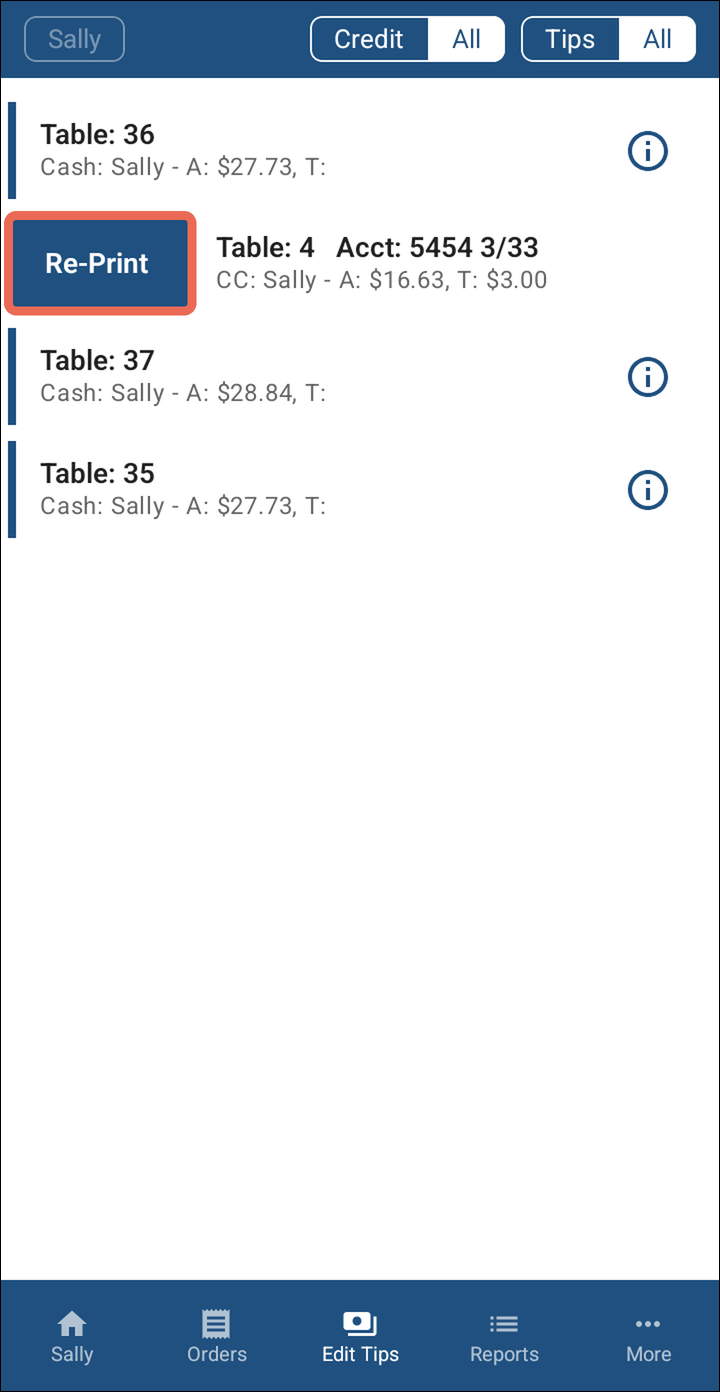
Slide the card payment to the right and tap Re-Print. The slip prints on your receipt printer.
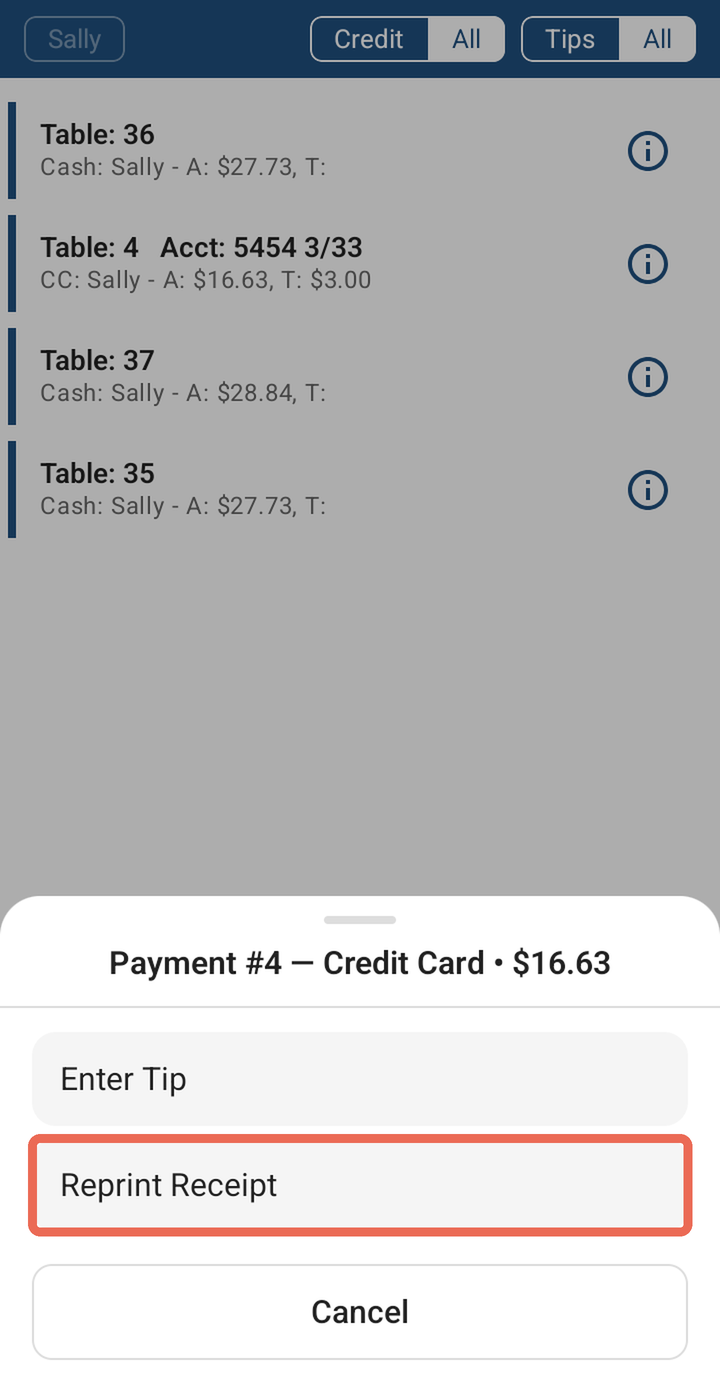
Pro tip: You can also tap the i icon on the payment, then Reprint Receipt.
Voiding a payment
Voiding takes a payment back off the order, for example when the wrong card was charged. It needs manager rights.
-
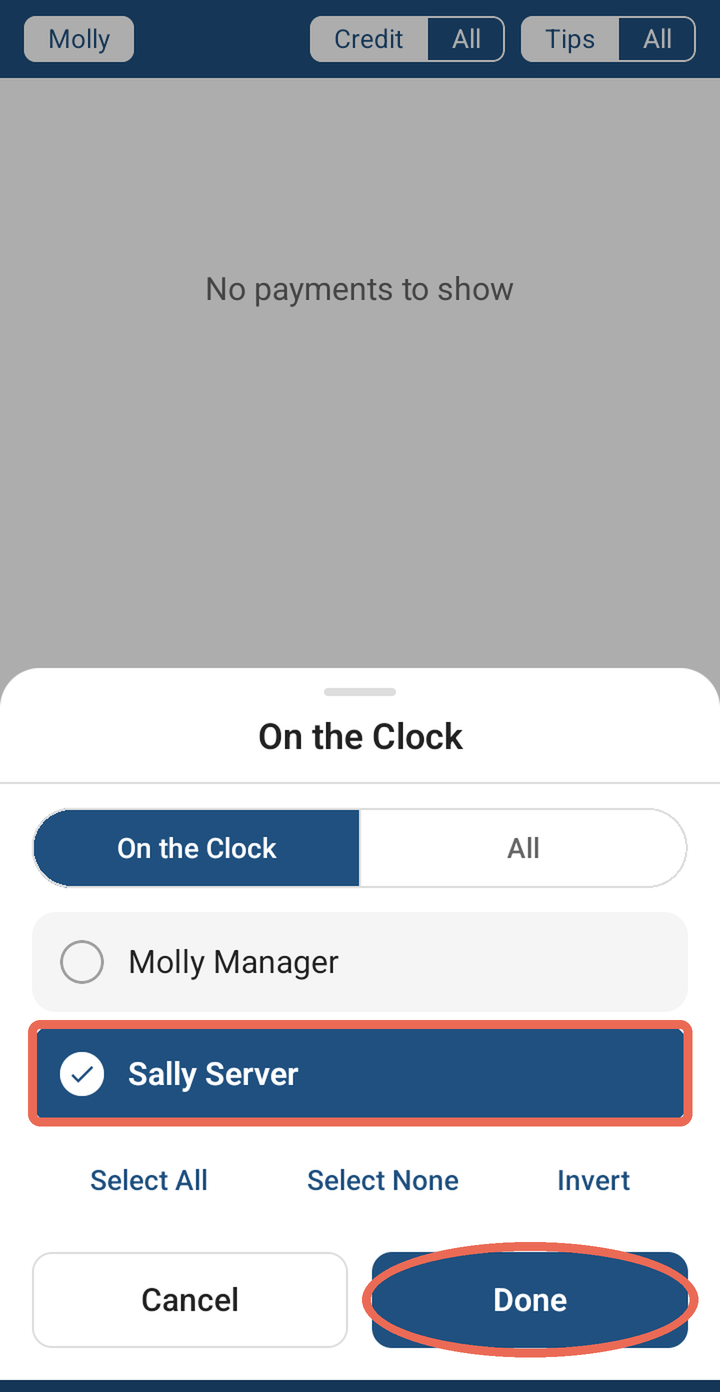
If the payment is another server's, tap the server button at the top left, pick the server and tap Done.
-
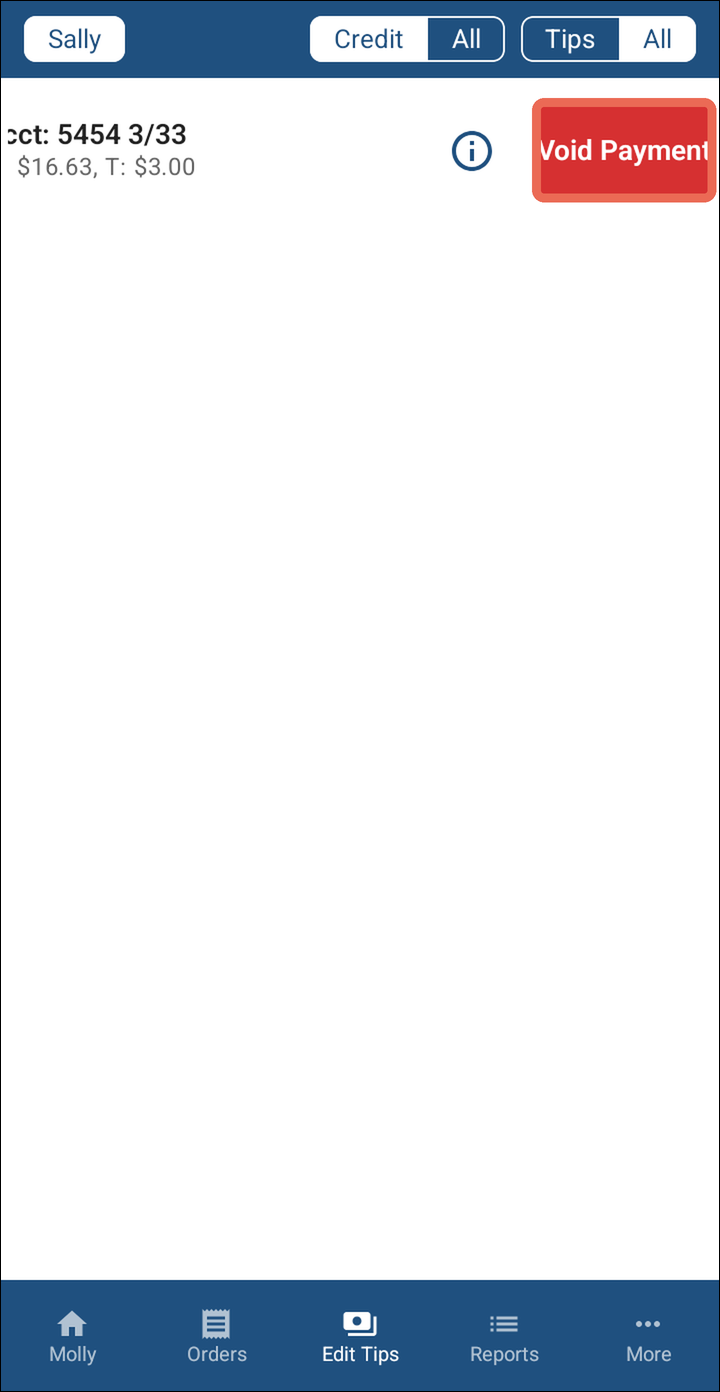
Slide the payment to the left and tap Void Payment.
-
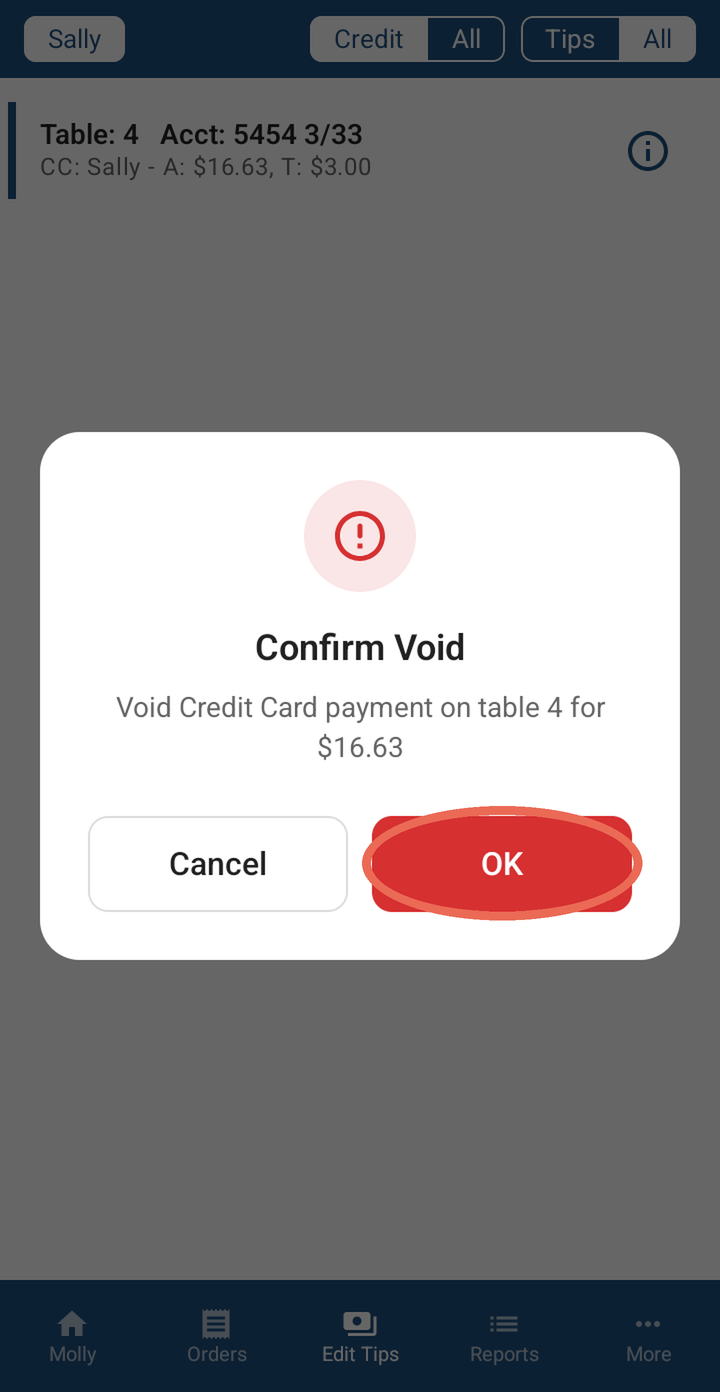
Check the table and amount in the message, then tap OK. If it's the wrong payment, tap Cancel.
Pro tip: You can also tap the i icon on the payment, then Void Payment.
Note: Don't see Void Payment? Your job role doesn't have the Void CC Payments permission - ask your manager.
Entering a tip
Tap the payment, type the tip and tap OK, then check the total and tap OK again. Click here to learn more about entering tips on a handheld.
No Comments