
How to clock in and out on a handheld
This will walk through how to log in on a handheld, clock in and out, and take a break.
If you'd like to see how to clock in and out on a Terminal, please click the link.
Logging in
-
Type your login number on the number pad, then tap Sign in. While the handheld gets ready the button shows Logging In, Updating Cache and Checking Clock - this only takes a few seconds.
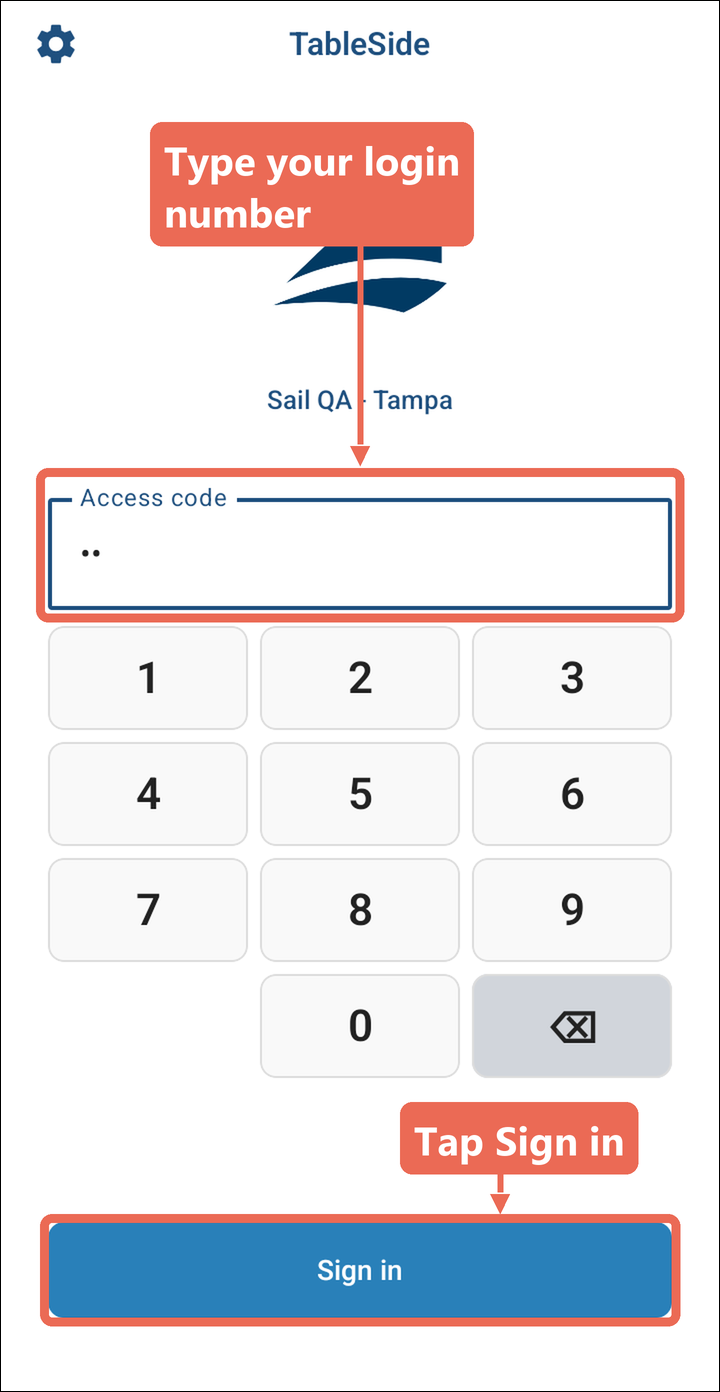
Note: Logout at the top right of the home screen only logs you out - you stay on the clock. Log out when you hand the handheld to someone else.
Clocking in
-
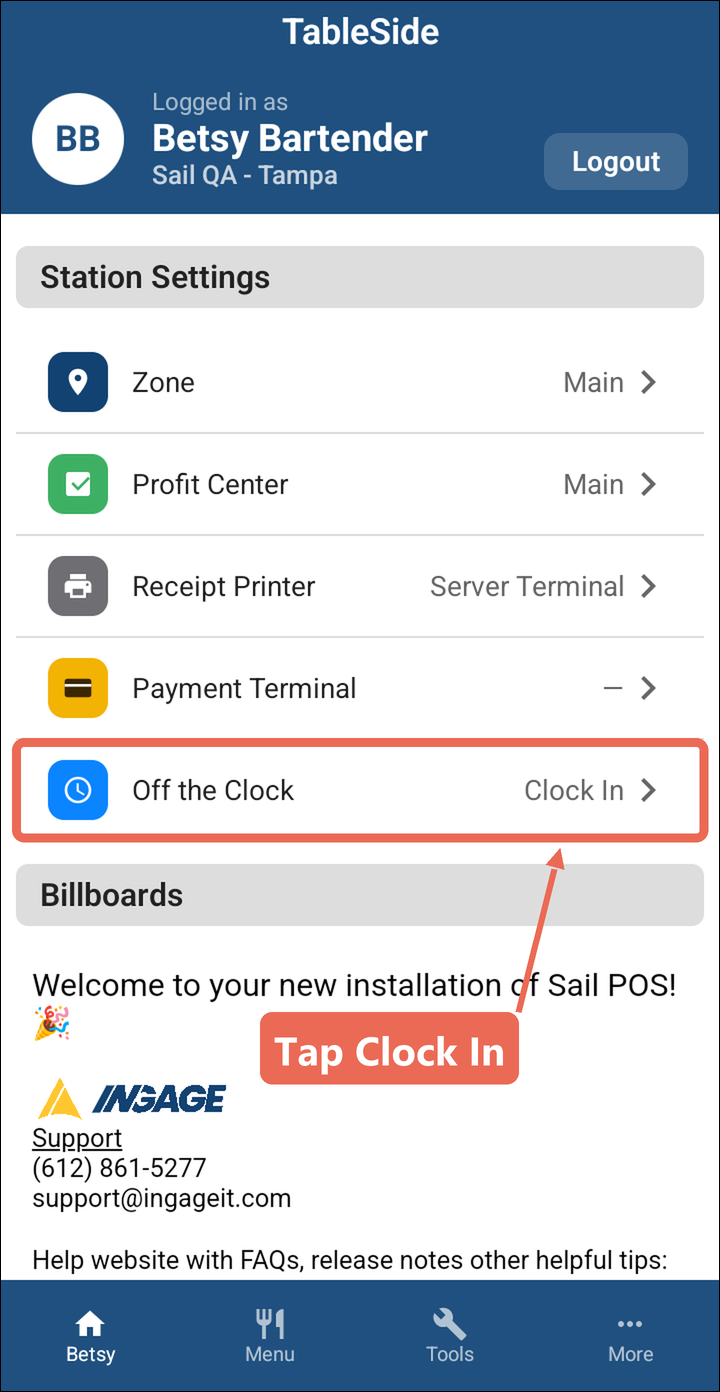
On the home screen, under Station Settings, the clock row says Off the Clock. Tap Clock In.
-
If you work more than one job role, pick the one you're working today.
-
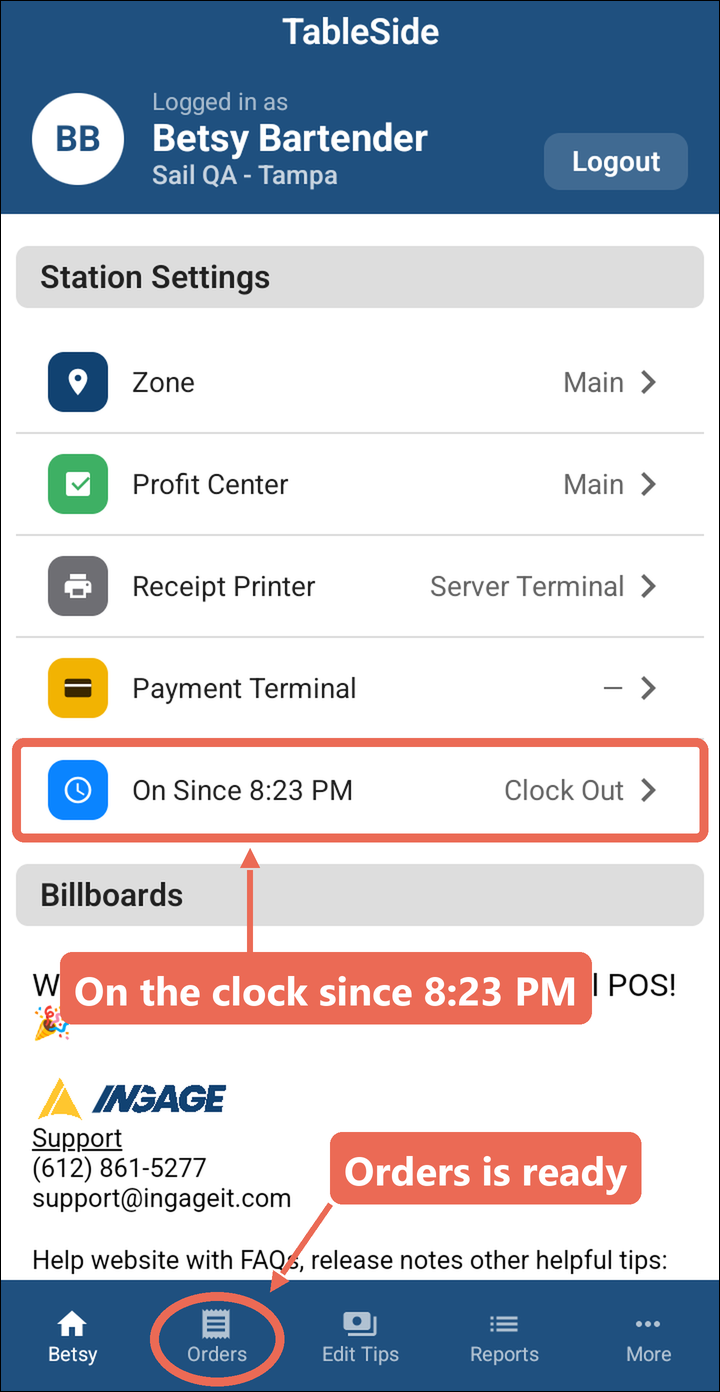
You're on the clock: the row now says On Since and the time you clocked in, and Orders shows at the bottom so you can start taking orders.
Taking a break
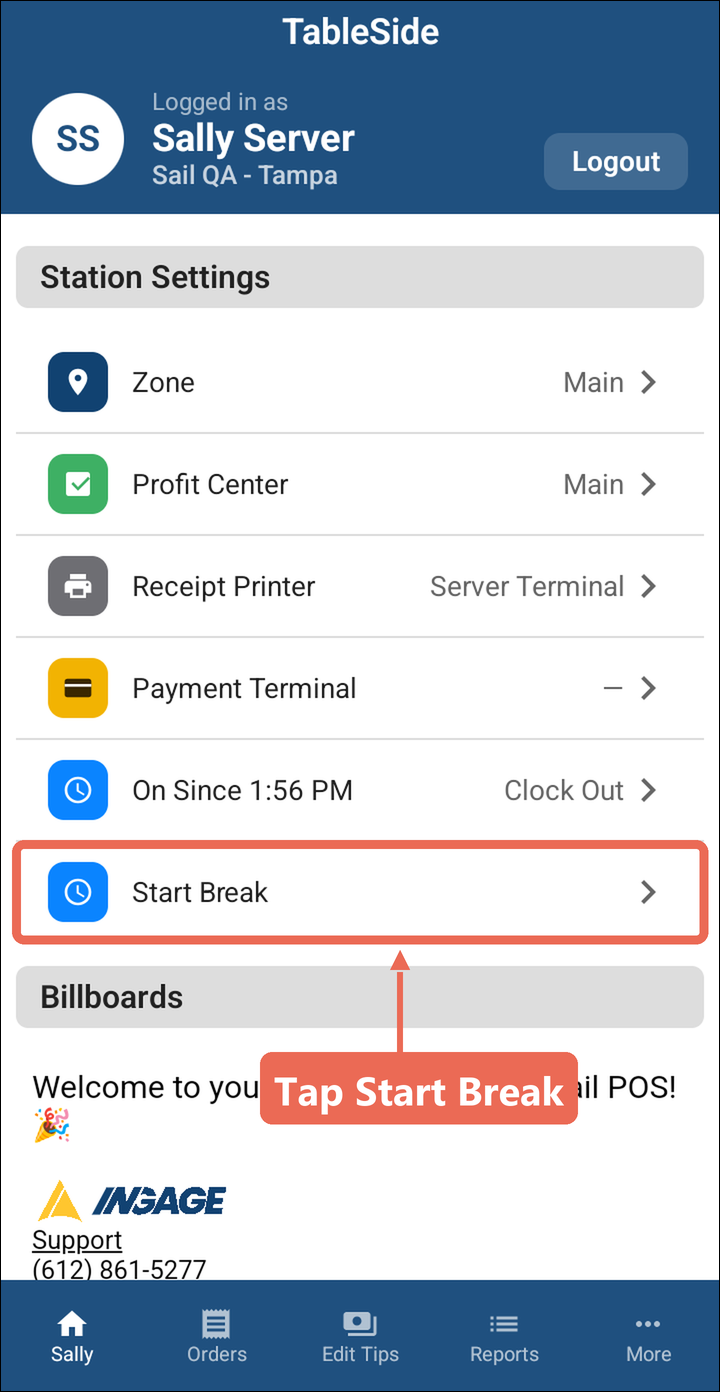
Start Break shows under the clock row only when breaks are set up for your job role.
-
Tap Start Break.
-
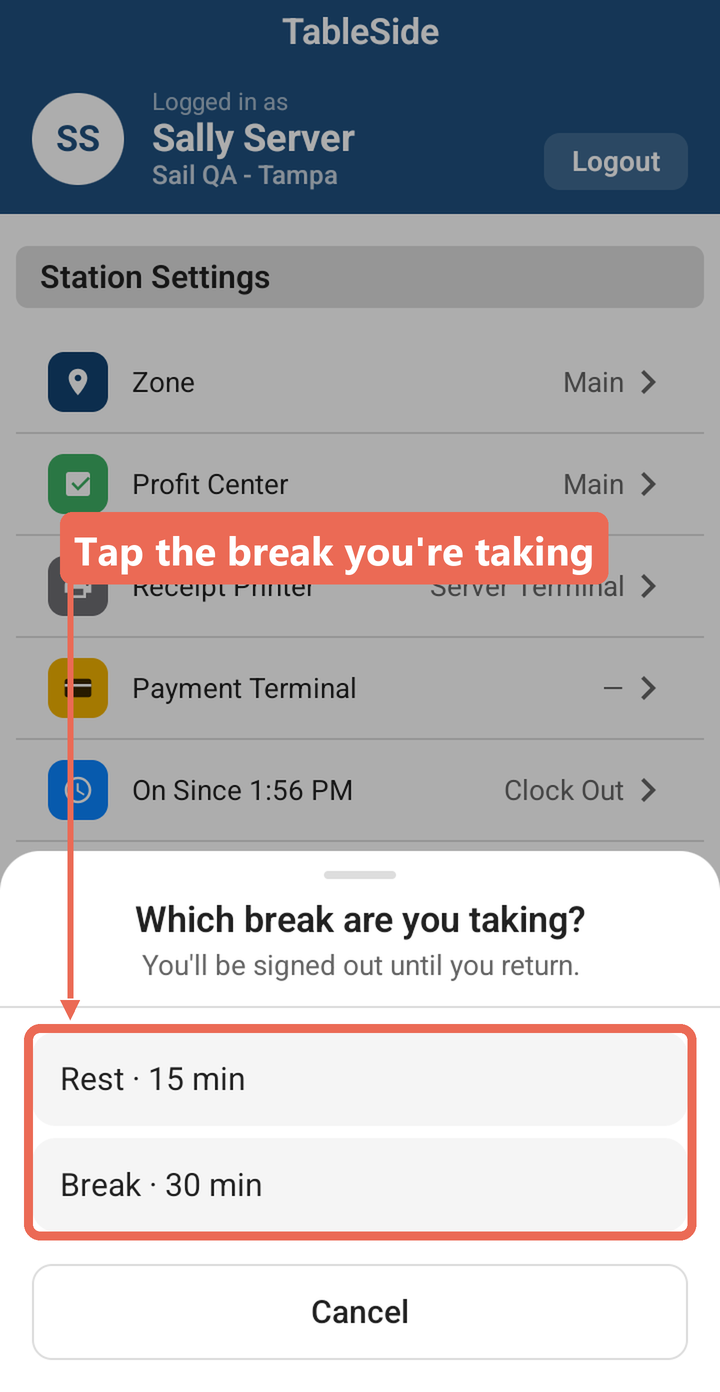
Tap the break you're taking. The handheld logs you out until you come back.
-
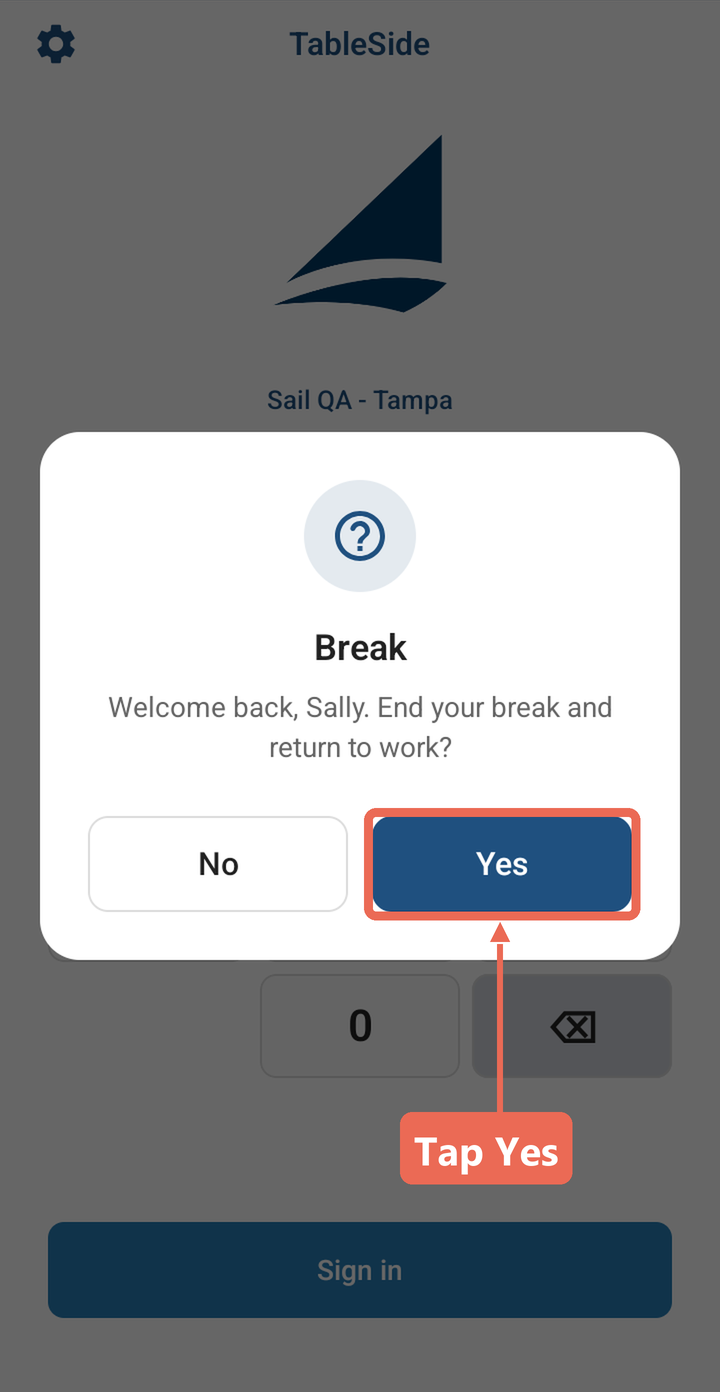
When you're back, log in. The handheld asks if you want to end your break - tap Yes. (No keeps you on your break and logs you out again.)
Clocking out
-
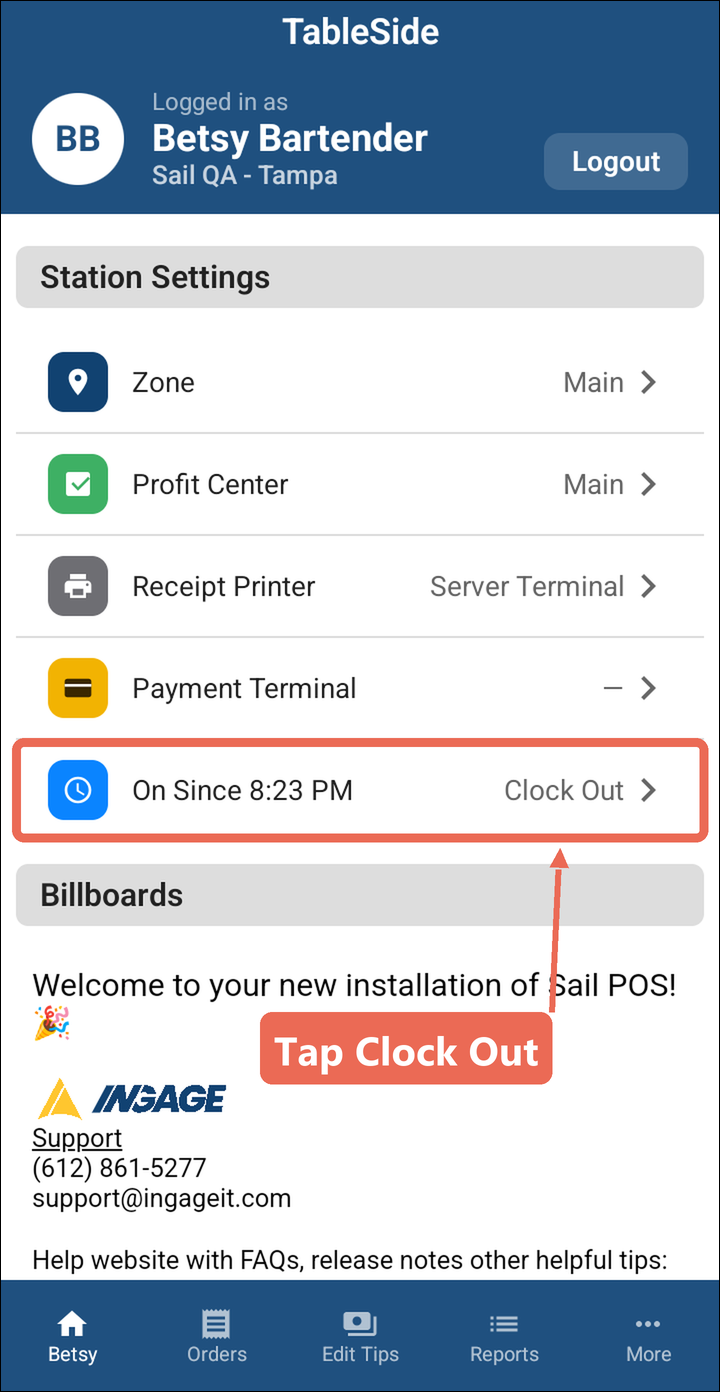
On the home screen, tap Clock Out on the On Since row.
-
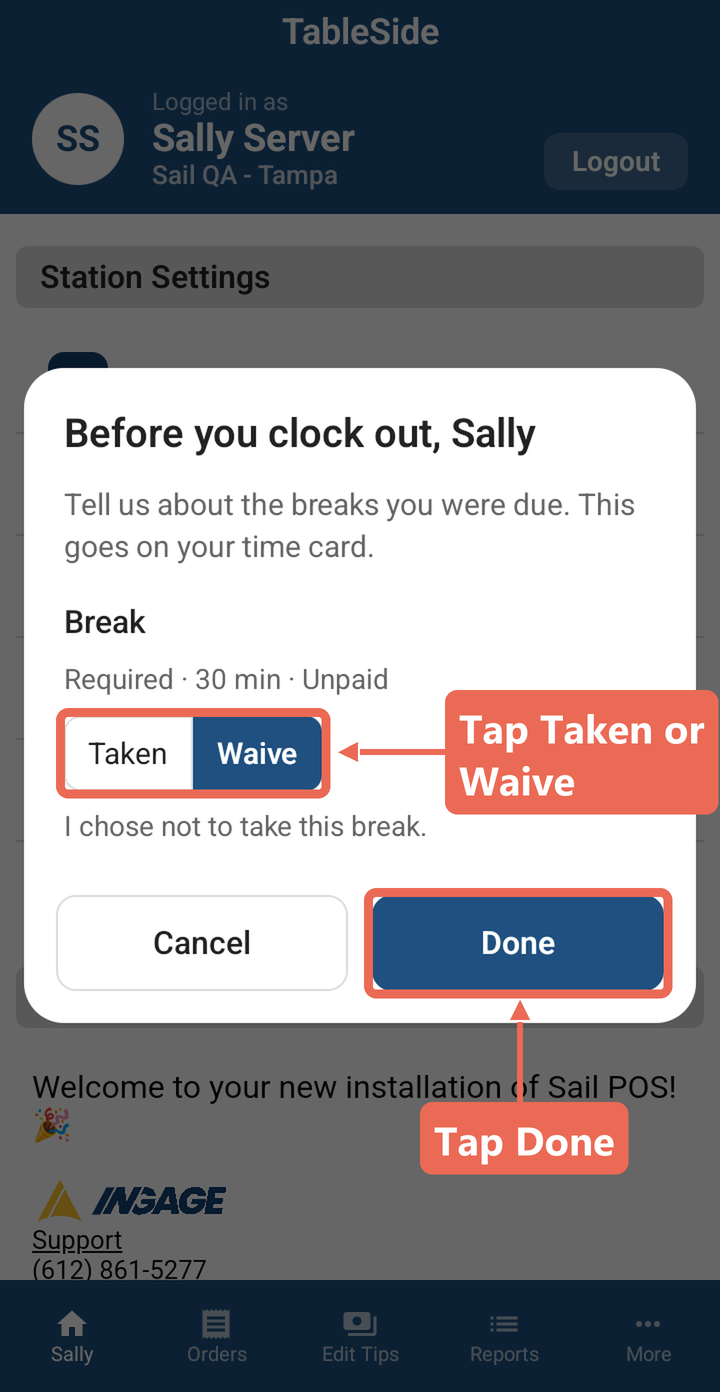
If the handheld asks about the breaks you were due, answer each one and tap Done:
- Taken: you took the break.
- Waive: you chose not to take it.
Your answers go on your time card.
-
You're clocked out, and the handheld goes back to the login screen.
Note: If it says "You must run a server close before clocking out", close out your tables, then do a server close: tap More at the bottom, then Tools, then Server Close. Then clock out again.
No Comments