
The Handheld Orders Screen
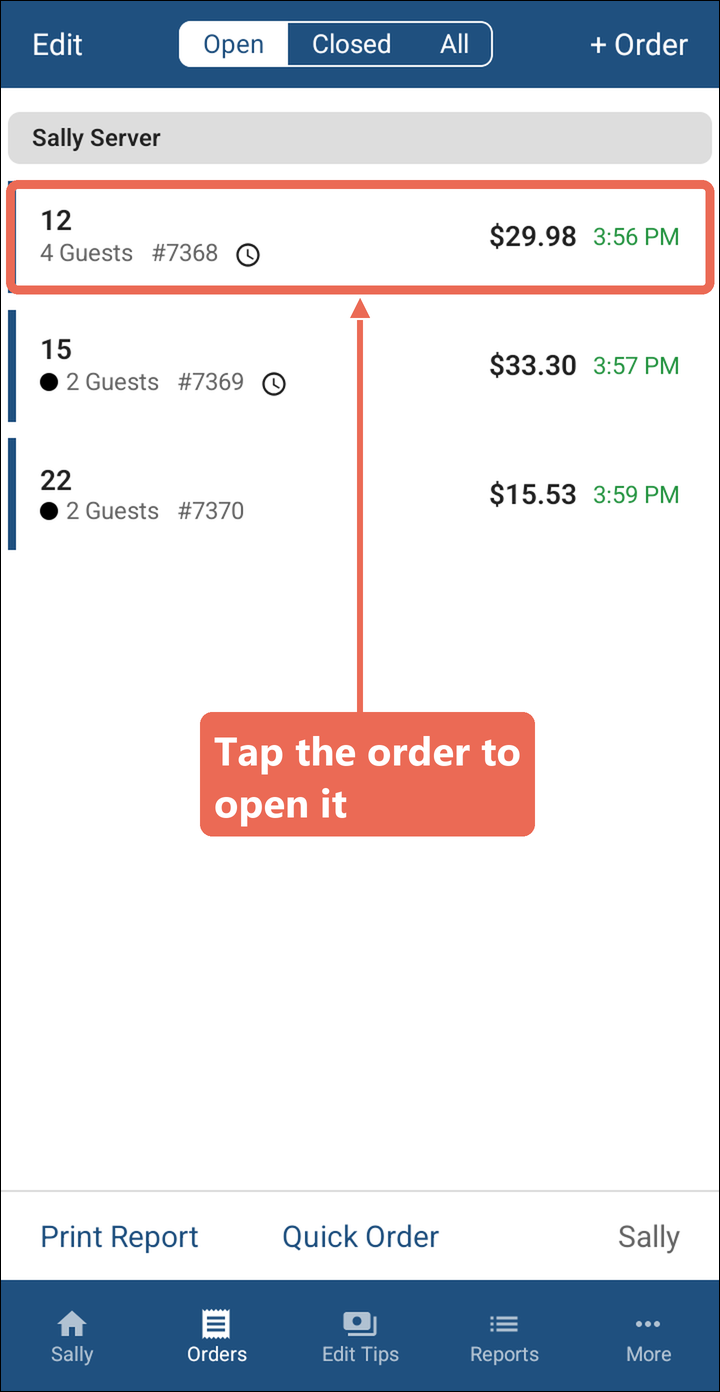
The Orders screen lists your orders on the handheld, the ones still open and the ones already paid. From here you open an order, start a new one, see other servers' orders and print a list of your tables. This will walk through each part of it.
To get there, tap Orders in the bar at the bottom of the screen.
Screen layout
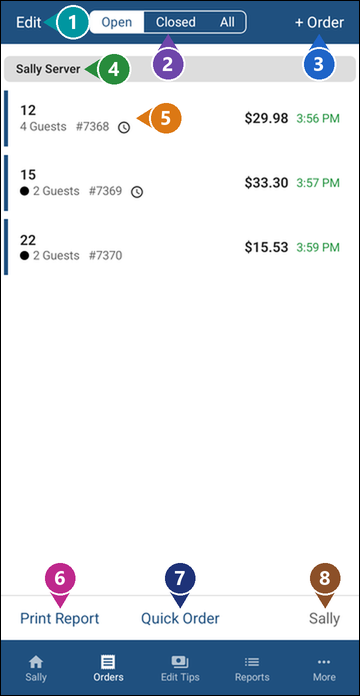
1. Edit - Lets you pick several orders at once, then print, transfer, combine or cash them out together with the buttons that show at the bottom.
2. Open / Closed / All - Picks which orders show in the list.
3. + Order - Starts a new table.
4. Server name - The orders are listed under the name of the server they belong to.
5. An order - Each order shows its table, guests, total and the time it was started. Tap it to open it.
6. Print Report - Prints a list of the orders showing.
7. Quick Order - Starts an order straight away, without asking for a table number or the number of guests.
8. Your name - Shows whose orders are in the list. Tap it to see other servers' orders.
What each order shows
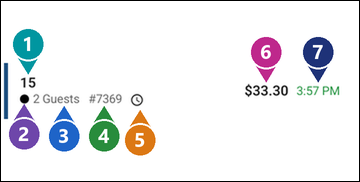
1. Table - The table number, or the name the order was given.
2. Kitchen dot - Where the order is in the kitchen: black when it's been sent and is waiting to be started, blue while it's being made, green when it's ready and waiting at expo. The dot goes away once the order is done. It only shows at locations with Kitchen Video.
3. Guests - How many guests are on the order.
4. Order number - The order's number, the same one the POS terminal and the receipt show.
5. Icons - Show what's on the order (see the list below). The clock means a timed item's timer is running.
6. Total - The order's total so far.
7. Time - When the order was started: green while the order is open, red once it's been paid and closed.
Other icons you may see on an order:
- Hourglass: The order has items on hold.
- Coupon: The order has a discount.
- Red X: Items on the order were voided.
- Comp: Items on the order were comped.
- Green check: Every timer on the order has been stopped.
- Gold lock: The order is open on another handheld or terminal right now.
- A name in red with a red i: The order is being transferred to or from another server. See The i button.
Note: The colored stripe on the left of each order is the order type's color.
Open, Closed and All
Tap Open, Closed or All at the top to pick which orders show:
- Open: Orders that haven't been paid yet. This is what you see most of the shift.
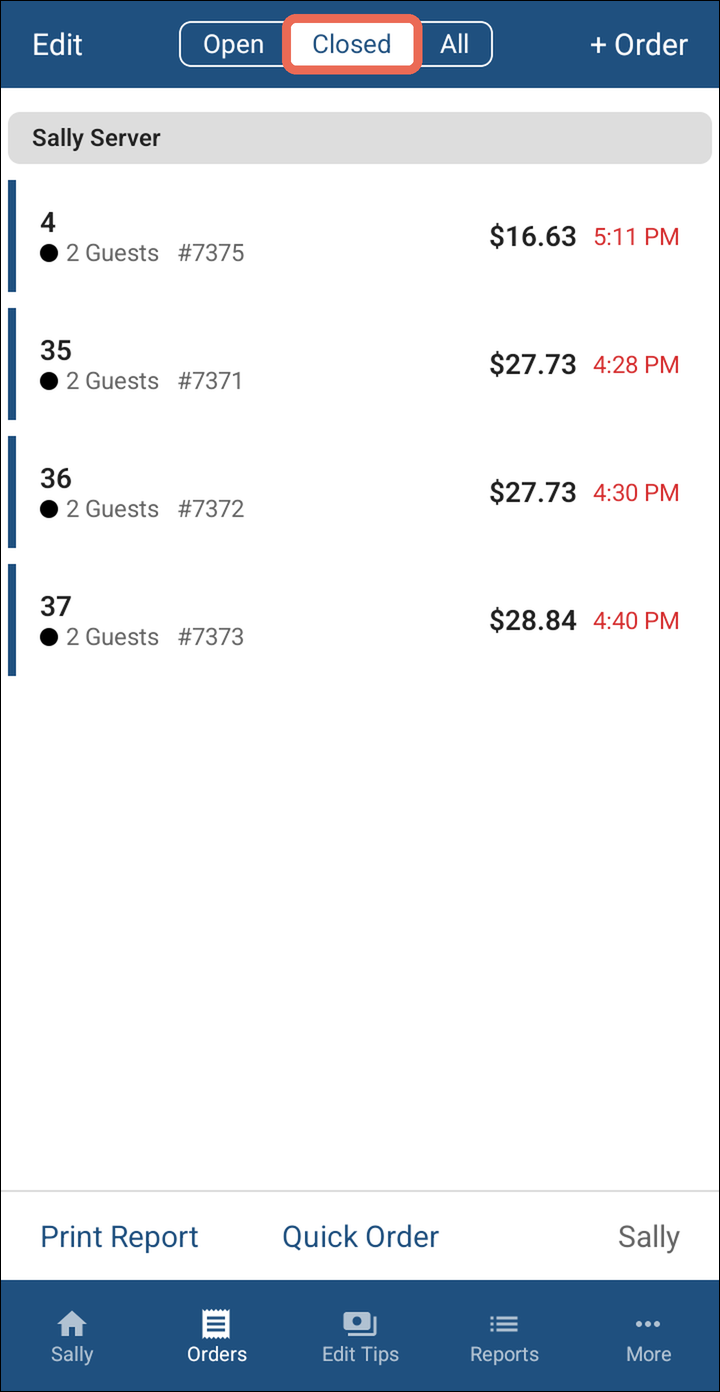
- Closed: Orders that have been paid and closed.
- All: Both, open and closed.
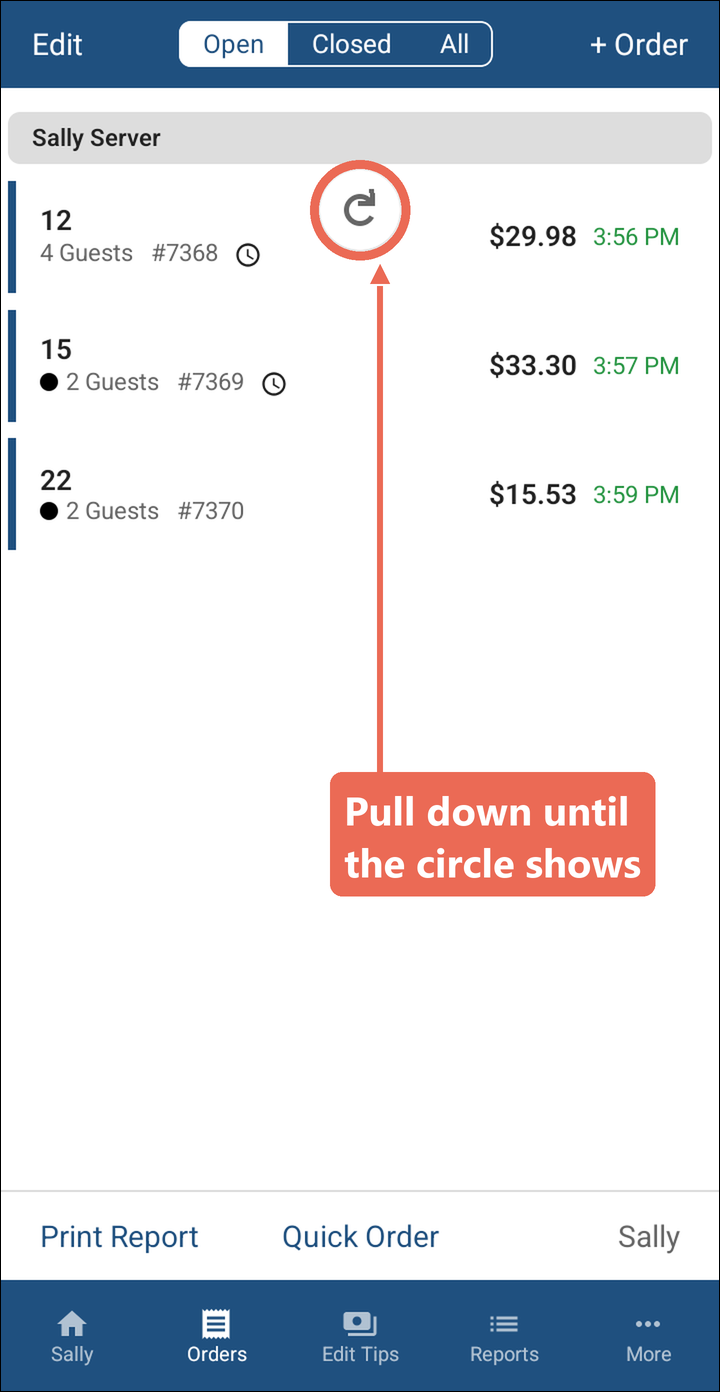
The list updates each time you come back to it. To update it while you're on it (for example, to see an order just started on a terminal), pull the list down from the top until a circle shows, then let go.
Opening an order
Tap the order. It opens so you can add items, send them or pay it out.
If you'd like to learn how to close a table from a handheld, click here.
The i button
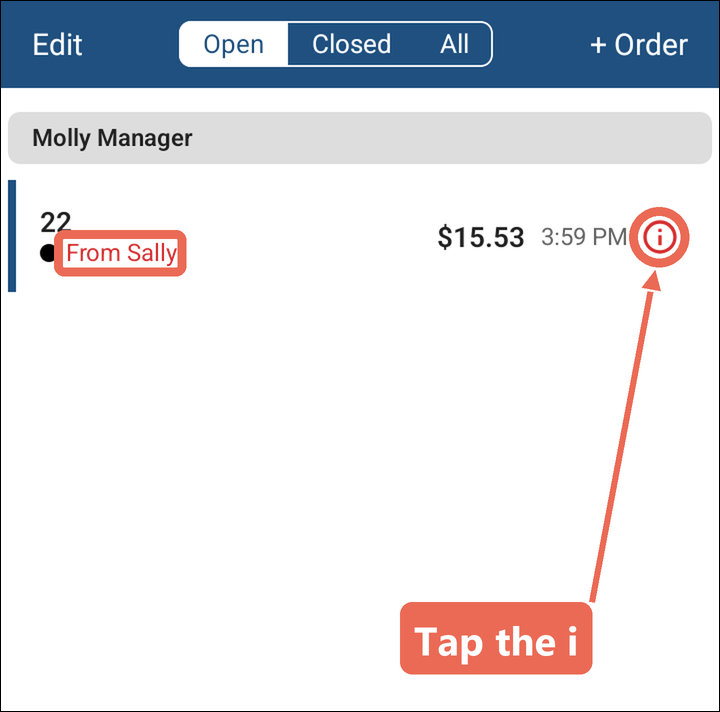
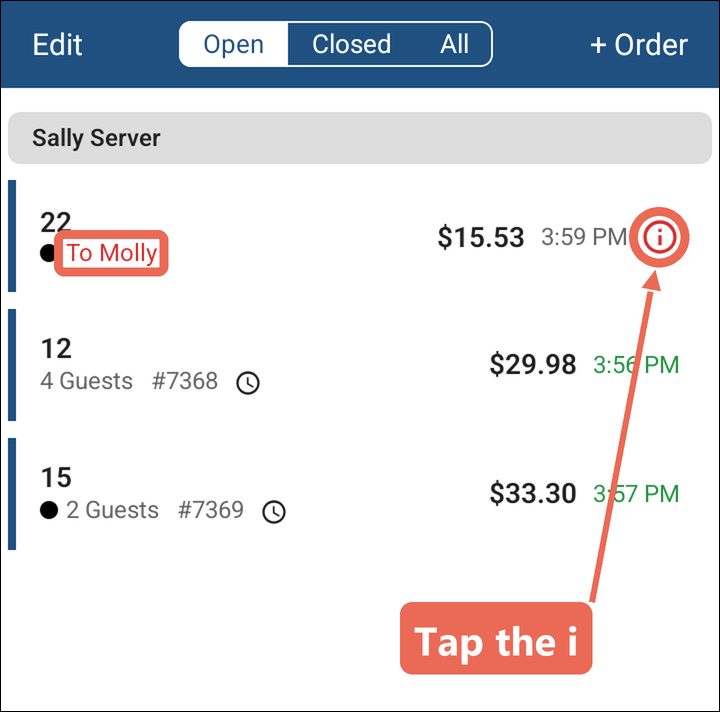
When an order is being transferred from one server to another, it shows the other server's name in red (To Molly or From Sally) and a red i on the right. The order stays with the first server until the server getting it accepts it. Tap the i to finish the transfer or stop it.
An order coming to you
-
Tap the i on the order that says From and the other server's name.
-
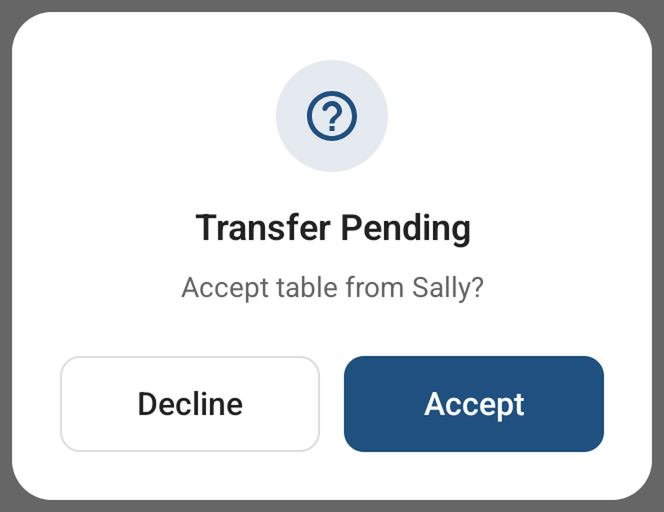
Tap Accept to take the table, or Decline to leave it with the other server.
An order you're sending
-
Tap the i on the order that says To and the other server's name.
-
Tap Yes to cancel the transfer and keep the table, or No to leave it waiting for the other server.
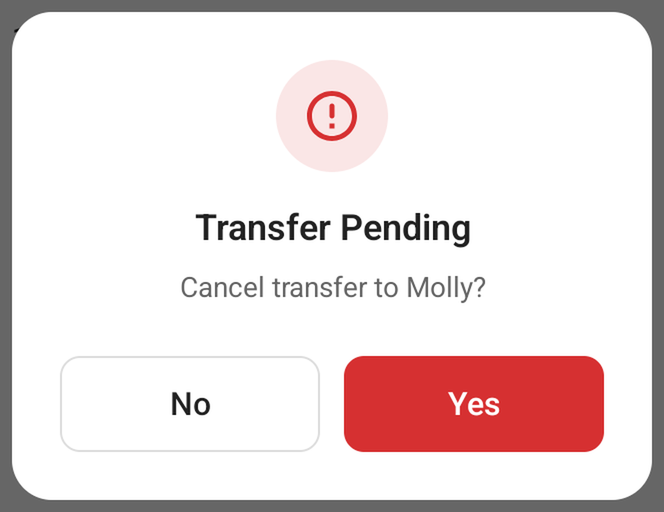
Note: Orders wait for the other server like this when your job role has the 2 Step Server Transfer task. With Single Step Server Transfer, the order moves straight away and no i shows. To transfer an order, swipe it to the right and tap Transfer.
Viewing other servers' orders
Managers and anyone else whose job role allows it can see other servers' orders, for example to help with a table.
-
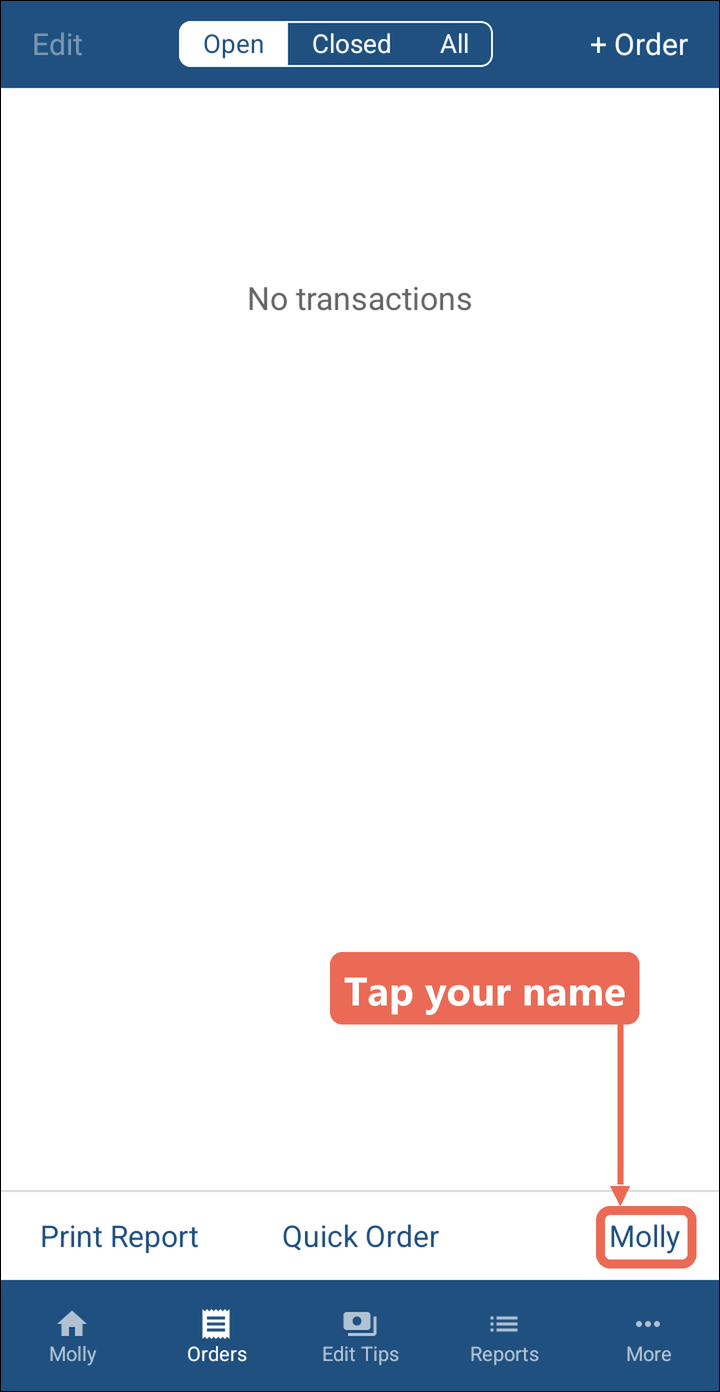
Tap your name at the bottom right.
-
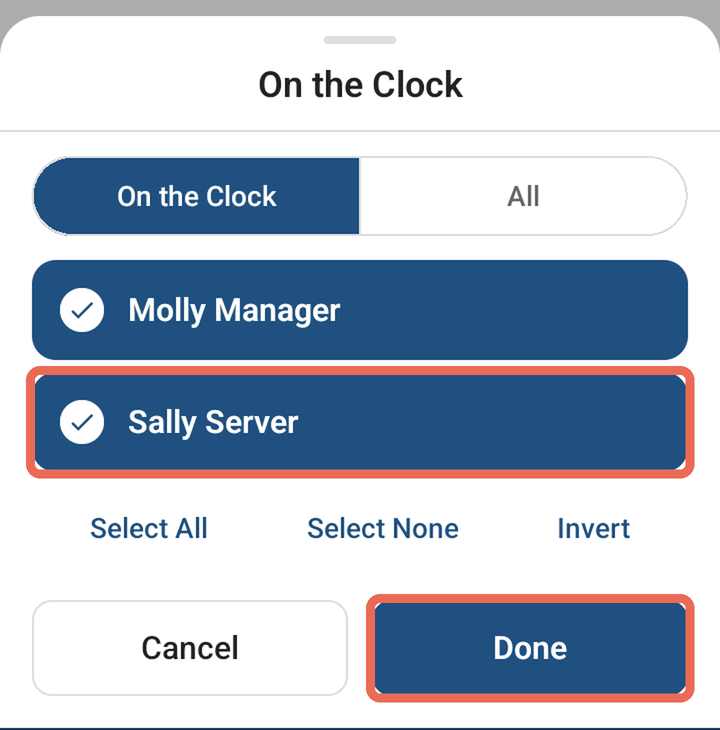
Tap each server whose orders you want to see, so a check mark shows next to them, then tap Done. On the Clock lists the servers who are clocked in; All lists every server at the location.
-
Each server's orders show under their name. The bottom right says Several when you're looking at more than one server.
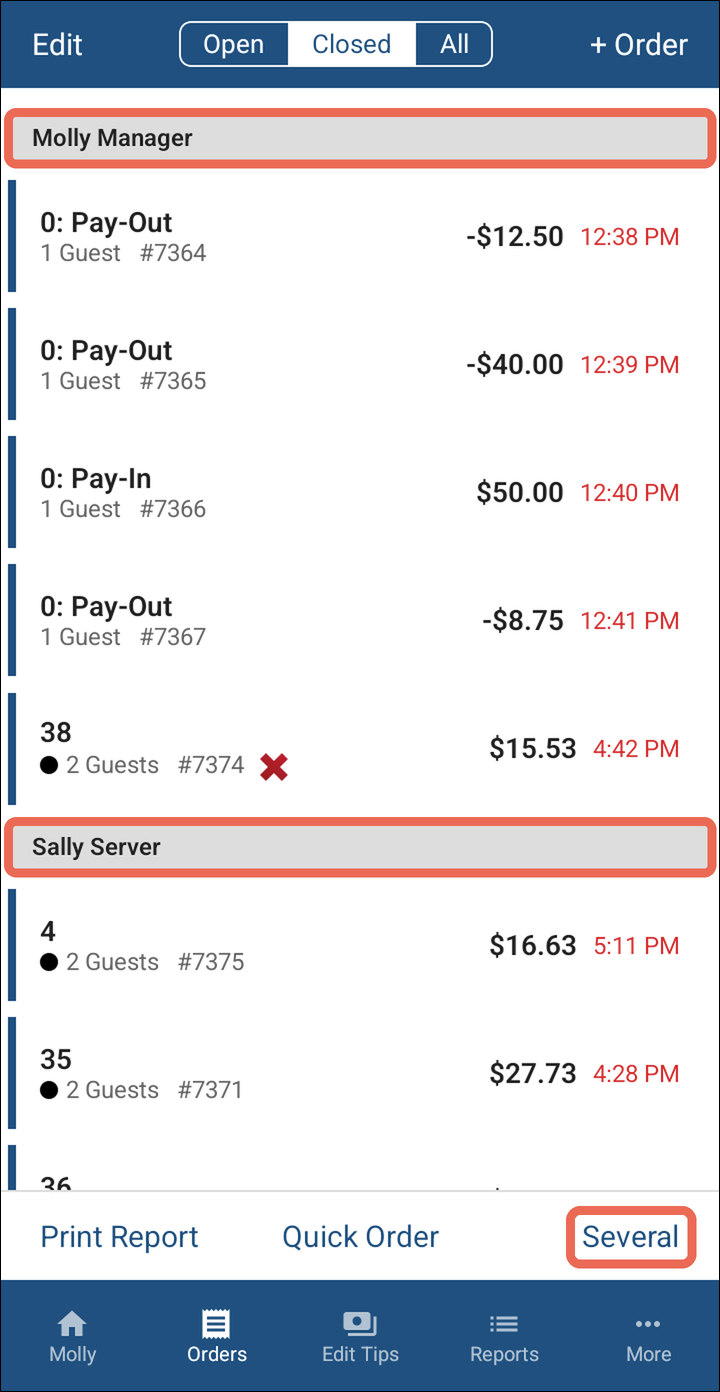
To go back to only your orders, tap the name at the bottom right again, tap Select None, tap your name and tap Done.
Note: This needs the View All Orders task in your job role. Without it, your name at the bottom right is grey and doesn't open anything.
Print Report
Tap Print Report at the bottom left. A Printing report… message shows, and a list of the orders prints: each table with its guests, server, subtotal, time and order number, and the total at the bottom.
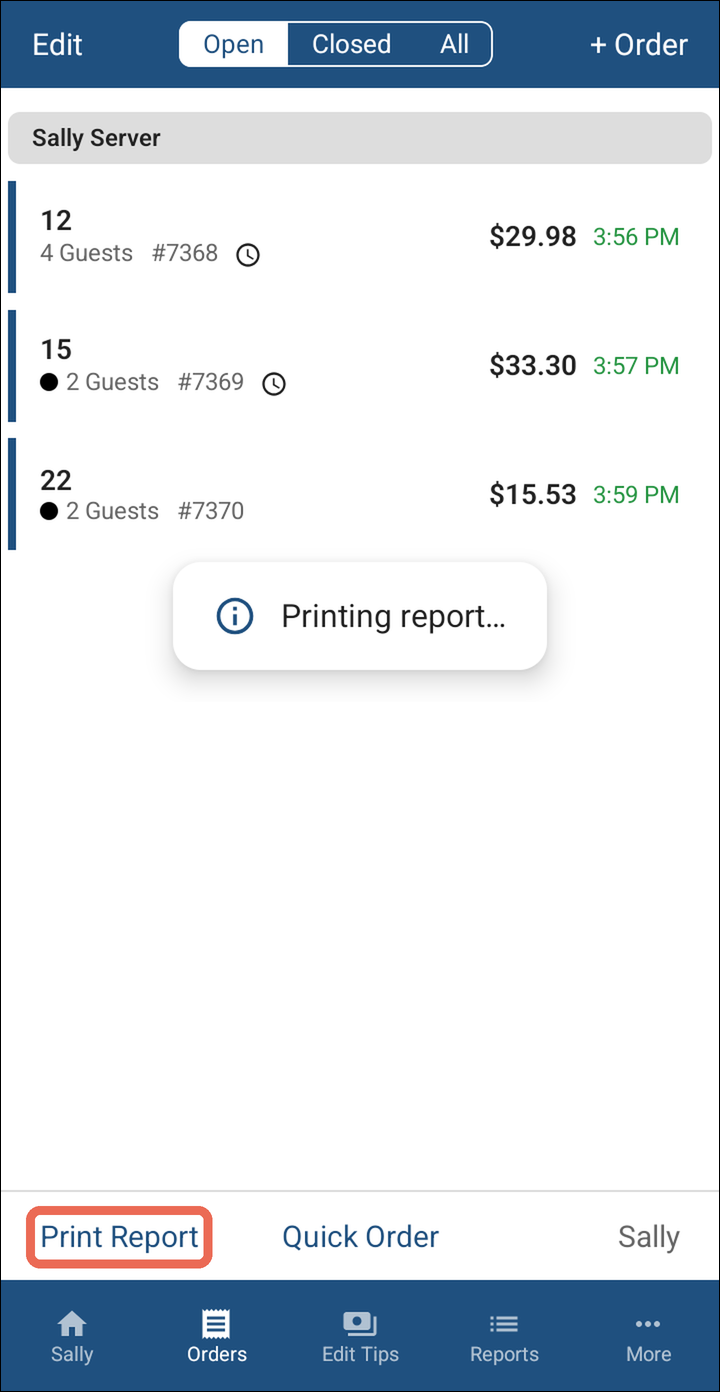
The report follows what the screen shows: Open, Closed or All, for the server whose name is at the bottom right. It prints on the handheld's receipt printer. If none has been picked, the handheld asks which printer to use. If you'd like to learn more about picking a receipt printer, click here.
Pro tip: Pick Open and print the report before you close out, to see which tables you still have to pay out.
Note: The report is for one server. If you're looking at several servers, pick just the one you want first.
If you'd like to learn how to see your sales for the shift, click here.
No Comments