
How to make font size bigger on an A77 device
You can make the font bigger on an A77 device using the device's own settings. TableSide follows the device's font size, so its text gets bigger too.
Where to change the setting:
-
Open the A77's Settings: swipe down from the top of the screen and tap the gear.
-
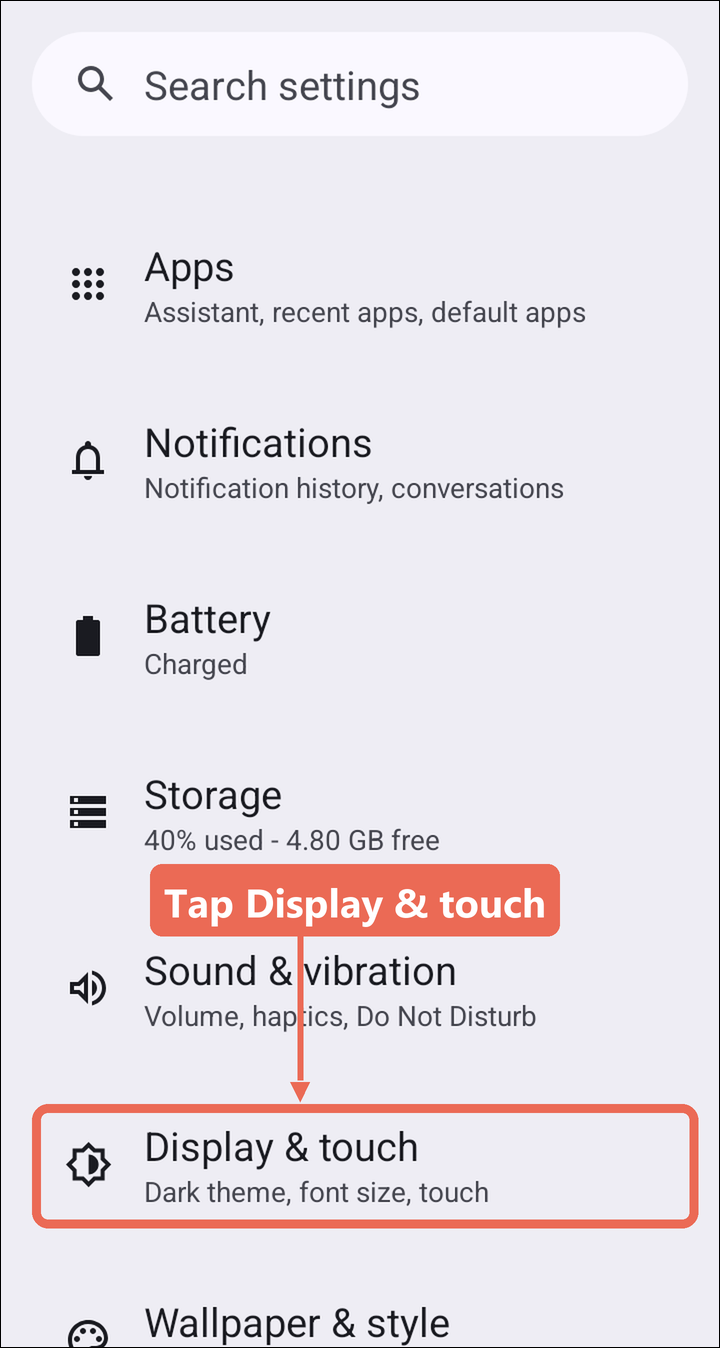
Tap Display & touch.
-
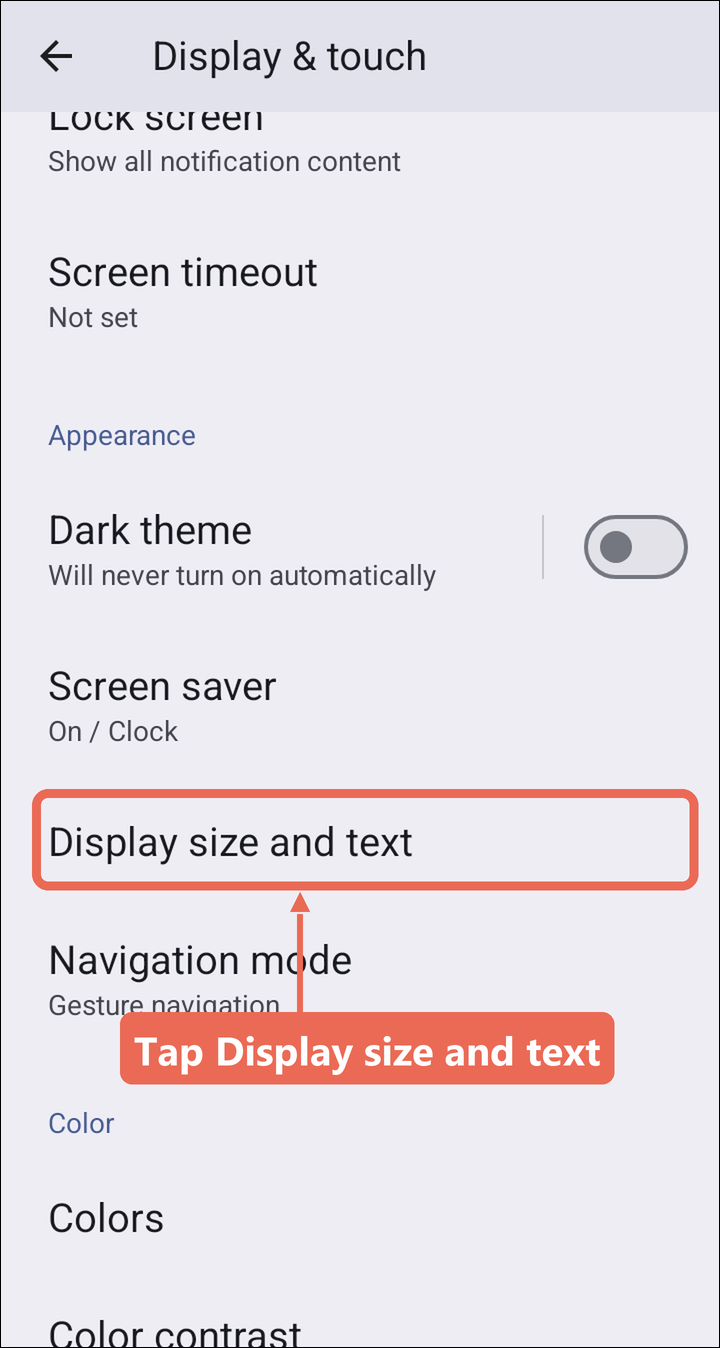
Tap Display size and text.
-
Under Font size, tap + to make the text bigger. Each tap is one size bigger; - makes it smaller again. The new size shows as soon as you go back to TableSide.
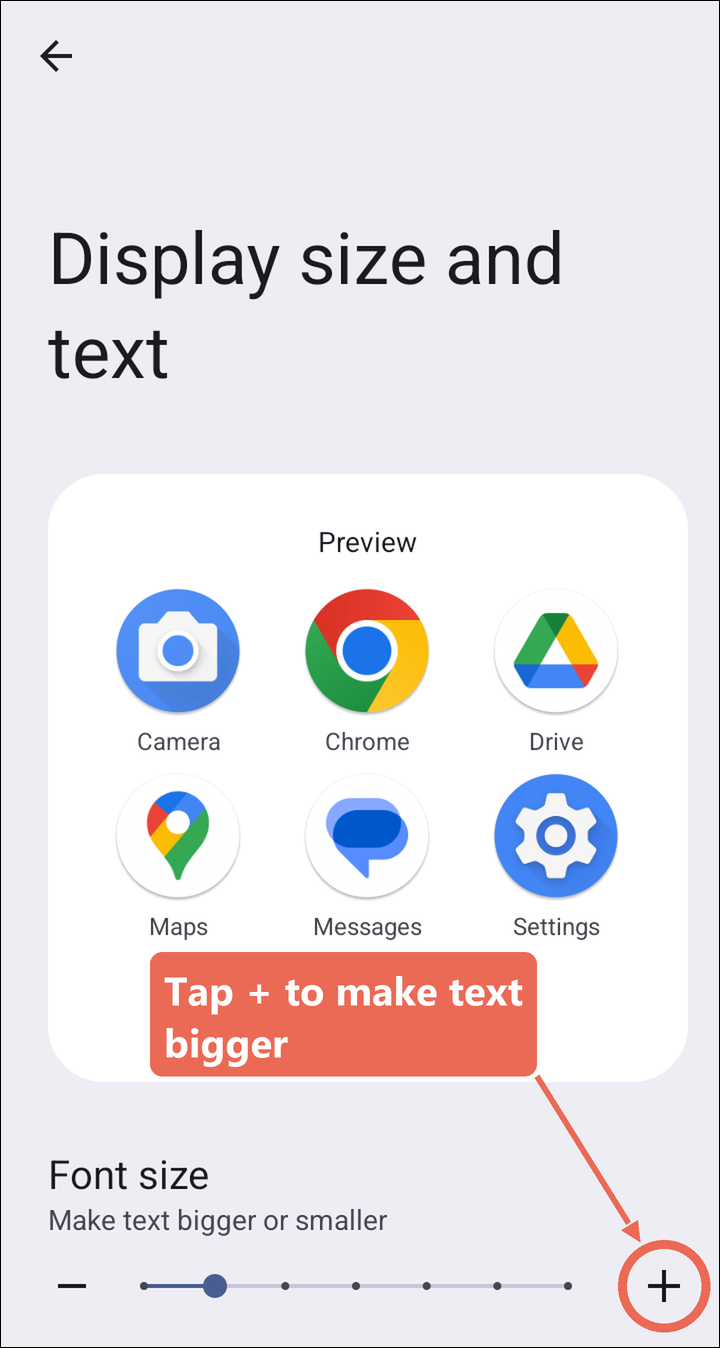
(Note: The names of these settings may differ a little between Android versions. Look for Display, then Font size.)
Note: The font size is set on the A77, not for your login, so everyone who uses that device sees the bigger text.
What different font sizes look like
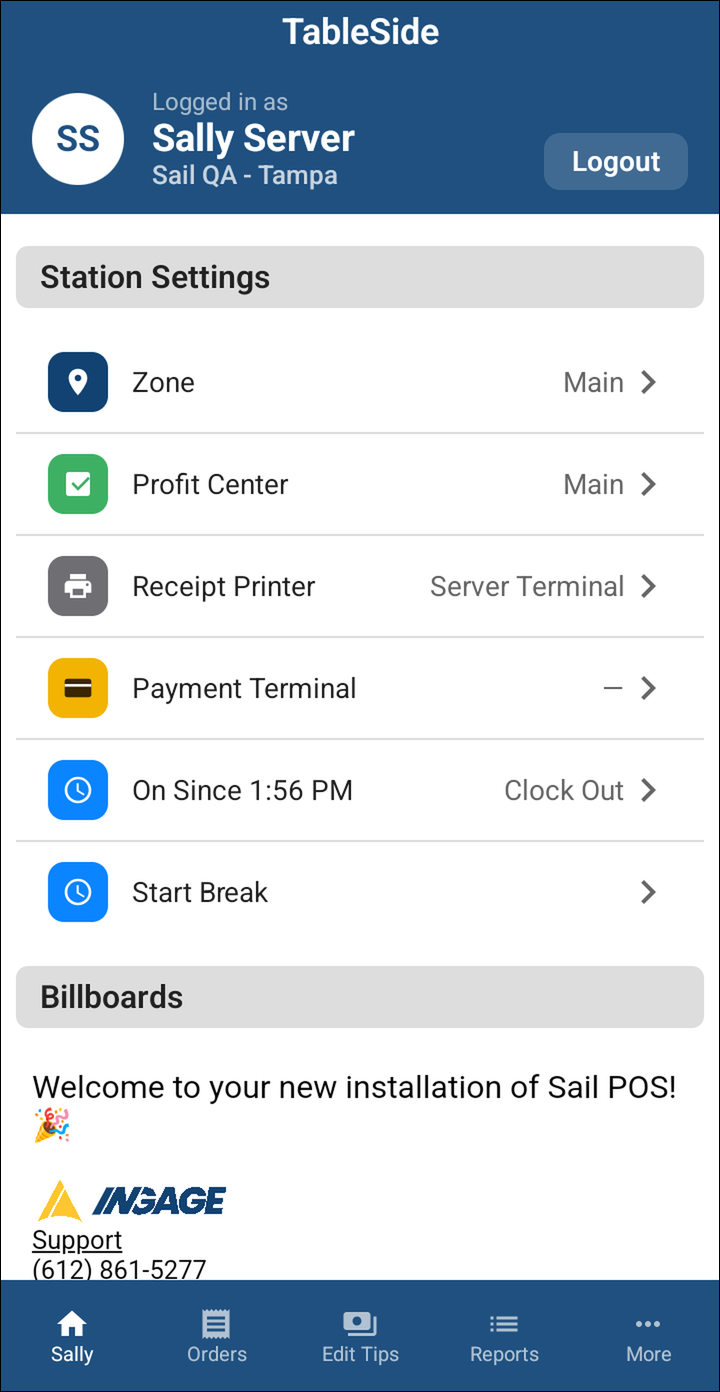
- Here is the TableSide Home screen at the default size and two sizes bigger.
| Default Size | Two Sizes Bigger |
 |
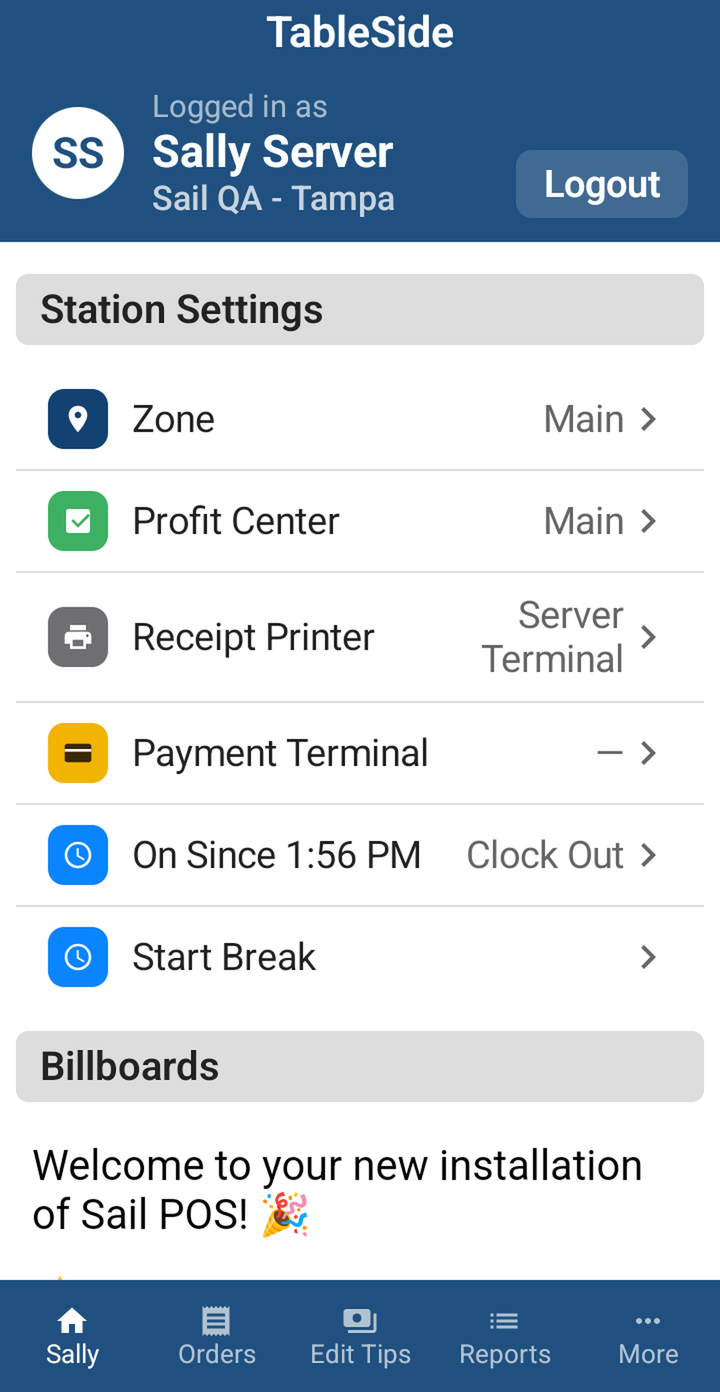 |
Pro tip: At bigger sizes some words on the TableSide screens run together or get cut off. If that happens, tap - once or twice until everything fits.
No Comments