
How to move an item to a different seat and hold, delete & duplicate items
This will walk you through how to move an item to a different seat (guest), hold an item so the kitchen doesn't start it yet, and duplicate or delete items on a handheld. Each of these starts with Edit at the top right of the order.
Moving an item to a different seat
-
Tap Edit at the top right.
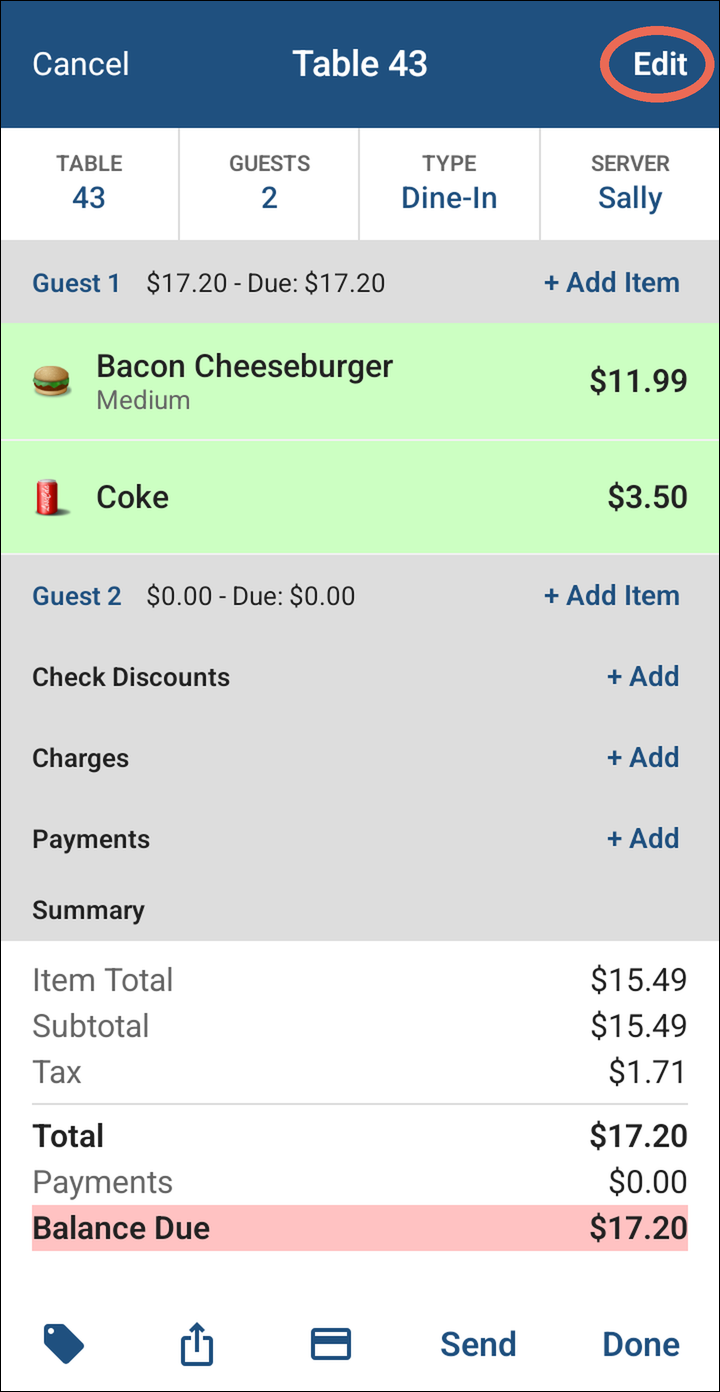
-
Press and hold the three lines next to the item and drag it onto the seat you want it on (Example: the Coke onto Guest 2).
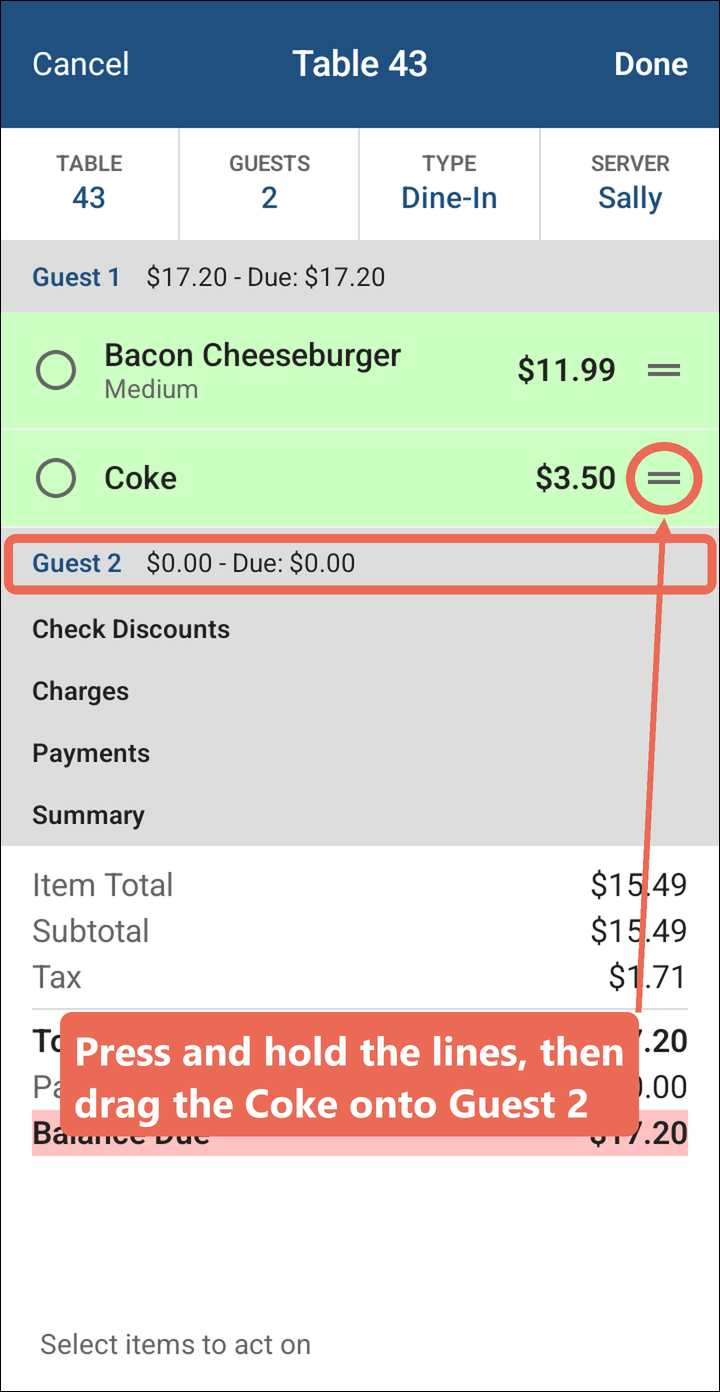
-
The item moves to that seat, and each guest's total changes with it. Tap Done at the top right when you're finished.
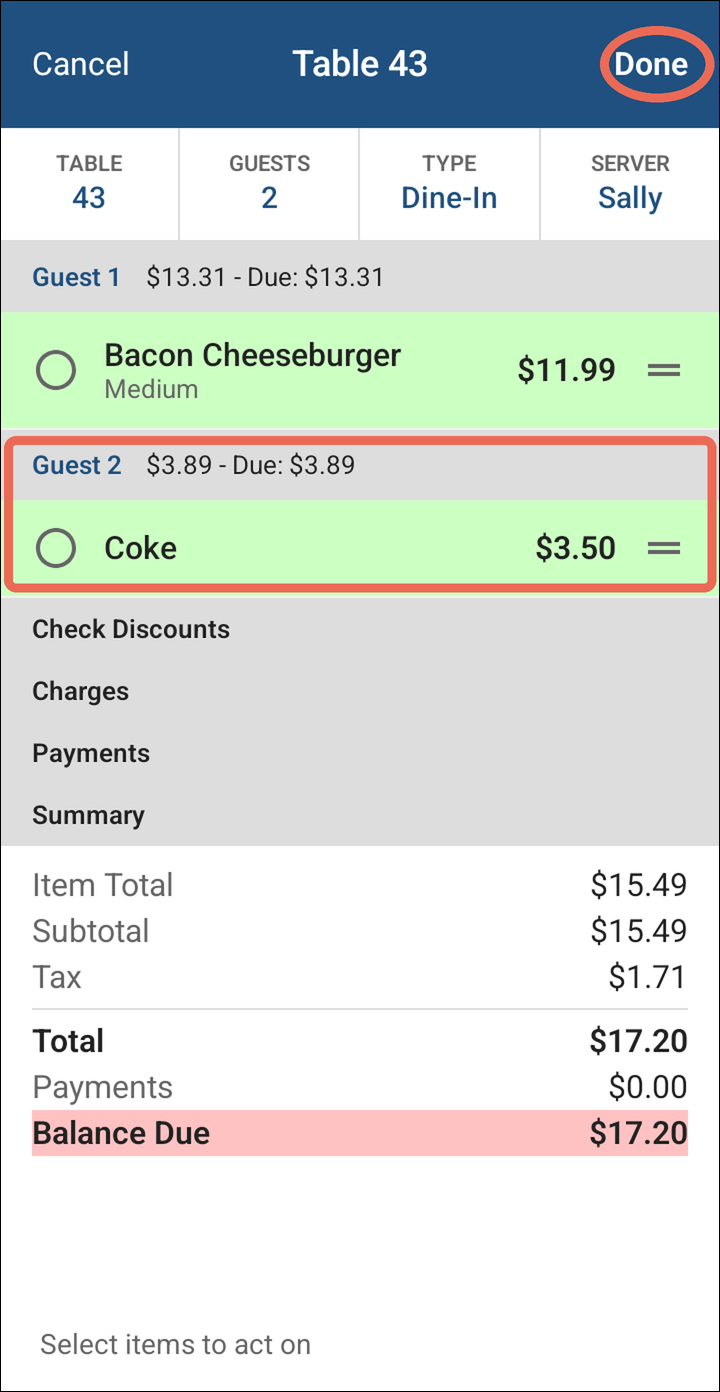
Holding an item
A held item isn't sent to the kitchen until you fire it. You can hold items that haven't been sent yet.
-
Tap Edit, tap the circle next to the item you want to hold, then tap Hold at the bottom.
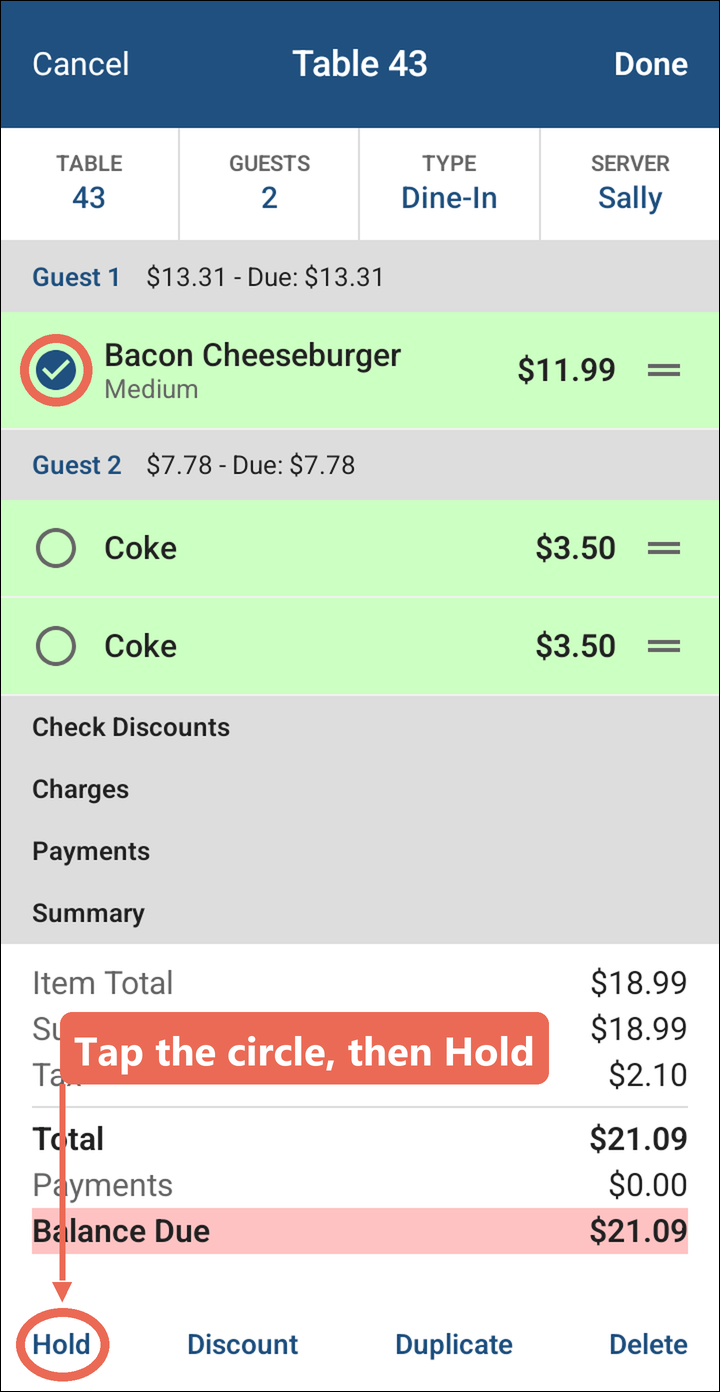
-
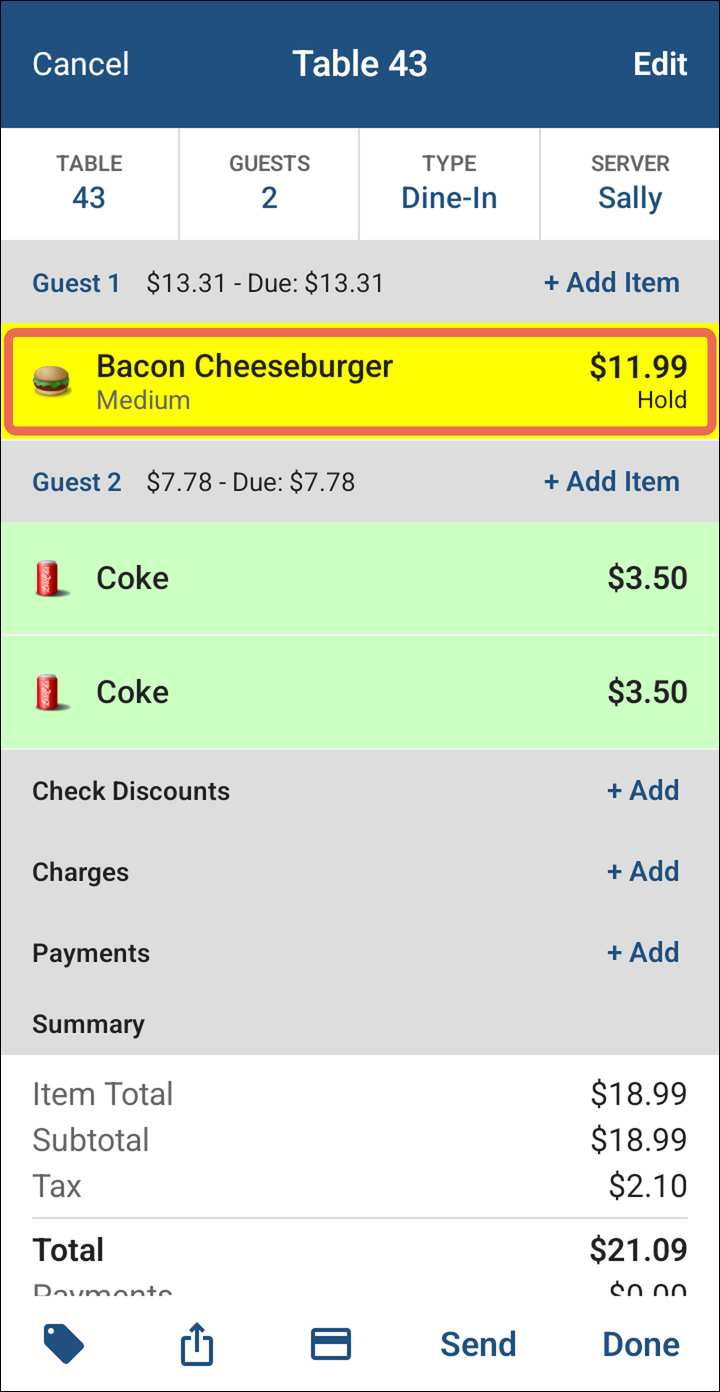
The item turns yellow and shows Hold. Tap Send or Done as usual: the other items go to the kitchen, the held one waits.
-
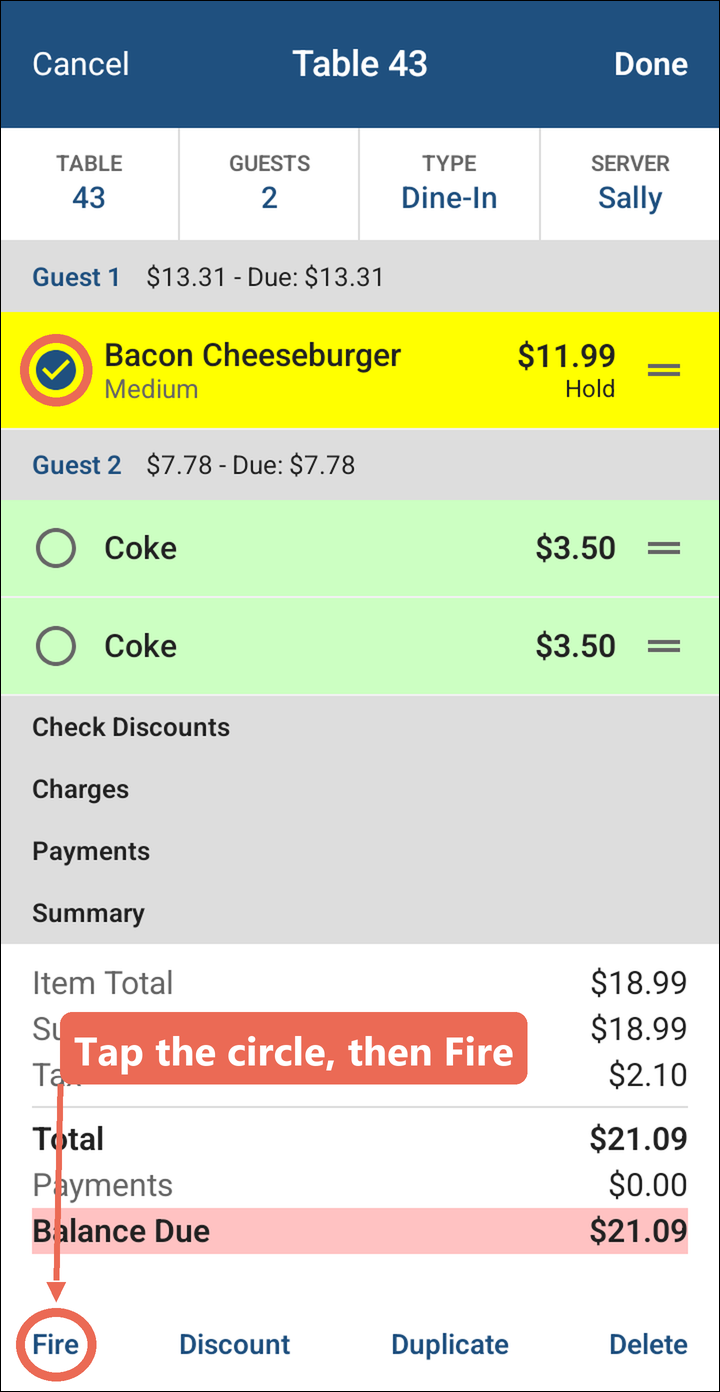
When it's time to make it, tap Edit, tap the circle next to the held item, then tap Fire. Tap Send or Done to send it to the kitchen.
Duplicating an item
-
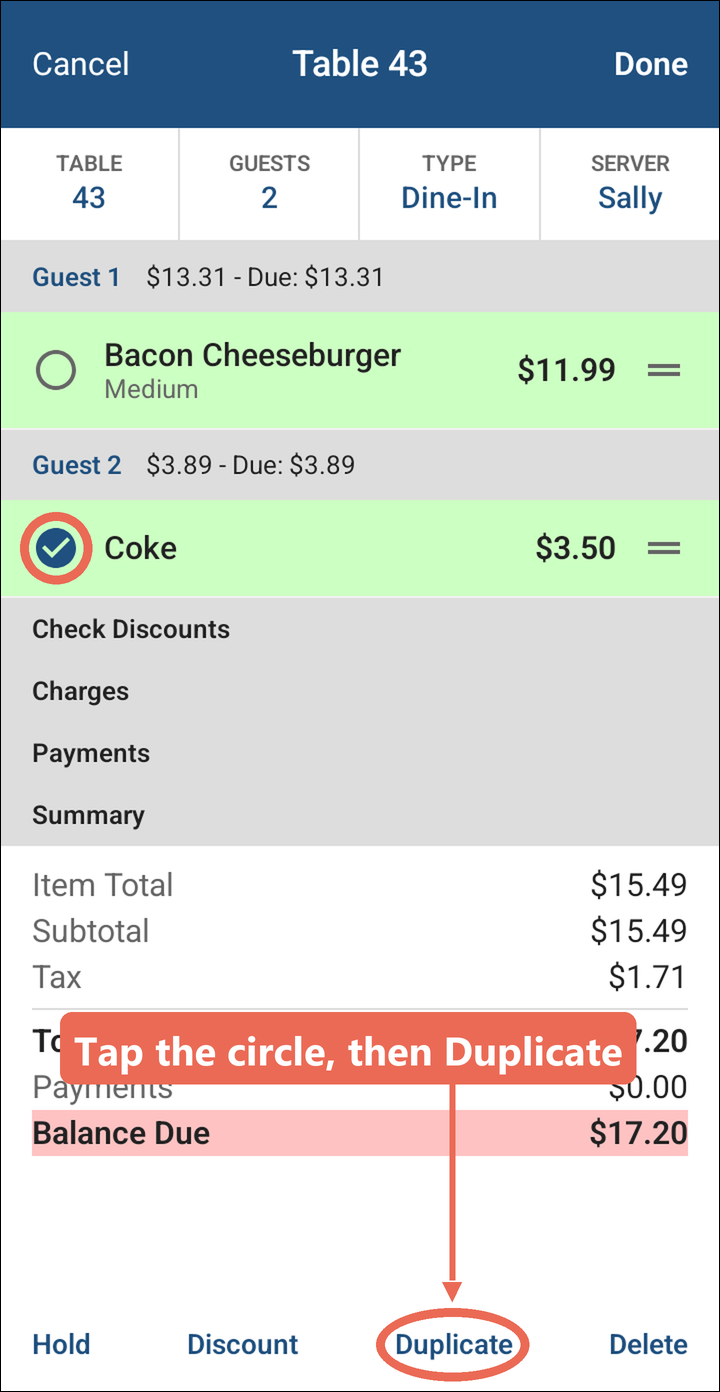
Tap Edit, tap the circle next to the item you want another of, then tap Duplicate at the bottom.
-
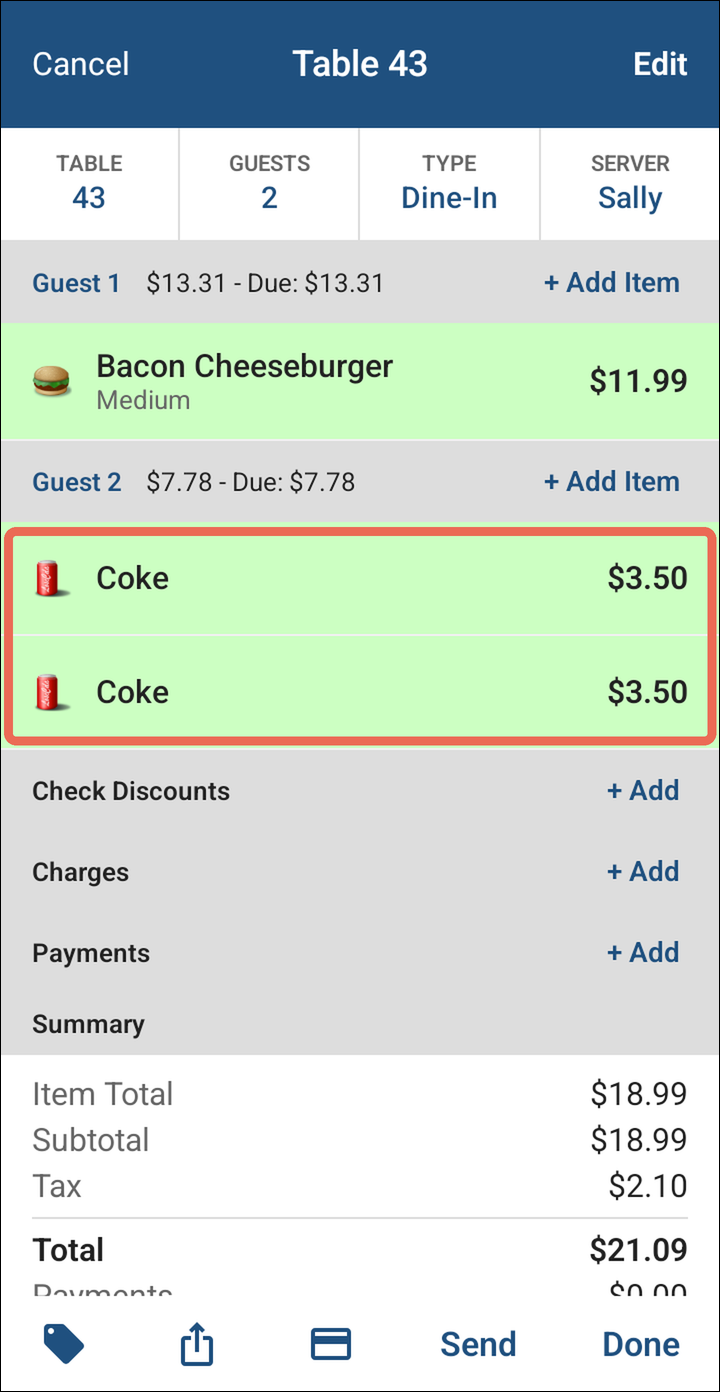
A second one is added for the same guest, with the same changes.
Deleting an item
-
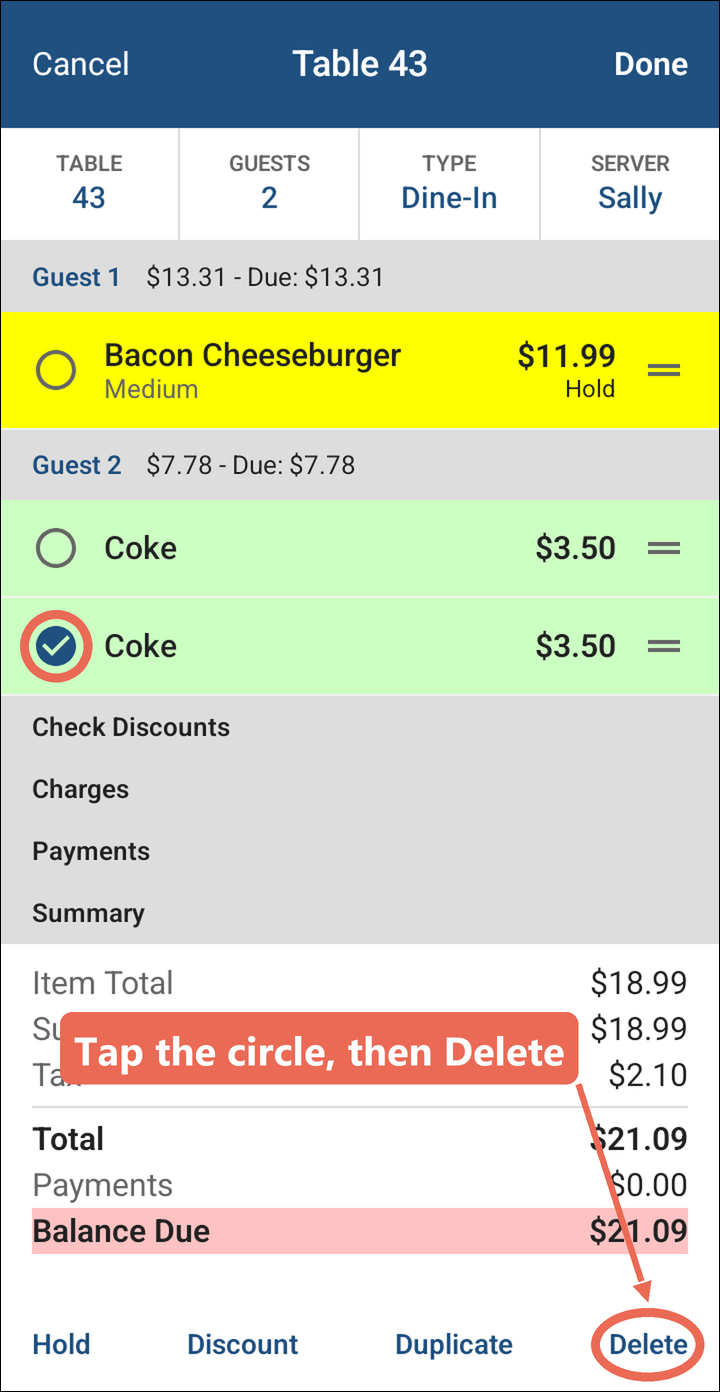
Tap Edit, tap the circle next to the item you want to take off, then tap Delete at the bottom.
-
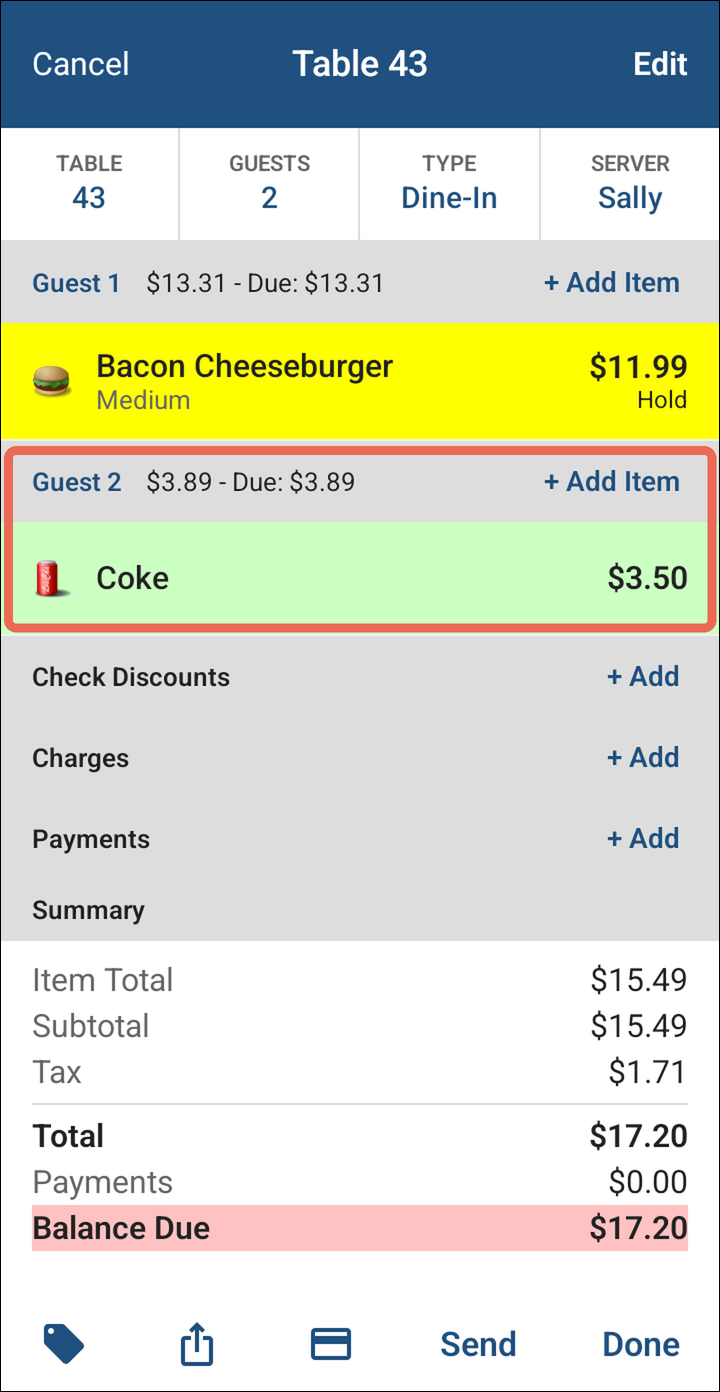
The item comes off the order.
Note: Delete is only for items that haven't been sent yet. An item that has been sent is voided instead. Click here to learn how to delete or void a menu item.
Pro tip: Tick several circles to hold, duplicate or delete several items at once.
Note: Remember to tap Send or Done to save your changes.
No Comments