
How to apply charges on a handheld
This will walk through how to add a charge to an order on a handheld, like a percent gratuity for a large party or a fee, and how to take a charge off again. The charges you can pick are set up in Backoffice, so the list on your handheld may look different from the one here.
You'll start from an open order. If you'd like to see how to start one, click here: How to start a table.
Some gratuities can be added by themselves, for example on every party of 8 or more. Click here to learn more about setting up an auto gratuity in Backoffice.
Adding a percent gratuity
-
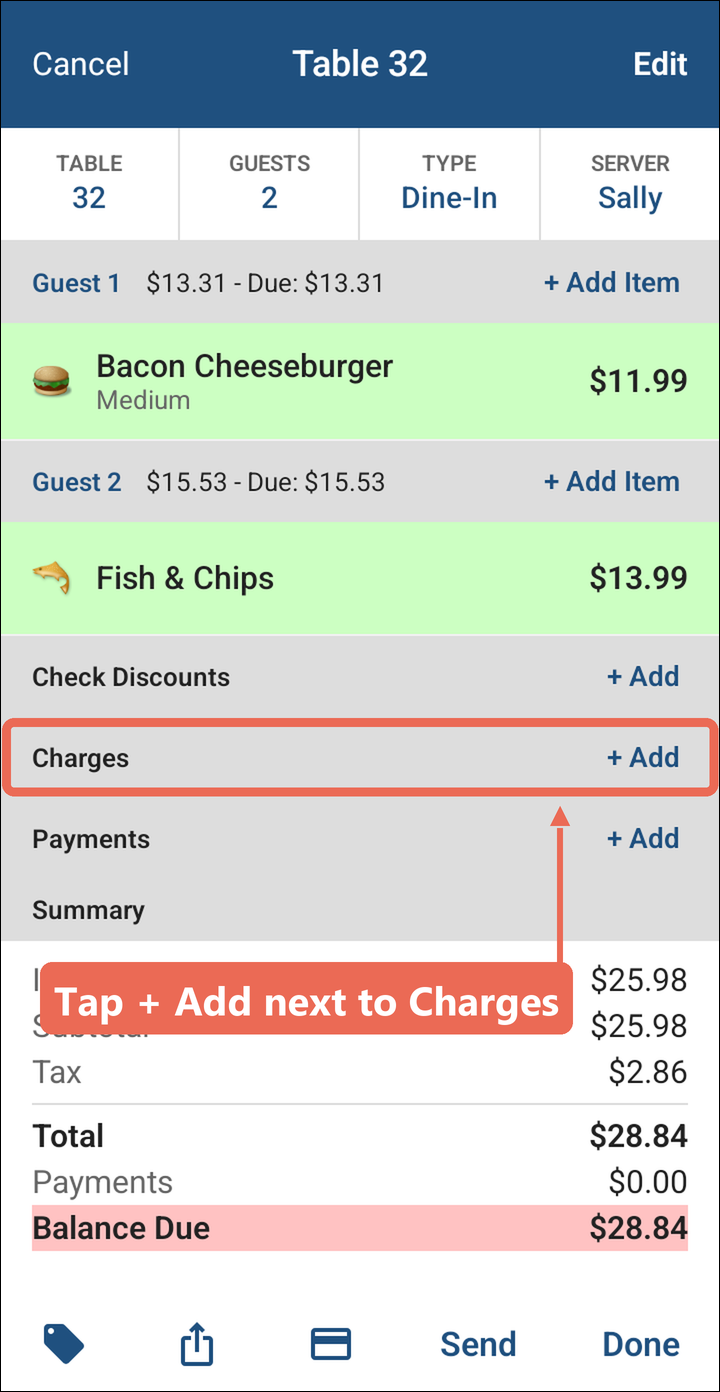
Tap + Add next to Charges.
-
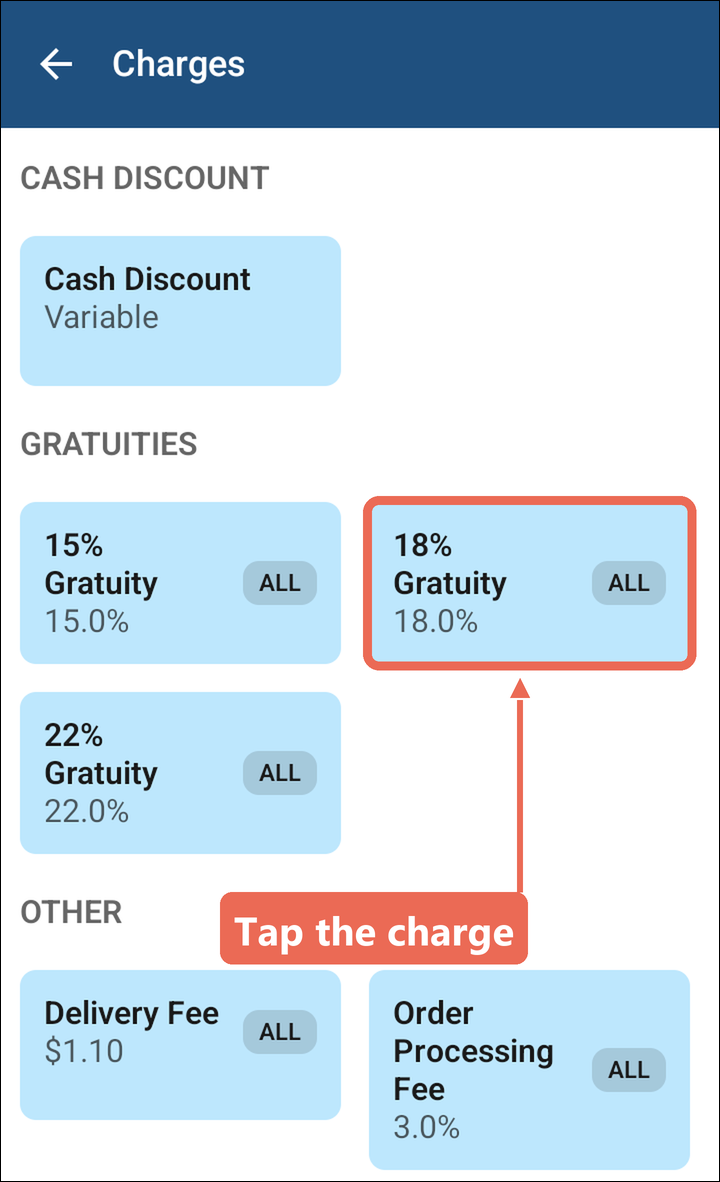
Tap the charge you want. The list is grouped the way your charges are set up (here Gratuities and Other), and each charge shows its percentage or amount.
-
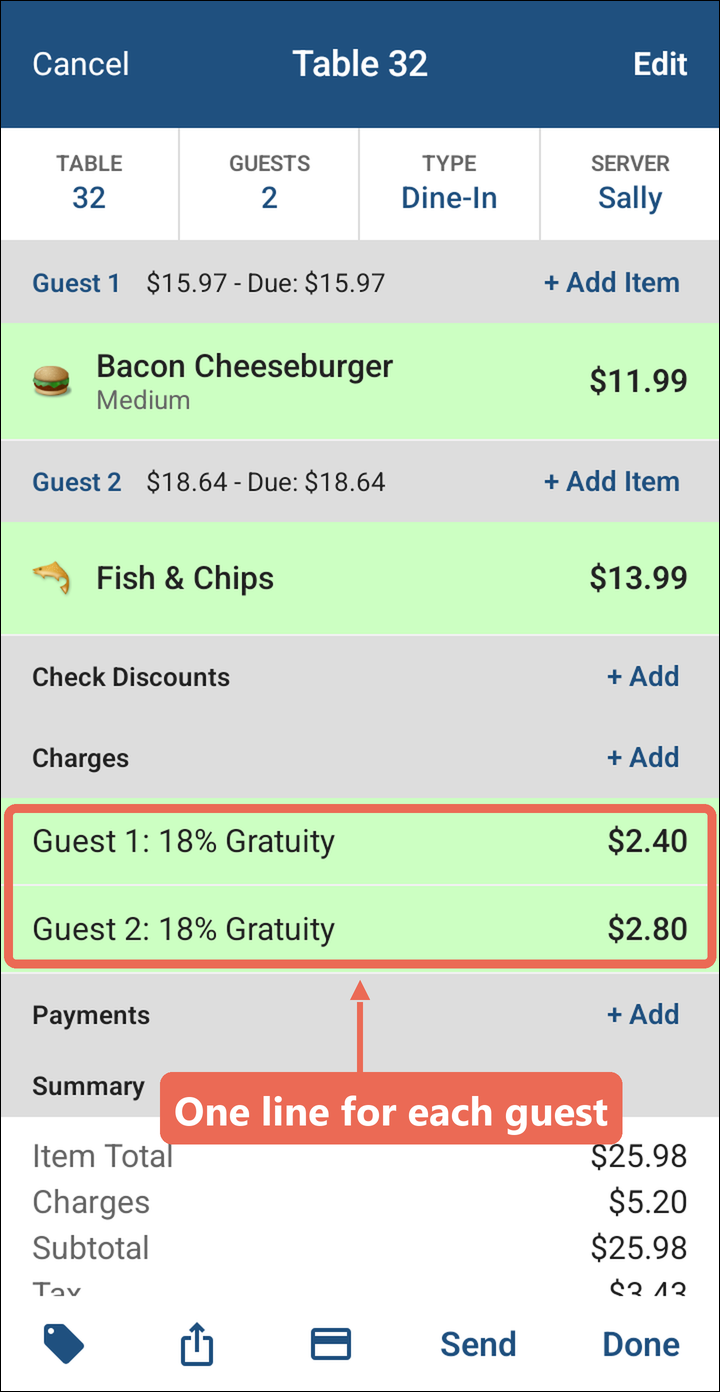
The charge shows under Charges, one line for each guest. A percentage is worked out on each guest's own order - here 18% is $2.40 for Guest 1 and $2.80 for Guest 2.
-
Tap Send or Done to save it.
Note: A percentage charge only counts the items it's set up for. If it shows $0.00, nothing that guest ordered counts toward it - ask your manager.
Choosing which guests pay a charge
A charge with ALL on it goes on every guest as soon as you tap it. Any other charge asks which guests it's for.
-
Tap + Add next to Charges and tap the charge. The Apply to guests list opens with every guest ticked.
-
Tap any guest who shouldn't pay it to untick them, then tap Apply.
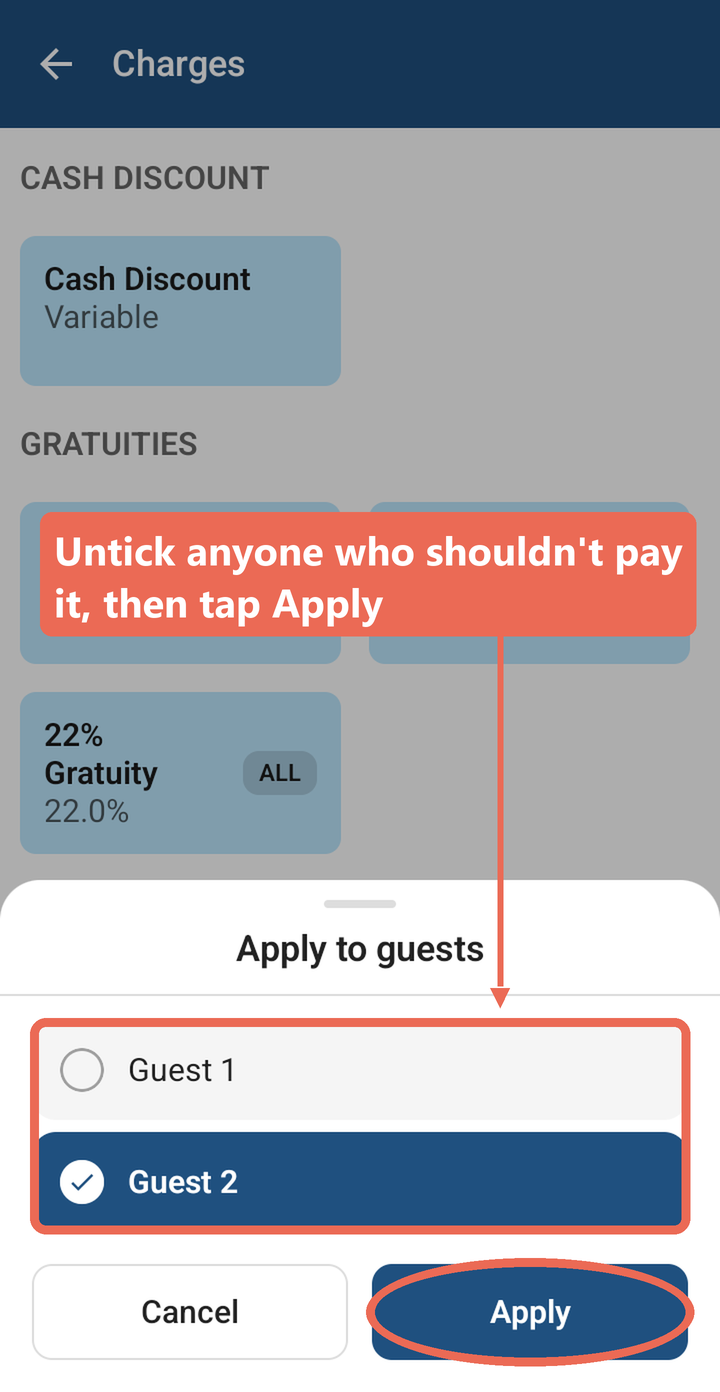
Note: Guests who have already paid aren't on the list - a charge can't be added to a paid guest.
Charges that ask for an amount
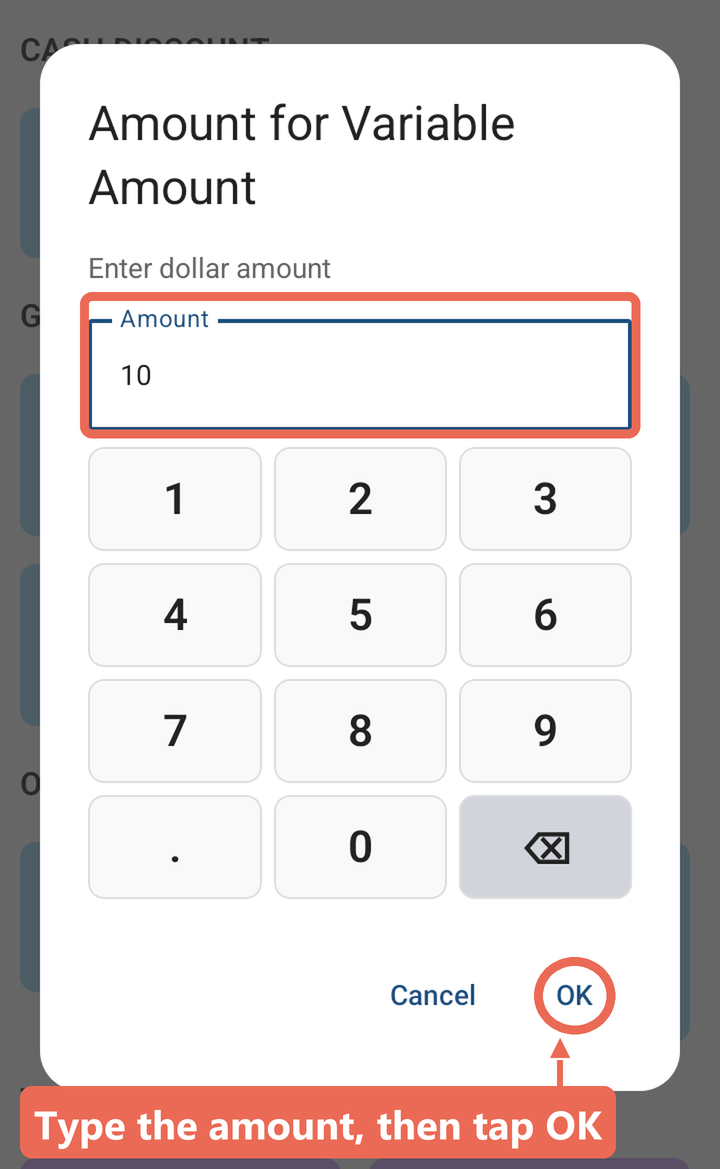
Some charges don't have a set amount. After you tap one, the handheld asks for it.
Type the dollar amount (or the percentage - type 18 for 18%) on the keypad and tap OK.
Charges that need a manager
Charges set up to need a manager only show on the handheld for people whose job role has the Enter Manager Only Charges task. If a guest should get one, ask a manager: they can sign in on the handheld and add it, or add it on a terminal.
Removing a charge
Swipe the guest's charge line to the left and tap Delete.
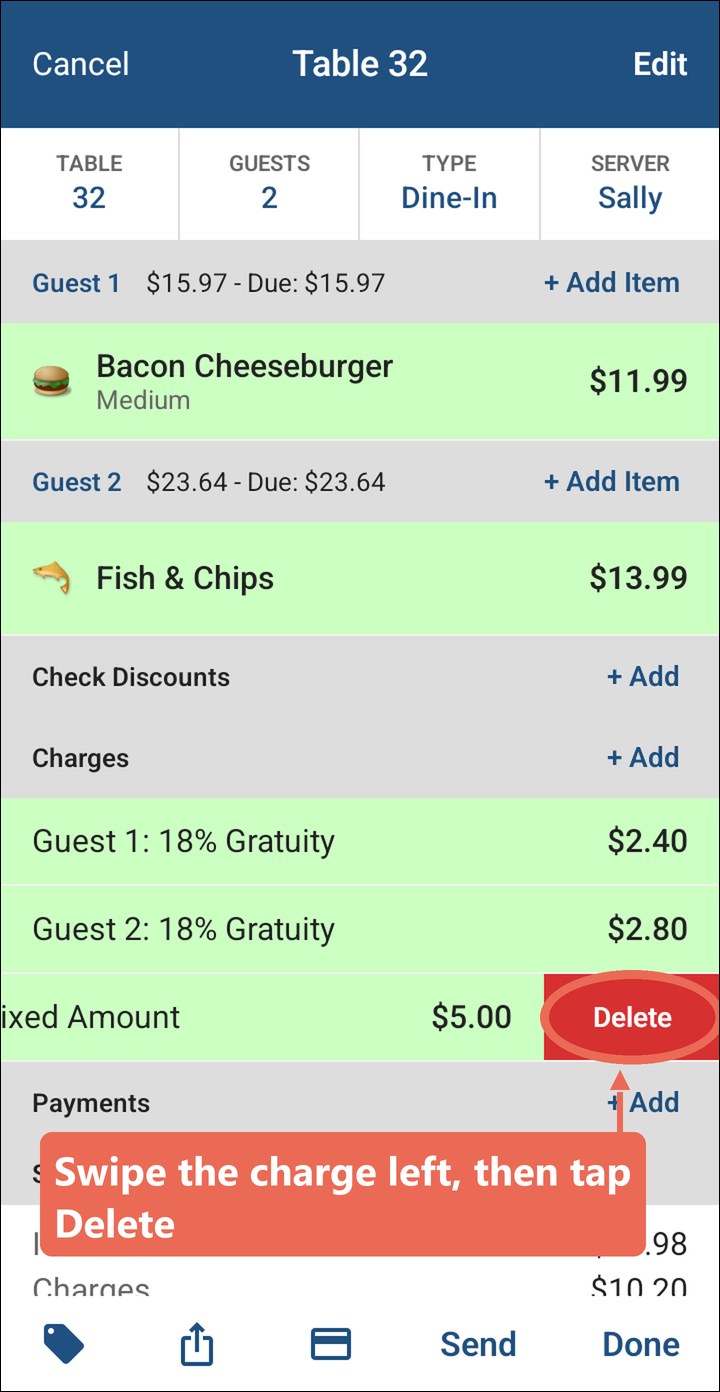
Note: Charges you add or take off are saved when you tap Send or Done. On an order that was already sent, a removed charge shows Deleted until you do. A charge on a guest who has paid can't be removed.
No Comments