
How to see your sales (Server Close Report)
This will walk through how to see your sales on a handheld. The Server report shows your sales, payments and the amount you owe since your last server close, so you can check everything before you close out.
If you'd like to see how to run the server report on a Terminal, or how to close a server, please click the link.
Seeing your sales
-
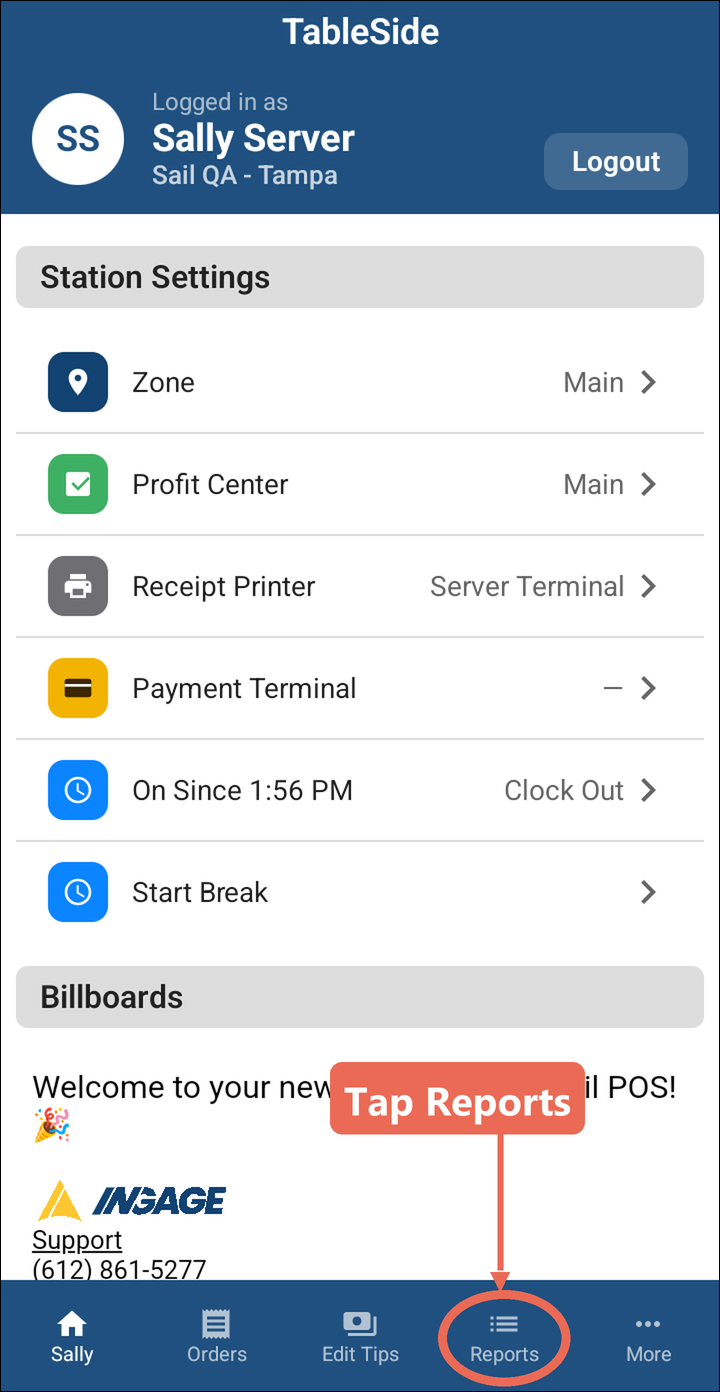
Log in with your access code.
-
Tap Reports at the bottom.
-
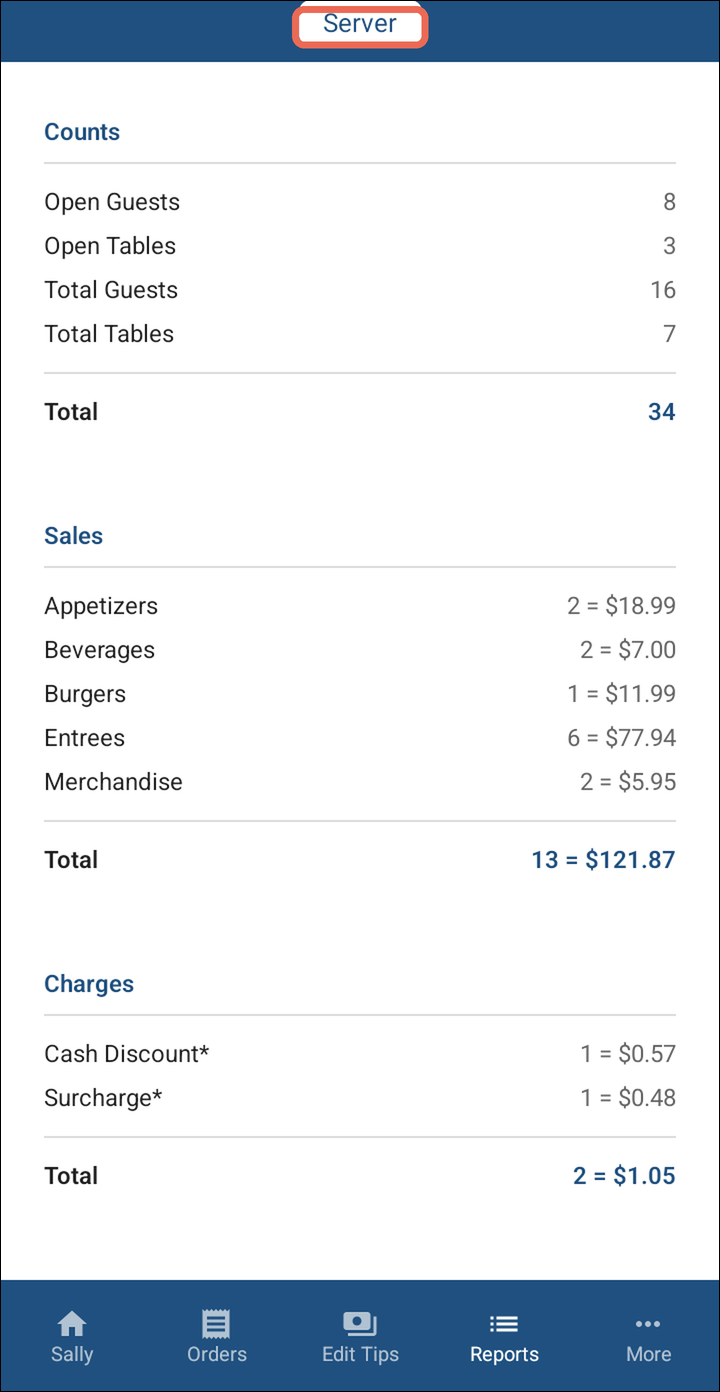
Your Server report opens. Scroll down to see all of it.
-
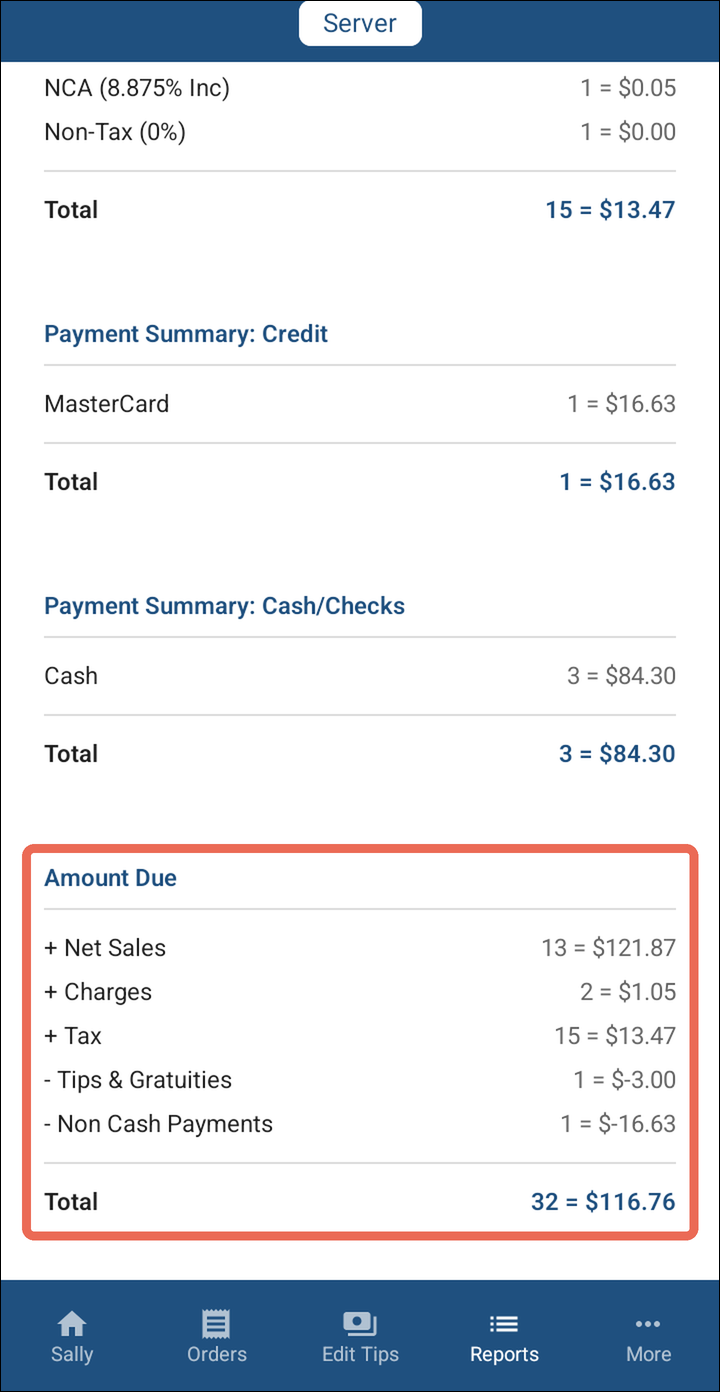
Amount Due is at the bottom: it's what you turn in.
Pro tip: The report is up to date each time you open Reports. To refresh it while it's open, pull the report down.
What's on the report
Each line shows how many, then the amount: 2 = $18.99 means 2 items that came to $18.99.
- Counts: your open guests and tables (orders not paid yet), and all your guests and tables.
- Sales: what you sold, by group (Appetizers, Beverages, Entrees and so on).
- Charges: surcharges, cash discounts and other charges added to your orders.
- Tax Type: the tax on your orders, by tax type.
- Payment Summary: Credit: the card payments you took, by card type.
- Payment Summary: Cash/Checks: the cash and checks you took.
- Amount Due: your net sales, charges and tax, less your tips and gratuities and the card and other non-cash payments. The Total is the cash you owe.
Other sections, such as discounts, comps or voids, show only when you have any.
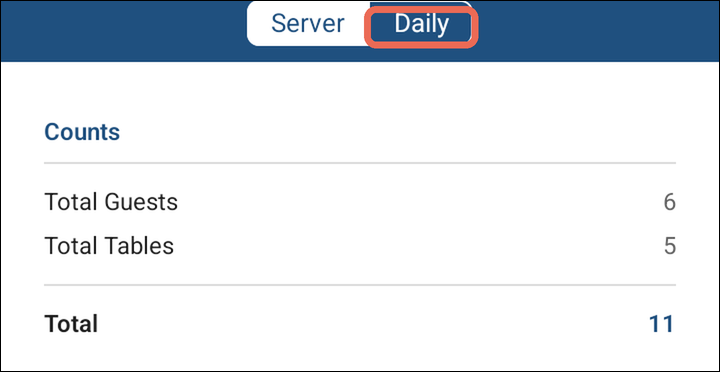
Note: If your job role can see the daily report, there's a Daily tab next to Server at the top - tap it to see the whole store's sales for the day.
Note: Don't see Reports at the bottom? Your job role doesn't have permission to see reports - ask your manager.
No Comments