
How to view someone else's payments
BeingThis written.document will show how to view someone else's payments on the Edit Tips screen, so you can check them or enter their tips for them.
Note: You need the View All Payments permission in your job role (managers usually have it). Without it you see only your own payments, and the button with your name is grey.
How to view another server's payments
-
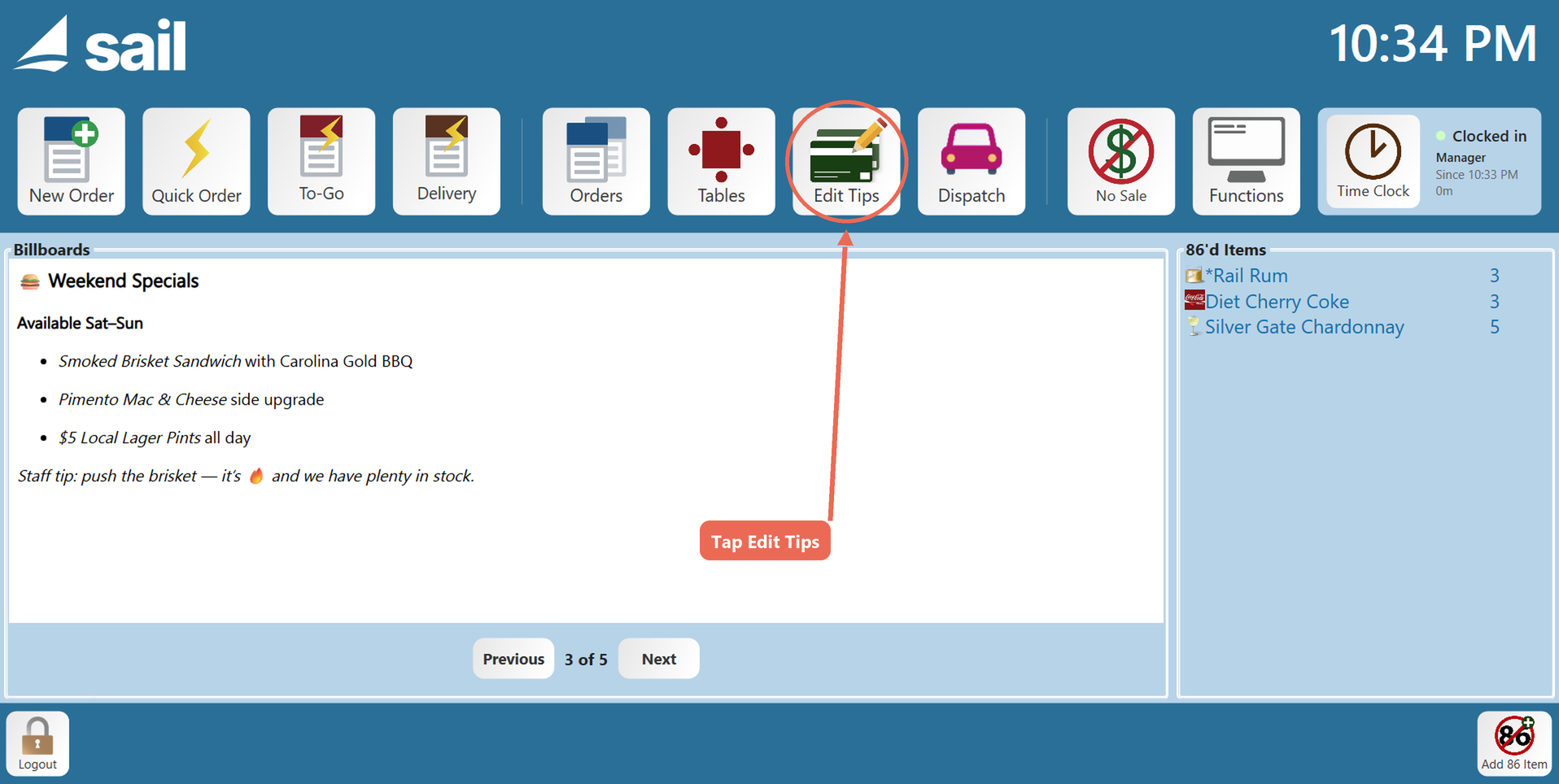
On the home screen, tap Edit Tips.
-
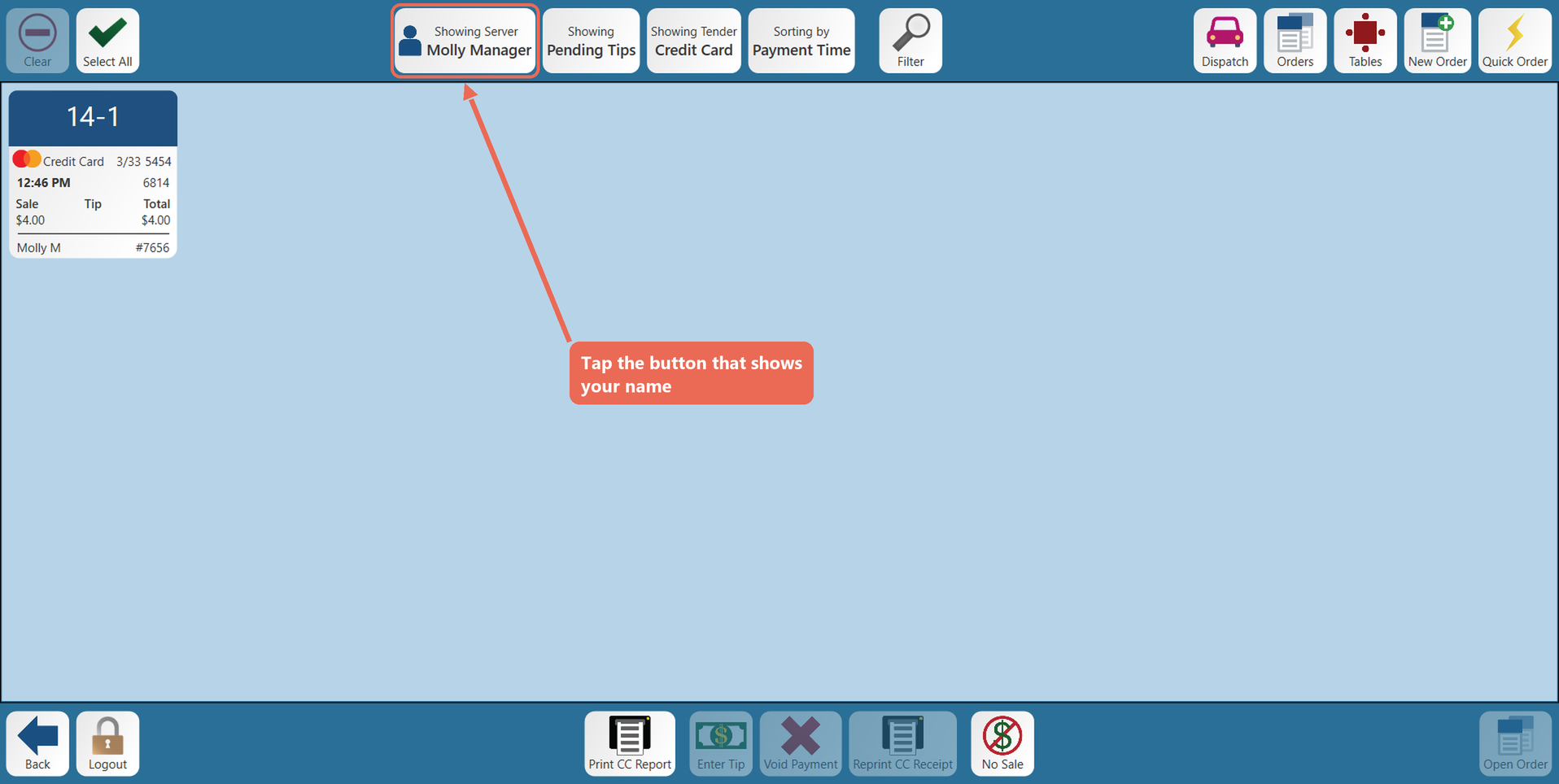
Select the button on the top that shows your name (Showing Server).
-
Tap the server whose payments you would like to view. The list closes as soon as you tap a name.
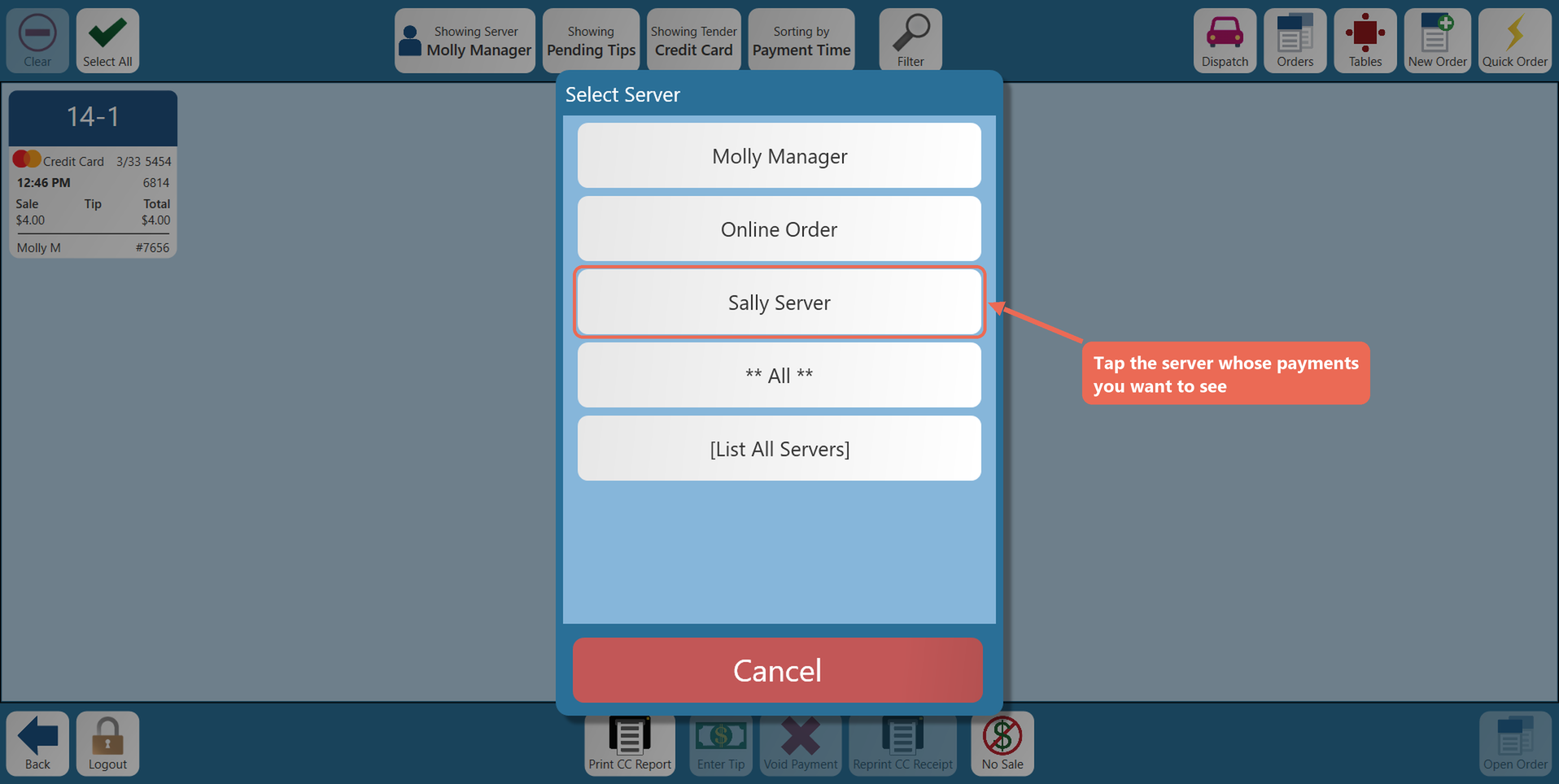
- The list shows the servers who are clocked in, or who have done their server close since the last Daily Close. If the server you want isn't in the list, tap [List All Servers] to see them all.
- Online Order shows the payments for orders guests placed online.
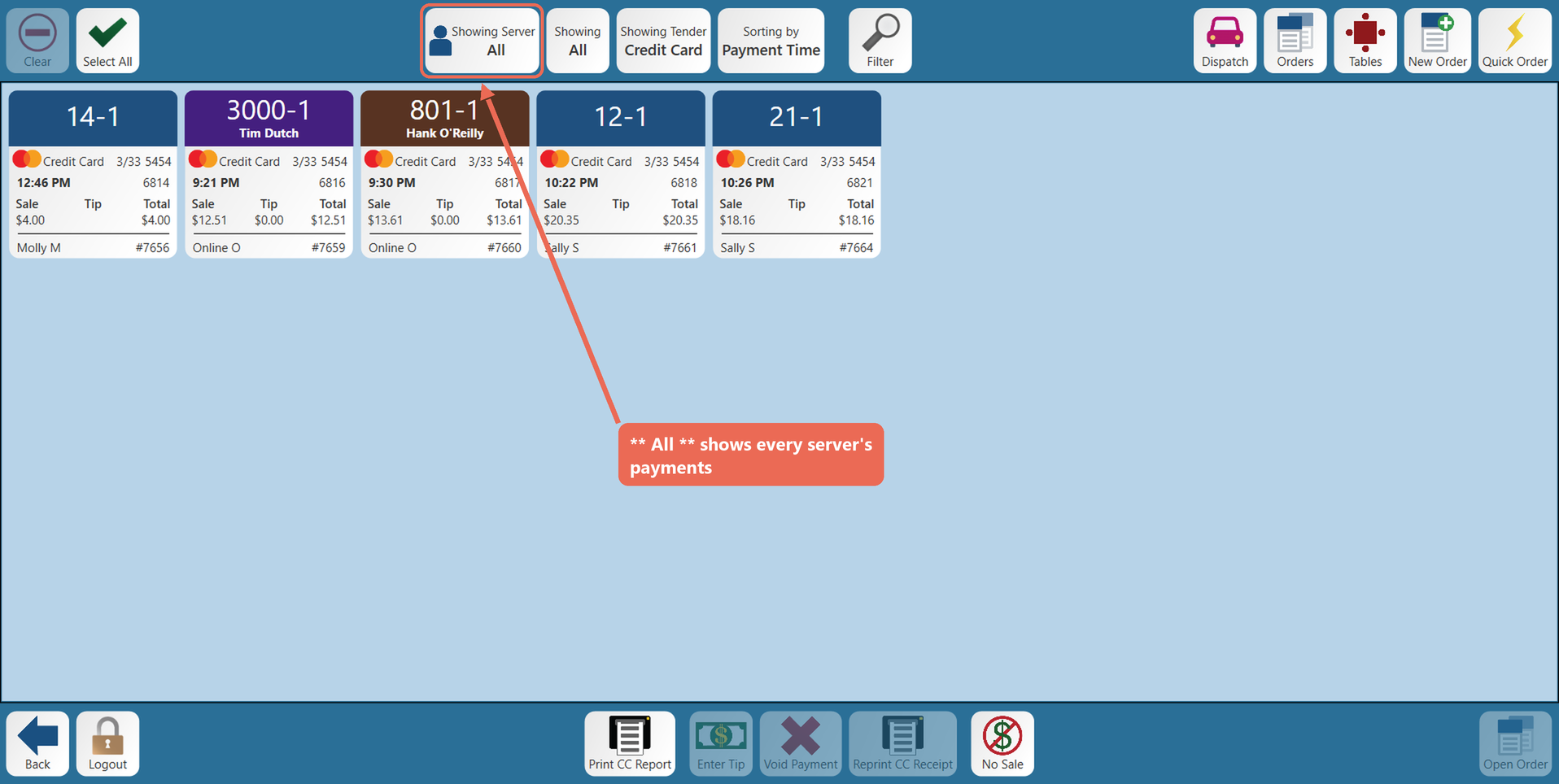
- ** All ** shows every server's payments.
-
The payments you see will now be the payments of the server you have selected. Their name is at the bottom of each payment.
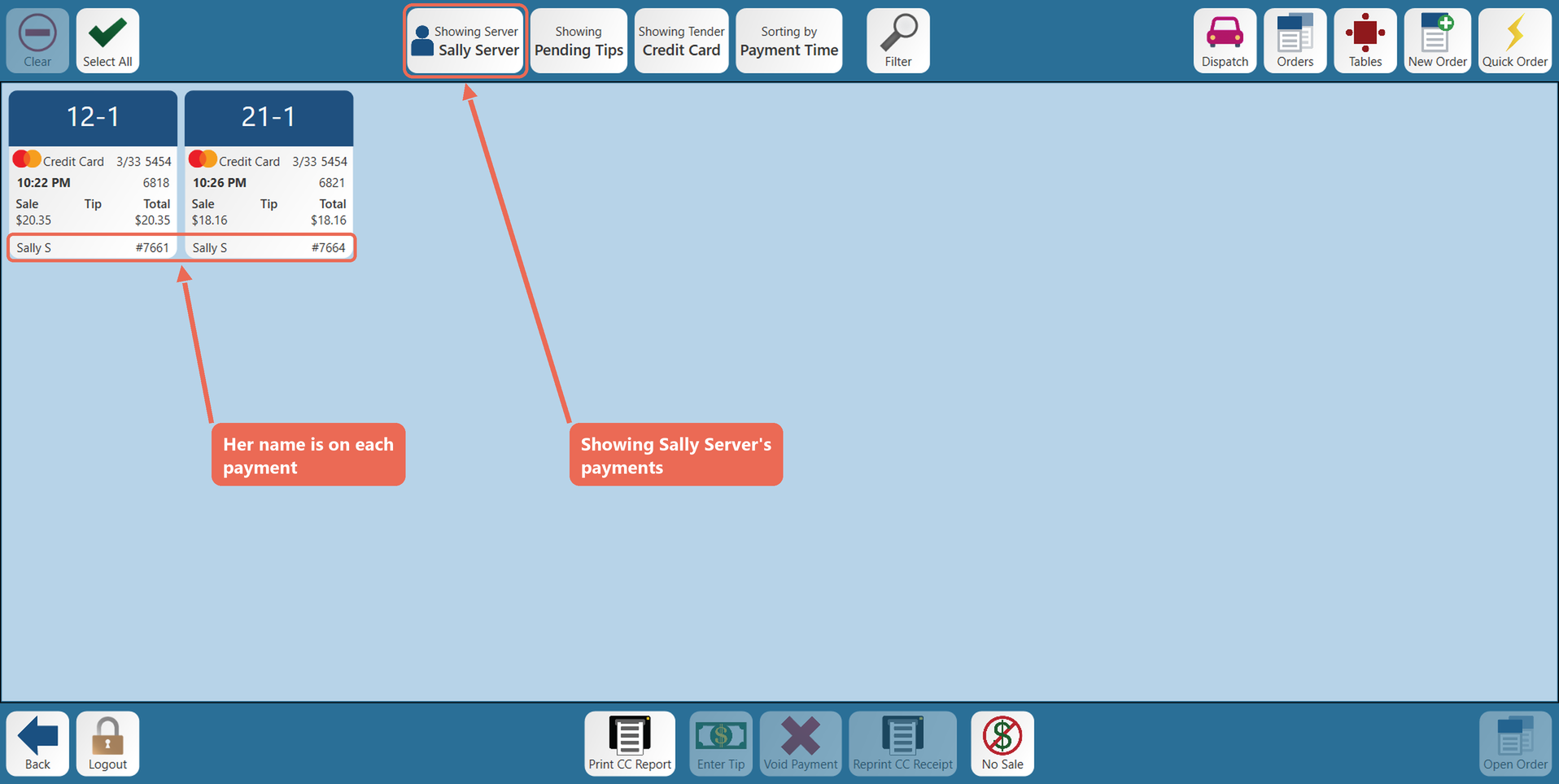
You can now enter their tips the same way you enter your own. Click here to learn more about entering tips.
Seeing payments that already have a tip
Edit Tips starts out showing only the payments that are still waiting for a tip (Pending Tips). To also see the payments that already have a tip, tap Showing so it says All. Tap it again to go back to Pending Tips.
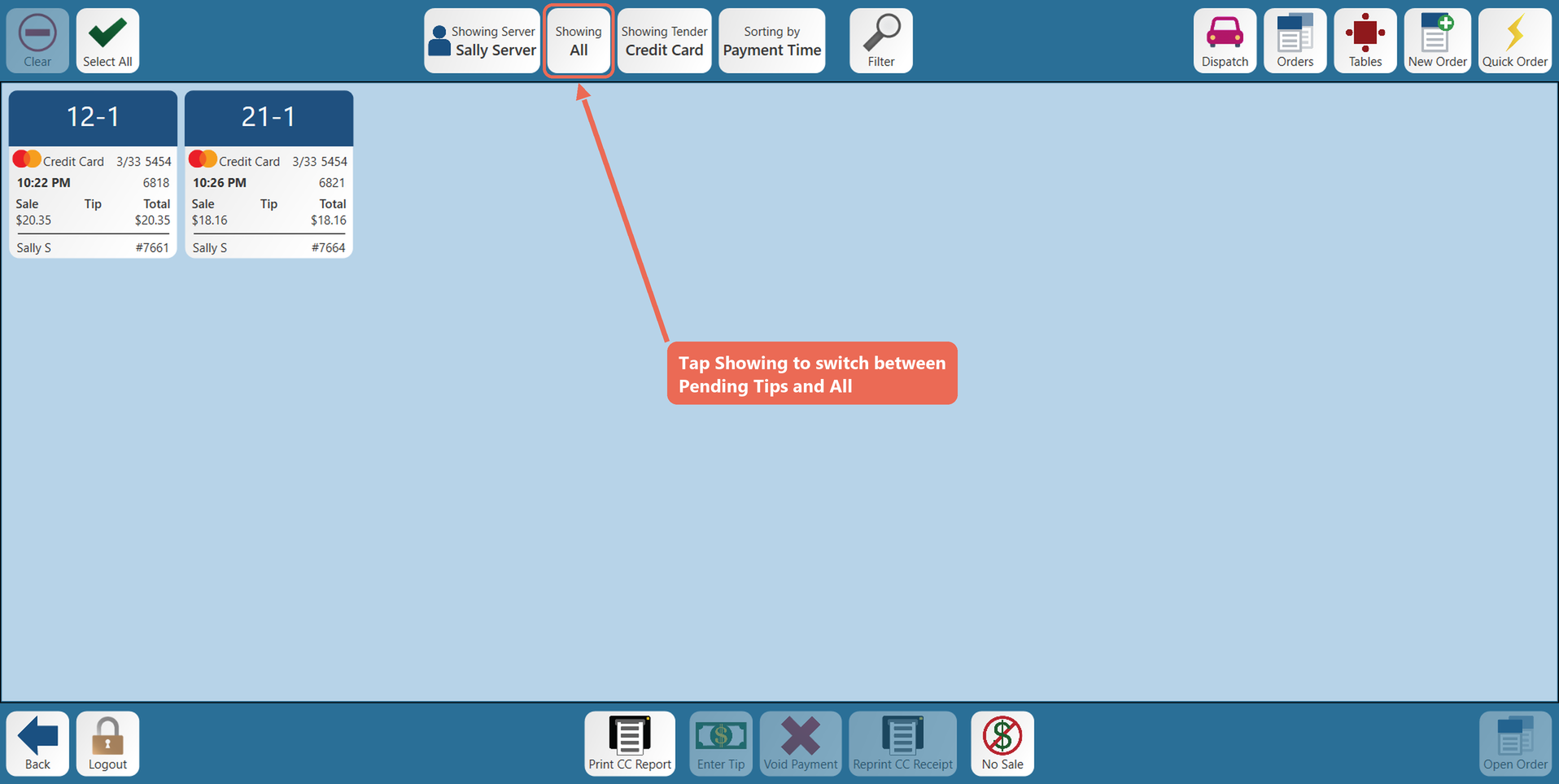
Viewing every server's payments
Tap Showing Server and select ** All **. The button will say All, and the payments of every server will show, with each server's name at the bottom of their payments.
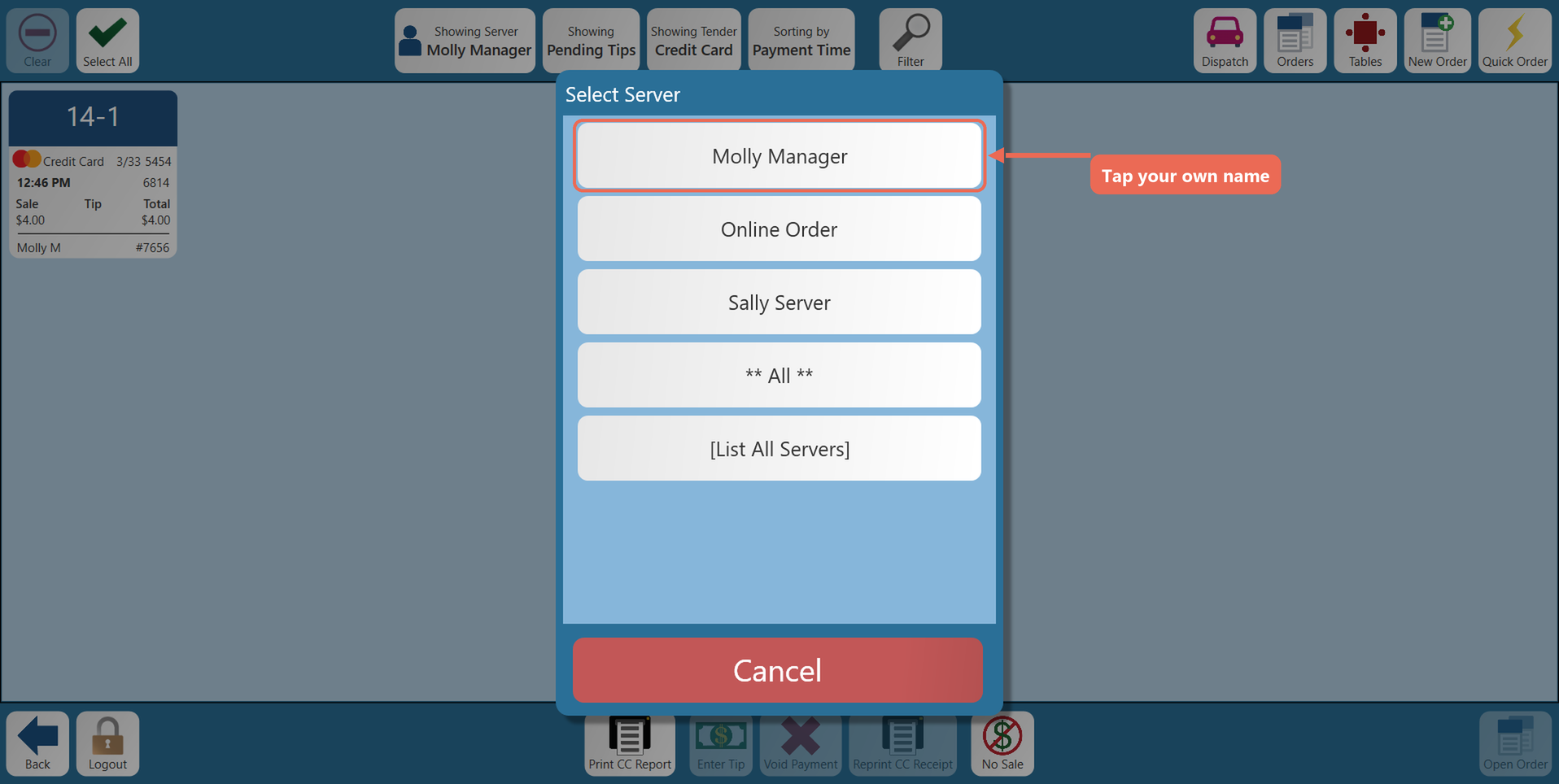
Going back to your own payments
Tap Showing Server and select your own name. You will also see your own payments again each time you open Edit Tips.
Click here to learn more about the Edit Tips Screen, how to sort payments on the edit tips screen and how to view other tender types on the edit tips screen.