
Set up in Sail Backoffice
If your restaurant uses Sail POS, your employees, departments, job roles, skill levels and locations are set up once, in Sail Backoffice, and sent to Sail Scheduling automatically. This documentguide explainscovers thewhat itemsto that must be configuredcheck in Sail Backoffice before executing the integration sync with Ingage Scheduling. Completing these steps first helpssync, ensureso aeverything smootharrives cleanly.
Employees
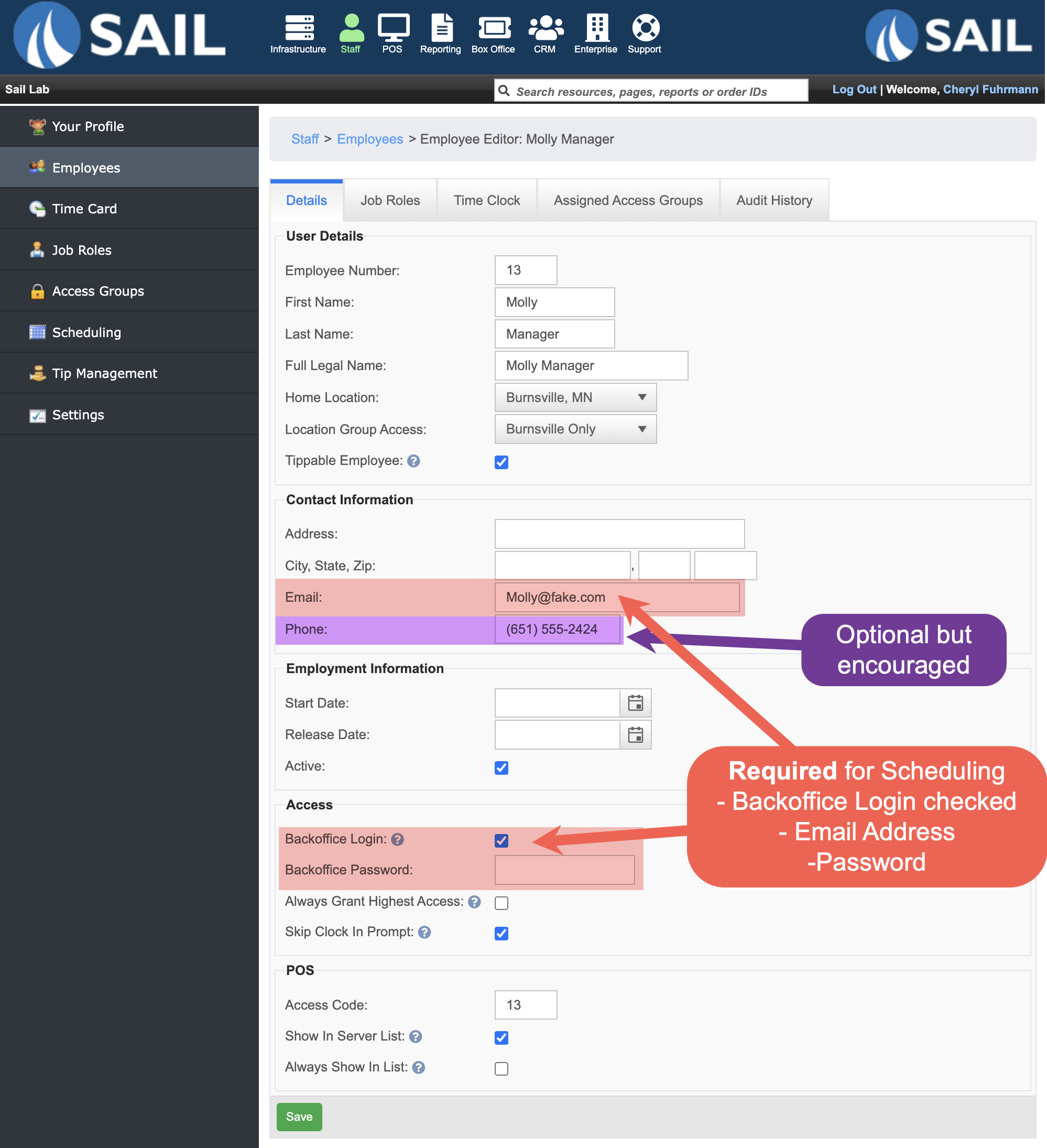
A Backoffice login and successfulemail sync.
Update Employee Information
Each employee must have the following set up before syncing:
Backoffice Login
Every employee
with a valid email address. It's how they sign in to Sail Scheduling, on the website and in the app, and where their schedule and notifications are emailed.must haveneeds a BackofficeLoginlogincreated.- Each
missing, or already used by someone else, won't be sent to Sail Scheduling.Aemailvalidaddress can only belong to one person. An employee whose email address isrequired. - Set a password if you can. If you don't, the employee creates one the first time they sign in to the website, and can use the app after that.
A mobile number (recommended)
- A
chooseThismobileemailnumberisletsusedemployeesfor:- to
- get
messages. It's optional.Schedulingtextnotifications - Enter
changedLoggingitintointheSailSchedulingBackoffice:websiteitandcan'tmobilebeappin
Scheduling. - get
A passwordIt must be setexactly for10 thedigits, employee.
If a password is not set up at this time,or the employeewill need to create one upon first logging into the website. (They will notwon't beable to log into the app until they have joined on the website)sent.
Employees' job
Phone Number (Recommended)
A phone number is encouraged but not required.Phone numbers allow employees to receive text message notifications.Phone numbers can only be entered in Sail Backoffice.If you wants employees to have the option to receive text messages, this is the best time to add the phone number.
Clean up Employee's Job Roles
roles
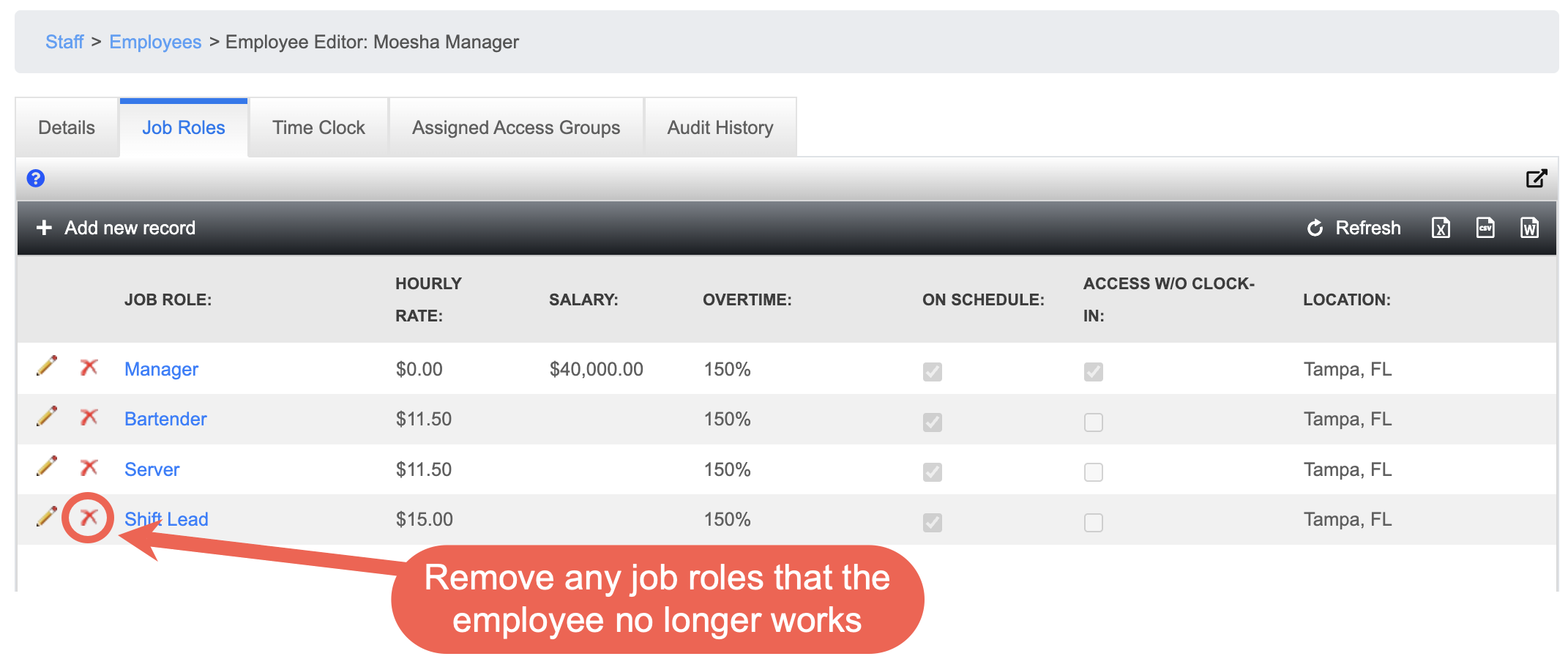
InOn the Schedulingschedule, system,an employeesemployee appearappears under eachevery job role they arehold. assigned.
If an employee has multiple job roles, they will appear multiple times on the schedule—once for each role.For example, an employeeSomeone with four job roleswill appearappears in fourseparateplaces. Before syncing, remove any job rolesections on the schedule.
This is a good opportunity to review and clean up job roles before syncing.
Ifan employee no longerworksworks,a specific job role, remove it from their profile.This helps keepso the schedulecleanonlyandshowspreventspeopleemployees from appearing in job role sectionswhere theyno longerreally work.
Skill
employee a Assignskill Employee'level for each of their job roles, such as In training or Trainer. In Sail Scheduling, a manager deciding who gets an open shift sees each person's Skillskill Levels (Optional)
Skill Levels are optional at this time, but should be configured whenever possible to make it easier to uselevel in thethat future.
Currently, Skill Levels act as a placeholder in the Scheduling system.In future releases, they will be used to support Shift swapping and Shift give-awaysSkill Levels will prevent employees from swapping or giving away shifts to someone who is not qualified to work thatjob role.
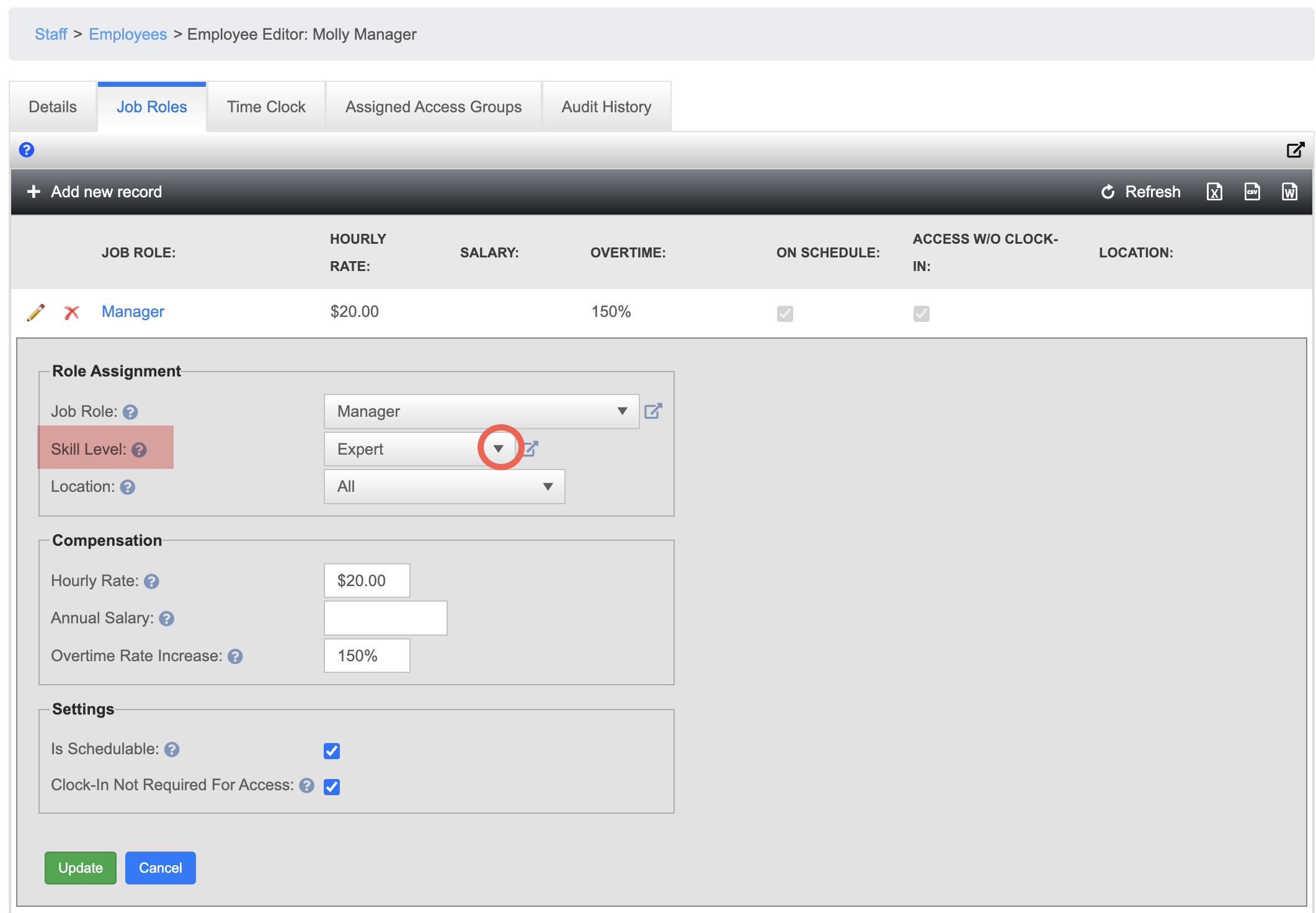
How to Set Skill Levels
For each employee:
Click here to learn more about how to configure Skill Levels in Sail
Update Job Roles
allow
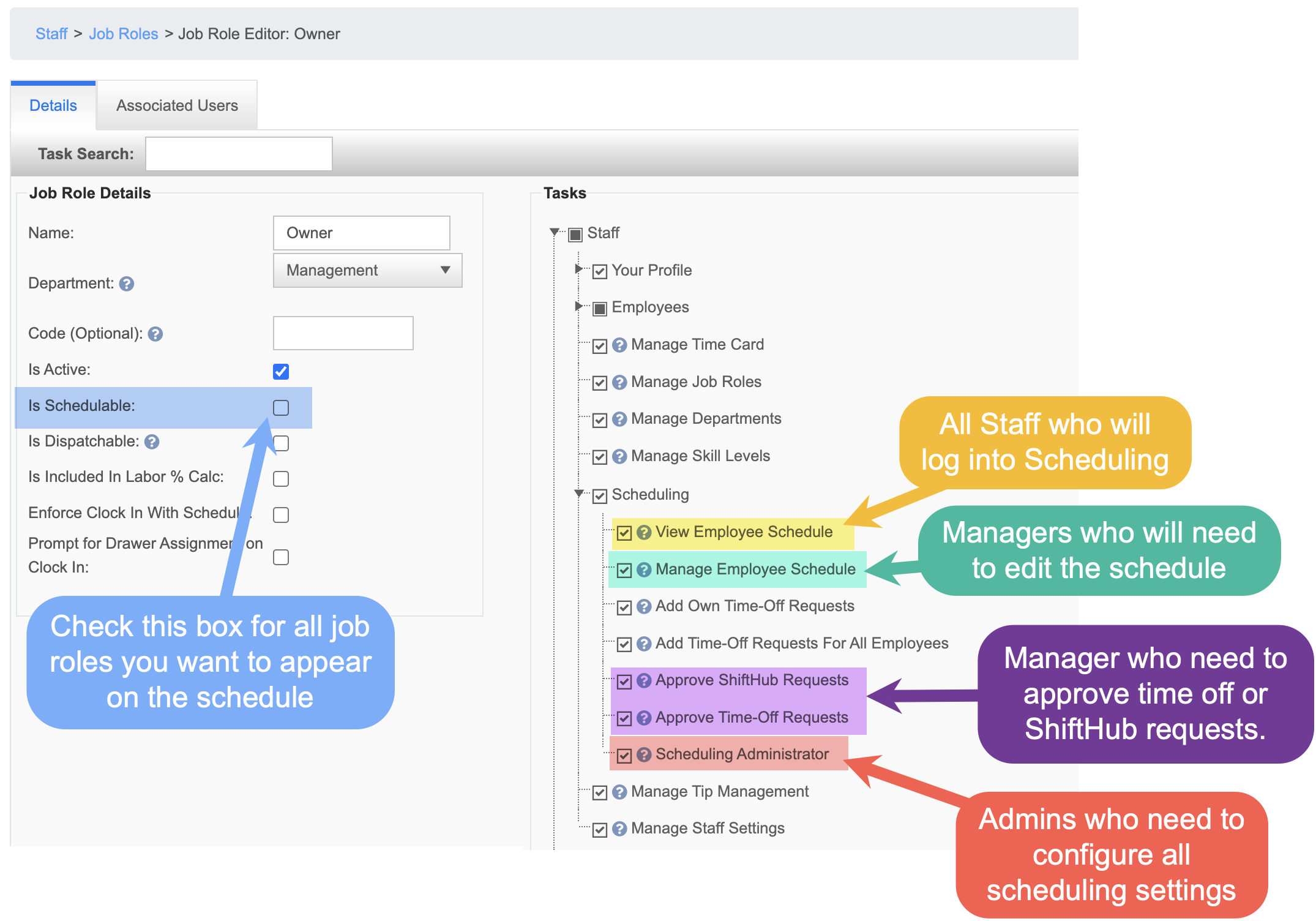
BeforeEach syncing,job reviewrole's eachscheduling Jobsettings Roledecide and assignwhat the appropriate Scheduling permissions. These settings controlpeople who hold it can view,do manage,in andSail approve scheduling actions.
Job Role Visibility on the ScheduleScheduling.
EnableIs Schedulable: switch this on foranyevery job role that should appear on the schedule.AllEvery active jobrolesrolewillissync over,sent, but onlyjobschedulablerolesoneswitharethis checked will appearshown on thescheduleschedule.
Use the permissions below to control access based on responsibility:
View Employee Schedule
Enable: forall staffstaff, whowillseelogtheinscheduleto Scheduling to viewand their ownschedule.
Manage Employee Schedule
Enable: for managers whoneedbuildtoandcreatechangeortheedit schedules.
Approve Time-Off Requests
/and Approve ShiftHub Requests: for the managers who approve time off, and shift swaps, give-aways and open shift pickups.- Scheduling Administrator: for owners and general managers, who set up Sail Scheduling itself.
These settings come across with every sync, so change them in Sail Backoffice, not in Sail Scheduling. A change reaches Sail Scheduling the next time Sail syncs, and applies to each person the next time they sign in.
Tidy up before the first sync
The sync sends every department, job role and active employee. Before running it:
- Departments:
Enablerenameforthemmanagersasresponsibleyou'dforlikeapprovingthemtime-offtorequestsappear, and remove any you don't use. - Job roles: rename, or
shift give-aways/swaps.
Scheduling Administrator
Enable for admins who need full access to scheduling configuration and settings.
Other Optional Cleanup
When you run the integration sync, all Departments, Job Roles, and active Employees will be sent to the Scheduling system.
Before syncing, take a moment to review and clean up the following:
DepartmentsEdit or rename as neededRemovedelete, any that arenooutlongerofused
- Employees:
anyoneJobdeactivateRoles
works for you.Edit, rename, or delete roles that arewho no longerrelevant
EmployeesInactivate any employees who are no longer with the business
Completing this cleanup beforehand helps keep the Scheduling system organized and prevents unnecessary data from appearing after the sync.
Once all of this is completedone, ityou're isready time to Executefor the Syncsync. After it, see Set up in Sail Scheduling.