
How to update your tax rates
Logwillintowalk you through changing your tax rates in BackofficeClick- every tax type at once on the Tax Rates tab, or one tax type at a time.Permissions you need: Manage Taxes (POS
tab--> Back Office --> System Setup in the job role's tasks).How to change the rates of every tax type at once
-
Log into Backoffice. Click POS at the top, then Taxes in the menu on the
topleft (under System Setup). Click the Tax Rates tab, then Bulk Edit at the right.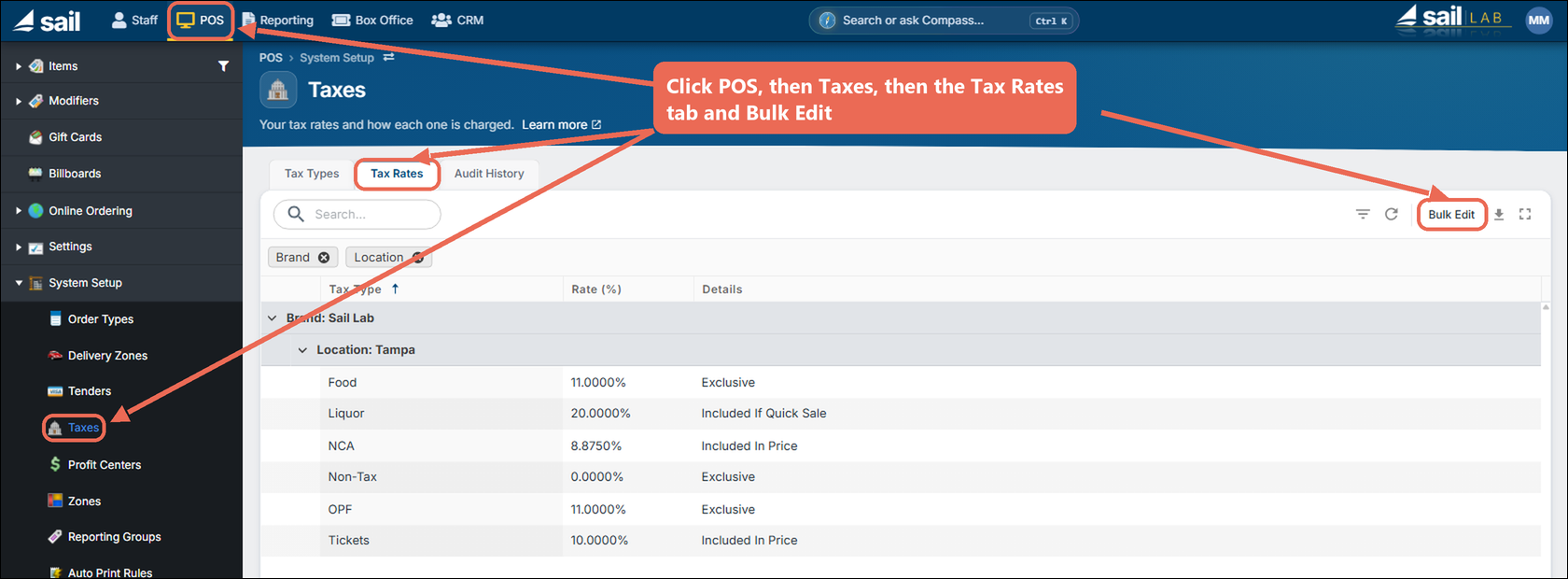
ClickonMake your changes in the
trianglelist:next to System SetupClick on Taxes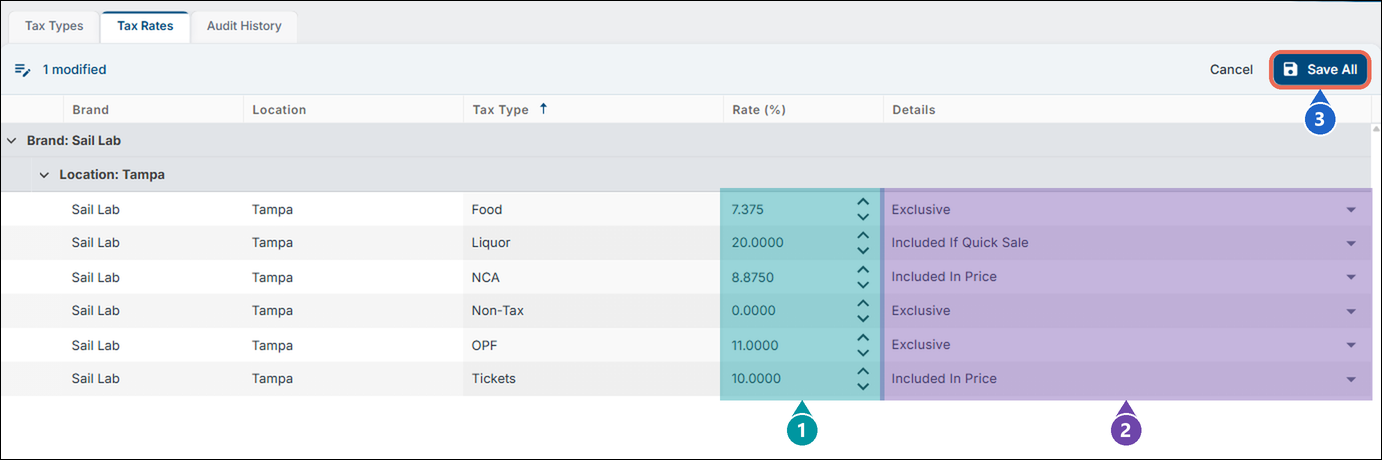
ThisRatewill(%):show you all of your tax types
Click on the second tab called "Tax Rates"Click on the pencil next to the one you'd like to edit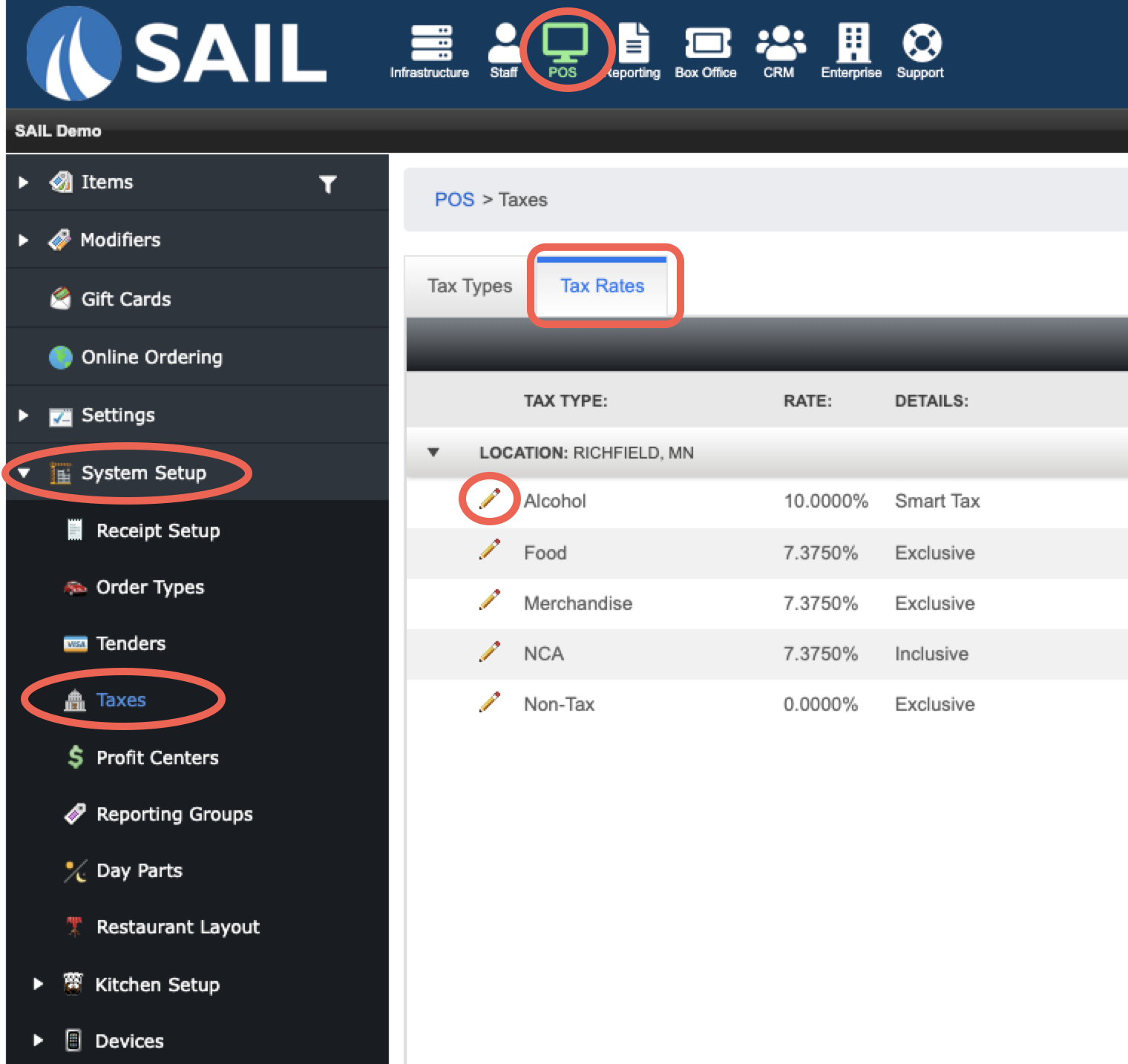
Enterenter the number as a percentage. For example: 7.375 (the system will add the % sign automatically). It must be between 0 and 100.WhenDetails:finishedhow the tax is charged - Exclusive, Included In Price, Included If Quick Sale or Smart Tax. Leave it as it is if you're only changing the rate.- Save All: when finished, click
Update
it to save every change at once. To leave without saving, click Cancel next to it.
-
This


How to change one tax type's rate
-
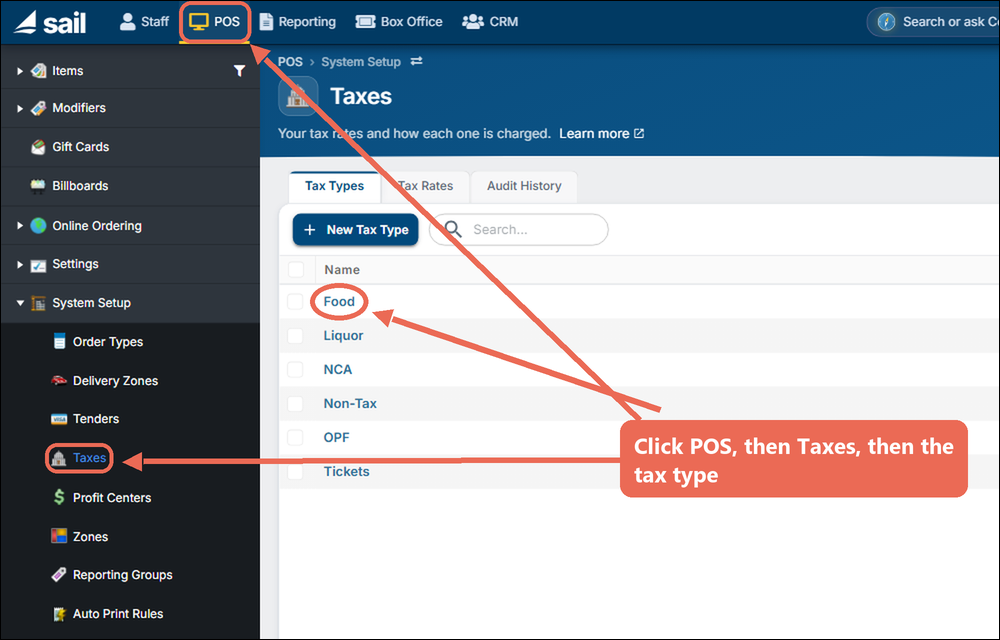
Click POS at the top, then Taxes in the menu on the left, and click the tax type you want to change (Food in this example).
-
In the Tax Rates box, find your location's row and make your changes:
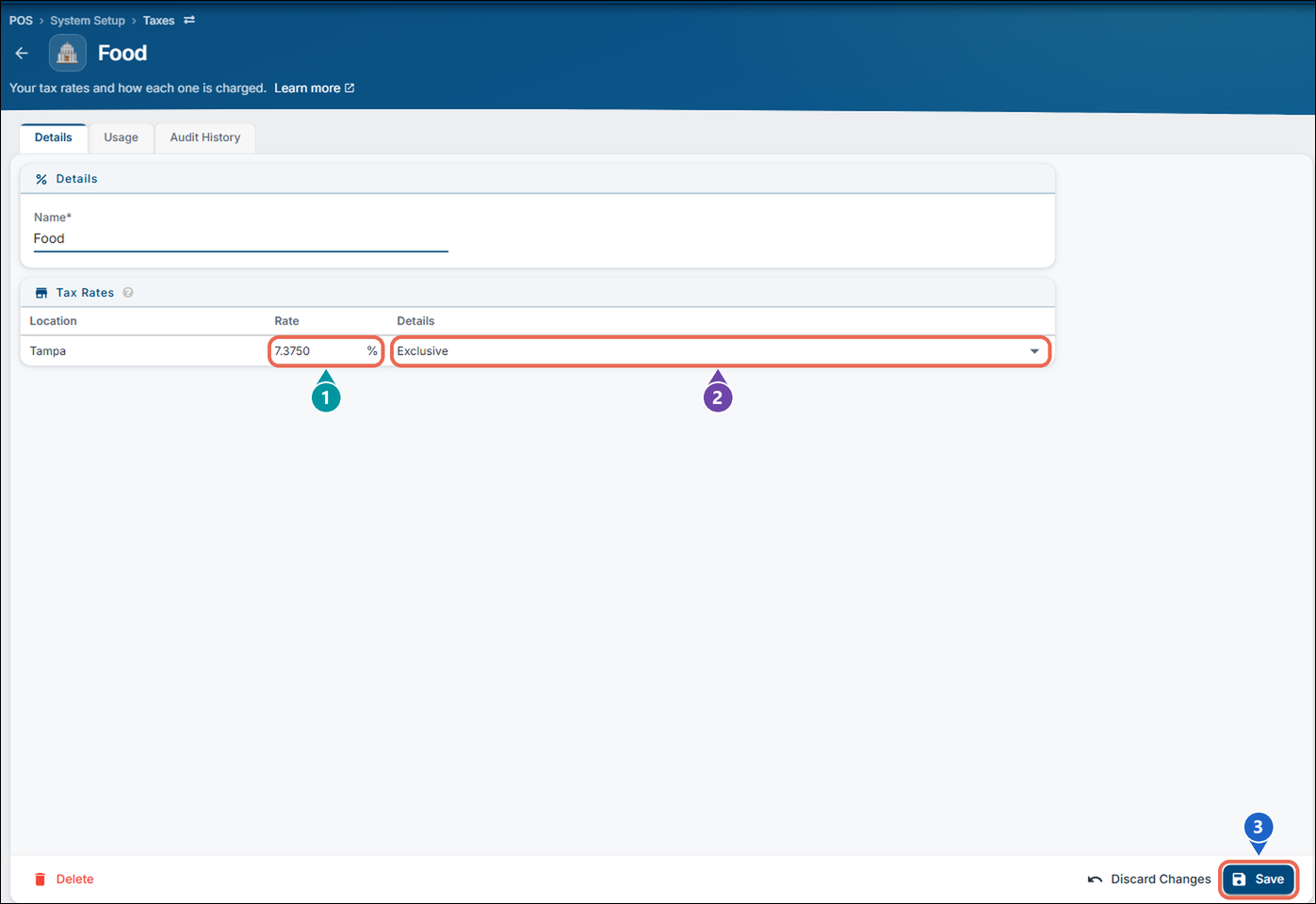
- Rate: enter the number as a percentage, for example 7.375.
- Details: how the tax is charged at that location.
- Save: click it when finished. It turns blue once you change something; nothing is kept until you click it.
*Any and all inputs, modifications, and/or updates to tax rates, prices, costs, wages, other variables, and/or other information into the business systems is the sole responsibility of the Company. Should you wish to receive assistance with any changes, please contact your customer service or sales representative. A waiver and Fees may be required to receive this service. This help guide is not tax or legal advice and should not be used in lieu of professional assistance.
Note: each location has its own tax rates. The Tax Rates tab groups them by brand, then by location, and shows only the active locations you have access to, so a business with several stores can change each one's rates there.
Click here to learn more about the Details choices (Exclusive, Included In Price, Included If Quick Sale and Smart Tax).