
How to manually roll over an order
BeingThis written.will walk you through rolling an open order over to the next business day by hand. Rolling over is for an order that needs to stay open past tonight, so it doesn't have to be closed out before the server close or the daily close.
What rolling over does
A rolled-over order is not closed or paid. It moves to the next business day and stays open on the terminals, under the same server's name. Nothing on it changes: the guests, items and any payments already made stay as they are. It is counted in the server's next server close, once it is paid.
There is no Rollover button of its own. The terminal offers to roll orders over when someone runs a Server Close or a Daily Close and open orders are found.
What you need first
- Permissions you need: your job role needs the Rollover Tables task (in the job role's Tasks: POS --> Front of House --> Functions --> Close Operations --> Rollover Tables). Without it, the server close doesn't offer to roll orders over - it only says the server still has open tables.
- Orders that are already partly paid roll over only when Allow Orders with Partial Payments to Rollover is turned on in Backoffice --> POS --> Settings --> Closing. When it's off, a partly paid order has to be closed out before the server close.
Click here to learn more about the Closing settings and auto close.
Rolling over at the Server Close
This is the usual way: roll over one server's open orders when you close that server out.
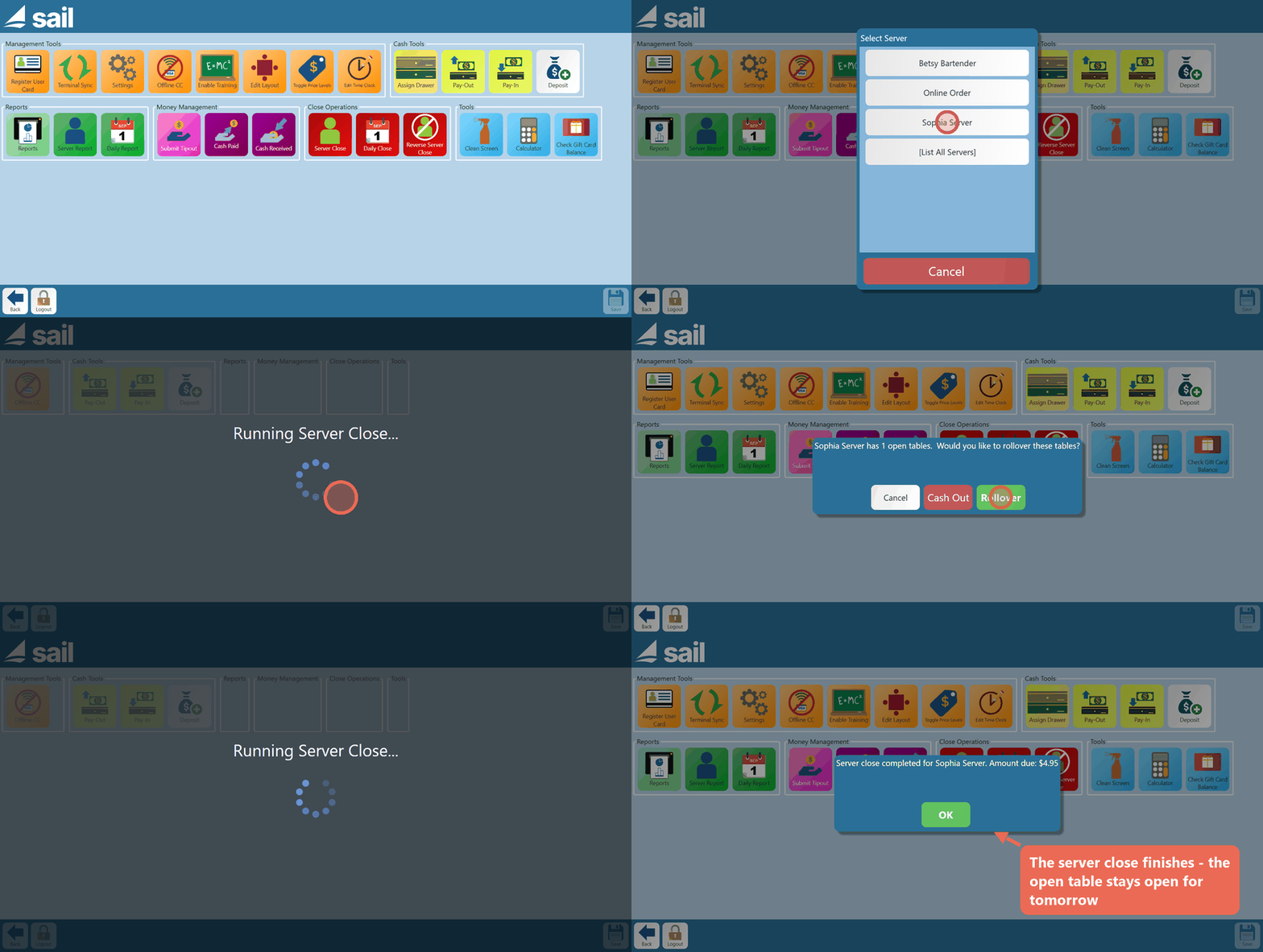
1. Go to the Functions screen and tap Server Close.
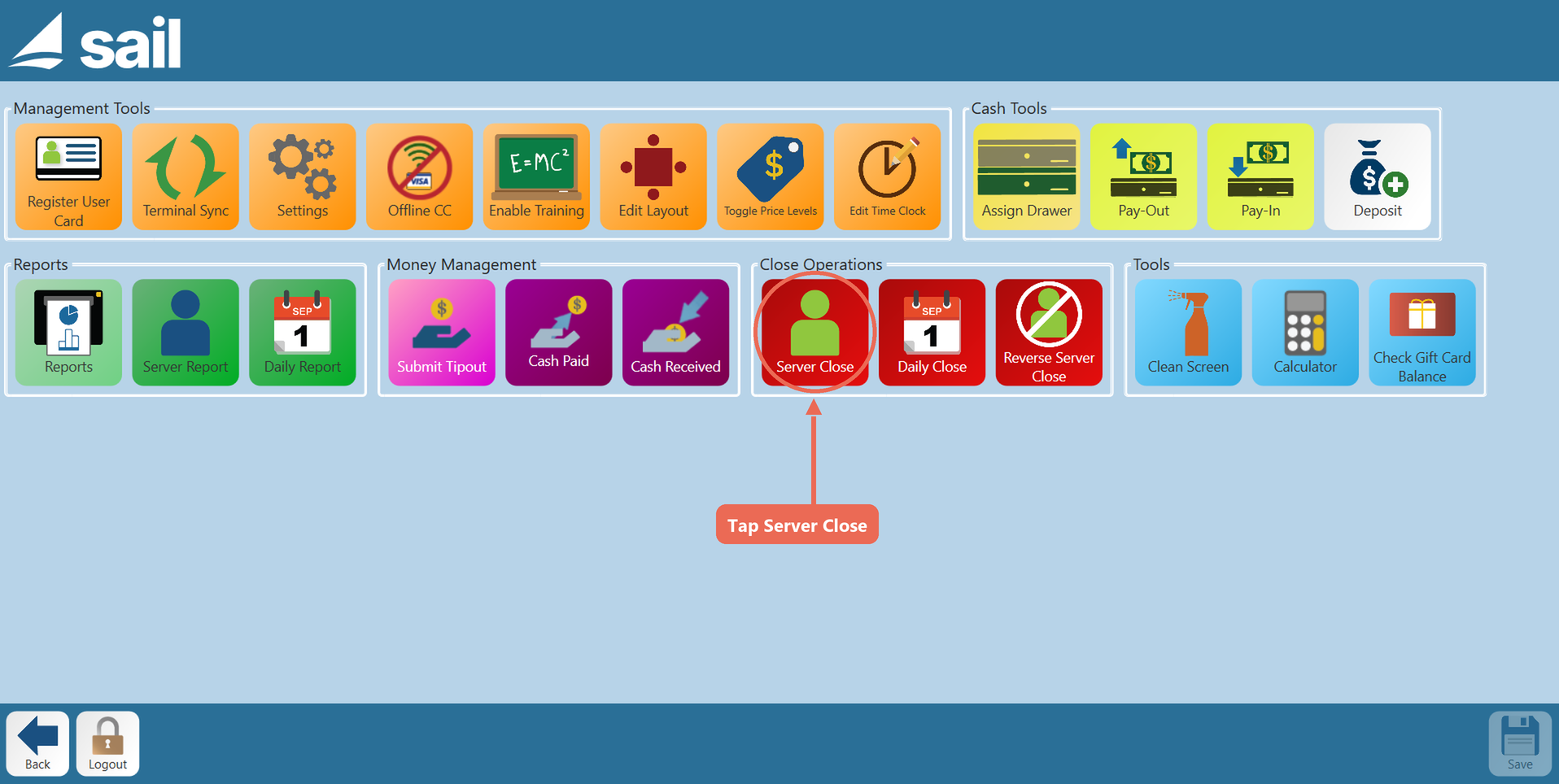
2. Tap the server you are closing out. If your job role can close only your own server, this list doesn't show.
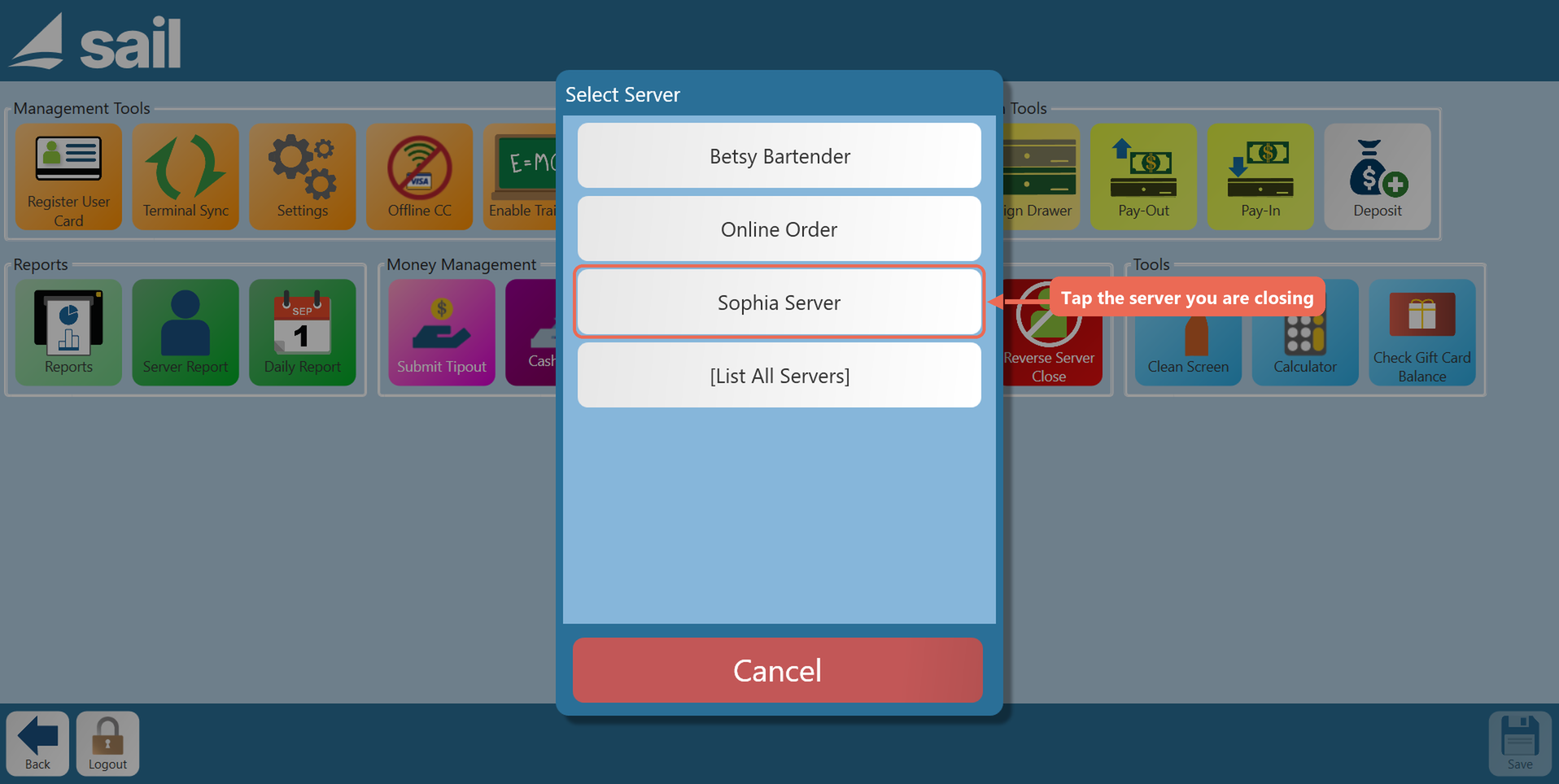
3. The terminal asks if you are sure you want to close out that server. Tap Yes.
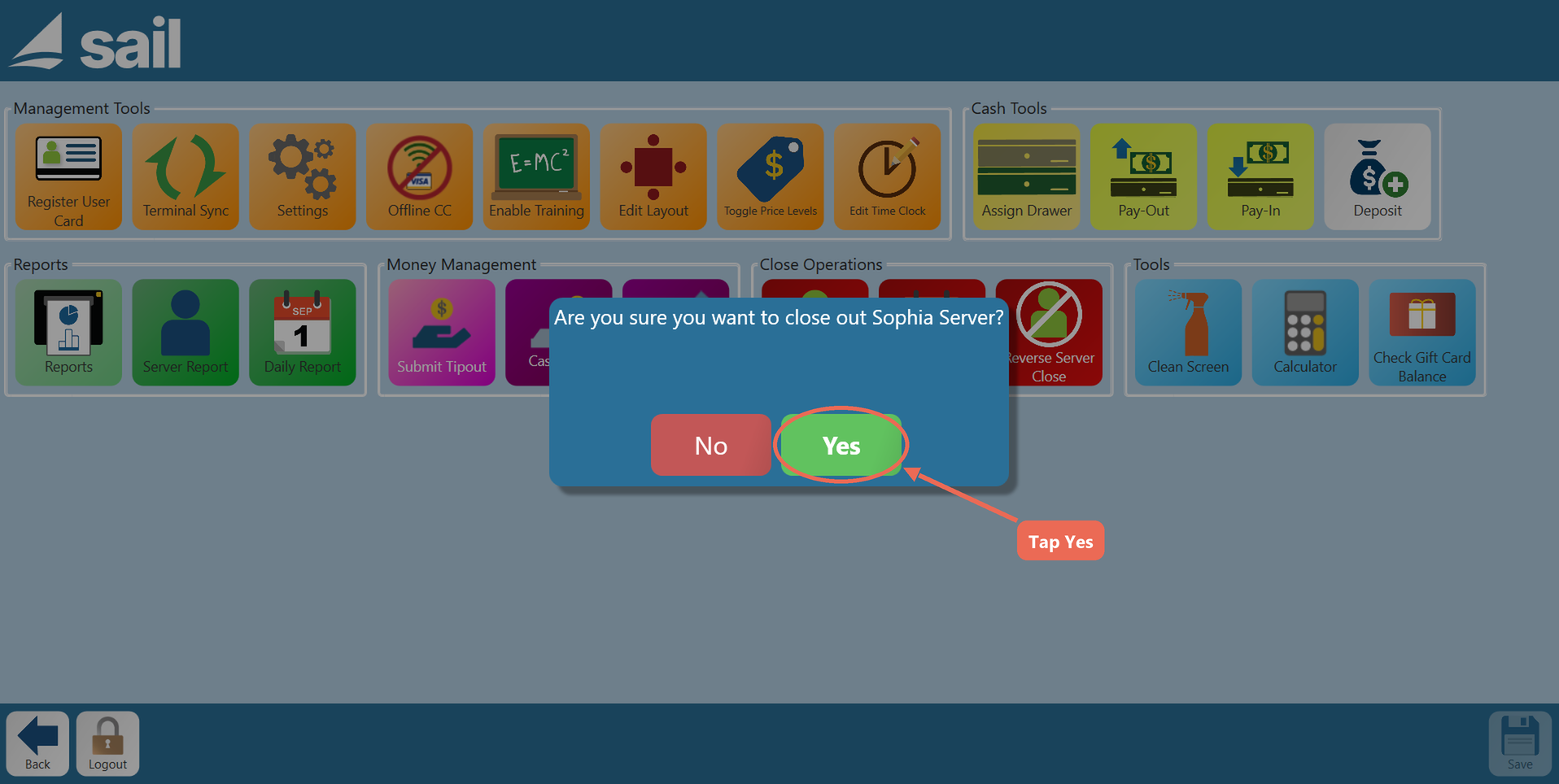
4. When the server still has open orders, the terminal says how many and asks if you would like to roll them over:
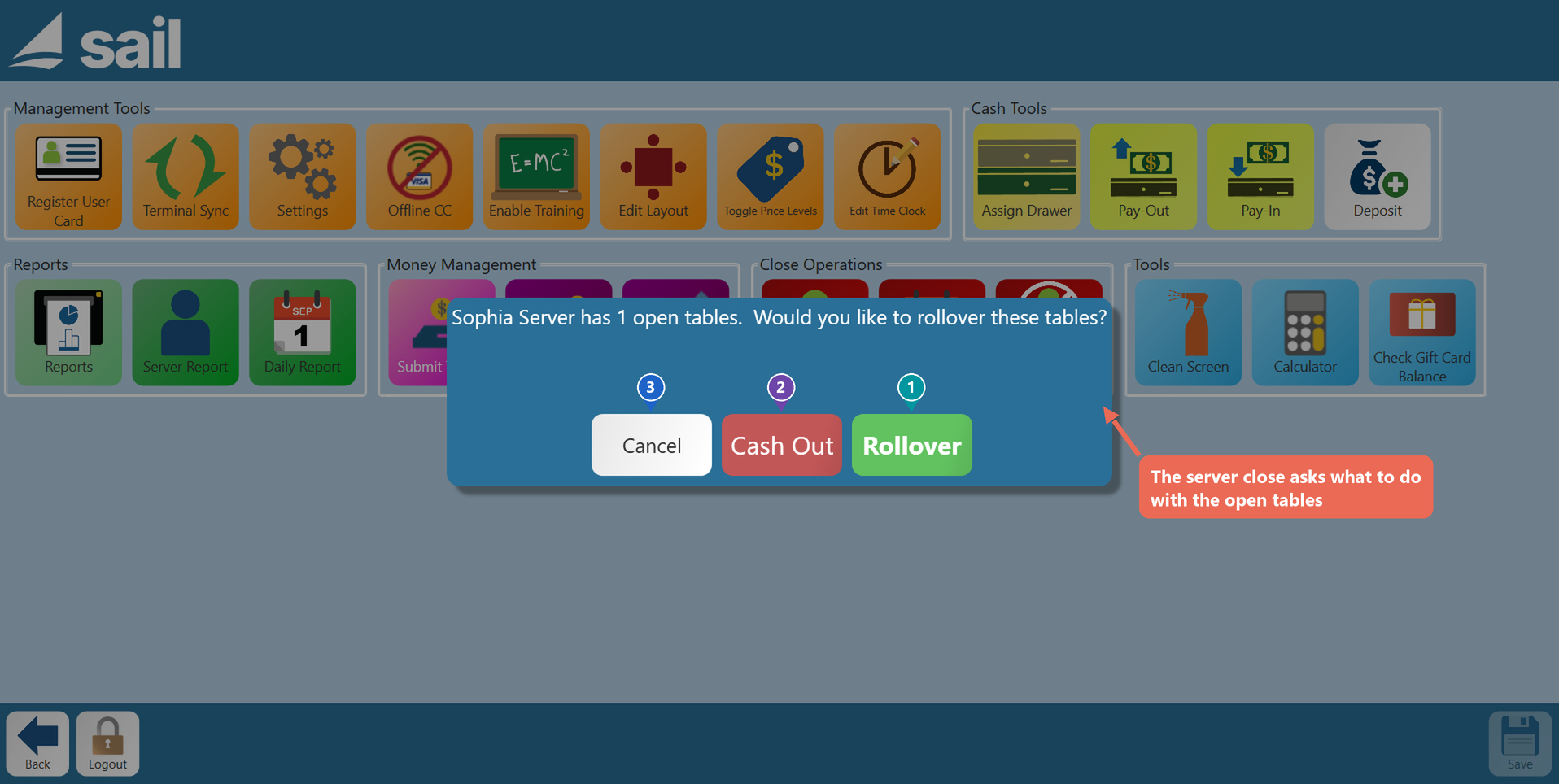
- Rollover: the open orders move to the next business day and stay open under the server's name. The server close then finishes as usual.
- Cash Out: the open orders are closed as if they were paid in cash, and the server owes that cash at the end of the night.
- Cancel: nothing is closed or rolled over, and the server stays open.
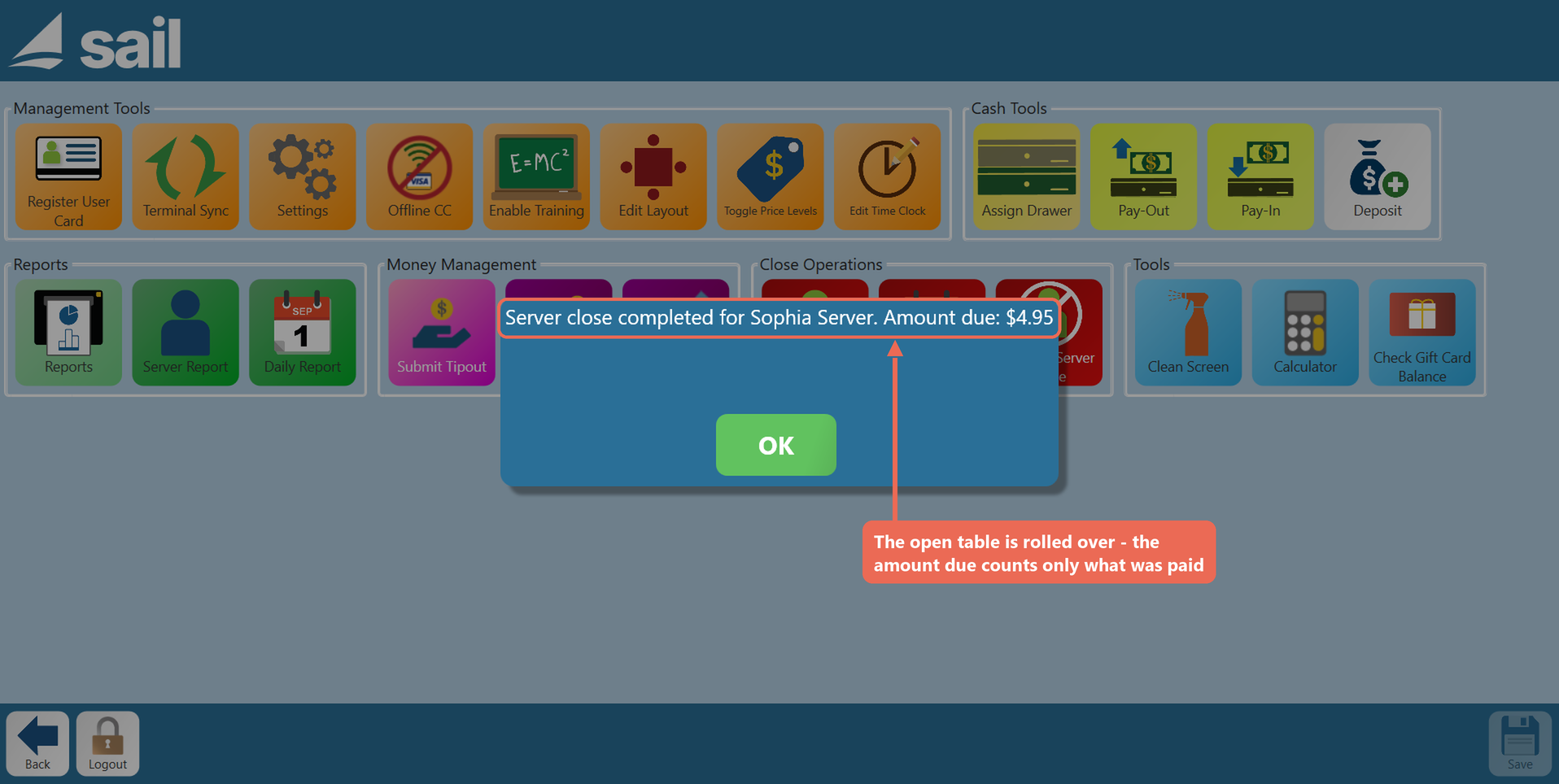
5. The server close finishes as usual and tells you the amount due. The rolled-over orders aren't in it - only what was paid is counted. Tap OK.
Note: Rollover and Cash Out apply to all of the server's open orders. To keep only some of them open, close out the others first, or transfer them to another server.
Click here to learn more about closing a server.
Rolling over at the Daily Close
The daily close can roll over every server's open orders at once, after the servers have been closed out.
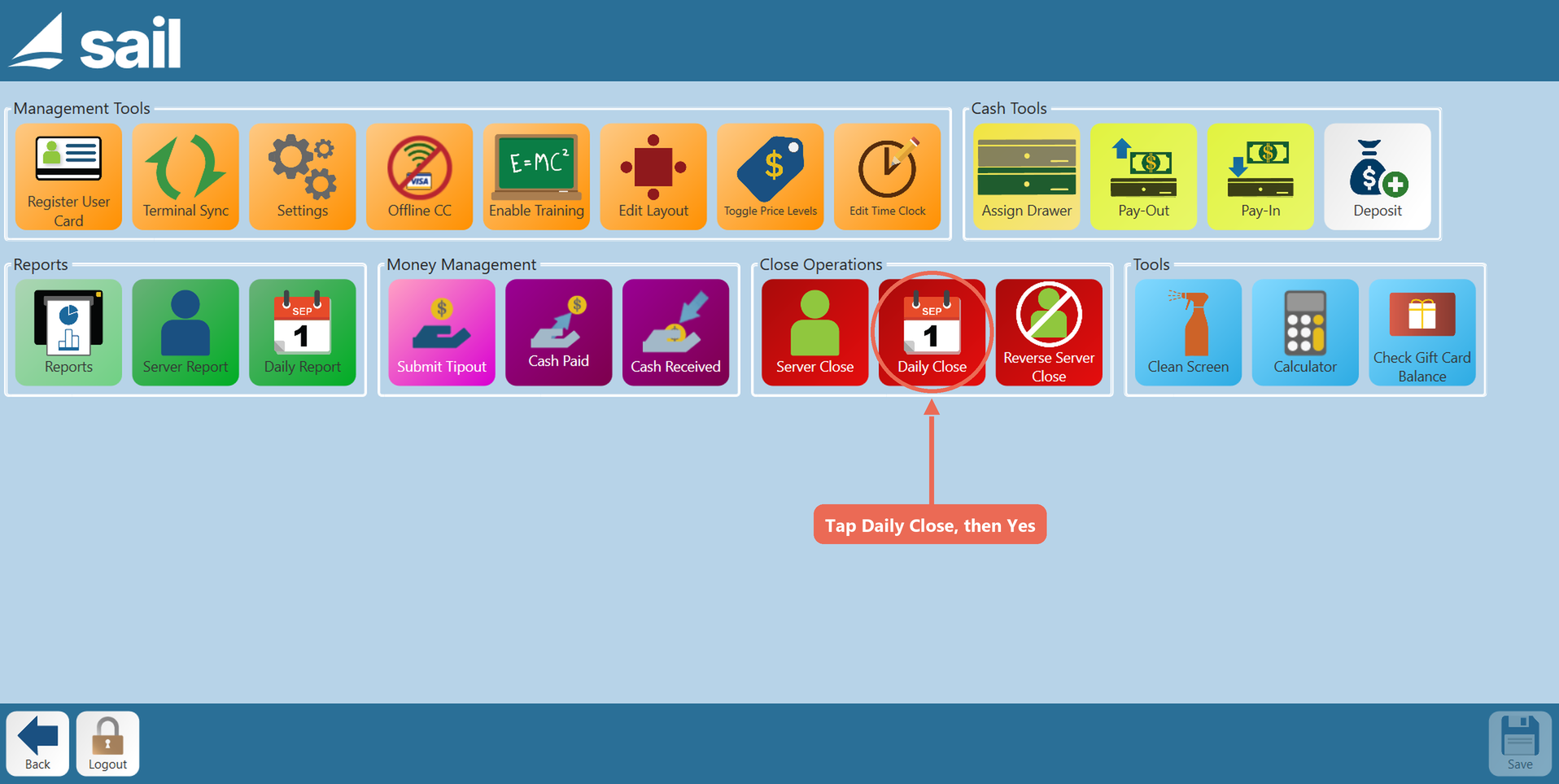
1. Go to the Functions screen, tap Daily Close, then tap Yes to settle and close out the day.
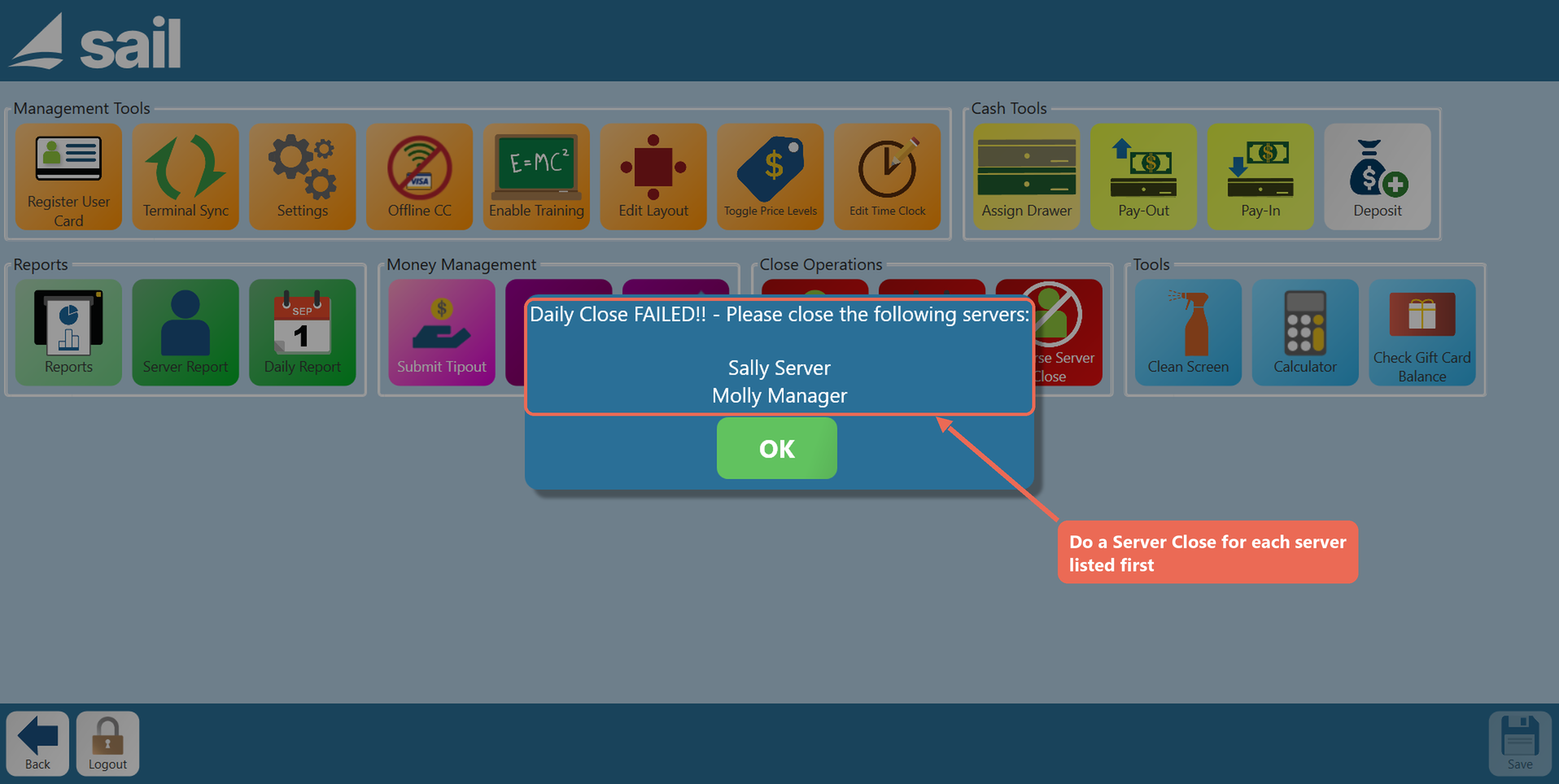
2. If it says Please close the following servers, tap OK and do a server close for each server listed first (above), then run the daily close again.
3. When every server has been closed out and some of them still have open orders, the terminal lists those servers and asks Rollover to the next day? Tap Yes to roll their open orders over and finish the daily close. No stops the daily close.
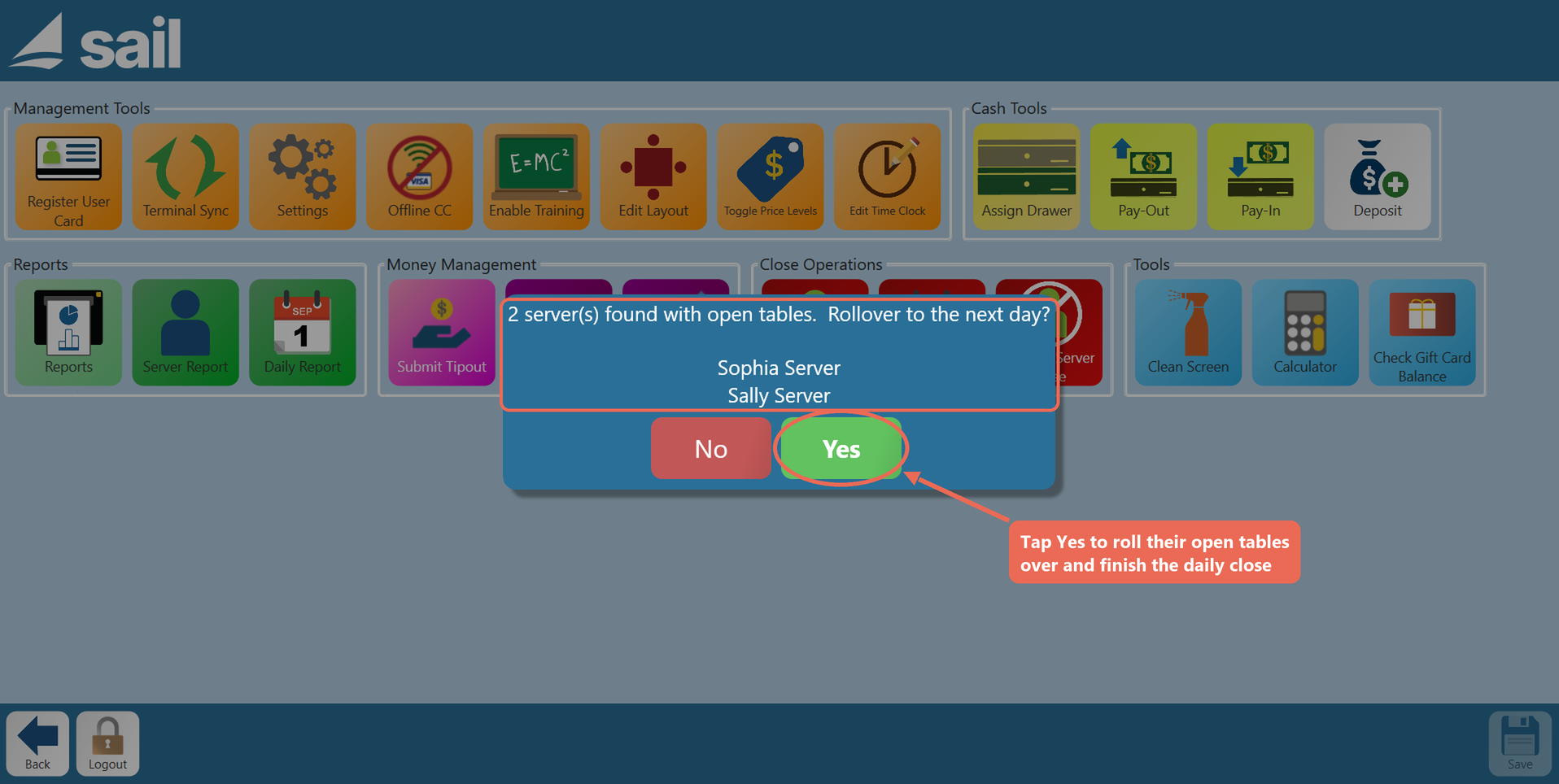
Note: The daily close can only roll orders over - it never cashes them out. To cash out a server's open orders, use Cash Out at their server close.
Click here to learn more about doing the Daily Close.
Finding rolled-over orders the next day
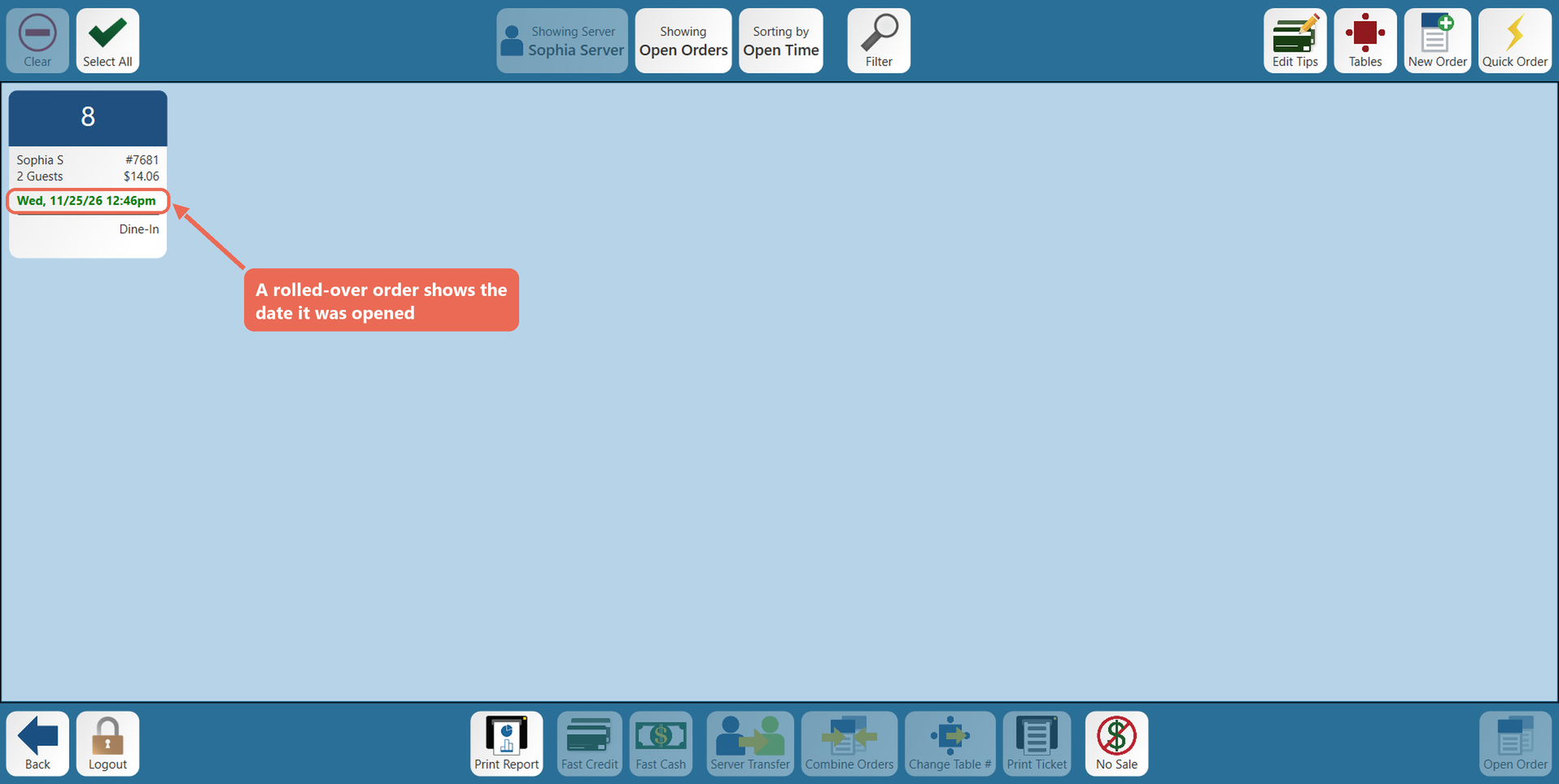
Rolled-over orders are on the Orders screen with the server's other open orders. A rolled-over order shows the date it was opened next to its time, so you can tell it's from an earlier day. Open it and work on it like any other order.
Click here to learn more about viewing your open orders.
Rolling over with auto close
If your location runs its daily close automatically, it can roll open orders over by itself: set the auto close's Open Tables Strategy to Rollover to the Next Day in Backoffice.
Click here to learn more about setting up auto close.