
Can I reverse a Daily Close?
BeingThis written.document answers whether a Daily Close can be reversed, and what to do if you find a mistake after the day is closed.
Can I reverse a Daily Close?
No. A Daily Close can't be undone, and there is no button to reopen the day. When you run it, Sail:
- Closes the business day, along with every server close in it.
- Batches the day's credit cards, which sends them to the card processor.
- Prints the daily report with the whole day's sales.
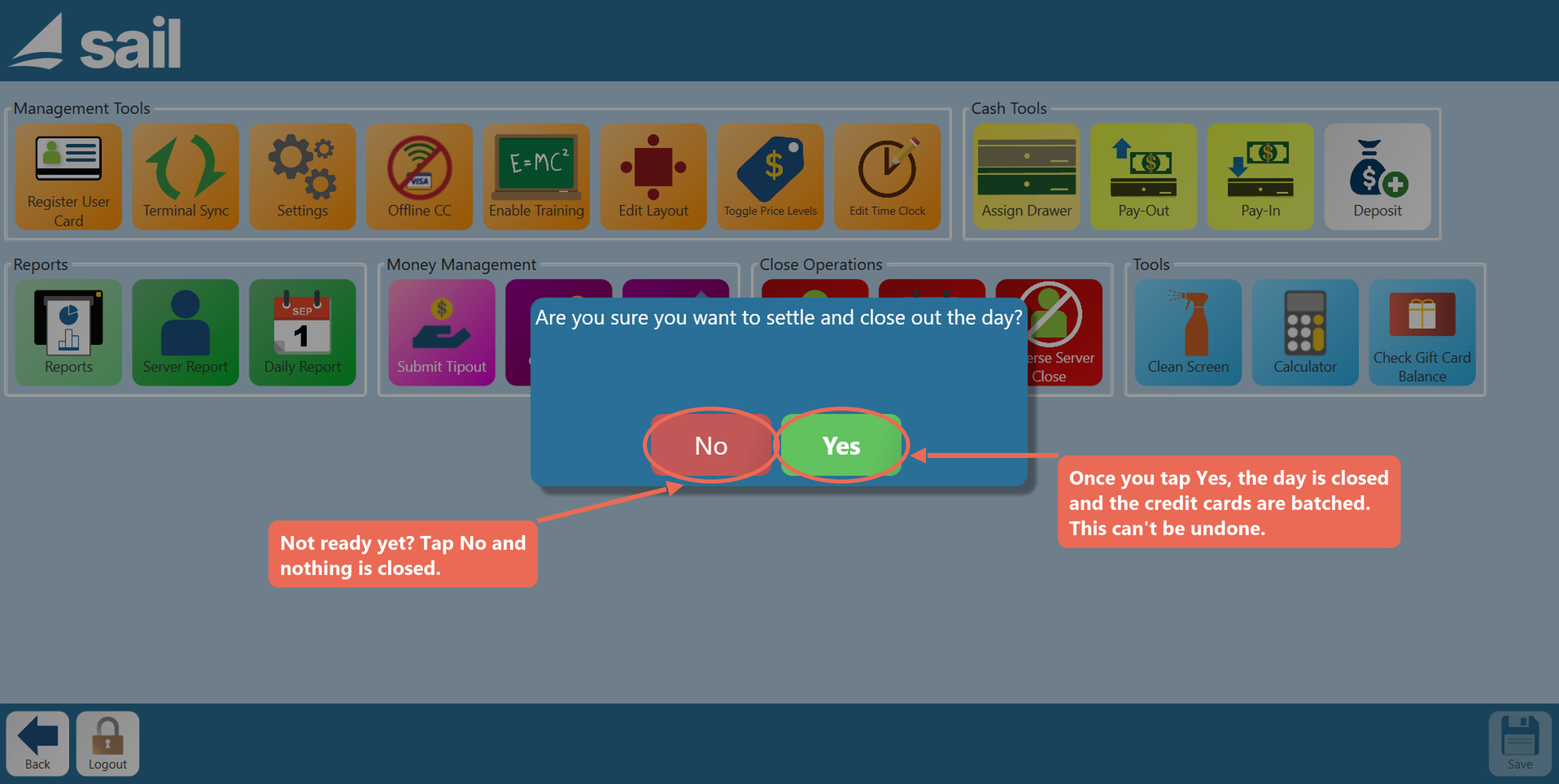
Before anything closes, the terminal asks "Are you sure you want to settle and close out the day?" Tap No if you're not ready yet.
Check these before you run the Daily Close
Most mistakes are easy to fix before the day is closed. Make sure:
- All tables are closed out
- All credit card tips are entered, even $0 tips
- Every server's report looks right and every server is closed out
Note: If a server's numbers are wrong after their server close (a lost credit card slip, a table that needed a discount), use Reverse Server Close on the Functions screen to reopen the server and fix it. This only works until the Daily Close. Click here to learn more about reversing a server close.
Found a mistake after the Daily Close?
The day stays closed, but many things can still be fixed:
- A guest needs money back: give them a refund. A paid order from a closed day can't be reopened and its payment can't be voided, so a refund is the way to give the money back. Click here to learn how to do a refund, or how to refund a credit card from a previous day.
- An employee's clock in or clock out was wrong: you can still fix their shift, on the terminal or in Backoffice. The terminal shows a yellow banner that the day has already been closed and asks before saving, because the change updates payroll. Click here to learn how to edit the time clock on a terminal or how to edit time cards in Backoffice.
- A submitted tip out was wrong (tips one staff member gave to another): once the day is closed, only its amount and notes can change. To move it to another employee or day, delete it and enter it again. Click here to learn more about submitted tip outs.
- The cash deposit was wrong or wasn't recorded: if your business records its deposits in Sail, you can add, change or delete the deposit for the last closed day in Backoffice. Click here to learn how to add or edit deposits in Backoffice.
- You need the daily report again: every closed day is in Backoffice --> Reporting --> Sales History, with its Daily Close Report, server closes and credit card batches. Click here to learn more about Sales History.