
Welcome to Sail Scheduling
WhatSail Scheduling is where you build your team's schedule, share it with them, and handle everything that changes once it's out: time off, shift trades and open shifts to fill. Your team sees their shifts in the Sail Scheduling app and on the website.
This guide is for managers and owners. It shows you around and points you to the guide for each part.
Signing in
Sign in on the website with your email address (or your mobile number) and your password. The same sign-in works in the app, which you can you do with Ingage Scheduling?
Ingage Scheduling makes it easy to build, manage, and share employee schedules all in one place. Managers can create schedules by job role, approve shift swaps and time-off requests, and quickly adjust shifts as business needs change. Employees can view their schedules, receive updates by email or text, and request time off or shift changes directly through the app. With built-in tools for availability tracking, scheduling shortcuts, and manager approvals, Ingage Scheduling helps keep your team organized while saving time and reducing miscommunication.
Parts of the Scheduling System
The Scheduling system includes several tools to help you manage your team efficiently. Each area can be accesseddownload from the toolbarApp atStore or Google Play using the links on the sign-in page.
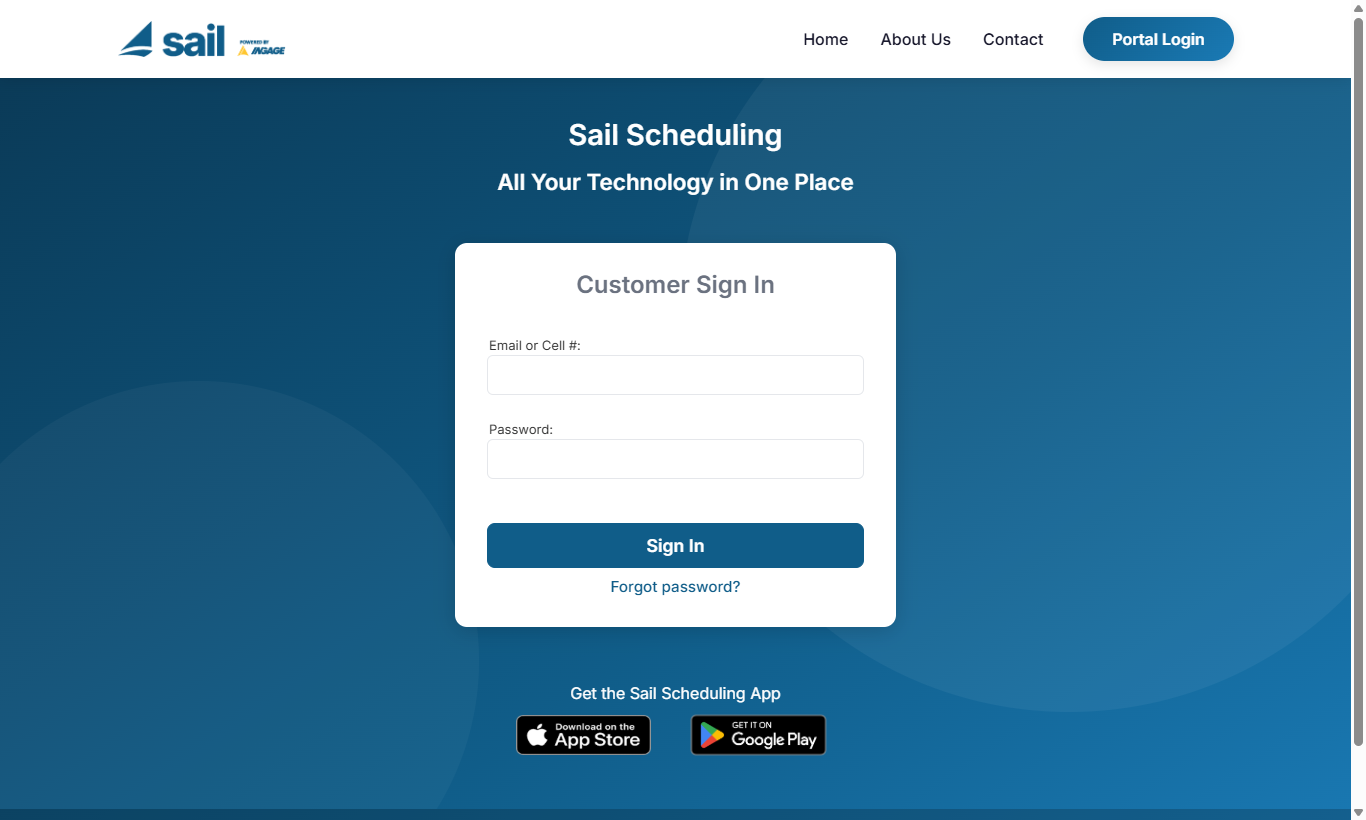
If you've forgotten your password, click Forgot password? to be sent a link to set a new one.
Finding your way around
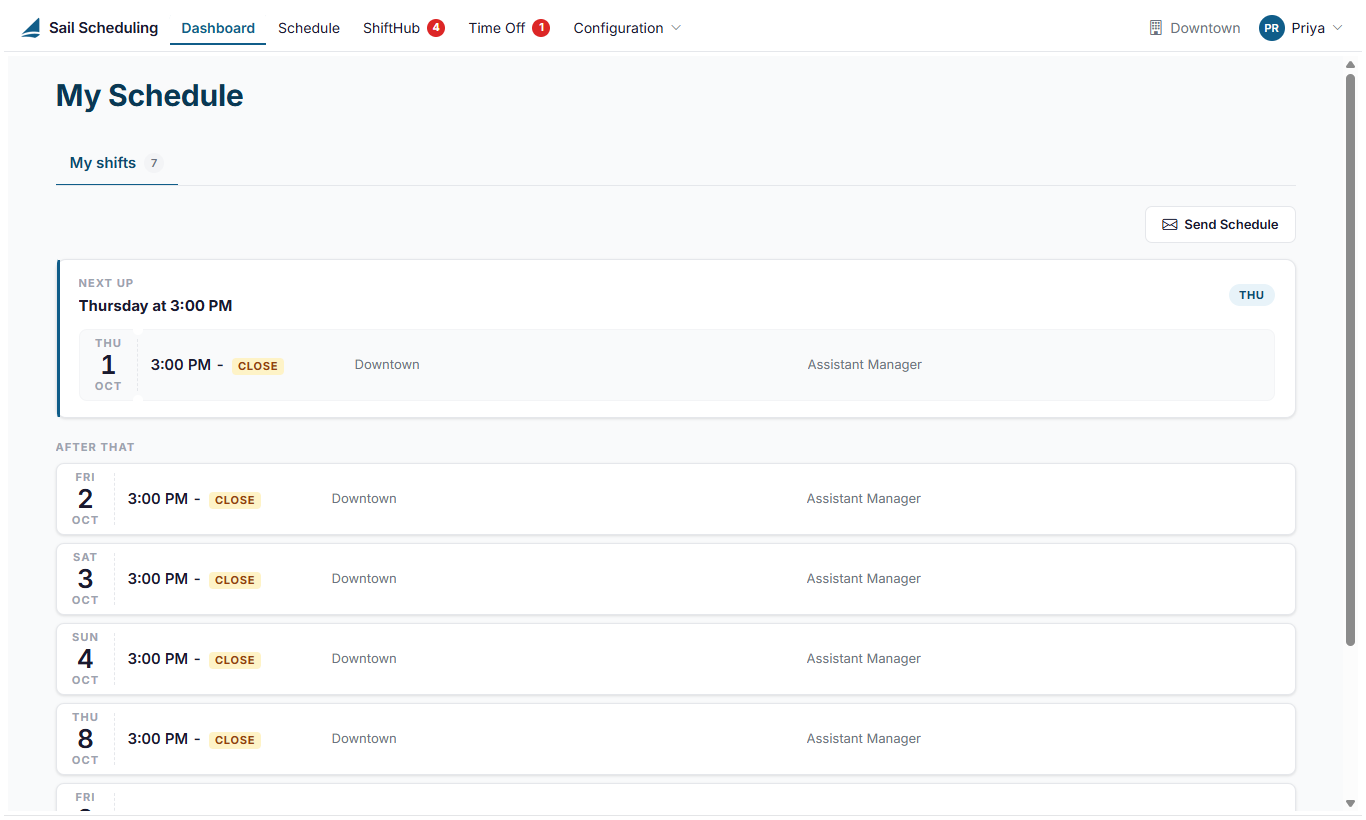
Everything is reached from the bar across the top of the page.
Below,
| Menu | What |
|---|---|
| Dashboard | Your own upcoming shifts. |
| Schedule | Build, publish, send and print the schedule. See Building and publishing the schedule. |
| ShiftHub | Approve shift swaps, give-aways and open shift pickups. The red badge counts what's waiting for you. See Reviewing ShiftHub requests. |
| Time Off | Approve and deny time off requests, or book time off for someone. The red badge counts requests waiting. See Reviewing time off requests. |
| Configuration | Your employees, job roles, shift shortcuts, locations and company settings. What's in it depends on what |
Picking a location
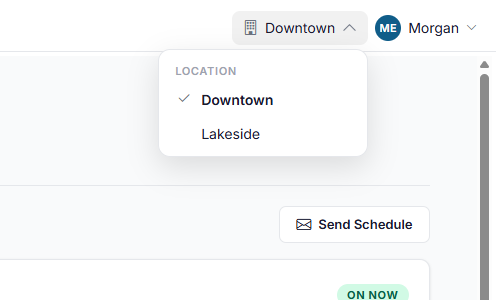
If you work at more than one location, the location at the top right is the one you're working on: the schedule, ShiftHub review and Time off review all show that location. Click it to switch to another. If you only work at one location, it's usedshown there without a list.
Your account menu
Click your name at the top right for your own things:
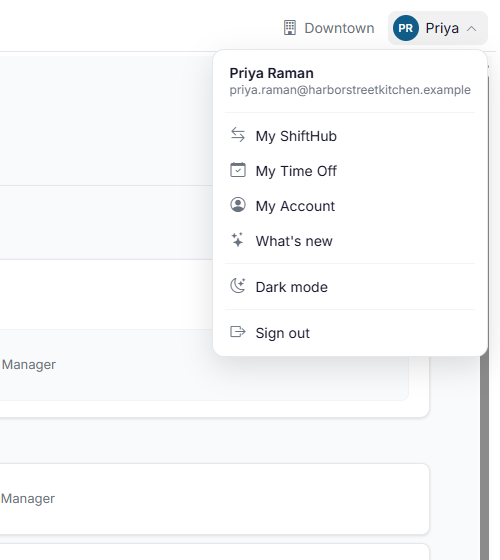
- My ShiftHub and My Time Off: trade your own shifts, pick up open shifts, and ask for your own time off, just as your team does.
- My Account: your name, email address, mobile number, password and notification settings.
- What's new: the latest changes to Sail Scheduling.
- Dark mode: switch between a light and a dark screen.
- Sign out.
A red number on your initials is about your own shifts and time off: a swap a co-worker has asked you for, or a decision on one of your own trades or time off requests since you last looked. The same number is beside My ShiftHub or My Time Off. It's separate from the red badges on ShiftHub and provideTime linksOff in the bar, which count your team's requests waiting for you to guidesdecide.
If you work for more detailedthan instructionsone company that uses Sail Scheduling, the account menu also lists them, so you can learnswitch morebetween asthem needed.without signing out.

1. Dashboard
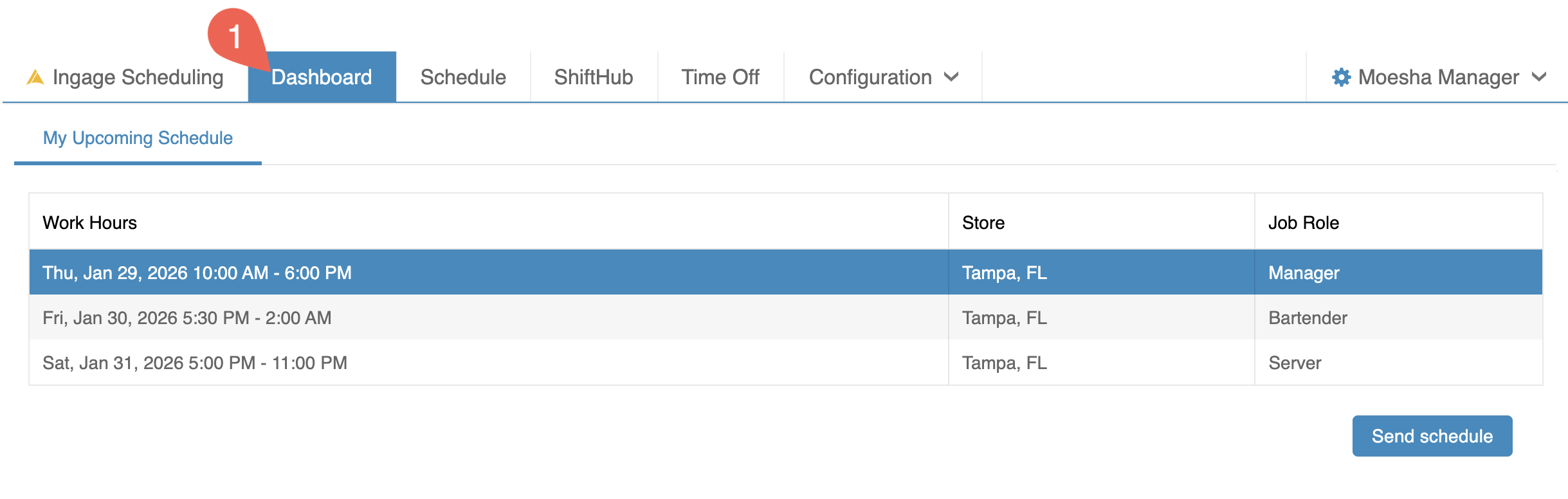
The Dashboard gives you a quick view of your upcoming shifts.
Here
What you can see:
The date and time of each shift
Your assigned job role
The location where you are scheduled to work
The date and time of each shift
Your assigned job role
The location where you are scheduled to work
You can also select the "Send Schedule" button to resend your schedule to yourself by email or text message for easy reference.
2. Schedule
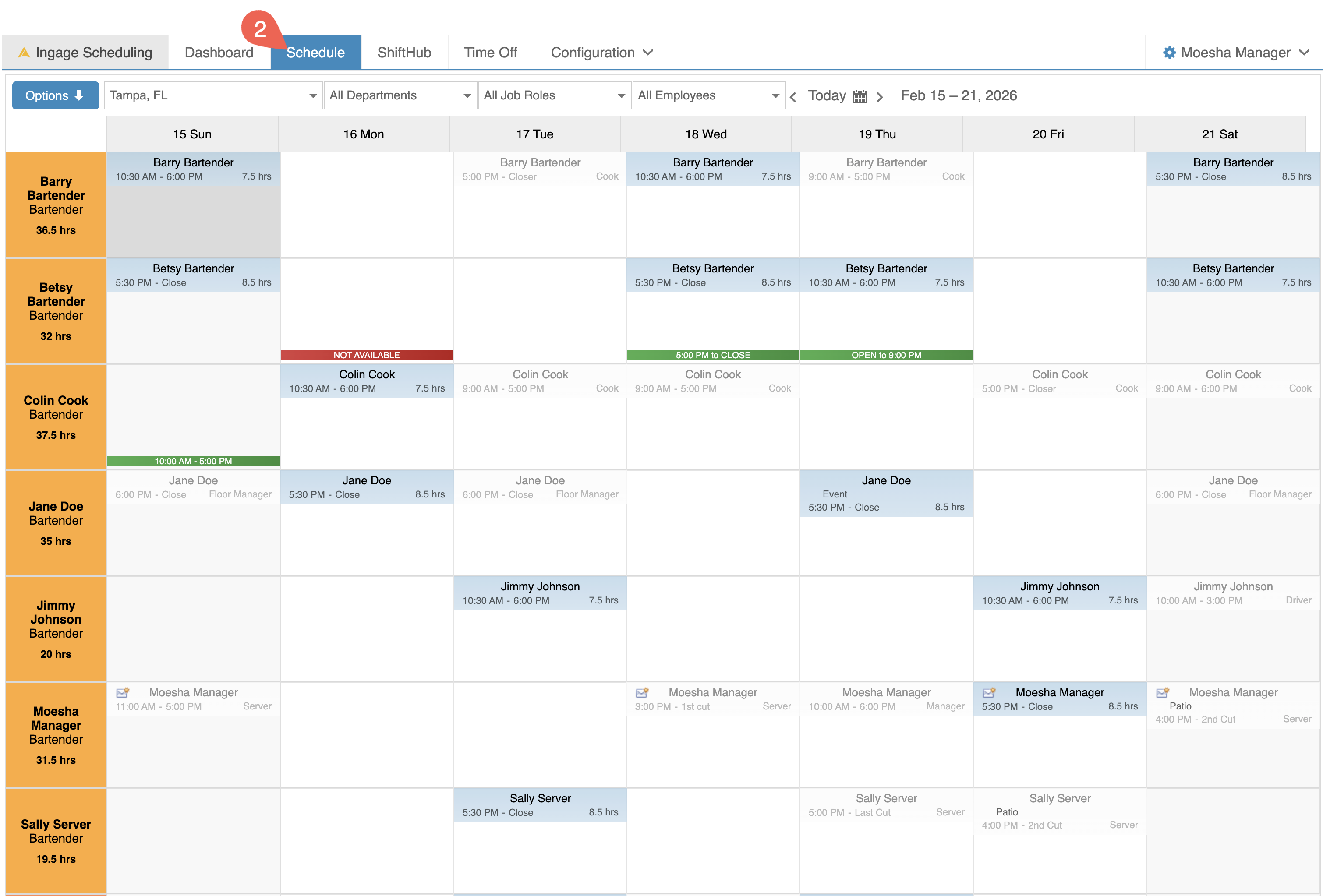
The Schedule view is the main workspace where you will build and manage your team’s schedule. By default, it displays the current week.
In this view, you can:
Create and adjust shifts for your employeesView schedules by department, job role, or individual employeeSee availability and time-off requests, which are color-coded for easy reference
Filters along the top of the screen allow you to quickly narrow your view by:
DepartmentJob RoleIndividual Employee
Publish the scheduleSend the schedule to employeesPrint the schedule for posting or sharingCreate and use schedule templates
This area is designed to give you a clear visual overview of staffing needs while making it easy to update shifts as your business needs change.
Click this link to learn more about How to create a New Schedule
3. Shift Hub
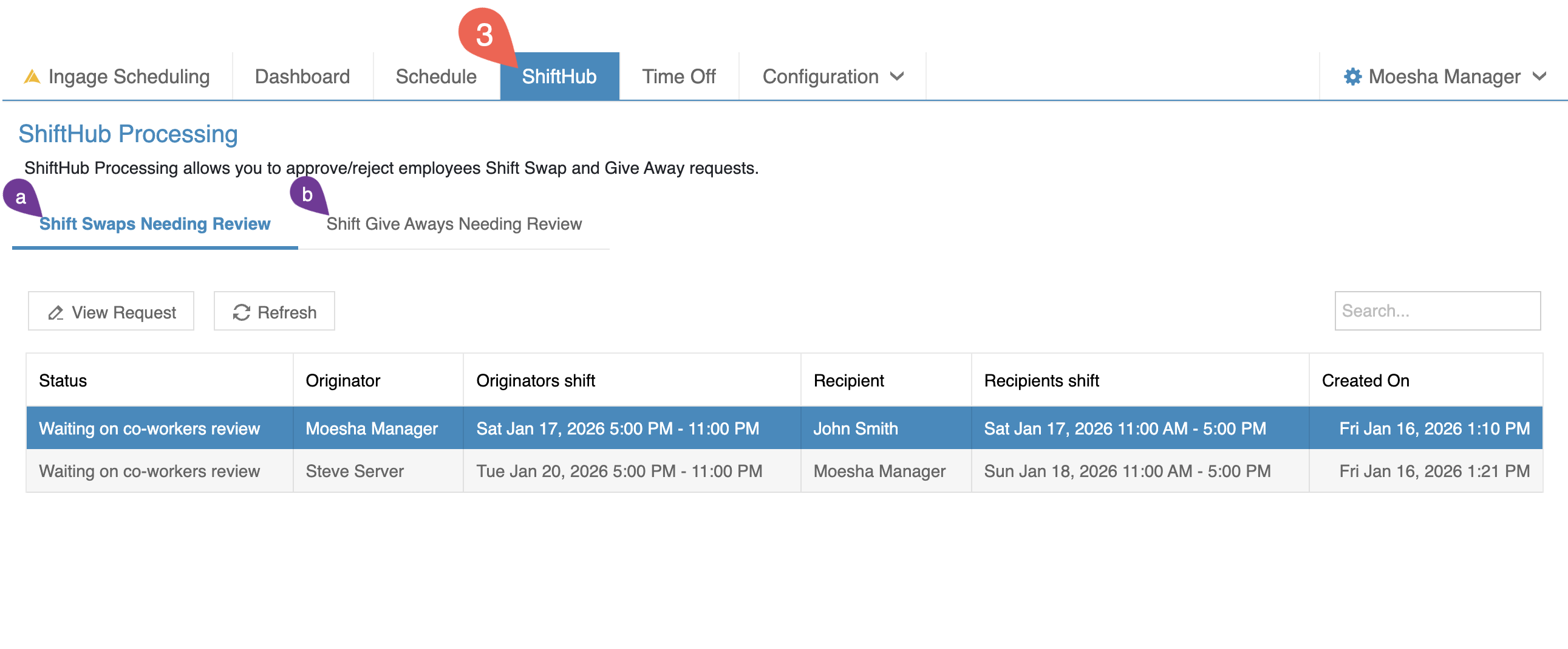
ShiftHub is where managers review and approve employee requests for shift swaps and shift give-aways.
(a) A shift swap happens when two employees agree to trade shifts with each other.
(b) A shift give-away happens when one employee offers up their shift and another employee picks it up so the shift remains covered.
All shift swaps and give-away requests must be approved by a manager before the schedule is updated. This allows managers to:
Review the requestEnsure proper coverageConfirm the change meets business needs
Once a request is approved:
The schedule updates automaticallyEmployees receive a notification by email or text confirming the change
Click this link to learn more about how to manage ShiftHub.
4. Time Off
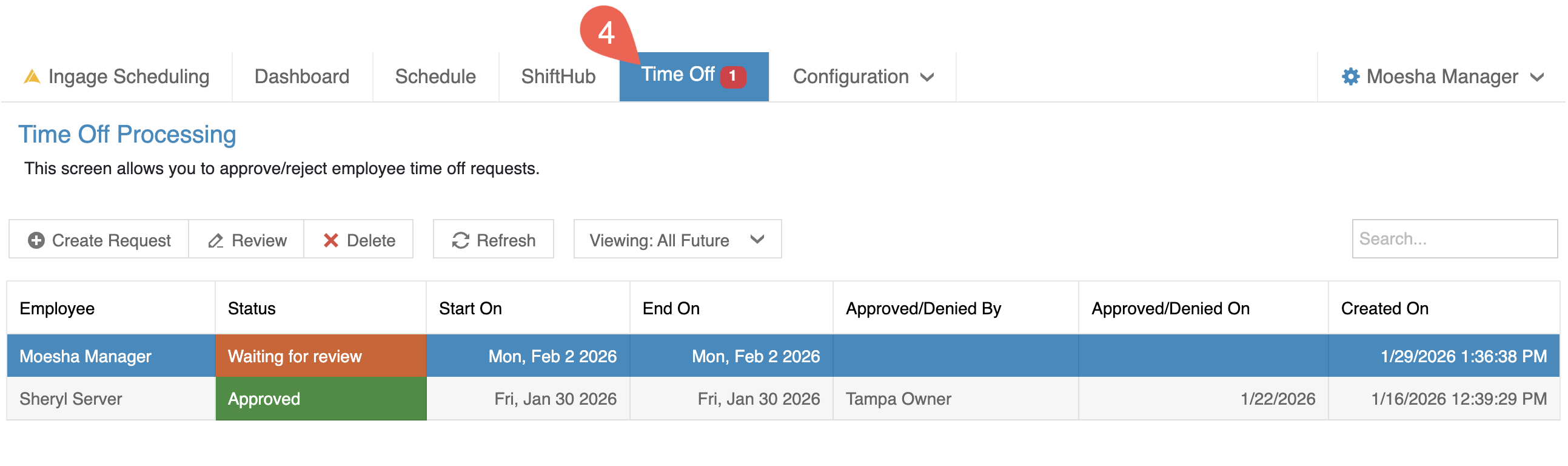
Time Off is where managers review and approve or deny employee time-off requests.
When you open this screen, it will automatically display all current and upcoming time-off requests.
If a request is waiting for review, you will see a red notification badge next to the Time Off tab in the top toolbar. This is a visual reminder that action is needed.
Managers can:
Approve or deny employee time-off requestsAdd a manger message for Employees to seeEnter time-off requests on behalf of employees when needed
Once a request is approved or denied:
The update is reflected in the employee’s appThe request status is updated in the employees "My Time Off" sectionApproved time off appears color-coded on the schedule for easy visibility
Click the link to learn more about Managing Time-Off Requests.
5. Configuration
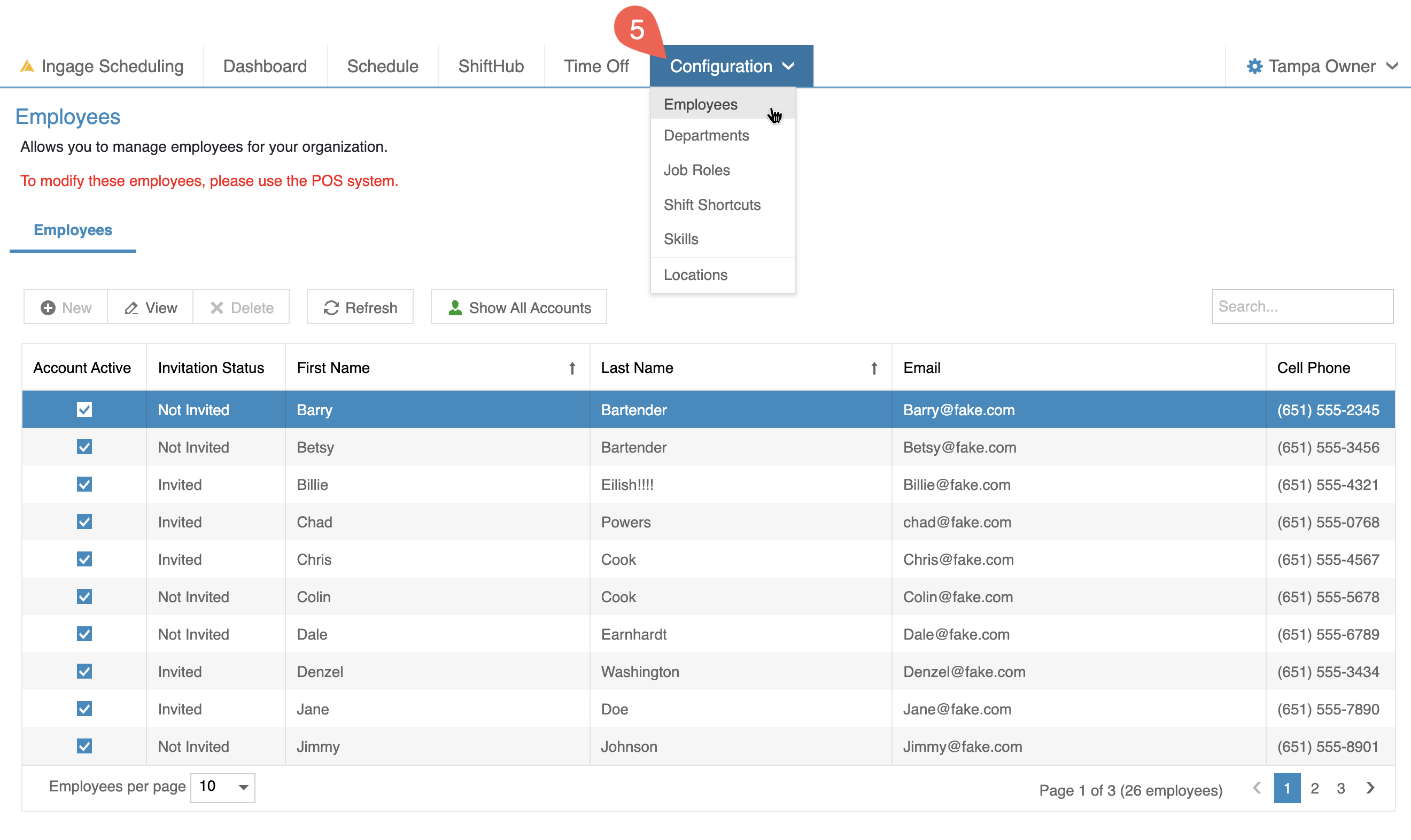
The Configuration area allows you to view and manage certain scheduling settings. Most configuration is handled in Sail Backoffice, but there are a few areas here where adjustments can be made.
What you see in this dropdowndo depends on your userjob permissions.role
Everyone is Staff, a Manager or an Administrator at each location, depending on the job roles they hold there. It can differ from one location to another: you might manage one location and just work shifts at another.
- Staff
off, trade shifts and pick up open shifts.Adminssee(typicallytheOwnerspublished schedule andGeneraltheirManagers)owncanshifts,viewaskallforconfigurationtimeareas. - Managers
and shift shortcuts.Managersalsousually only see Employeesbuild andShift Shortcuts, since these arepublish thetools needed for buildingschedule, andmaintainingmanagetheemployeesschedule. - Administrators also set up job roles, departments, skills, locations and company settings.
TheApproving areastime you will use most often are:
Employees - This is where managers can review employee informationoff andupdateshiftavailability.trades comes from your job role too, separately. See Job roles and departments for the details.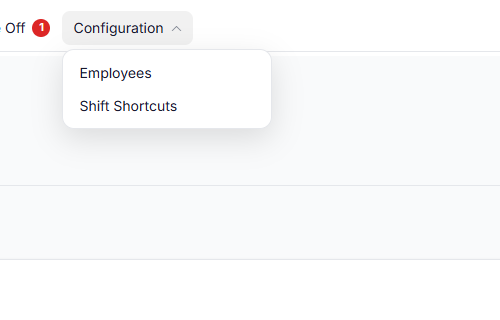
Getting started
If you're setting up Sail Scheduling for the first time, work through these in order:
- Locations: check each location's address, its week and its rules.
- Job roles and departments, and Skills: what people are scheduled as.
- Adding and inviting employees, then Editing an employee to give each person their job roles, pay and availability.
- Shift shortcuts: your usual shifts, ready to add in a click.
- Building and publishing the schedule, and Schedule templates to reuse a good week.
ShiftIfShortcutsyour-restaurantThisusesisSailwherePOS, your locations, job roles, departments, skills and employees come from Sail Backoffice, so you cancreatestart at step 3 with each person's availability, then go on to steps 4 andmanage shortcuts to speed up schedule building.5.
The remaining areas — Departments, Job Roles, Skills, and Locations — are available for viewing only. Any changes to these settings must be made in Sail Backoffice to ensure proper system syncing.
Click any of the links below for step-by-step instructions on configuring these areas:- How to edit an employee- How to create and use Shift Shortcuts- How to configure skill levels in Sail
6. User Settings
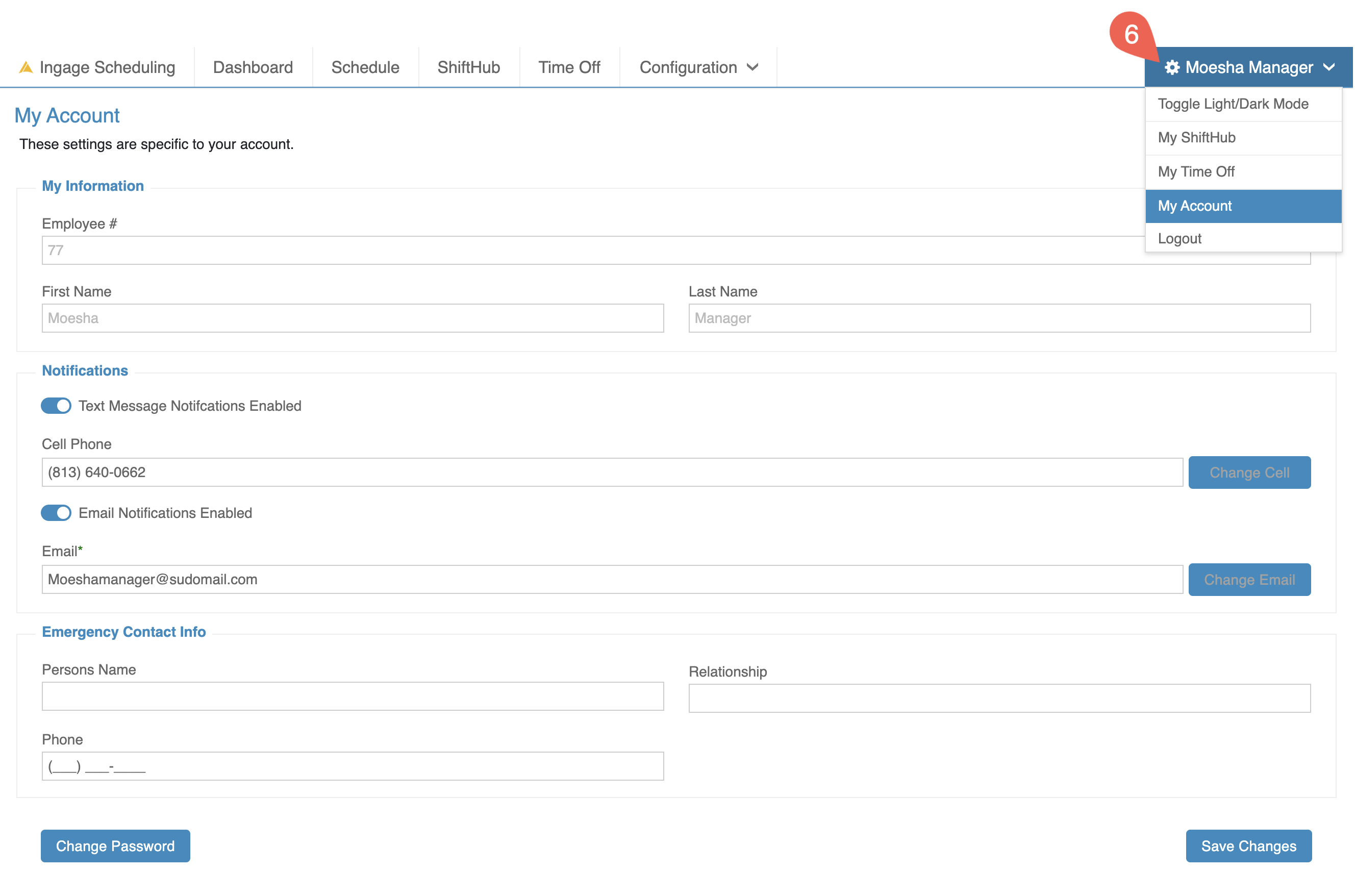
The User Settings menu is located under your name in the top-right corner of the screen. This dropdown gives you quick access to personal preferences and account options.
Toggle Light/Dark Mode - Switch between light and dark display themes based on your preference.My ShiftHub - Submit shift swap or shift give-away requests and check the status of your requests.My Time Off - Submit time-off requests and track their approval status.My Account - Update your text and email notification preferences, change your contact information, and manage your emergency contact details.Logout - Safely log out of Ingage Scheduling when finished.