
Editing an employee
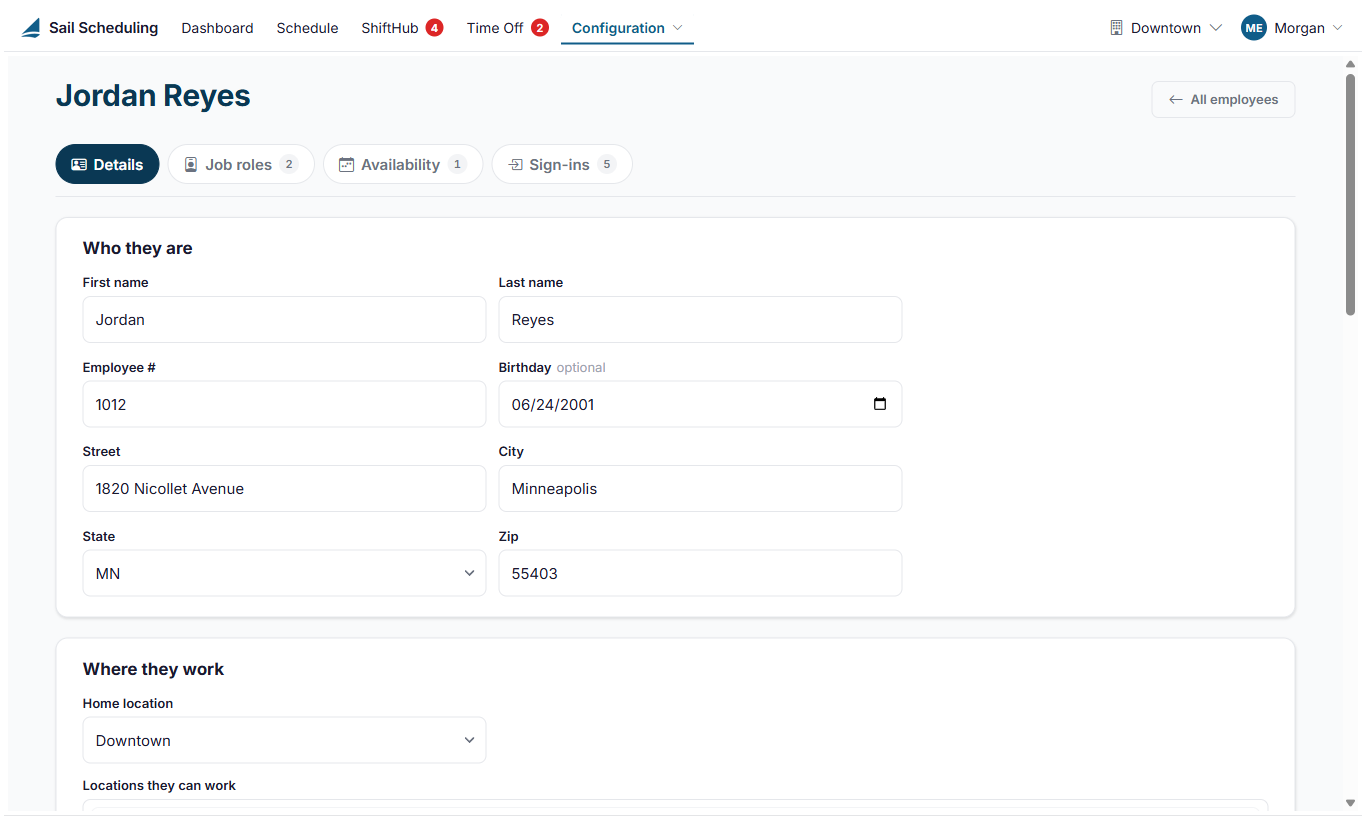
Each employee's record has four tabs: Details, Job roles, Availability and Sign-ins. Open it from Configuration, Employees: click Open on their row, or double-click it.
If your restaurant uses Sail POS, the name, contact details and job roles come from Sail Backoffice and can't be changed here. You can still change their birthday, their preferred hours and their availability.
Details
- Who they are: name, employee number (for payroll or a badge), birthday and home address.
- Where they work: their home location and every location they can work at. Their home location decides which managers review their time off.
- Their time here: hire date and termination date. The hire date is shown to managers deciding who gets an open shift.
- Their account: whether they can sign in (Account Active), and their invitation.
- How we notify them: whether they get email and text messages. Use Change email and Change number to update them. Their email address is how they sign in.
- Emergency contact, and Account history: when they were added, last signed in, last changed their password and last failed to sign in.
Click Save changes at the bottom when you're done.
What they can do
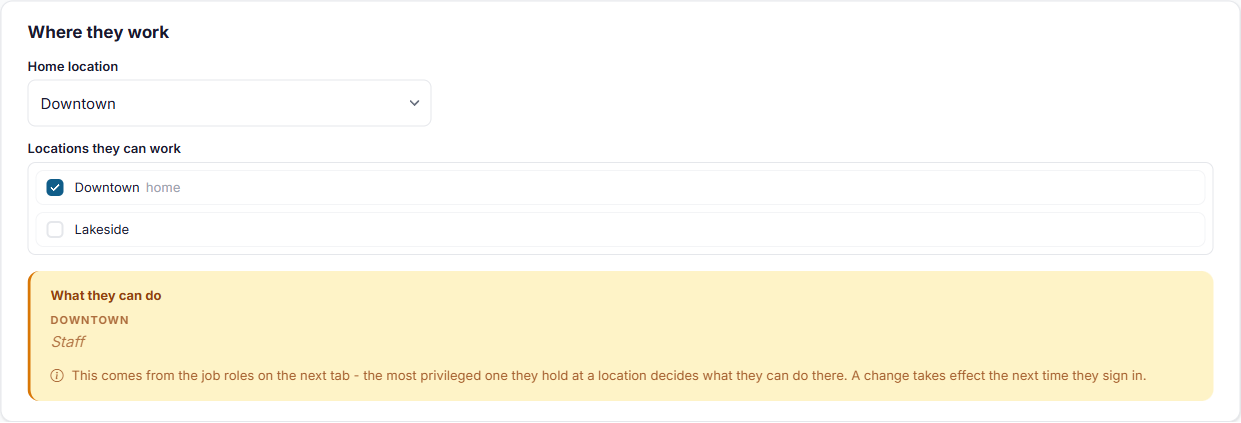
The yellow What they can do box shows whether they're Staff, a Manager or an Administrator at each location. You don't set this directly: it comes from their job roles. Each job role grants one of the three, and the highest one they hold at a location is what they can do there. A change takes effect the next time they sign in.
Job roles and pay
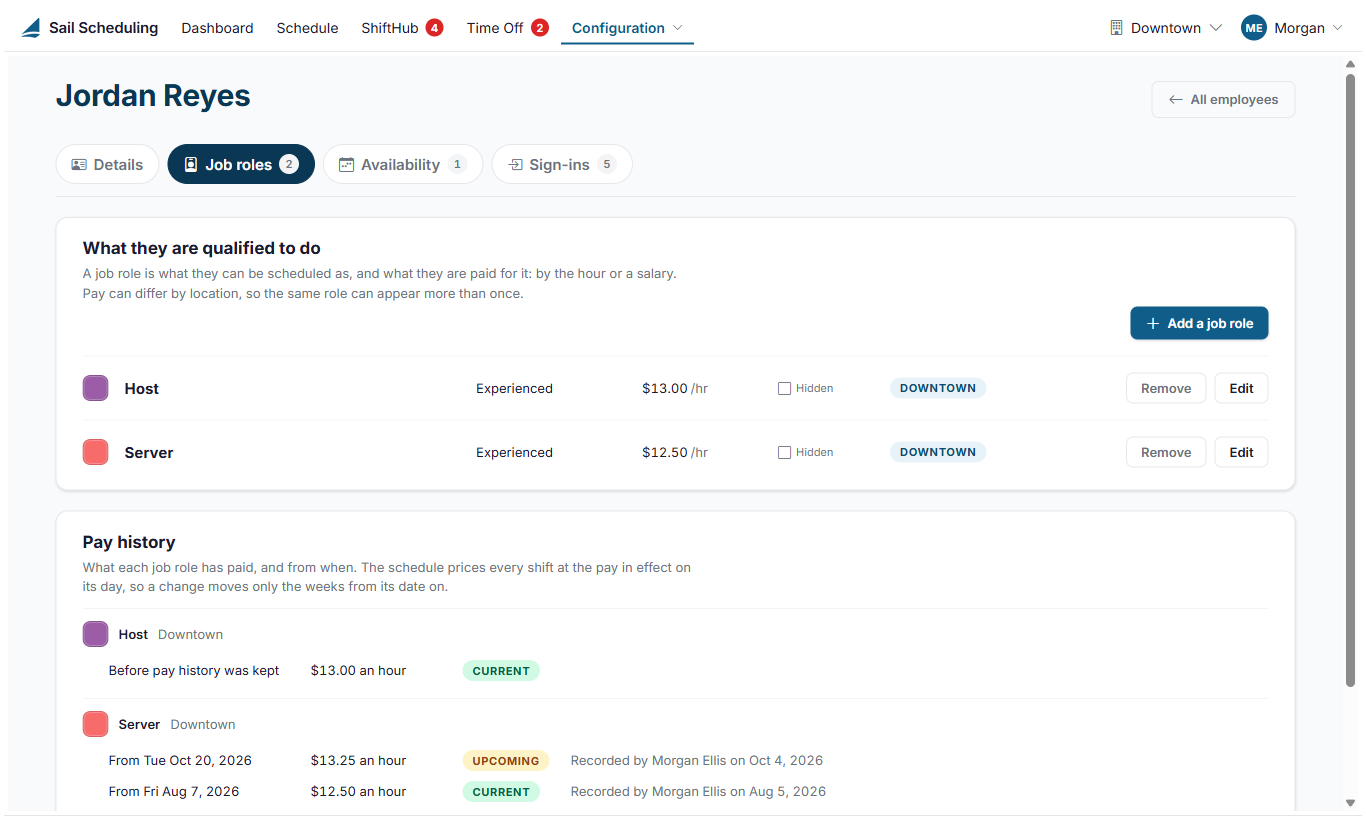
The Job roles tab lists what they can be scheduled as, with their skill level, their pay, and where it applies.
Click Add a job role, or Edit on one they already have:
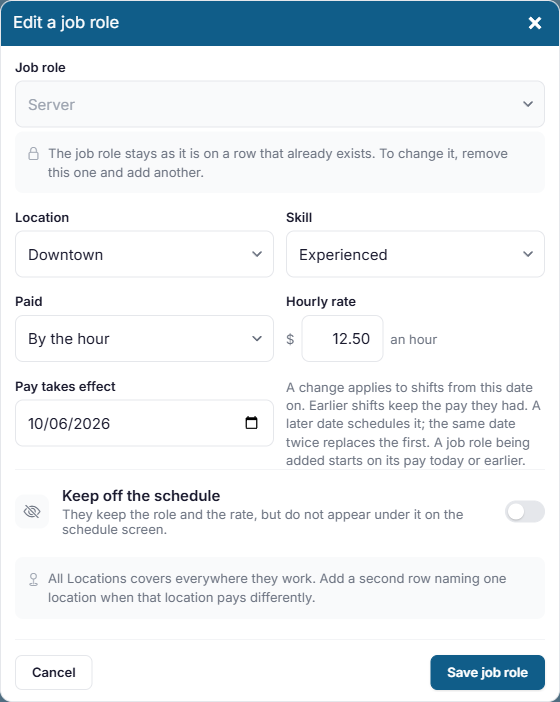
- Job role: what they'll be scheduled as. It can't be changed on a role they already have; remove it and add the new one instead.
- Location: All Locations covers everywhere they work. If one location pays differently, add the same job role again for just that location, with its own pay.
- Skill: their skill level in this job role, such as In training or Trainer.
- Paid: By the hour with an hourly rate, or a Salary with an annual amount.
- Pay takes effect: the date the pay applies from. It starts on today. Pick an earlier date to correct pay from then, or a later one to schedule a raise ahead of time. Shifts before that date keep the pay they had. A job role you're adding starts on its pay today or earlier: to schedule a raise for it, add it first, then edit it and pick the later date.
- Keep off the schedule: they keep the job role and its pay, but don't appear under it on the schedule.
Click Save job role. You can't give someone a job role that would let them do more than you can yourself.
Pay history
Below the job roles, Pay history lists every pay change and the date it applies from. Current is the pay in effect today, and Upcoming is a change dated ahead, which becomes current on its day. The schedule prices every shift at the pay in effect on that shift's day, so a raise changes the labor cost only from its date on.
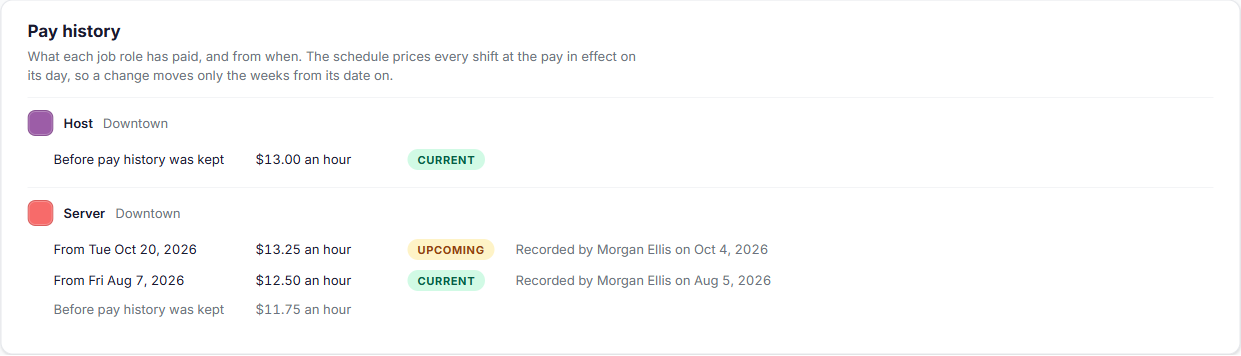
Pay history can't be edited. To fix a mistake, save the job role again with the right pay and the same date: it replaces what was recorded for that date.
Salaried employees
For someone on a salary, the schedule's projected labor cost counts their salary a day at a time: the annual salary divided by the days in the year, on each day of the week.
Availability
The Availability tab records when they can work. Employees tell you, and you record it here. It's shown on the schedule so you can plan around it.
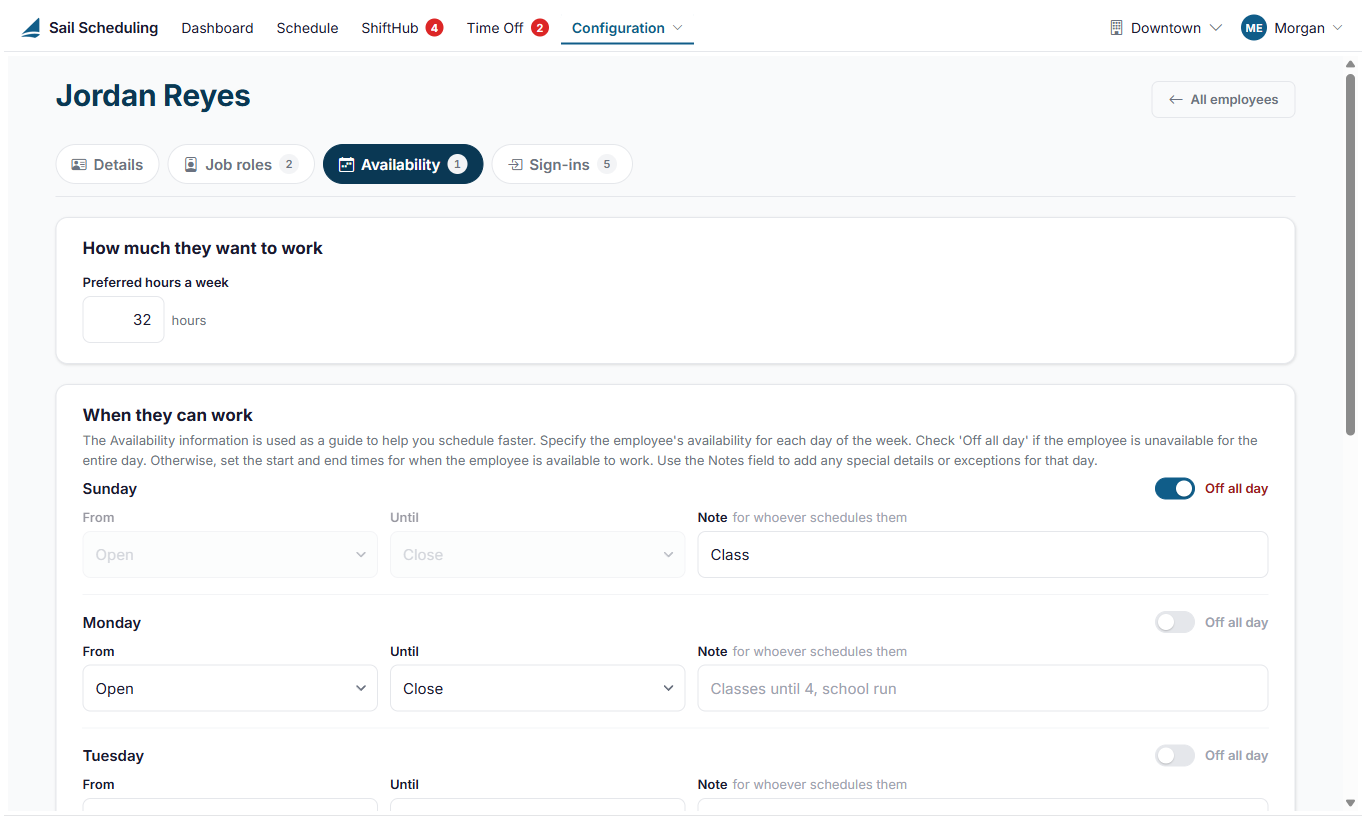
- Preferred hours a week: how much they'd like to work.
- For each day, switch on Off all day if they can't work at all, or pick the hours they're available (Open to Close means any time).
- Add a Note for whoever schedules them, such as Classes until 4. The note stays even on a day they're off.
Availability is a guide. The schedule shows it, but doesn't stop you from scheduling someone outside it.
You can also change one day's availability from the schedule: click the employee's day, then the pencil beside their availability at the top of the menu. It changes that day of the week, every week. Preferred hours a week can only be changed here.
Sign-ins
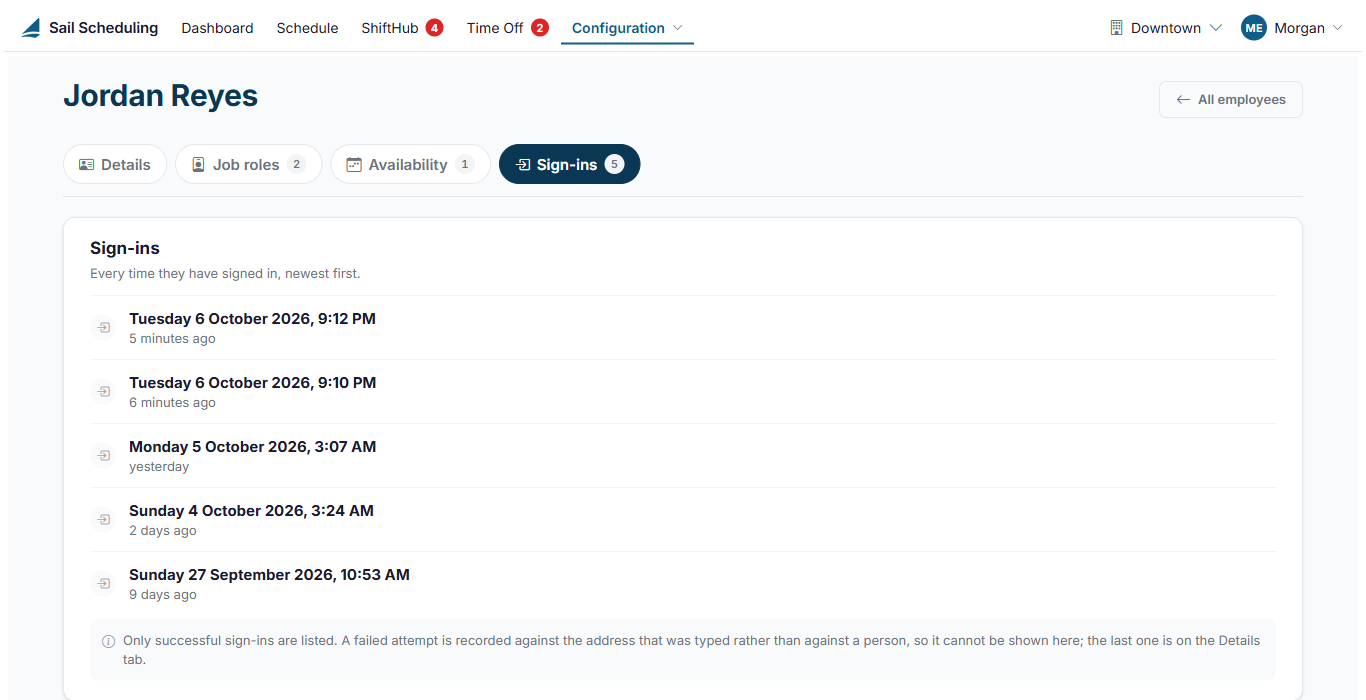
The Sign-ins tab lists every time they've signed in, newest first. Only successful sign-ins are listed. The last failed attempt is on the Details tab, under Account history.
Good to know
- You can't take a location off someone while one of their job roles has pay set for that location. Change or remove that job role first.
- A person's record is shared: if they also work for another company that uses Sail Scheduling, they sign in with the same email address, but each company keeps its own details, job roles and availability for them.
No Comments