How to Configure Skill Levels

Skill Levels are created in Sail Backoffice

Skill Levels allow you to assign a proficiency level to each employee’s job role. These levels help managers understand experience at a glance and are used by Scheduling to support features like shift visibility and, in future updates, shift swapping rules.

***Important: Skill Levels are configured and assigned in Sail Backoffice, but they sync automatically to Ingage Scheduling. Skill Levels are not managed directly in the Scheduling system.

What Are Skill Levels?

Skill Levels represent how proficient an employee is in a specific job role.

  • Skill Levels apply per job role, not per employee overall

  • An employee may have different Skill Levels for different roles

  • Skill Levels sync to Scheduling and appear anywhere job role qualifications are referenced

Configure Skill Levels (Backoffice)

Skill Levels are managed at the Job Role level in Sail Backoffice.

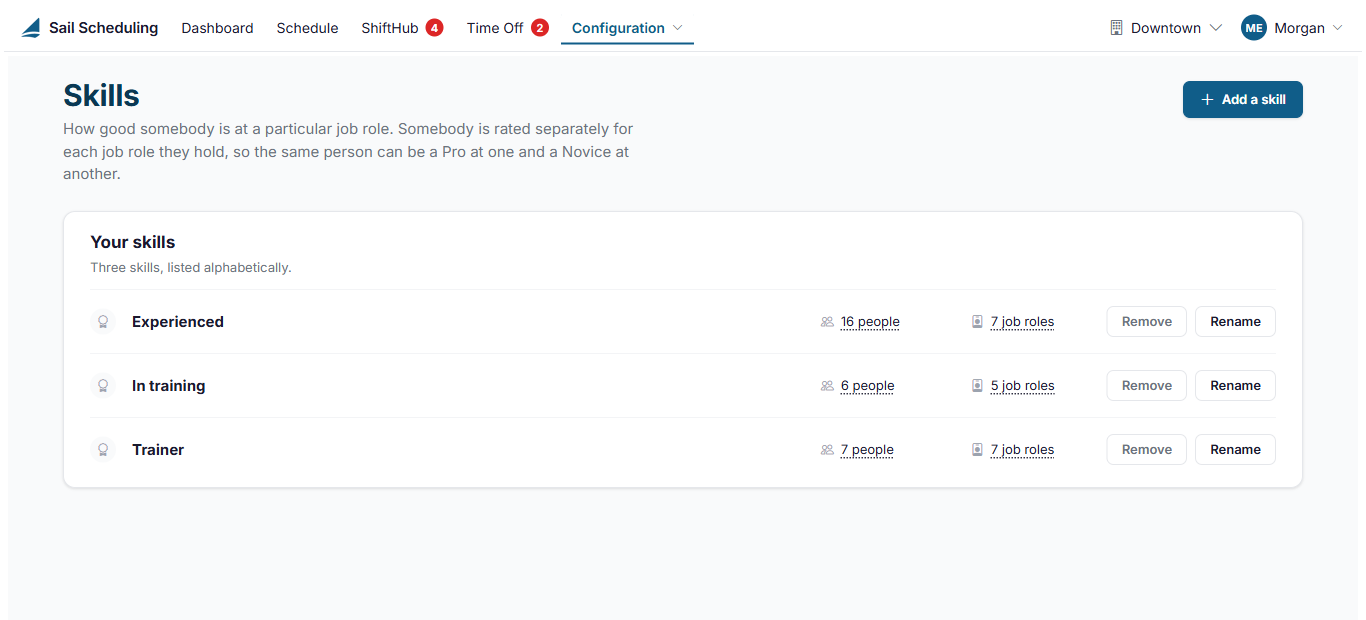
Edit Skill Levels

  1. Go to Staff → Job Roles → Skill Levels Tab

  2. Rename existing levels or add/delete levels as needed

    1. By default, Skill Levels range from 1–4, but they can be customized to fit your operation.

Examples of custom Skill Levels:

  • Training

  • Beginner

  • Intermediate

  • Advanced

  • Expert

There is no required naming convention — choose labels that make sense for your team.

image.png


Default Skill Level Behavior
  • All existing job roles are automatically set to Skill Level 1

  • New employees will default to the lowest Skill Level until updated

  • Skill Levels must be manually assigned to reflect experience

Assign Skill Levels to Employees

Once Skill Levels are configured, assign them to employees by job role.

Update an Employee’s Skill Level

  1. Go to Staff → Employees

  2. Select the employee

  3. Open the Job Roles tab

  4. Click the pencil icon to edit the job role

  5. Use the Skill Level dropdown to select the appropriate level

  6. Save your changes

Repeat for each job role the employee is assigned.

image.png

How Skill Levels Are Used in Scheduling

Once assigned:

  • Skill Levels sync automatically to Ingage Scheduling

  • Managers can reference Skill Levels when reviewing schedules

  • Future scheduling features (such as shift swap rules) will rely on Skill Levels to ensure employees are qualified for the shifts they take