
Welcome to Ingage Scheduling
What can you do with Ingage Scheduling?
Ingage Scheduling makes it easy to build, manage, and share employee schedules all in one place. Managers can create schedules by job role, approve shift swaps and time-off requests, and quickly adjust shifts as business needs change. Employees can view their schedules, receive updates by email or text, and request time off or shift changes directly through the app. With built-in tools for availability tracking, scheduling shortcuts, and manager approvals, Ingage Scheduling helps keep your team organized while saving time and reducing miscommunication.
Parts of the Scheduling System
The Scheduling system includes several tools to help you manage your team efficiently. Each area can be accessed from the toolbar at the top of the page.
Below, we’ll walk through each section, explain what it’s used for, and provide links to guides with more detailed instructions so you can learn more as needed.

1. Dashboard
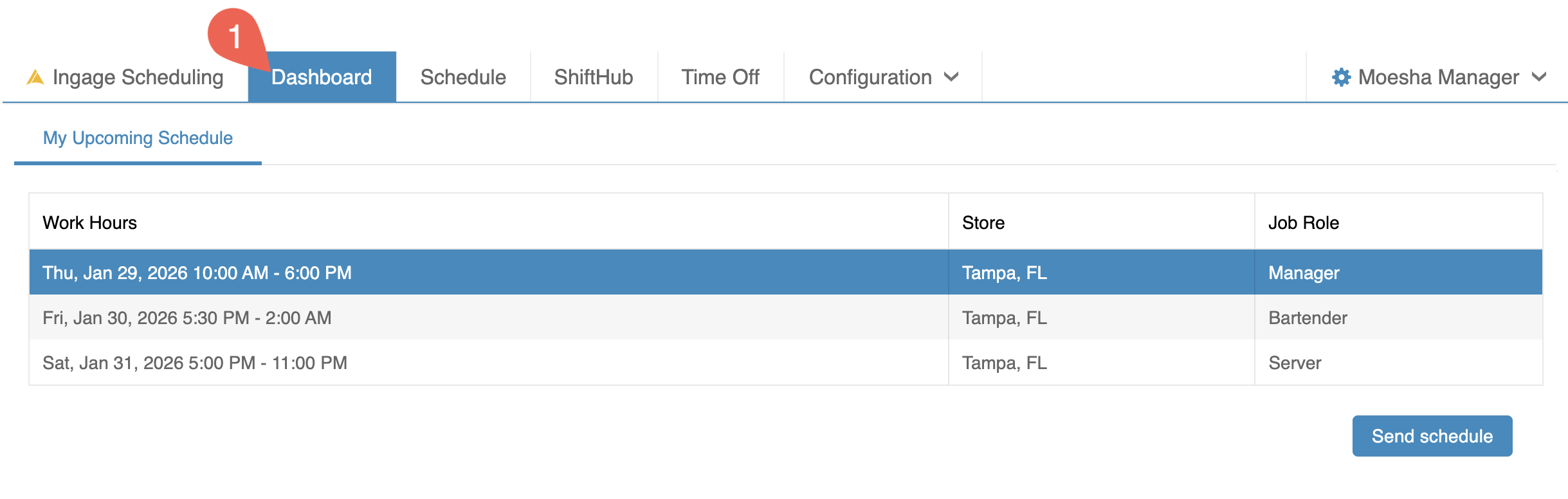
The Dashboard gives you a quick view of your upcoming shifts.
Here you can see:
-
The date and time of each shift
-
Your assigned job role
-
The location where you are scheduled to work
You can also select the "Send Schedule" button to resend your schedule to yourself by email or text message for easy reference.
2. Schedule
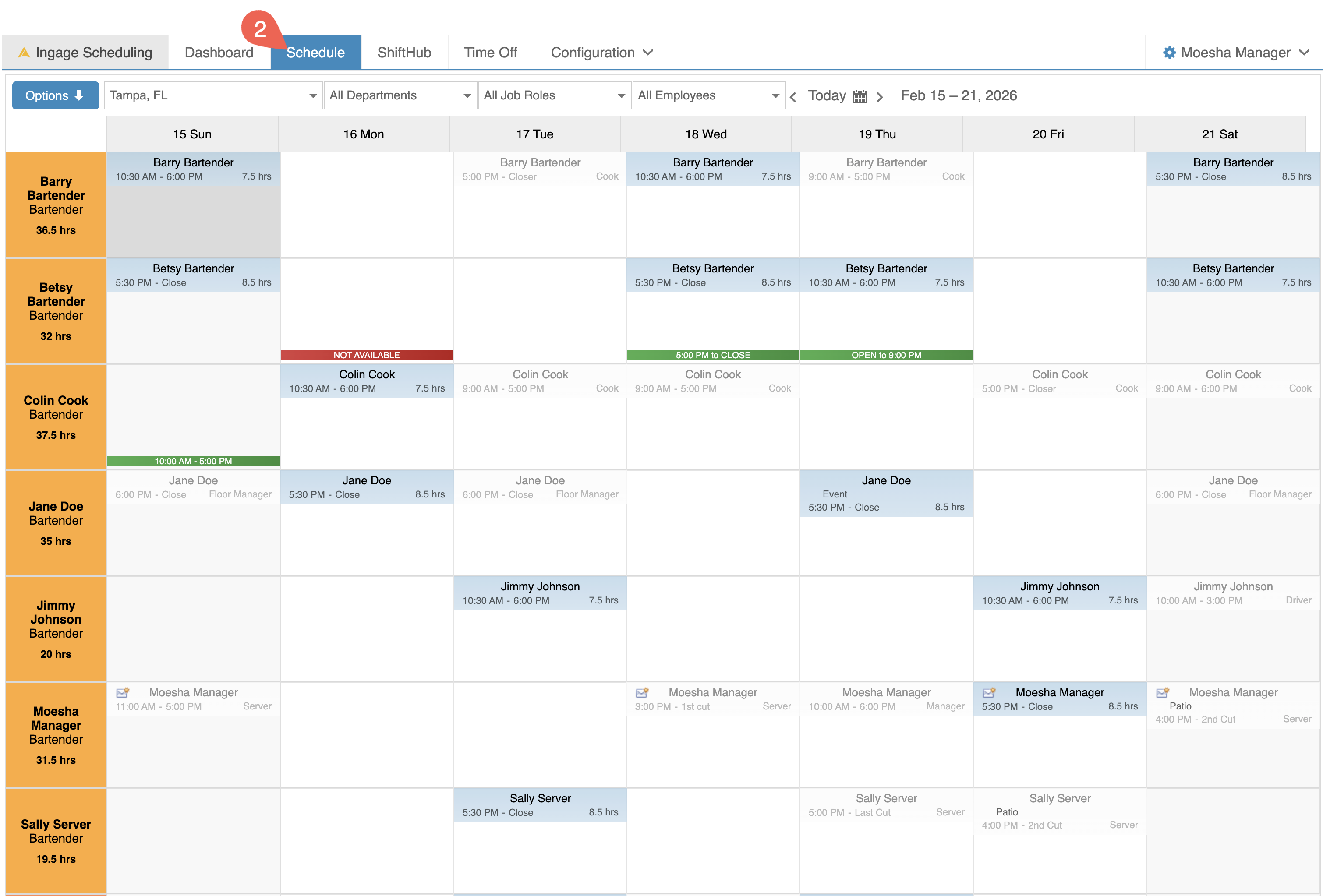
The Schedule view is the main workspace where you will build and manage your team’s schedule. By default, it displays the current week.
In this view, you can:
-
Create and adjust shifts for your employees
-
View schedules by department, job role, or individual employee
-
See availability and time-off requests, which are color-coded for easy reference
Filters along the top of the screen allow you to quickly narrow your view by:
-
Department
-
Job Role
-
Individual Employee
-
Publish the schedule
-
Send the schedule to employees
-
Print the schedule for posting or sharing
- Create and use schedule templates
This area is designed to give you a clear visual overview of staffing needs while making it easy to update shifts as your business needs change.
Click this link to learn more about How to create a New Schedule
3. Shift Hub
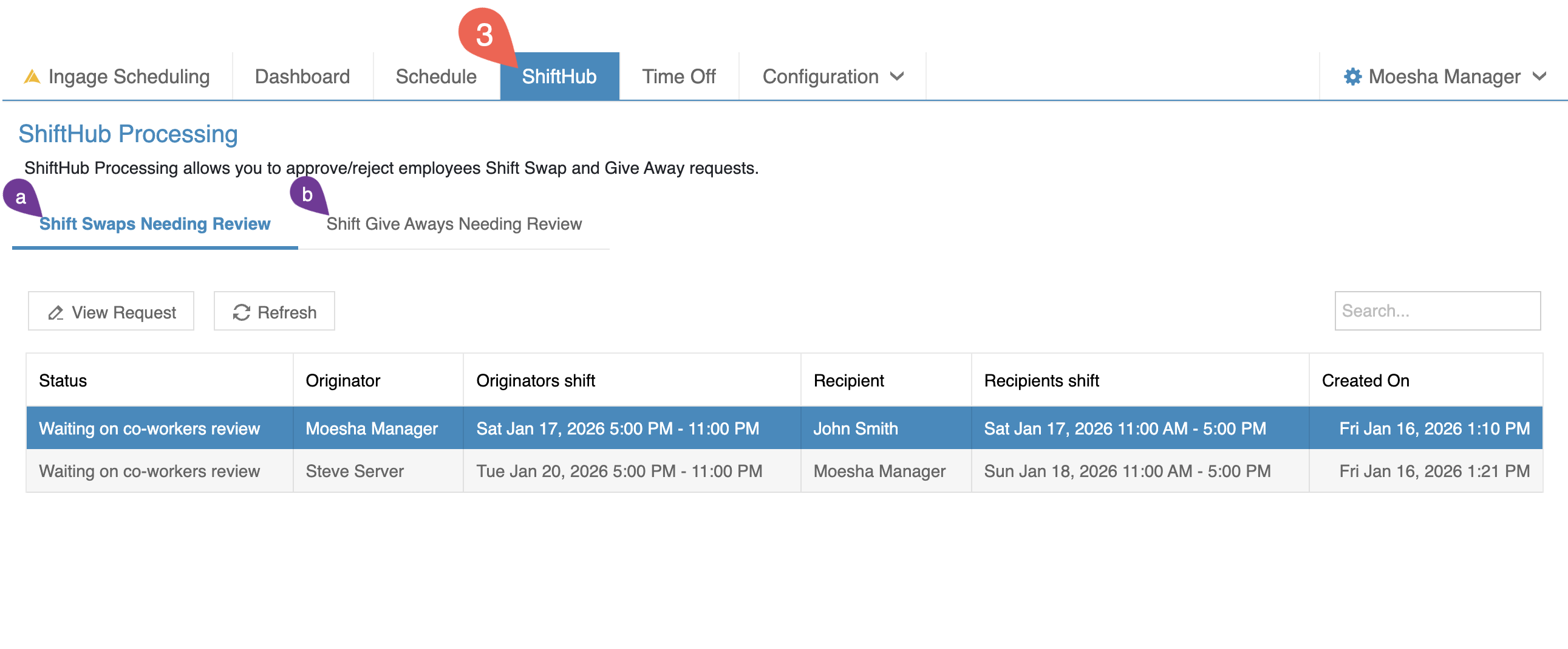 ShiftHub is where managers review and approve employee requests for shift swaps and shift give-aways.
(a) A shift swap happens when two employees agree to trade shifts with each other.
(b) A shift give-away happens when one employee offers up their shift and another employee picks it up so the shift remains covered.
All shift swaps and give-away requests must be approved by a manager before the schedule is updated. This allows managers to:
-
Review the request
-
Ensure proper coverage
-
Confirm the change meets business needs
Once a request is approved:
-
The schedule updates automatically
-
Employees receive a notification by email or text confirming the change
Click this link to learn more about how to manage ShiftHub.
4. Time Off
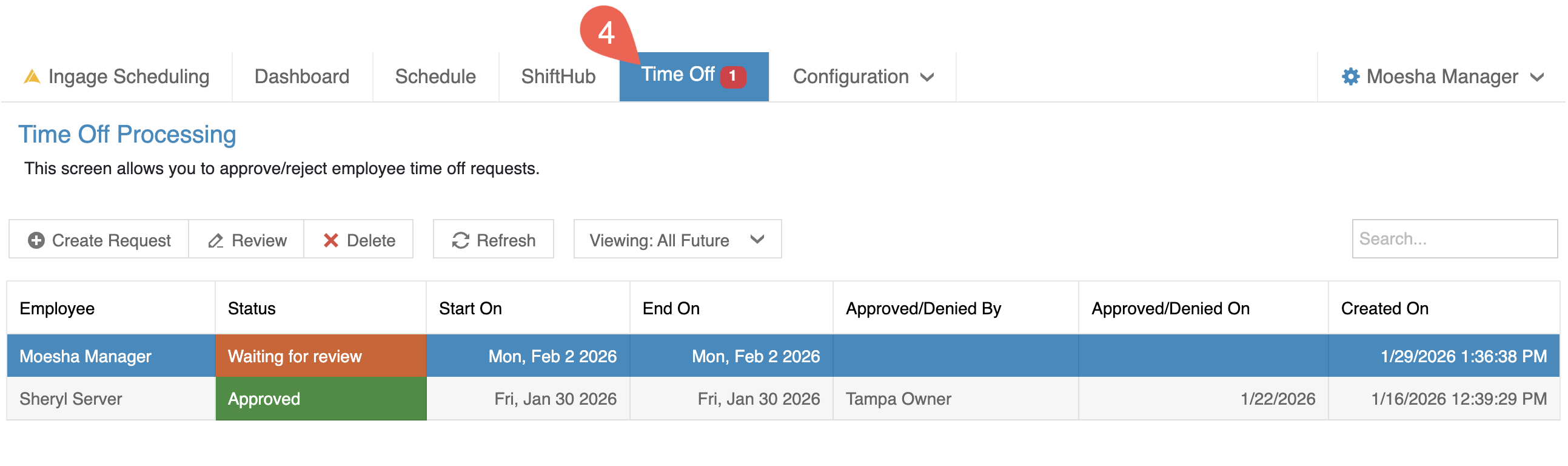
Time Off is where managers review and approve or deny employee time-off requests.
When you open this screen, it will automatically display all current and upcoming time-off requests.
If a request is waiting for review, you will see a red notification badge next to the Time Off tab in the top toolbar. This is a visual reminder that action is needed.
Managers can:
-
Approve or deny employee time-off requests
- Add a manger message for Employees to see
-
Enter time-off requests on behalf of employees when needed
Once a request is approved or denied:
-
The update is reflected in the employee’s app
-
The request status is updated in the employees "My Time Off" section
-
Approved time off appears color-coded on the schedule for easy visibility
Click the link to learn more about Managing Time-Off Requests.
5. Configuration
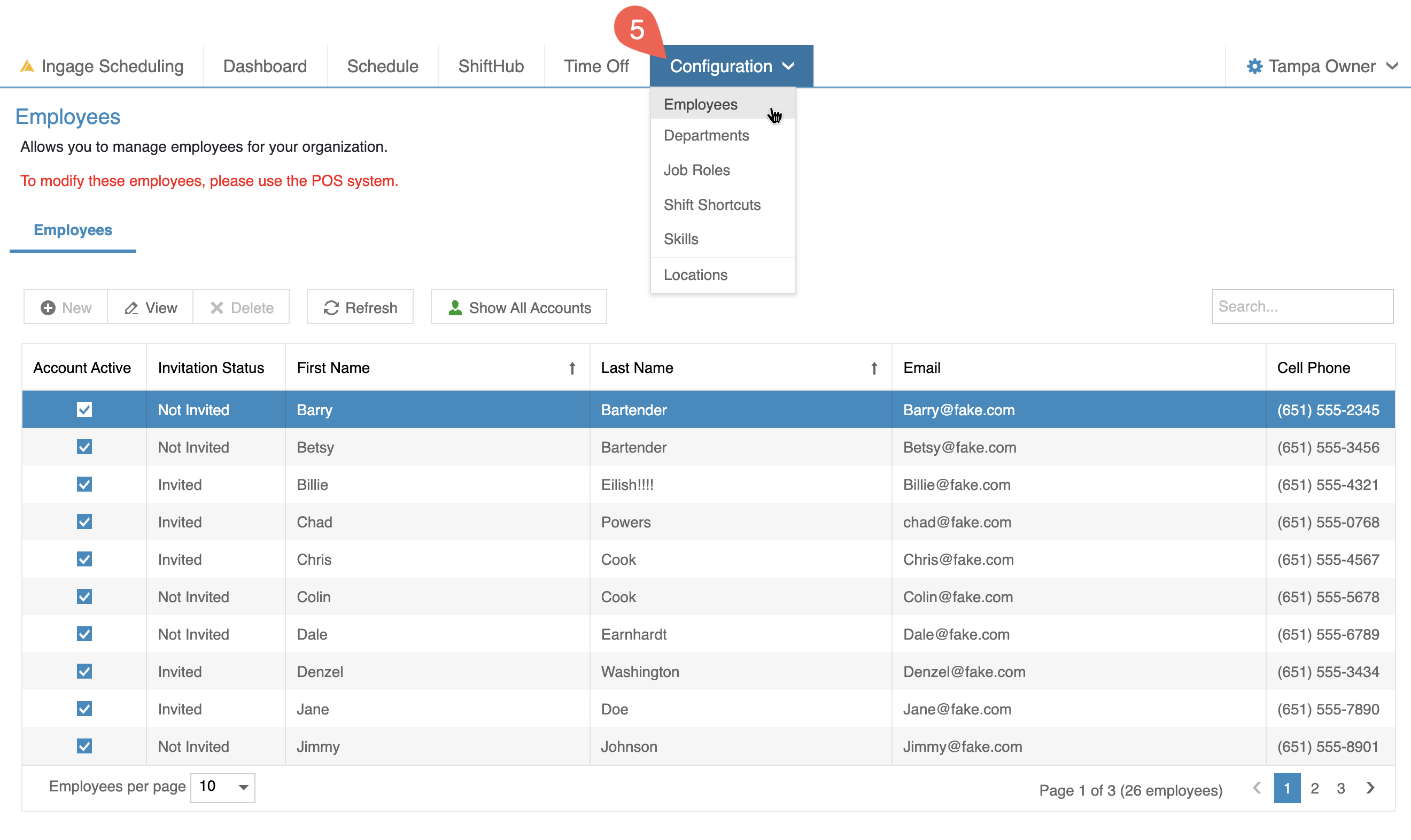
The Configuration area allows you to view and manage certain scheduling settings. Most configuration is handled in Sail Backoffice, but there are a few areas here where adjustments can be made.
What you see in this dropdown depends on your user permissions.
-
Admins (typically Owners and General Managers) can view all configuration areas.
-
Managers usually only see Employees and Shift Shortcuts, since these are the tools needed for building and maintaining the schedule.
The areas you will use most often are:
-
Employees - This is where managers can review employee information and update availability.
-
Shift Shortcuts - This is where you can create and manage shortcuts to speed up schedule building.
The remaining areas — Departments, Job Roles, Skills, and Locations — are available for viewing only. Any changes to these settings must be made in Sail Backoffice to ensure proper system syncing.
Click any of the links below for step-by-step instructions on configuring these areas:
- How to edit an employee
- How to create and use Shift Shortcuts
- How to configure skill levels in Sail
6. User Settings
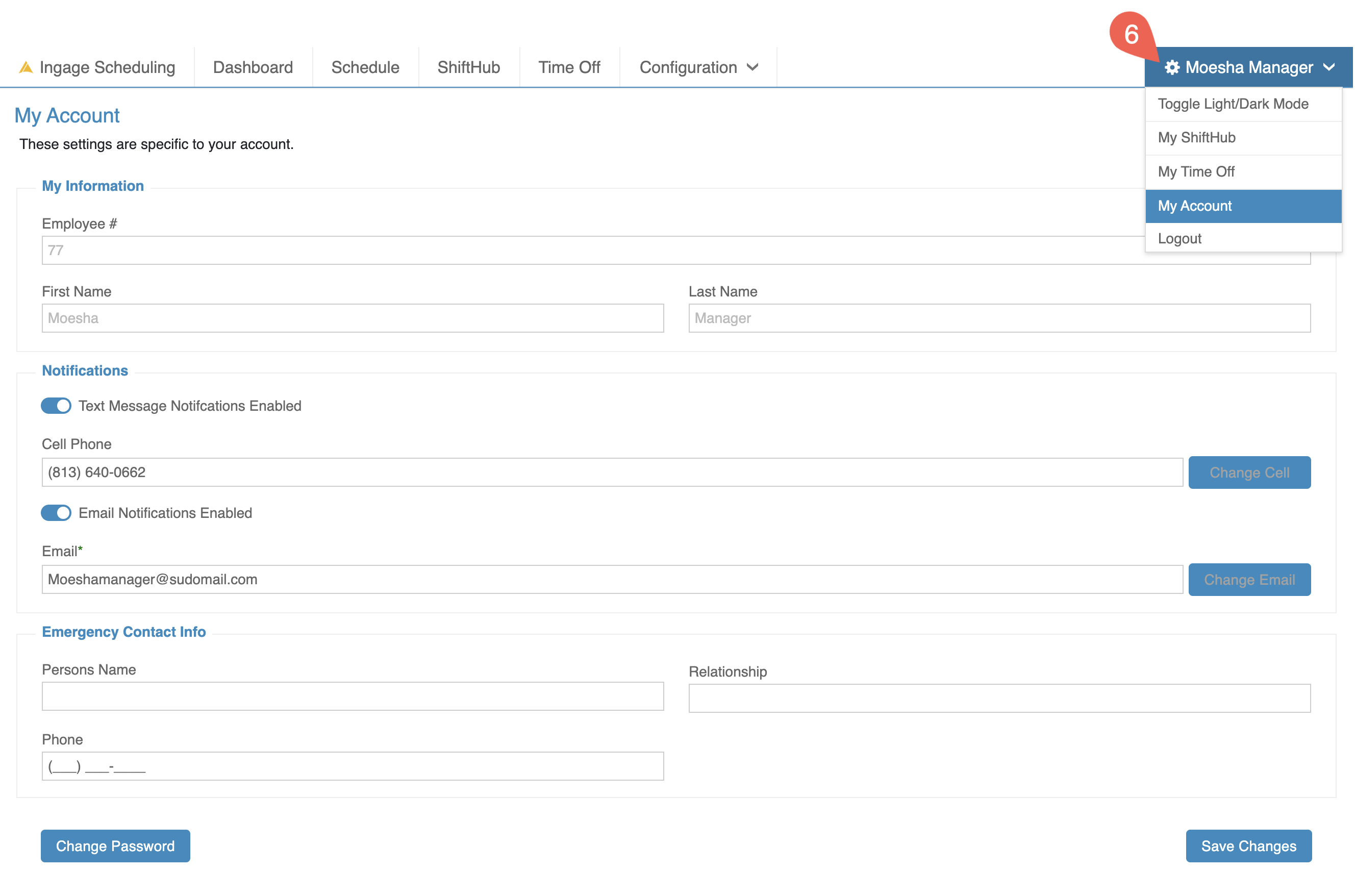
The User Settings menu is located under your name in the top-right corner of the screen. This dropdown gives you quick access to personal preferences and account options.
-
Toggle Light/Dark Mode - Switch between light and dark display themes based on your preference.
-
My ShiftHub - Submit shift swap or shift give-away requests and check the status of your requests.
-
My Time Off - Submit time-off requests and track their approval status.
-
My Account - Update your text and email notification preferences, change your contact information, and manage your emergency contact details.
-
Logout - Safely log out of Ingage Scheduling when finished.
No Comments