Welcome to Sail Scheduling
WhatSail toScheduling expectis from your new scheduling system
This system makes it easier forwhere you to see your work schedule, requestask for time off, swaptrade shifts,shifts with your co-workers, and getpick updatesup directlyextra shifts. You can use it in the Sail Scheduling app on your phone or Email.on the website.
This guide shows you everythingaround the website. Your manager will send you needan invitation by email to knowset before your first day using the new system.
Setting Up Your Account
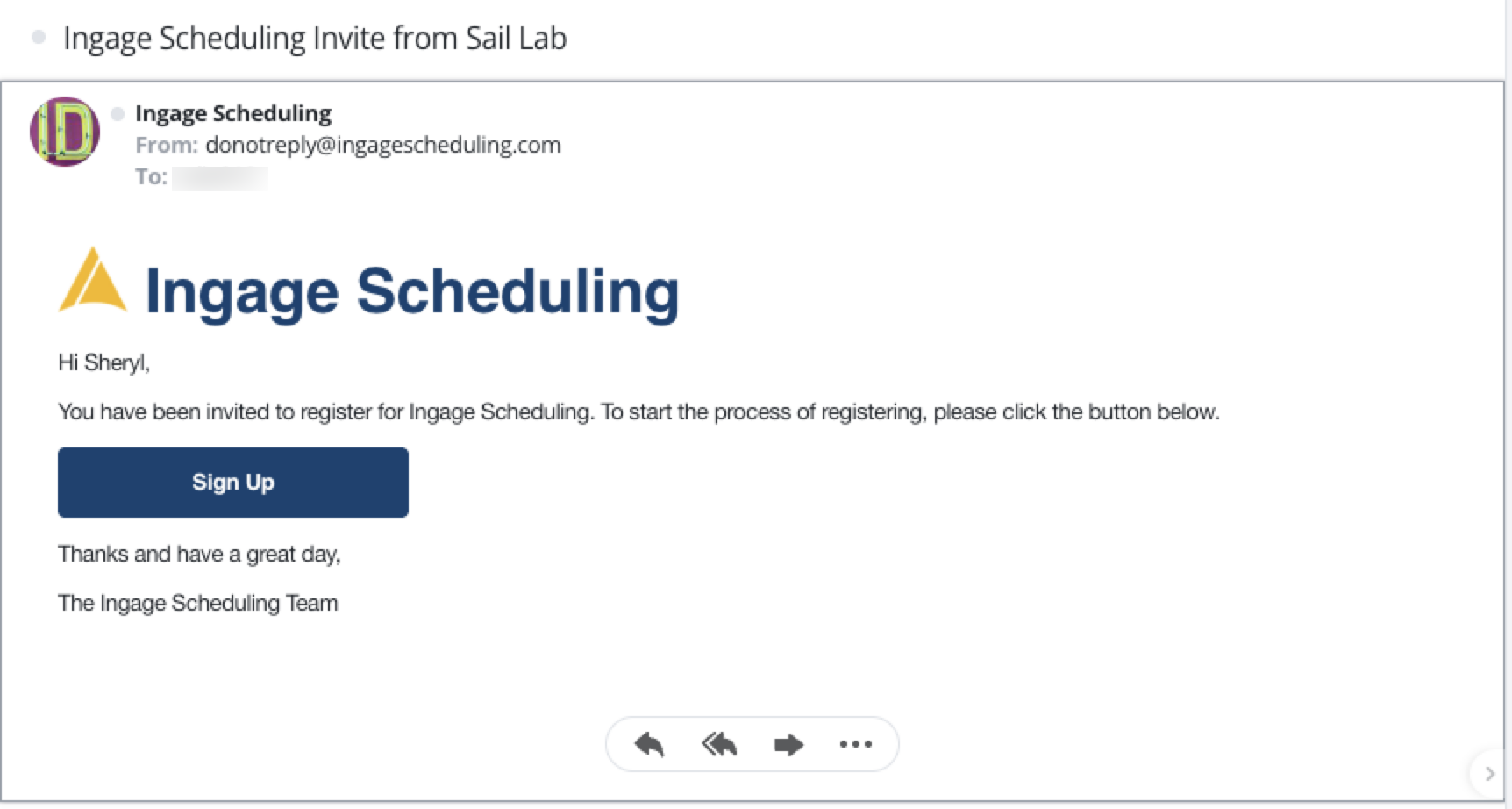
You will receive an email invitation to join Scheduling.Open the email and click "Sign Up" to begin creatingup your account.
Signing in
- Open the invitation email from your restaurant and follow its link to set your password.
- Sign in with your email address (or your mobile number) and that password, on the website or in the app. The app is on the App Store and Google Play; the sign-in page has links to both.
Finding your way around
Everything is reached from the bar across the top of the page.

- Dashboard: your upcoming shifts. This is where you land when you sign in.
- Schedule View: the whole published schedule for your location, so you can see who you're working with.
Click your name at the top right for everything else:
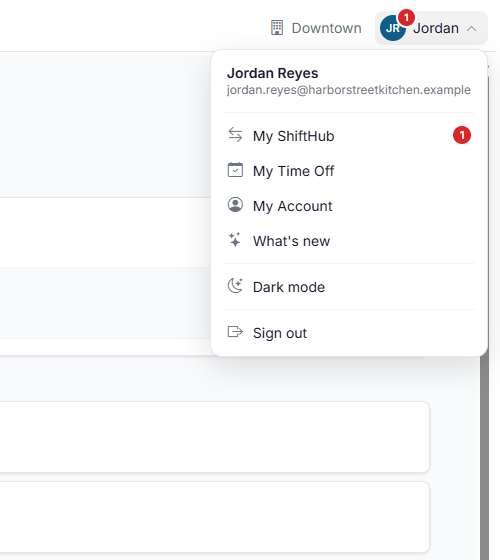
- My ShiftHub: swap shifts, give shifts away, and pick up open shifts. See Trading shifts and picking up open shifts.
- My Time Off: ask for time off and see your manager's answer. See Requesting time off.
- My Account: your email address, mobile number, password, emergency contact and how you're notified. See Your account and notifications.
- What's new: the latest changes to Sail Scheduling.
- Dark mode: switch between a light and a dark screen.
- Sign out.
OnceA red number on your initials means something is waiting for you: a co-worker has asked you clickto "Signswap, Up" inor your invitationmanager email,has you’lldecided beon takenone of your trades, open shift pickups or time off requests. Open the menu to see where: the Schedulingsame website.Whatred younumber seeis nextbeside dependsMy onShiftHub whetheror youMy alreadyTime haveOff. aIt Sailgoes Backofficeaway login.

that page.
If you everwork wantat more than one location, the location at the top right is the one you're looking at. Click it to changeswitch. howIf you receivework notifications,for more than one company that uses Sail Scheduling, they're listed in the account menu, so you can doswitch between them.
Your shifts
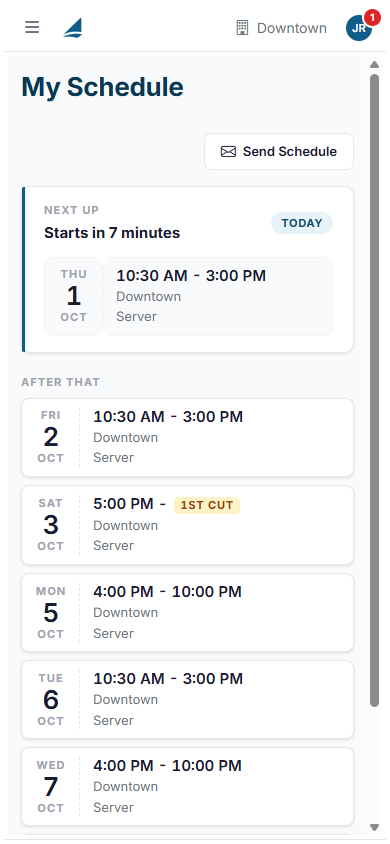
The Dashboard leads with your next shift, and says how long until it starts. Your other upcoming shifts are listed under it, with the date, the times, the location and your job role.
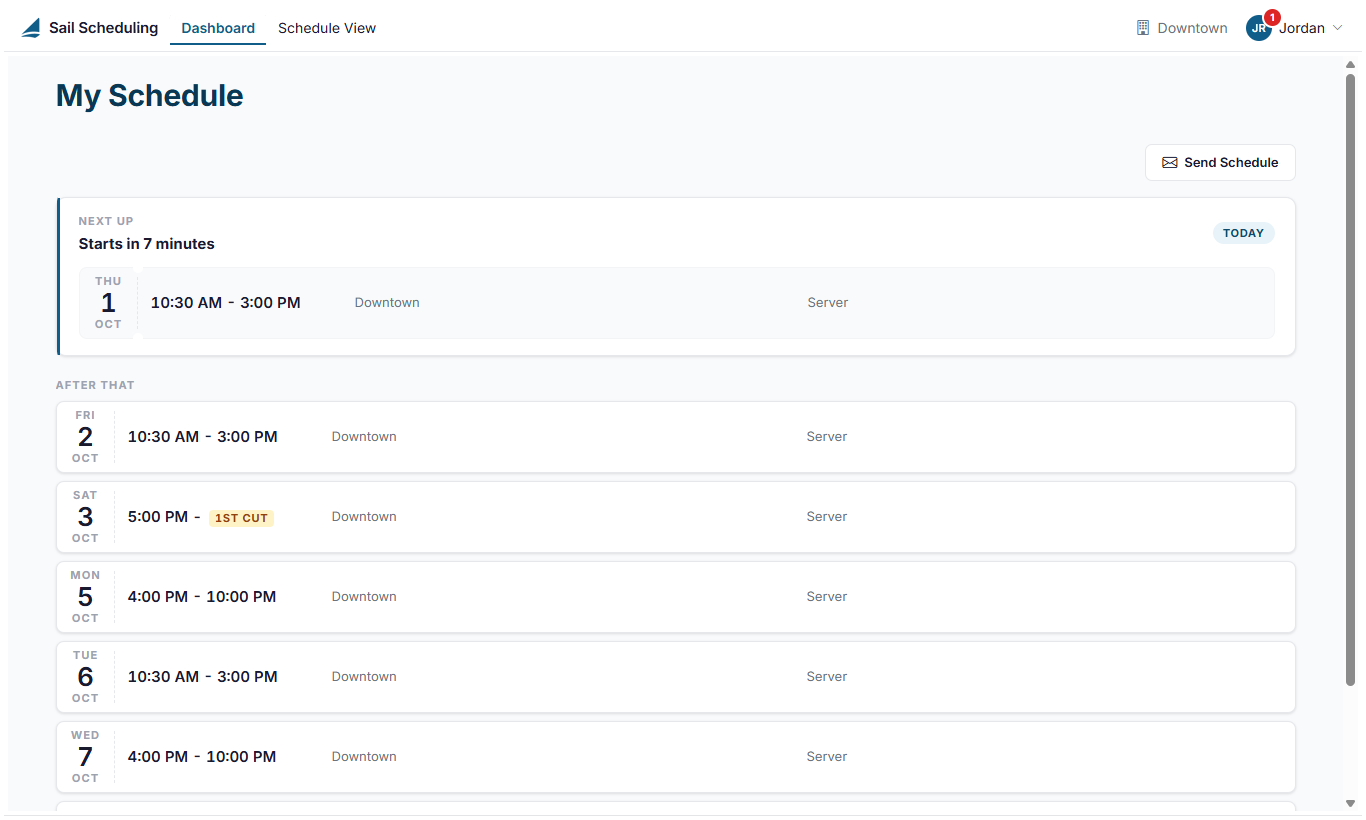
- If a shift shows a word like Close or 1st cut instead of an end time, that's its End Display: the end isn't fixed. After a cut you may be sent home once it's quiet, and a close lasts until closing is done.
- If your manager added a note, such as your section, it's shown with the shift.
- A shift that
anytimealreadyfromended today stays at the bottom, faded, under Earlier today.
Click Send Schedule to have your accountupcoming settings.

Howby Youremail Scheduleor Willtext Bemessage, Sent To You
Dependingdepending on your notification settings,settings.
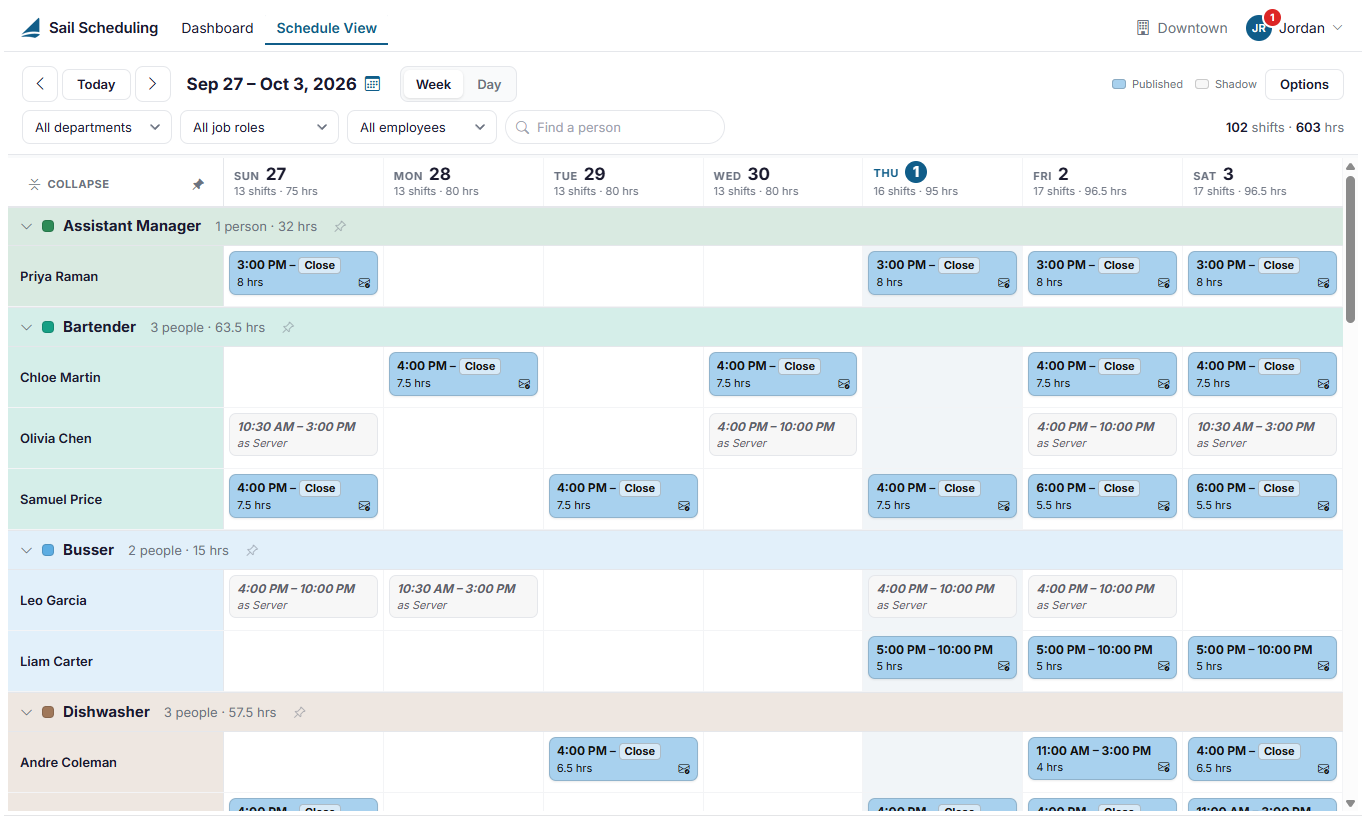
The bewhole notifiedschedule
Schedule yourView shows the published schedule by push notification, text message, email, or any combination of these methods.
Text Message Schedule
You will receive a text message listing all offor your upcominglocation, shiftsgrouped forby thejob week.
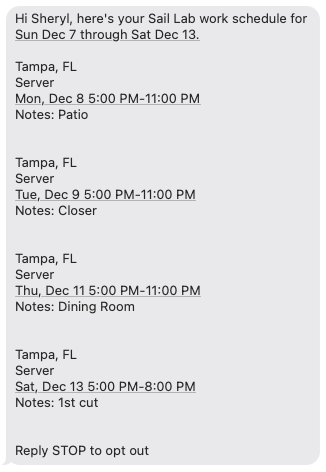
Note:everyone's Ifshifts. It's read-only: you replycan STOPlook, tobut anyonly schedule text message, you will no longer receive text notifications — even if text messaging is still enabled in your notification settings. To start receiving text messages again, reply START.
Email Schedule
If you have email notifications enabled, you will receive your full schedule in an email.

How To View My Schedule
Youmanagers can viewchange yourit. schedule either in the mobile app or on the website.They both show your upcoming shifts, job roles, and hours.
Viewing Your Schedule in the App
Use the Schedule icon at the bottom of the app (circled in the screenshot).
In the app, you’ll be able to see:
weeks,All of your shifts for the selected week (you can swipe left/right or usearrowson the topto move betweenweeks)and Yourclicktotal scheduled hours for the week, displayed at the topYour scheduled hours for each shiftThe job role you’re working each dayAnya shiftnotestosuchseeas:itsCloser, 1st cut, area you're working
details.
ThisOnly viewpublished givesshifts are shown. If you a quick breakdown of where you’re working and what to expect each day.

Viewing Your Schedule on the Website
On the Scheduling website, you’ll alsocan't see anext listweek ofyet, your upcomingmanager shifts.hasn't published it.
The website view shows:
Your scheduled work hoursThe store you’re scheduled atThe job role you’re working that day
This option is helpful if you prefer checking
When your schedule fromchanges
Your manager sends you your schedule when it's ready, and you're told when a computertrade or don’tpickup haveyou theasked appfor handy.

Additionalthat Links:
comes - by
Howemail,totextRequestmessageTimeoroffa How to use ShiftHub on the AppHow to use ShiftHub on the WebsiteHow to Read the ScheduleScheduling Website:https://ingagescheduling.com/Account/SigninLinks to download the appnotification in the appstoredepends

.your