
Sail POS: KDS hardware troubleshooting (MicroTouch, Windows controllers, and bump bars)
Summary. Basic hardware troubleshooting for Kitchen Display (KDS) stations. Starts with identifying which type of hardware and input method is installed, since that determines which checks actually apply.
Applies to. Sail POS - all current versions.
Before you start
- Identify the hardware type, since it changes what you can check:
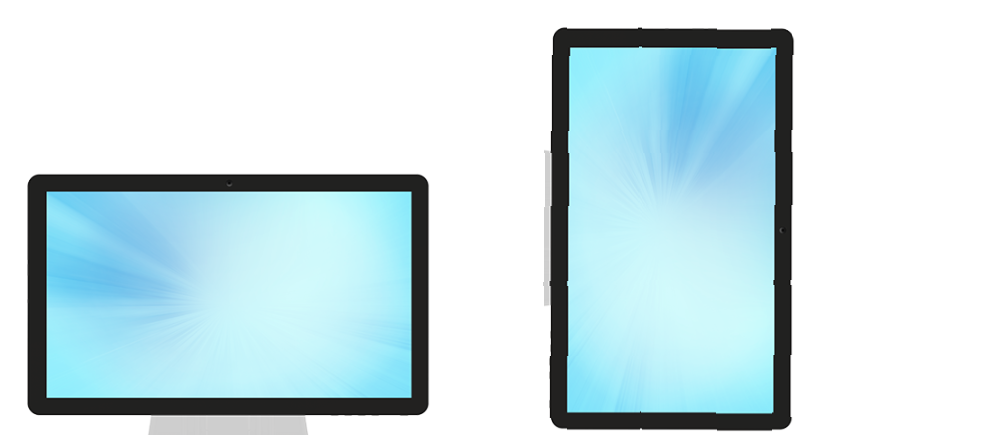
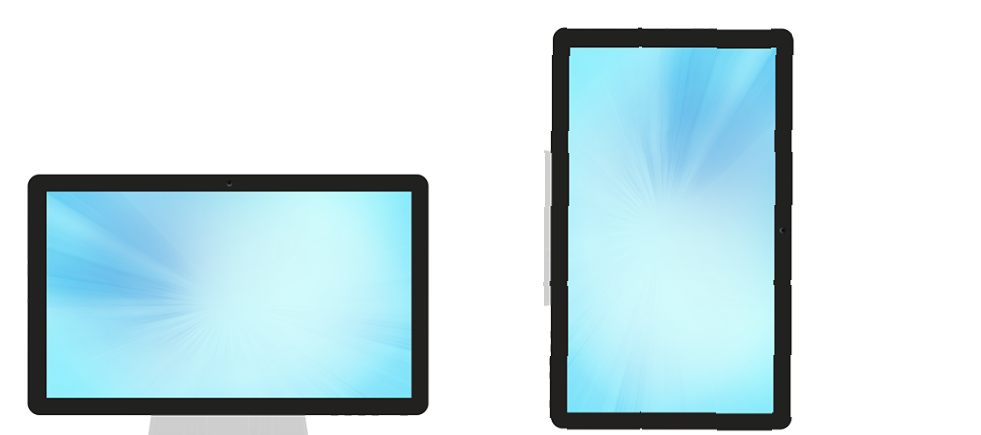
- MicroTouch all-in-one: the screen, computer, and touch input are all built into a single unit - no separate video cable:
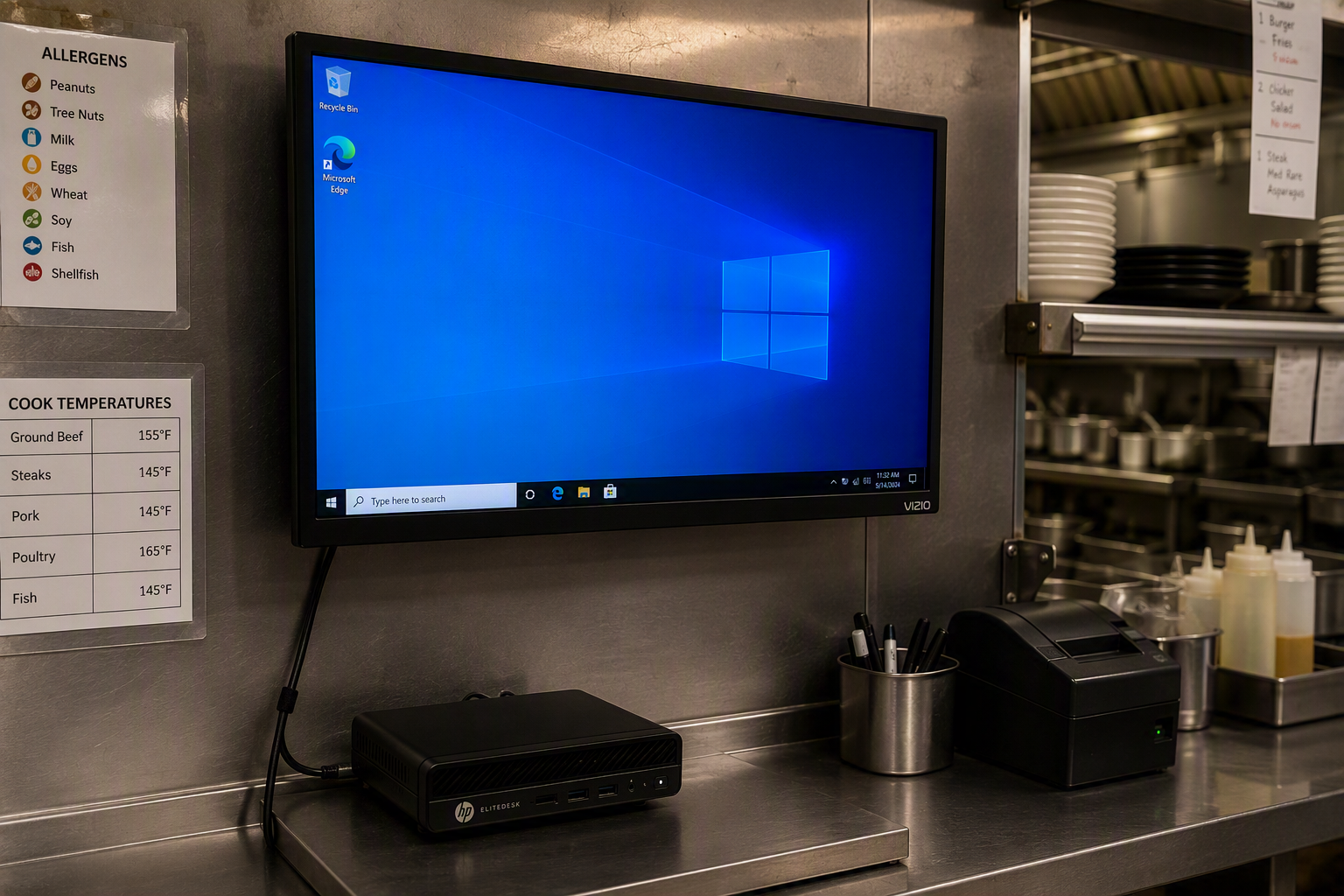
- Windows controller: a separate monitor connected to a small HP computer via a video cable - this setup can run into issues a MicroTouch unit can't (like a bad video connection), or the mini PC being powered off while the monitor is on:
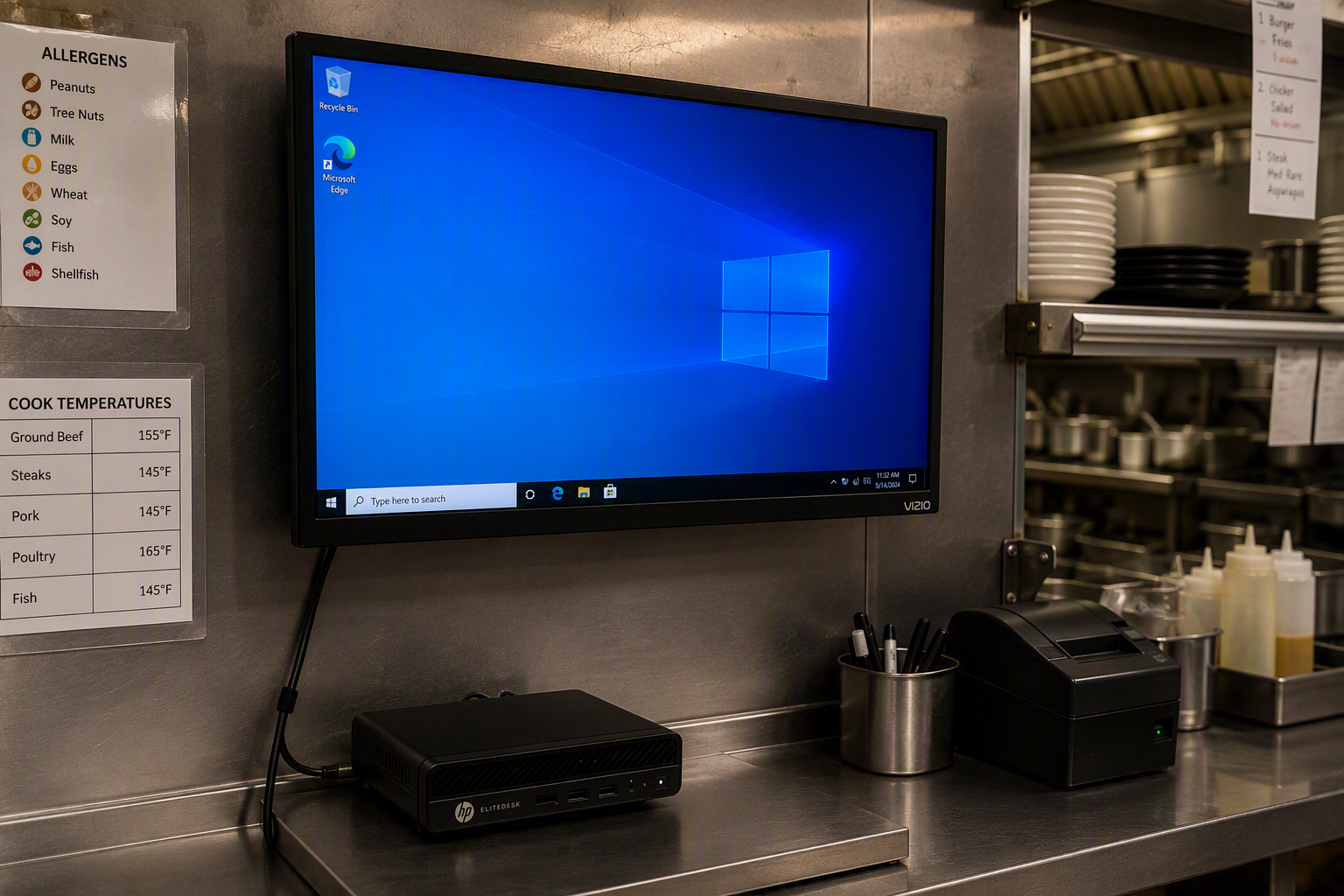
- Windows controller: a separate monitor connected to a small HP computer via a video cable - this setup can run into issues a MicroTouch unit can't (like a bad video connection), or the mini PC being powered off while the monitor is on:
- MicroTouch all-in-one: the screen, computer, and touch input are all built into a single unit - no separate video cable:
- Identify the input method: touchscreen, or a physical bump bar.
Troubleshoot: MicroTouch all-in-one
MicroTouch hardware is reliable in the field - real hardware failures are rare. The two things worth checking:
- Locate and reseat the network cable in the LAN port on the back of the device.
- Reboot the device: press and hold the power button (usually on the bottom-right corner, depending on mounting orientation) until a menu appears, then select the reboot option.
Troubleshoot: Windows controller - "no display found" or bad picture quality
This only affects Windows controllers, since MicroTouch units don't have an external video cable.
- Reseat the video cable on both ends - first at the monitor, then follow the cable back to the small HP computer and reseat it there too.
- If the picture doesn't come back right away, confirm the HP computer is powered on by checking the small power indicator light on its power button (you'll have already found the computer by following the cable in step 1).
Troubleshoot: Bump bar not responding
Bump bars connect to the controller via USB, in one of two ways:
- Wired: connected directly to the computer by USB cable, which carries both the bump bar's input and its power. Disconnect and reconnect the USB cable to troubleshoot.
- Wireless: battery-powered, connecting via a USB dongle plugged into the computer (similar to a wireless mouse, just larger). Check the dongle connection and the bump bar's batteries.
"Can't connect to server" message
This can appear on either a MicroTouch unit or a Windows controller - it means that specific device can't communicate with the POS server. It isn't a display or input problem, so the cable-reseating steps above won't fix it. While this is being worked on, cover the station so tickets keep coming through: see Sail POS: A kitchen video (KVS) screen is down - cover it with Wheel Spy on another screen.
Verify it worked
- Confirm the station displays tickets correctly, and if using a bump bar, that bumping an item clears it as expected.
If it doesn't work
- If reseating cables and rebooting doesn't resolve it, this points to a hardware failure (cable, port, or internal component) - contact support for a replacement or technician visit.
No Comments