
How to start a table
This will walk through the process of starting a table on a handheld.
Please click the link to see how to start a table on the terminals
Handheld
-
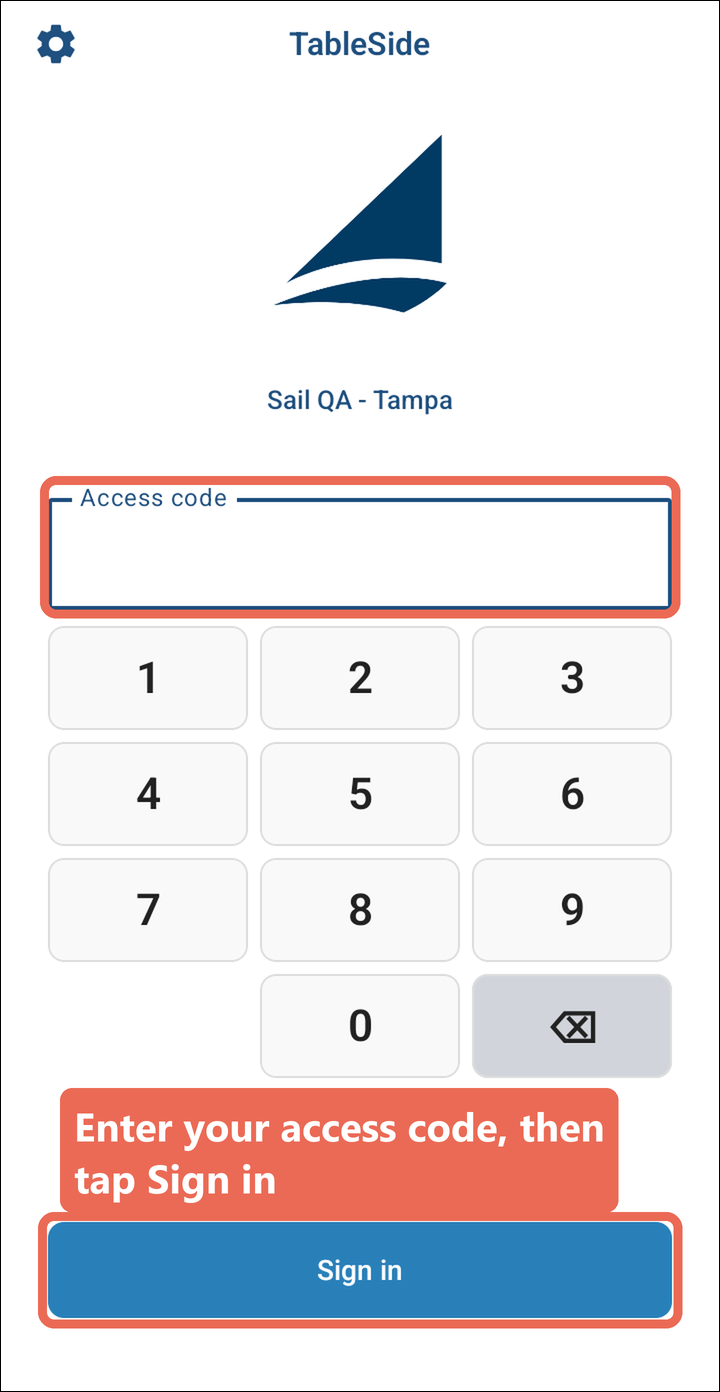
Log into the handheld: enter your access code and tap Sign in.
-
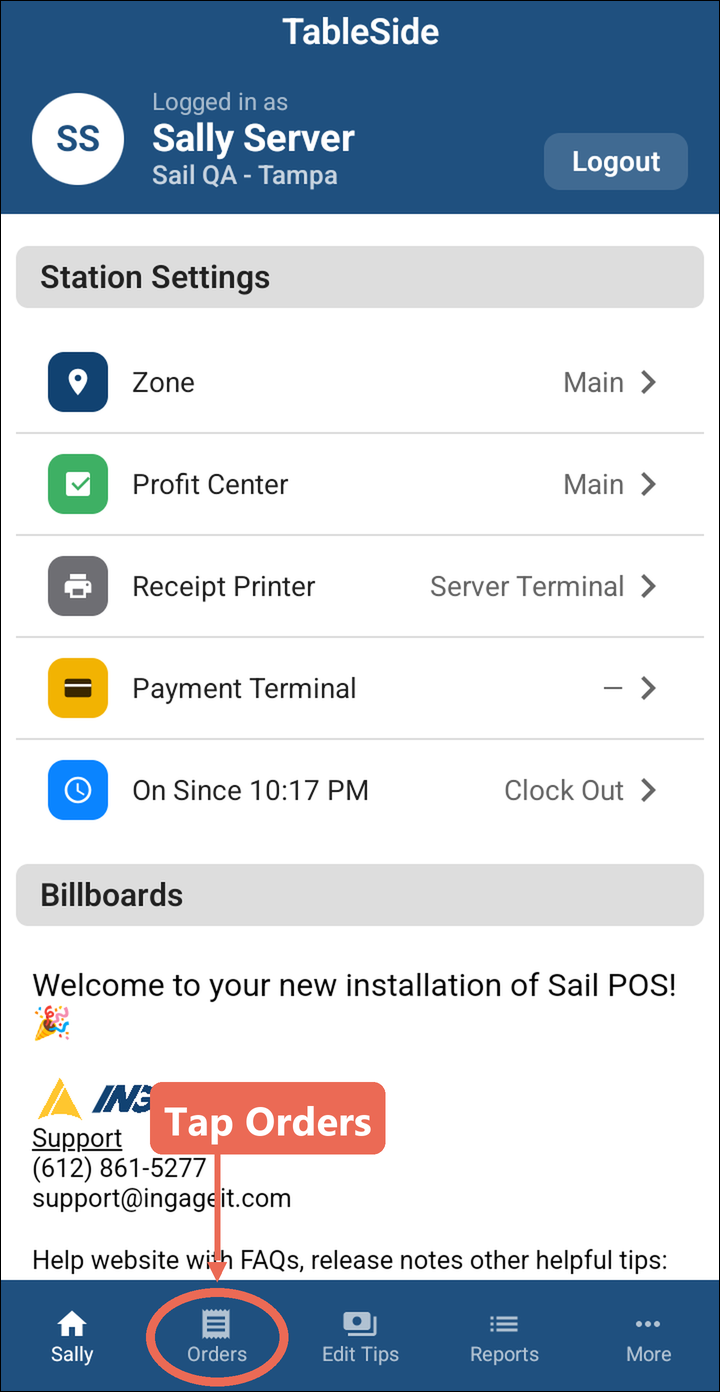
Tap Orders at the bottom of the screen.
-
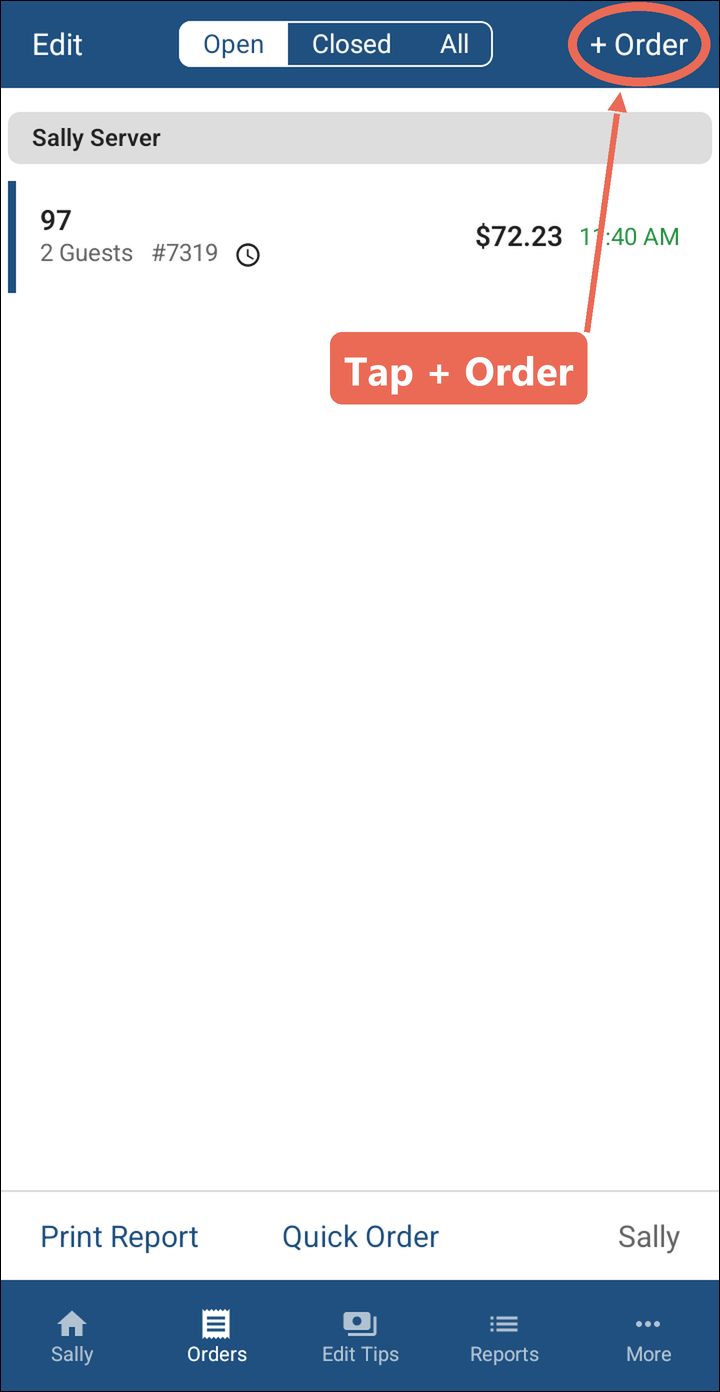
Tap + Order in the upper right corner.
-
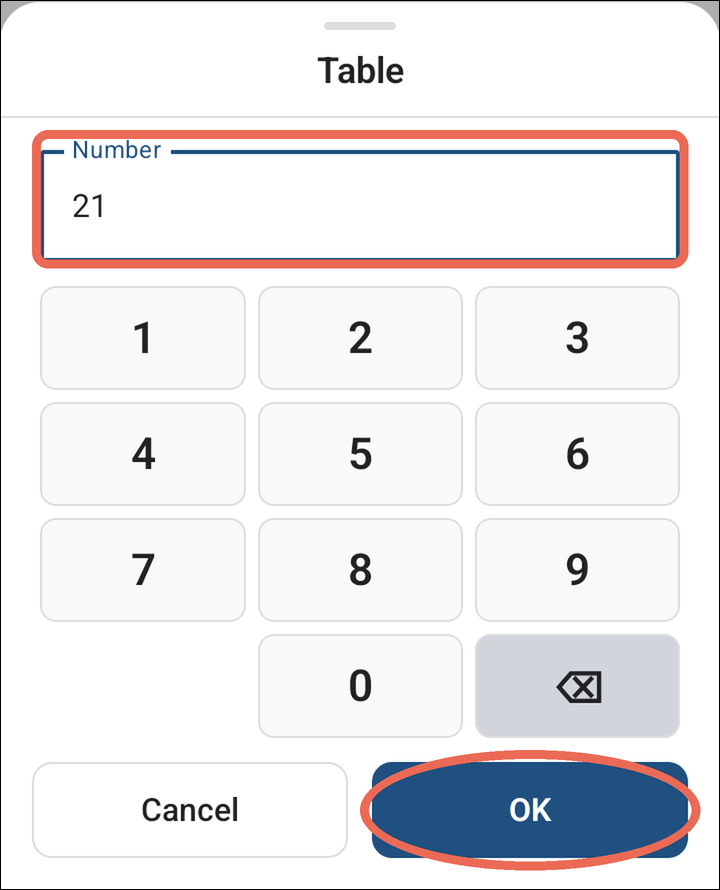
This will open a prompt that asks for the table number. Enter the table number and tap OK.
-
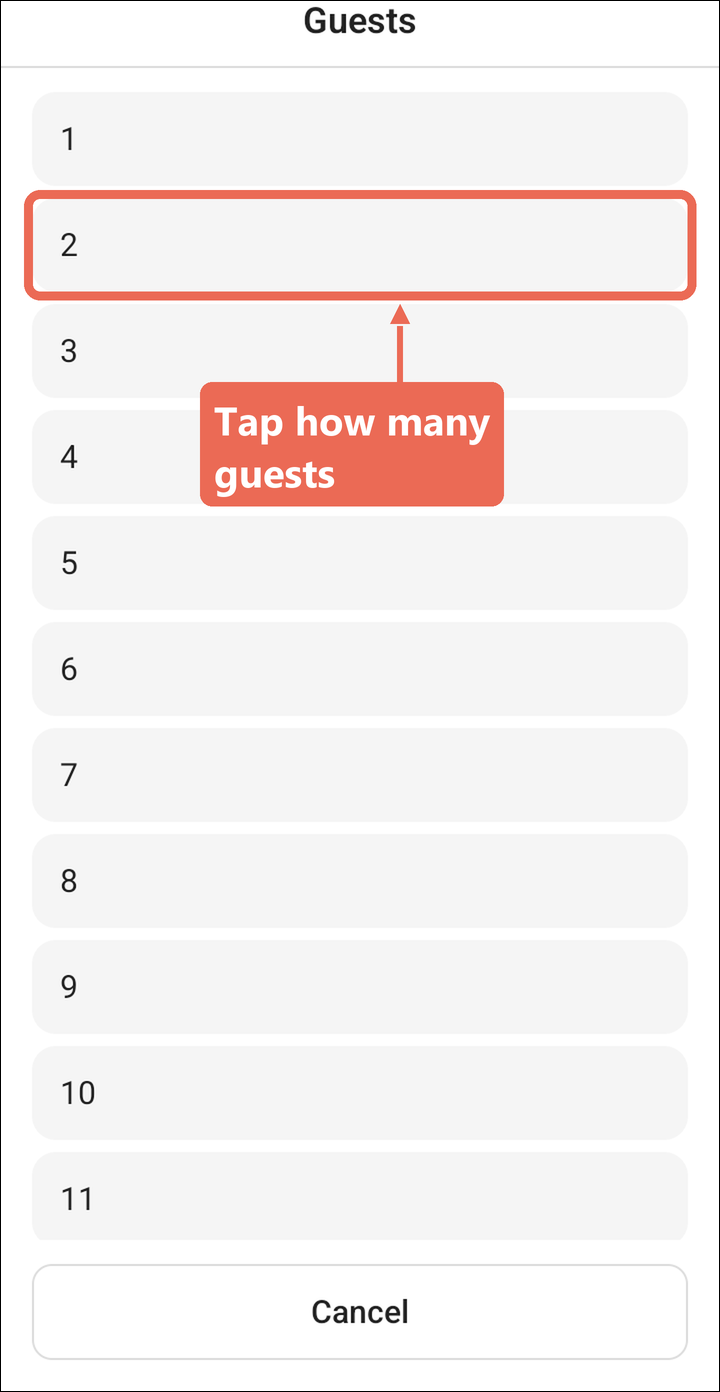
After the table number it will prompt you for a guest count. Tap how many guests are at the table.
-
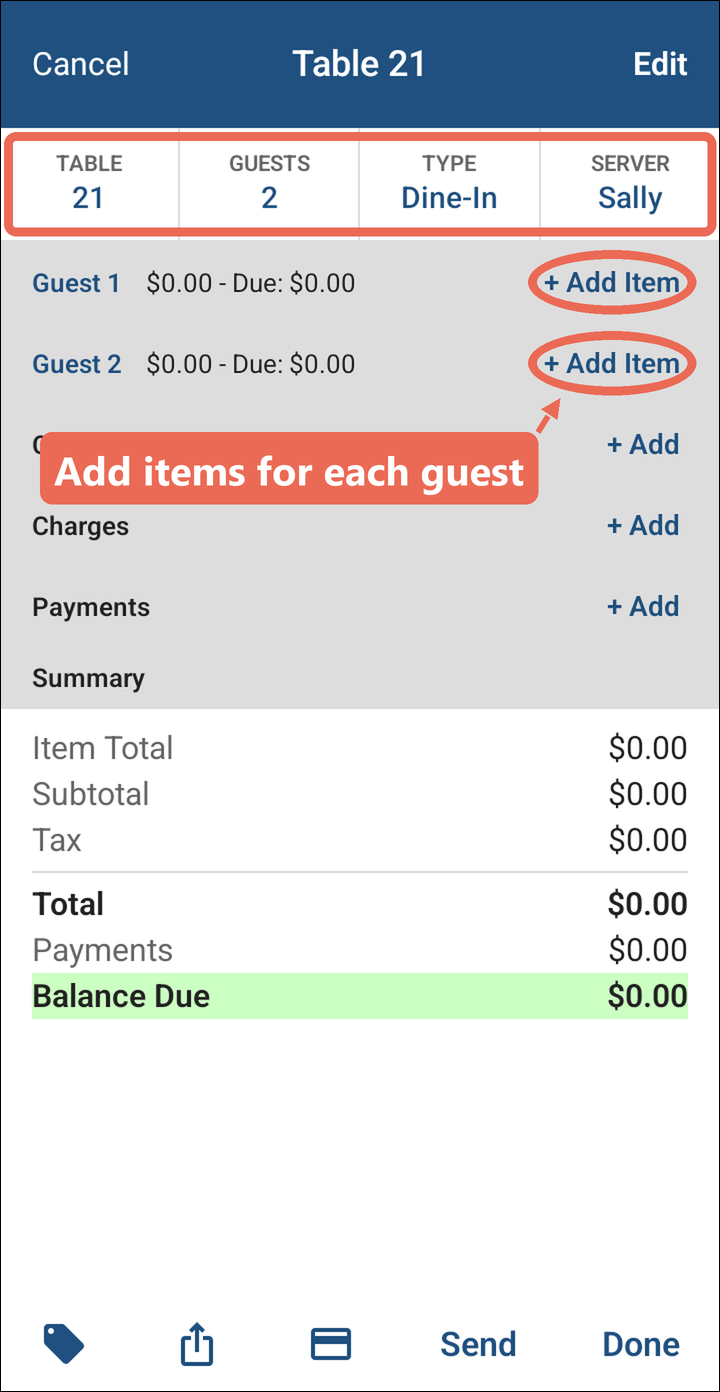
Next it will open to the order screen. The table number, guests, order type and server are at the top. Tap + Add Item next to a guest to ring in their items.
-
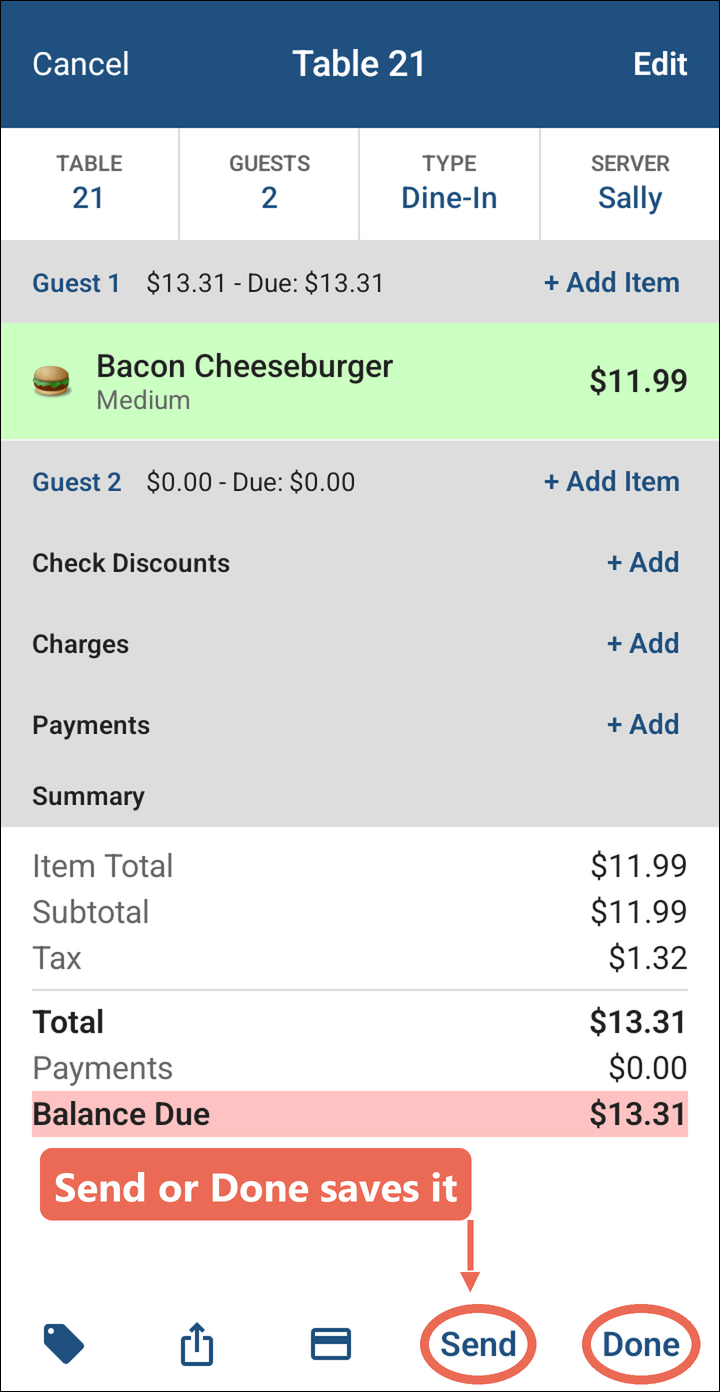
The table has been opened but it will not save into the rest of the system until you press Send or Done. Send sends the order and keeps it open; Done sends it and takes you back to your orders.
Note: If you tap Cancel before sending, the handheld asks "Are you sure you want to cancel without sending?" - tapping Yes throws the table away.
-
If you need to change something about the table see the How to modify a table on a handheld document.
No Comments