
How to reopen a closed table/order
This document will detail how to reopen a closed table/order from a terminal. To reopen an order, you void its payment: the balance is due again and the order goes back to your open orders. There are 3 ways to do it:
- From the Orders Screen
- From the Edit Tips Screen
- By scanning the receipt
NOTE: If it is a credit transaction you can use this document to reapply the credit card if needed.
How to do a credit card re-apply
Note: You can only void a payment from today's orders, before the Daily Close. Once the day is closed, the payment can't be voided - give the guest a refund instead. To learn how, click here.
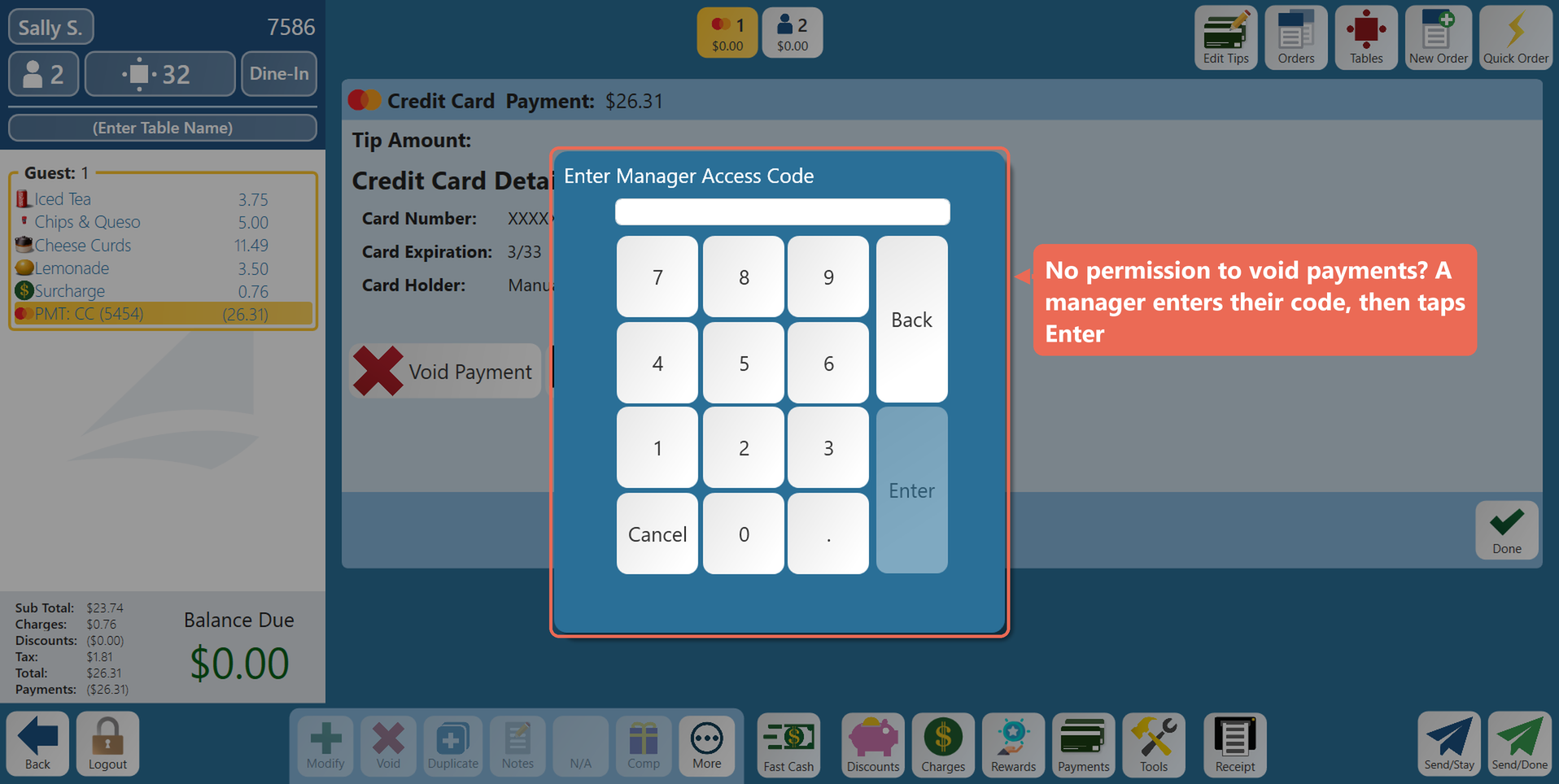
Note: Voiding a payment needs the permission to void payments. If you don't have it, the terminal asks for a manager's code when you tap Void Payment.
Note: When a credit card payment is voided, a void slip prints that you can give to the guest if needed.
Note: To learn more about voiding a credit card payment, click here.
Orders Screen
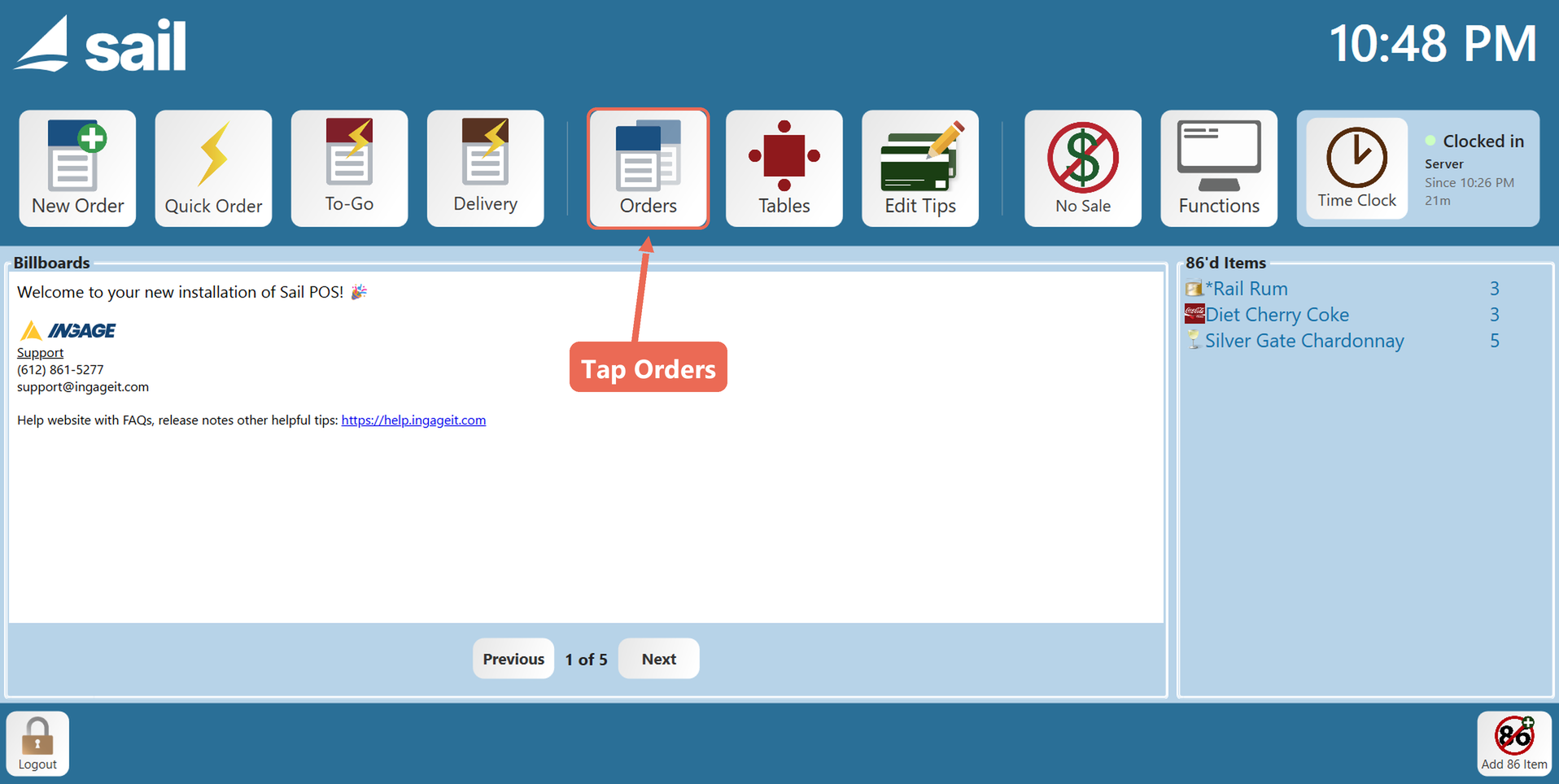
- Tap Orders on the home screen.
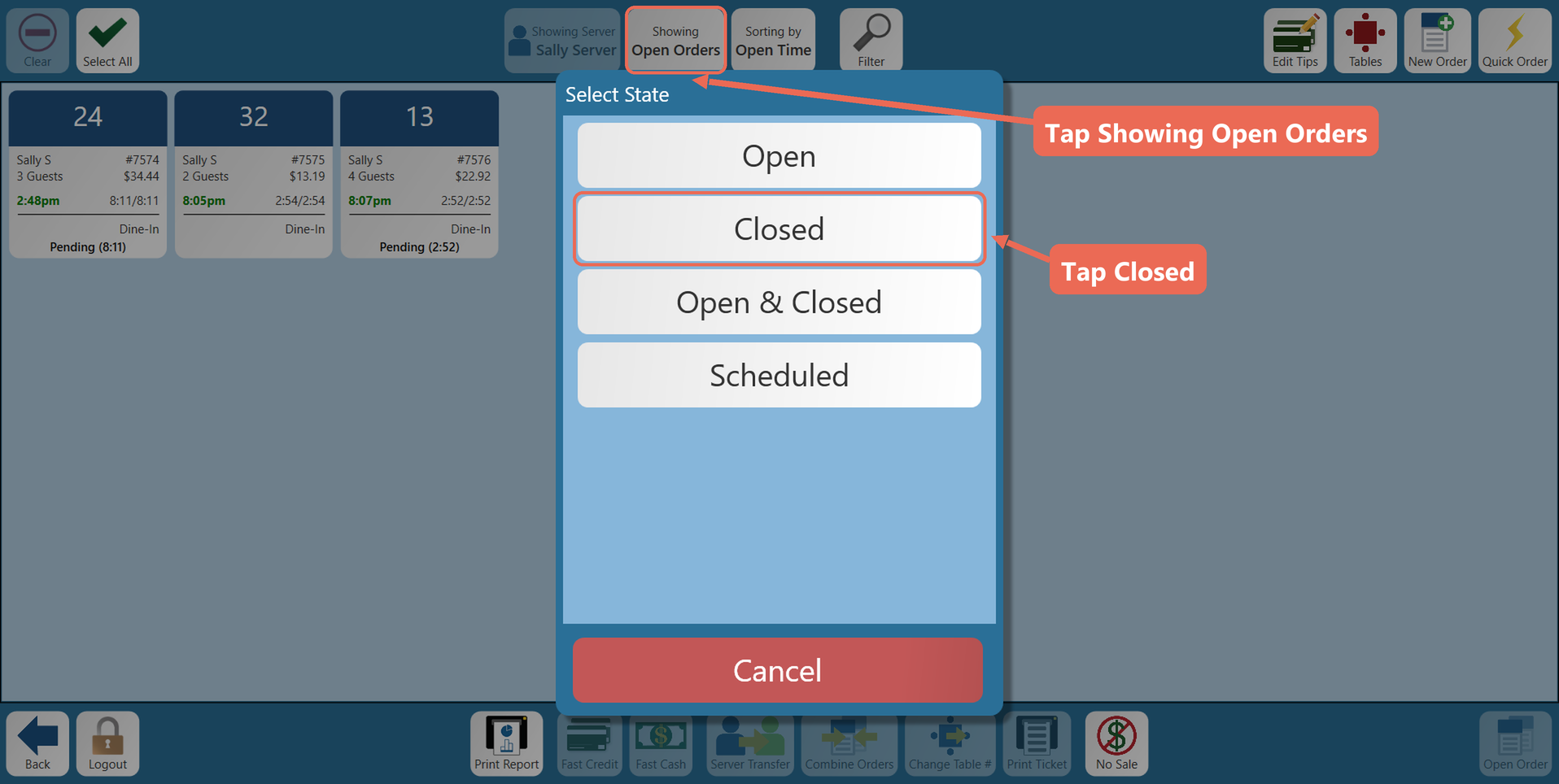
- The Orders screen shows open orders to start with. Tap Showing Open Orders at the top and tap Closed.
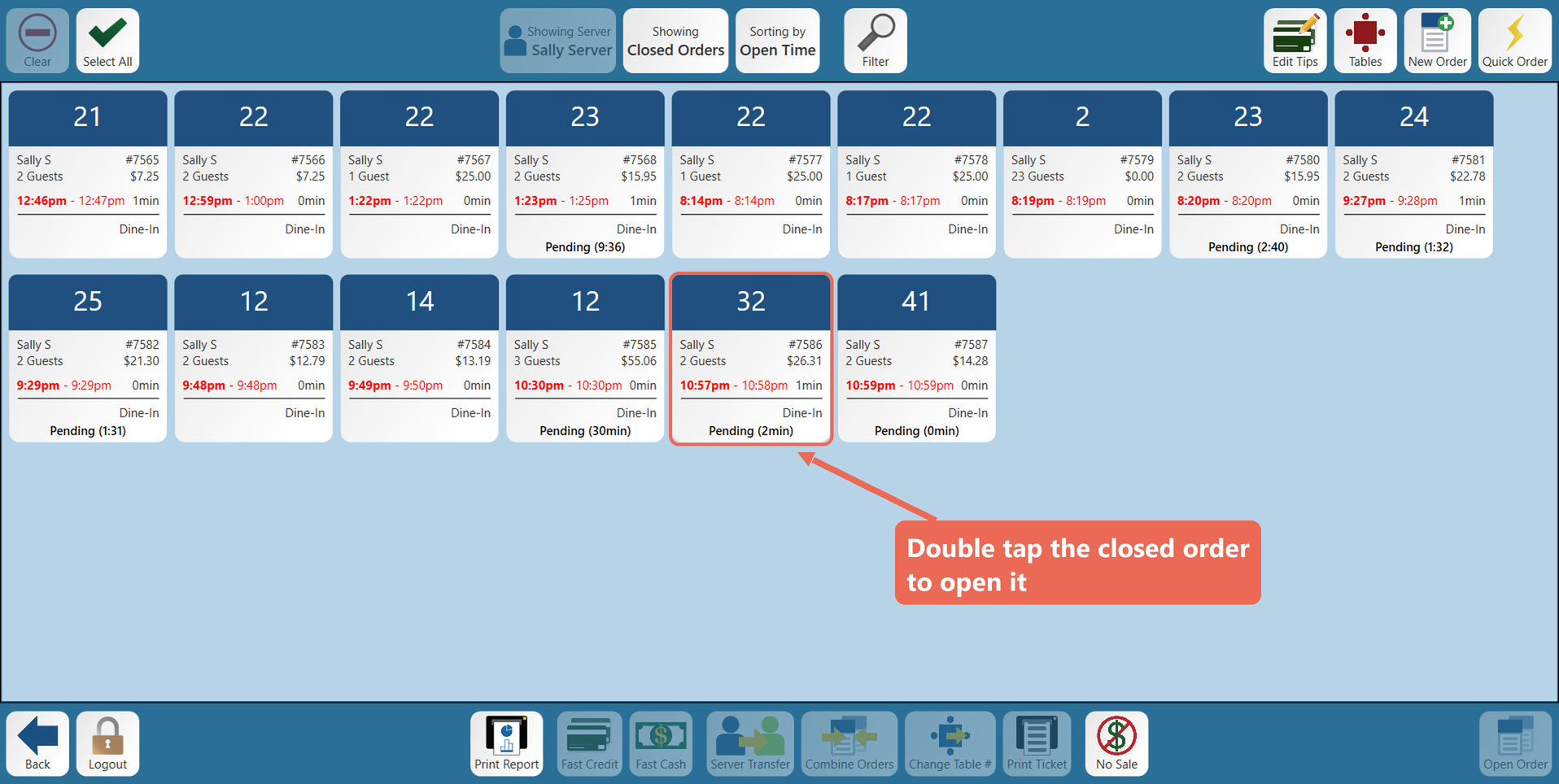
- Find the order you would like to reopen and open it.
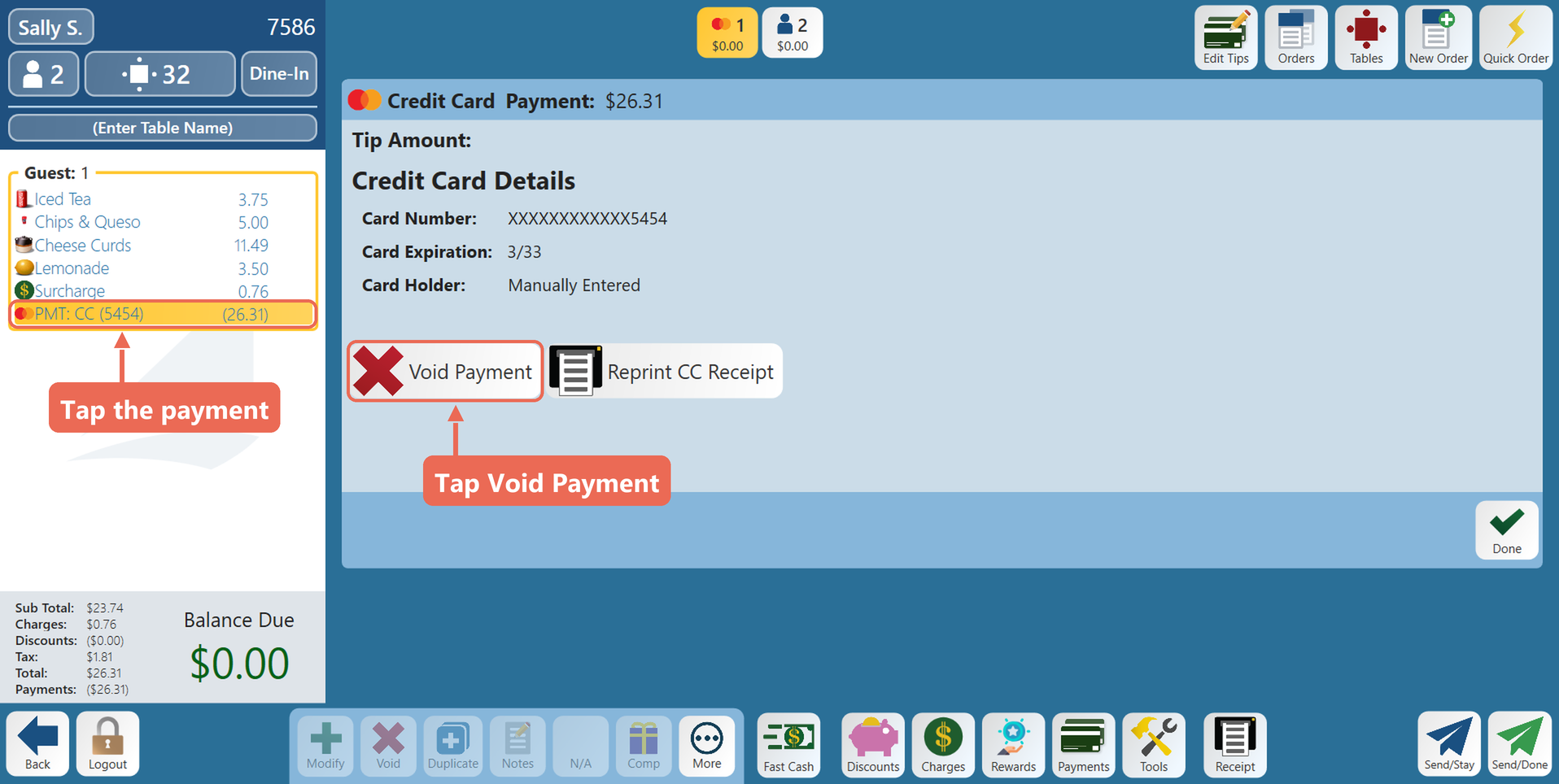
- Inside the order, tap the payment, then tap Void Payment.
- If you don't have the permission to void payments, a manager enters their code and taps Enter.
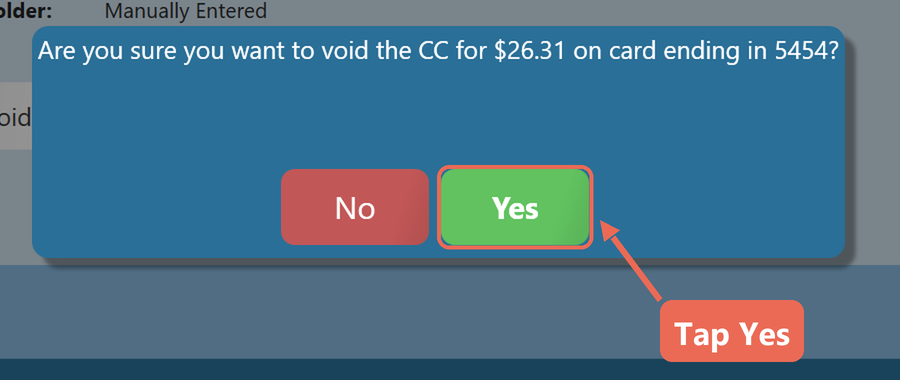
- You will be asked to make sure you did not void the payment in error. Tap Yes.
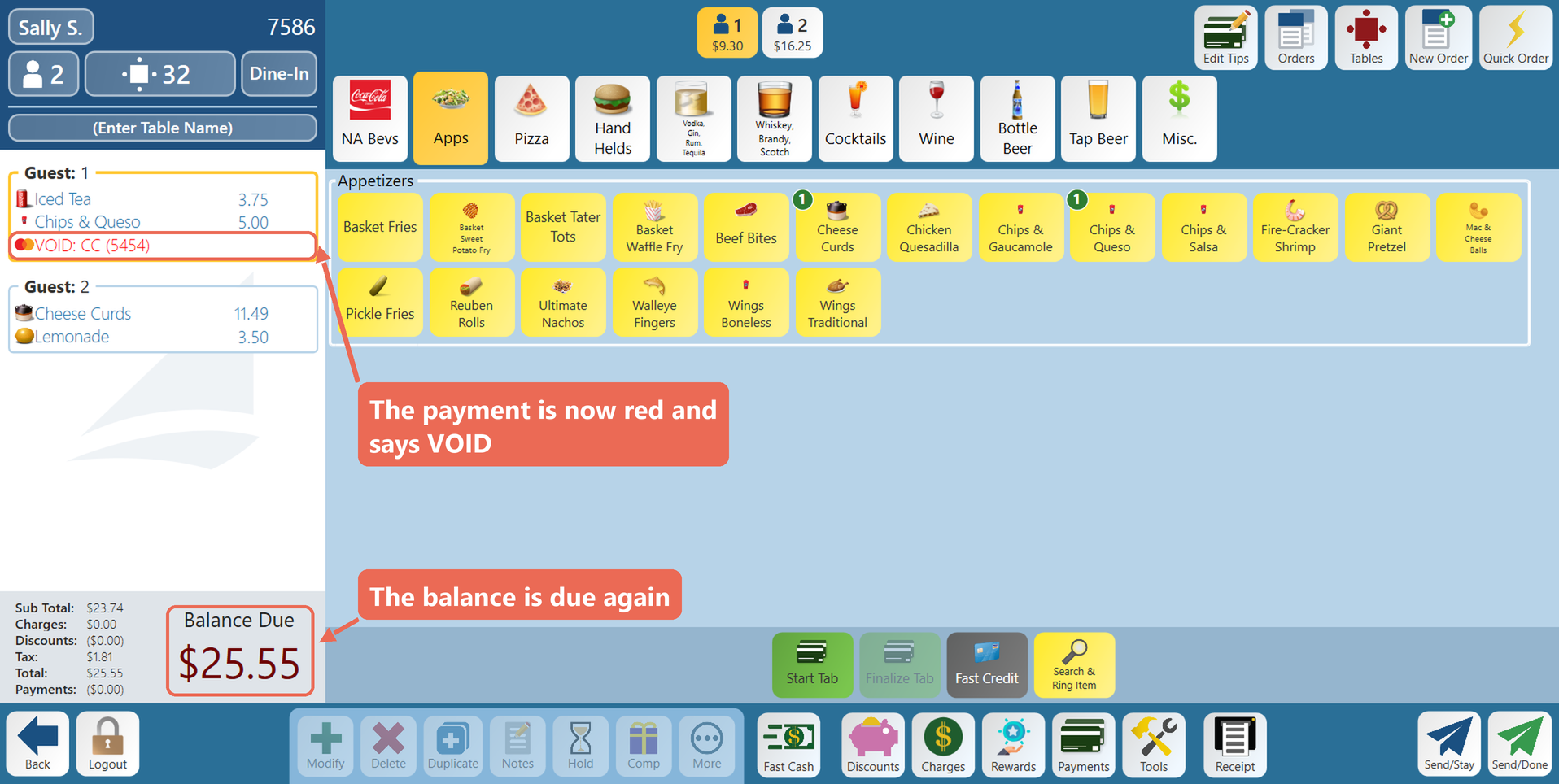
- Now that the payment has been voided, it is red and says VOID, and the total balance is due again.
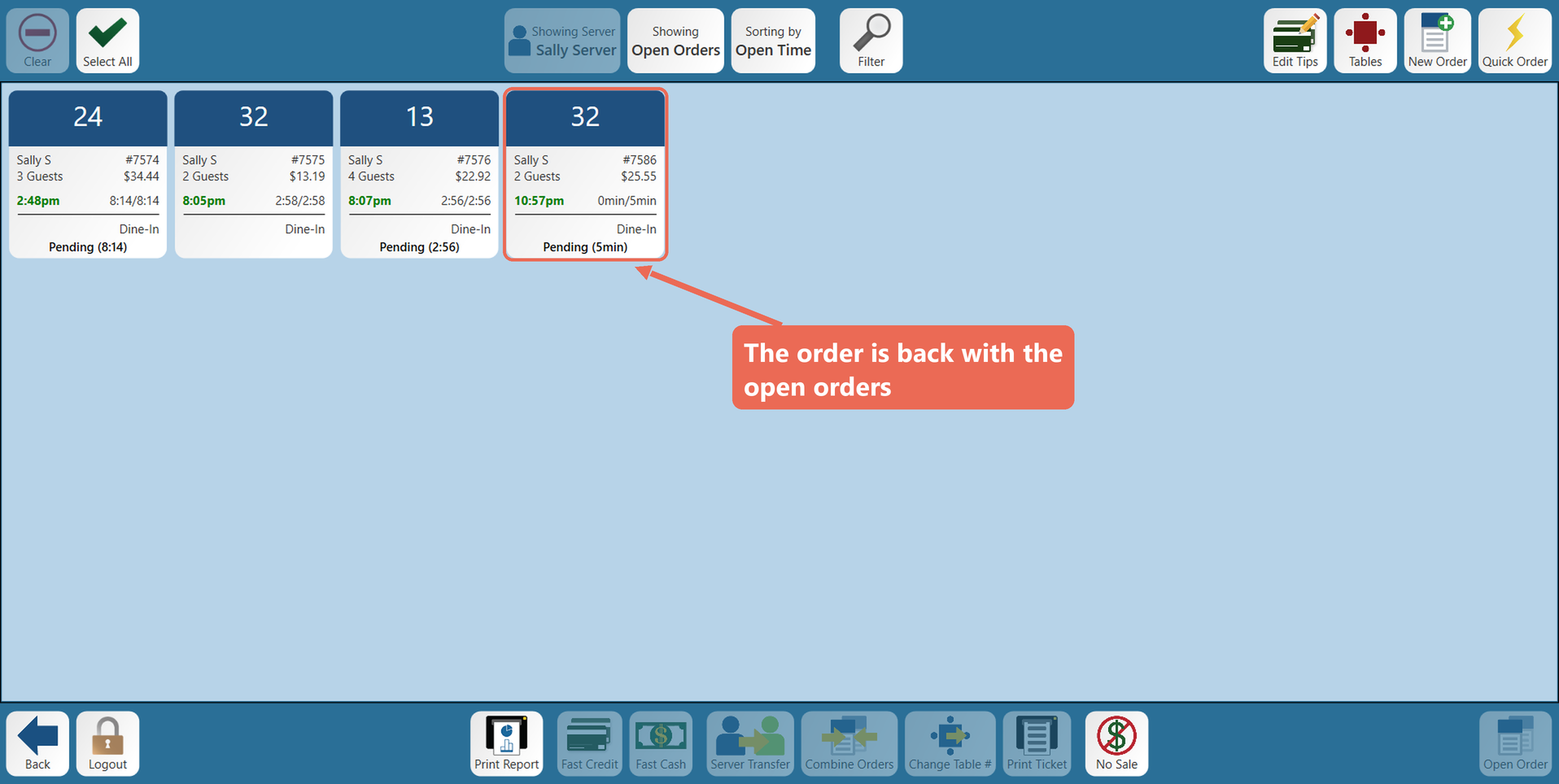
- The order has been reopened and is back with the open orders.
Edit Tips Screen
- Tap Edit Tips on the home screen (it's also at the top of the Orders screen and the order screen).
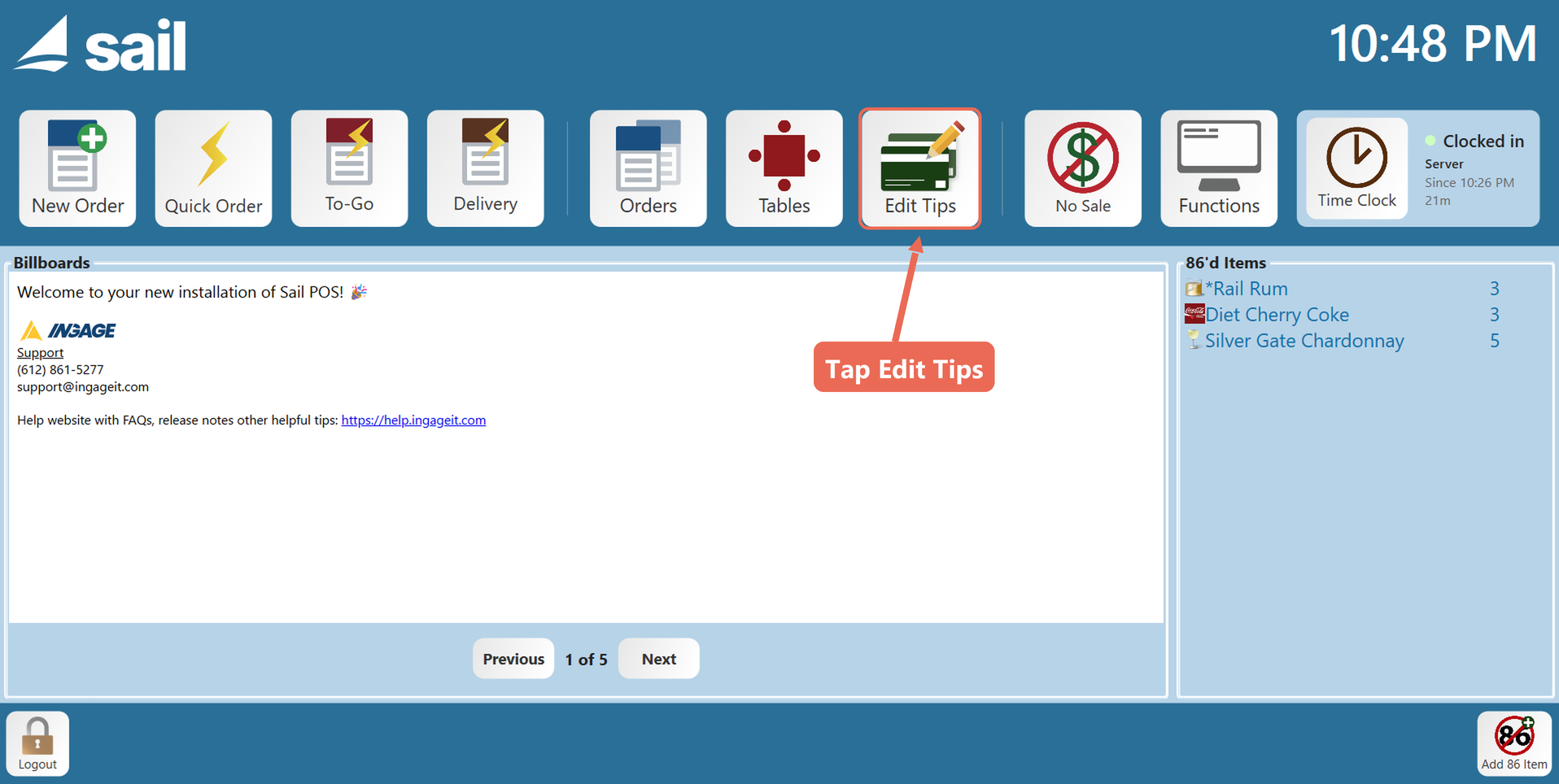
- Tap the payment once - it turns yellow - and tap Void Payment.
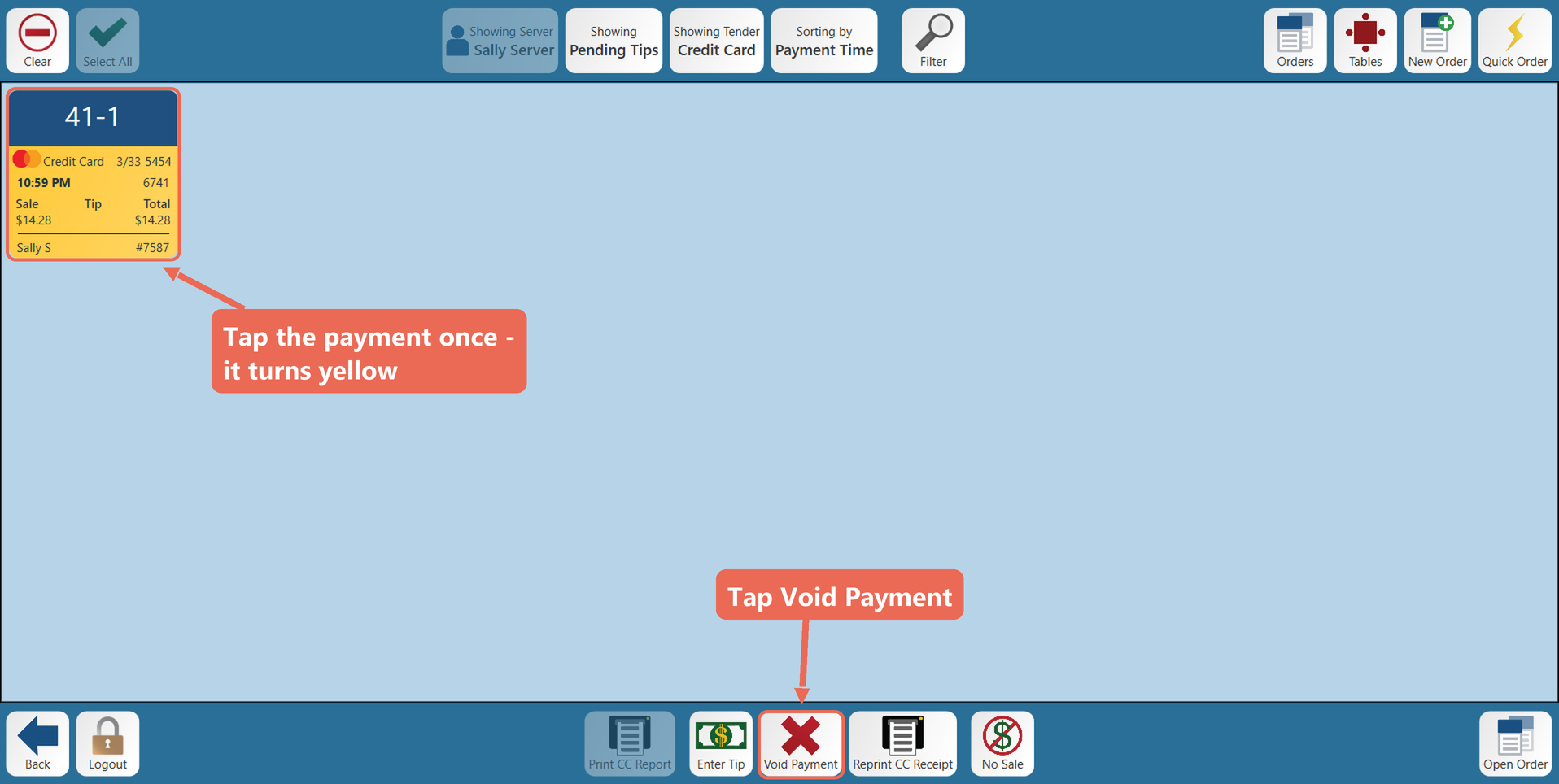
Note: Edit Tips shows the payments still waiting for a tip. If a tip has already been entered on the payment, tap Showing Pending Tips at the top to see all payments.
- If you don't have the permission to void payments, a manager enters their code. Then tap Yes.
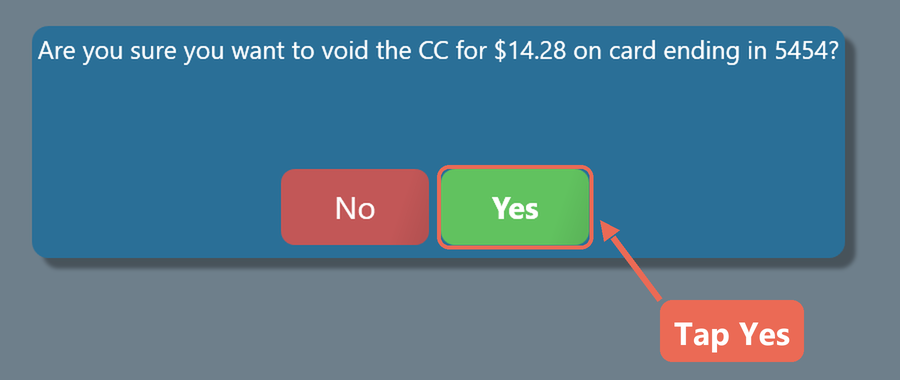
- The payment leaves the Edit Tips screen, and the order is back with your open orders with its balance due again.
Scan the Receipt
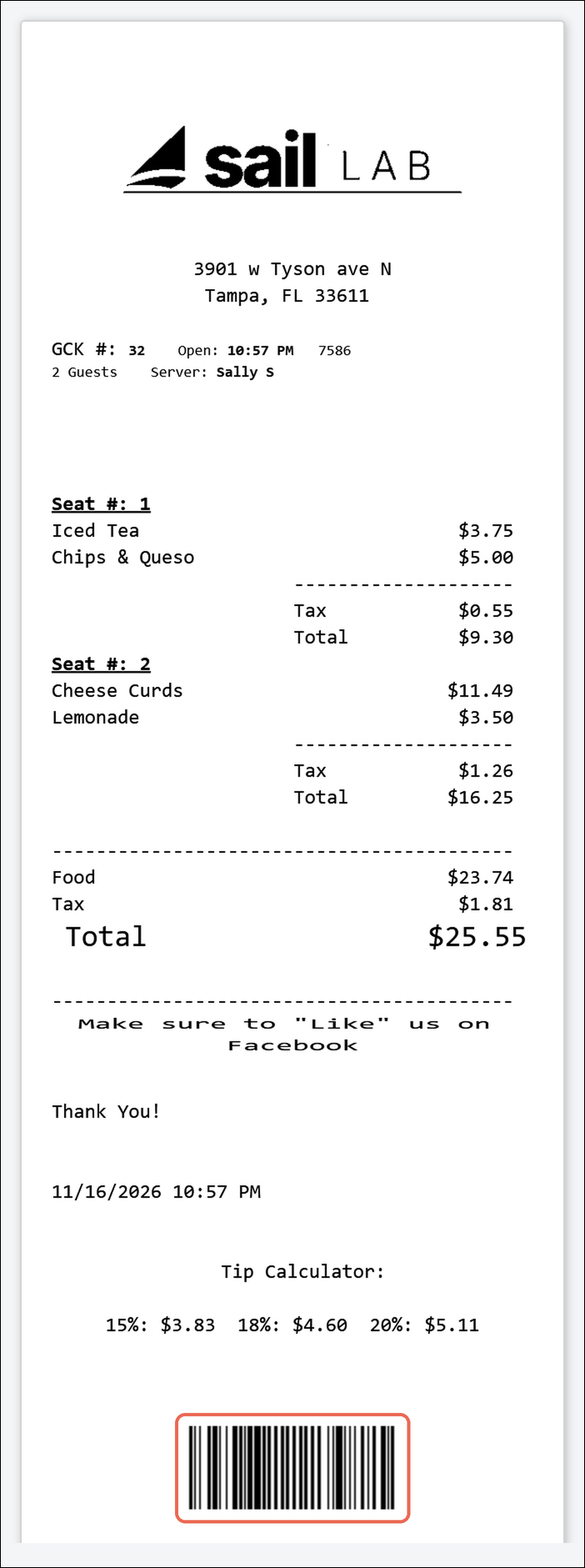
If your receipts print a barcode, scan it with the terminal's barcode scanner on any screen and the order opens, even when it's closed. Then void the payment the same way as in the Orders Screen steps 4-7.
No Comments