
Table View Screen
This page will detail the Table View screen.
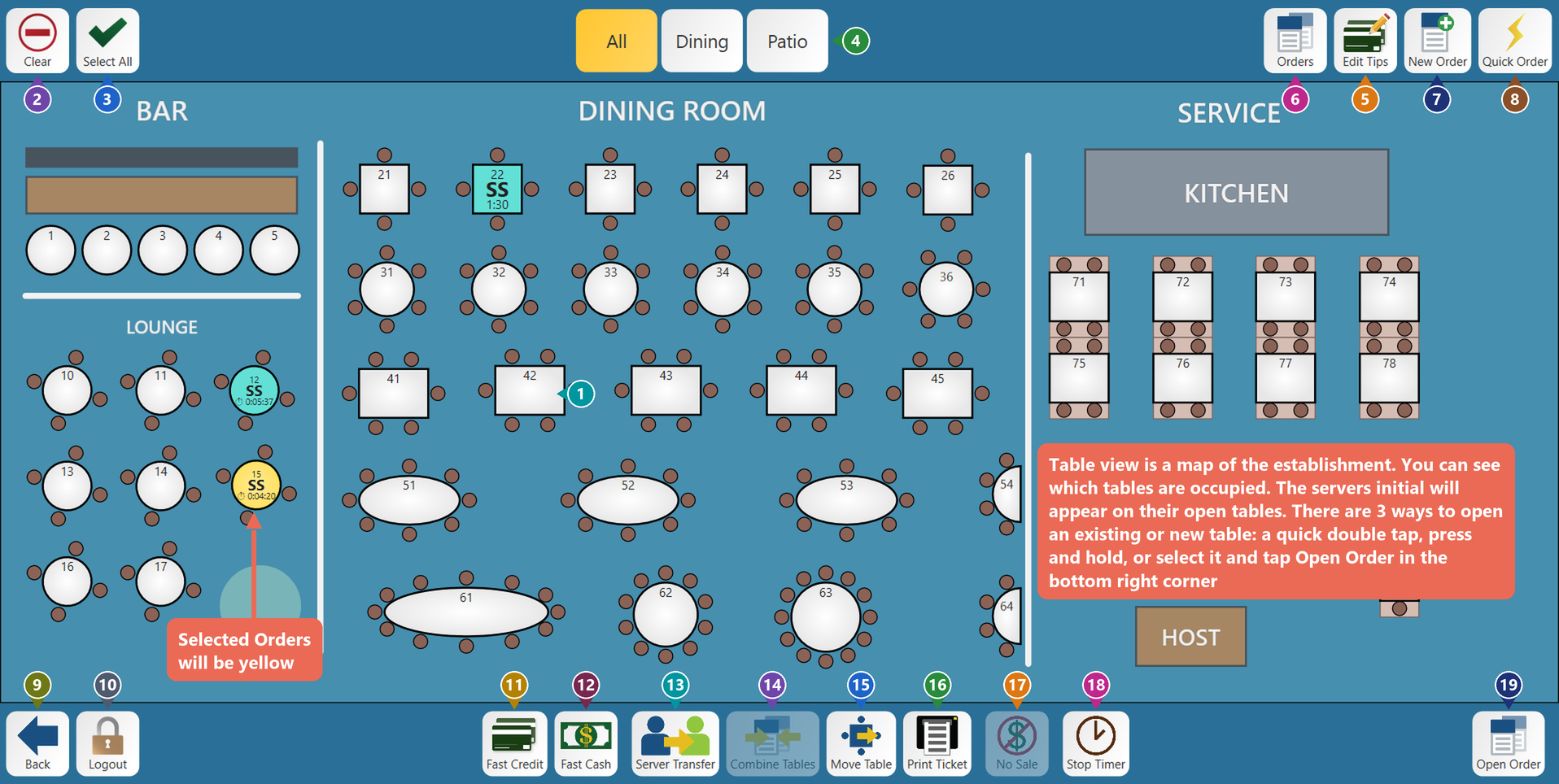
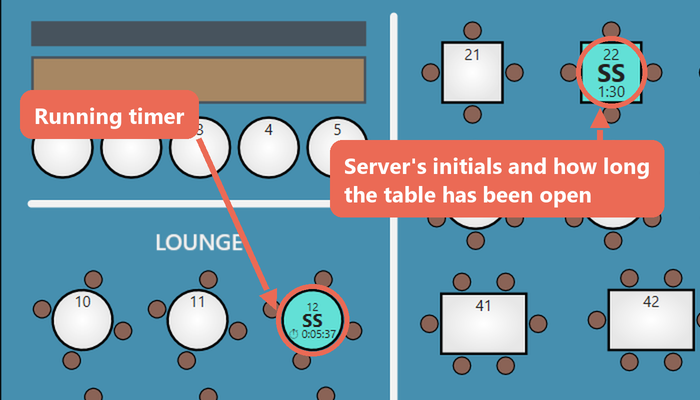
1. The tables - Each table or bar stool on the screen is a button. When selected you can open new tables or edit existing tables. When opening a new table, it will automatically enter in the table number and guest count based on the table you selected. Walls, labels and other shapes your manager draws on the floor plan are only pictures - tapping them does nothing. An open table shows its server's initials and how long it has been open; a table with a timed item (like a pool table) shows the item's running timer instead.

2. Clear - Clear will unselect everything selected on the table view screen.

3. Select All - This will select all the open tables on the table view screen.
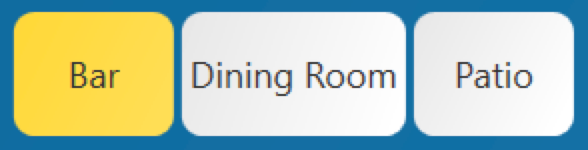
4. The top center of the screen - Each button in this location has a dining area. Each button is its own room or section of the establishment. The room/section you are on will be highlighted in yellow.

5. Edit Tips - This will bring you to the Edit Tips screen.

6. Orders - This will bring you to the orders view screen.

7. New Order - This will open a new table and prompt enter a table number and guest count.

8. Quick Order - This will open a new order with one guest and a table number of zero.

9. Back - This will return you to the launch screen.

10. Log Out - This will log you out of the system and return to the login screen.

11. Fast Credit - This will charge the full balance of the selected table to a card and close it, without opening the order. Select one table at a time (combine tables first to pay them together). There is no "Are you sure?" prompt: the guest inserts, taps or swipes their card on the card reader. If the order has an open tab, you choose which card to charge.

12. Fast Cash - This will cash out the current selected table(s). If a timer is still running on one, it first asks to stop it (Stop & Continue).

13. Server Transfer - This will open the server list and reassign the currently selected table or tables to the server you select. Depending on your access permissions it may prompt you that the transfer is pending at which point the server it was transferred to would need to accept the transfer.

14. Combine Tables - This will combine all the tables you have selected into one table.

15. Move Table - This will move a table you have selected to an empty table that you have selected. If you only have the currently assigned table selected it will prompt you to enter a new table number to move the table.

16. Print Ticket - This will print the customer receipt for any tables you have selected.

17. No Sale - This will open the cash drawer.

18. Stop Timer - This will stop the timers on timed items (like a pool table) on the selected table(s), without opening them. The button only lights up when a selected table has a running timer. With more than one timer, the Stop which timers? window lists them all, selected: tap any you want to leave running, then tap Stop.

19. Open Order - This will open the selected table.
No Comments