
How to run a server report
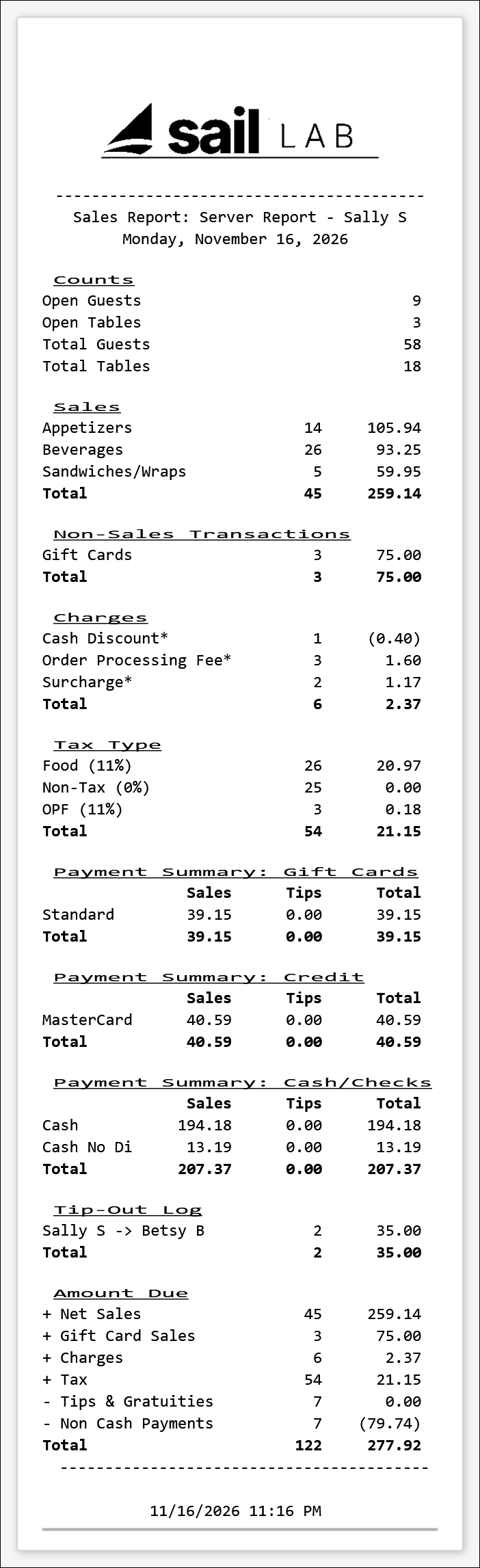
This document will show how to run a server report. The server report shows a server's sales, payments, tip outs and the amount they owe for the day, and you can print it.
If you'd like to see your sales on a handheld, please click the link.
As a server
-
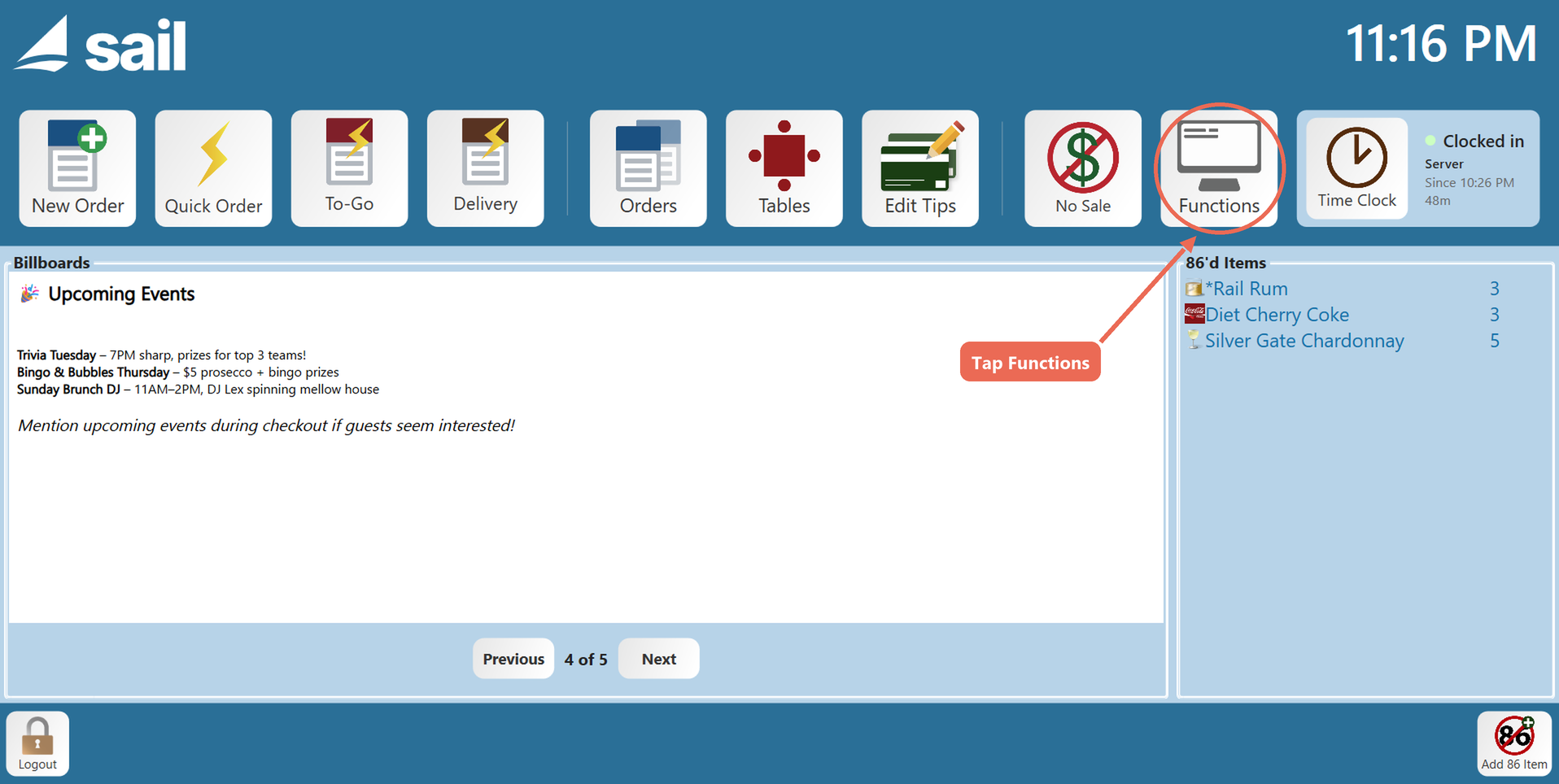
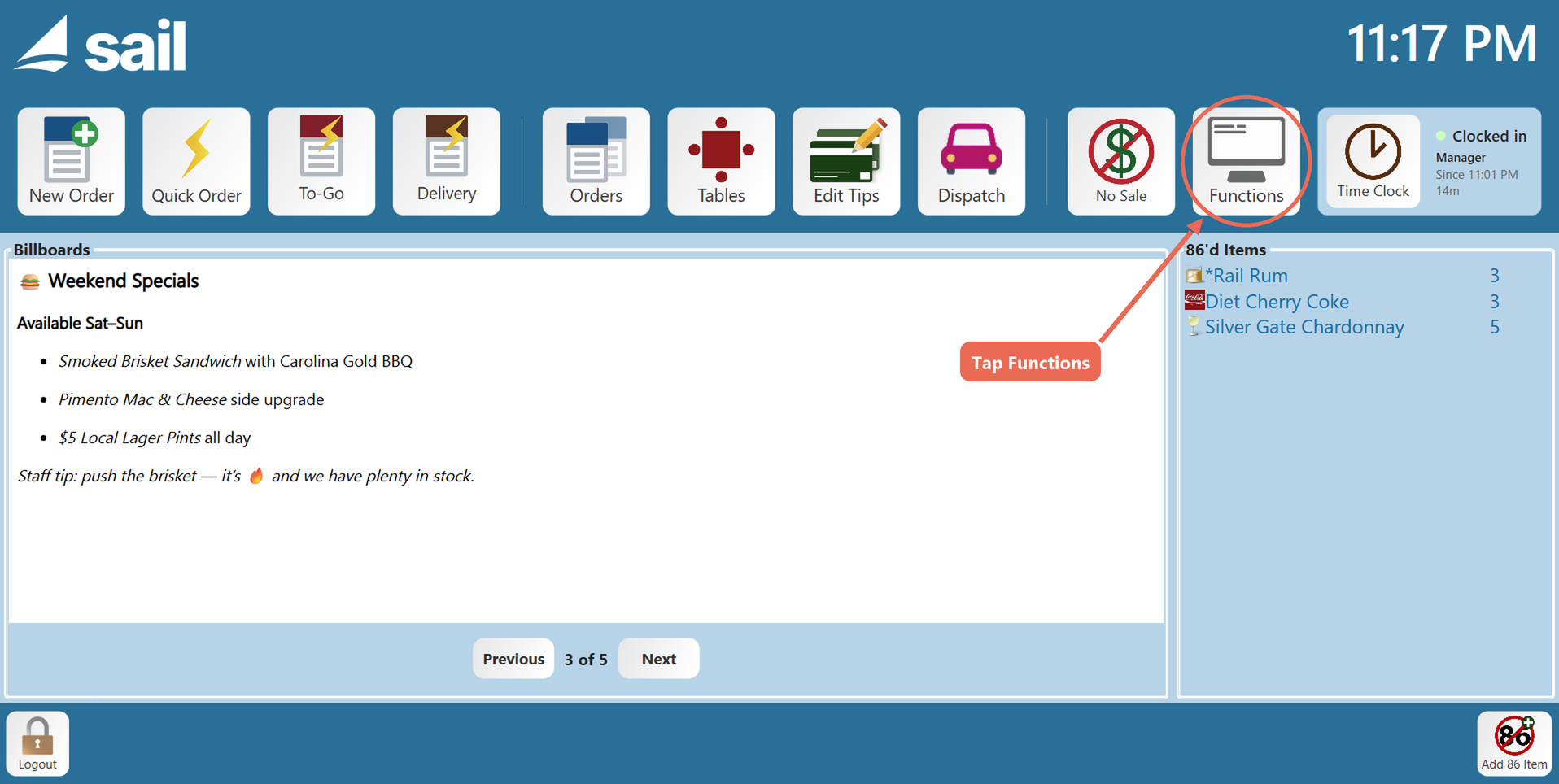
Log onto the terminal and tap Functions on the launch screen.
-
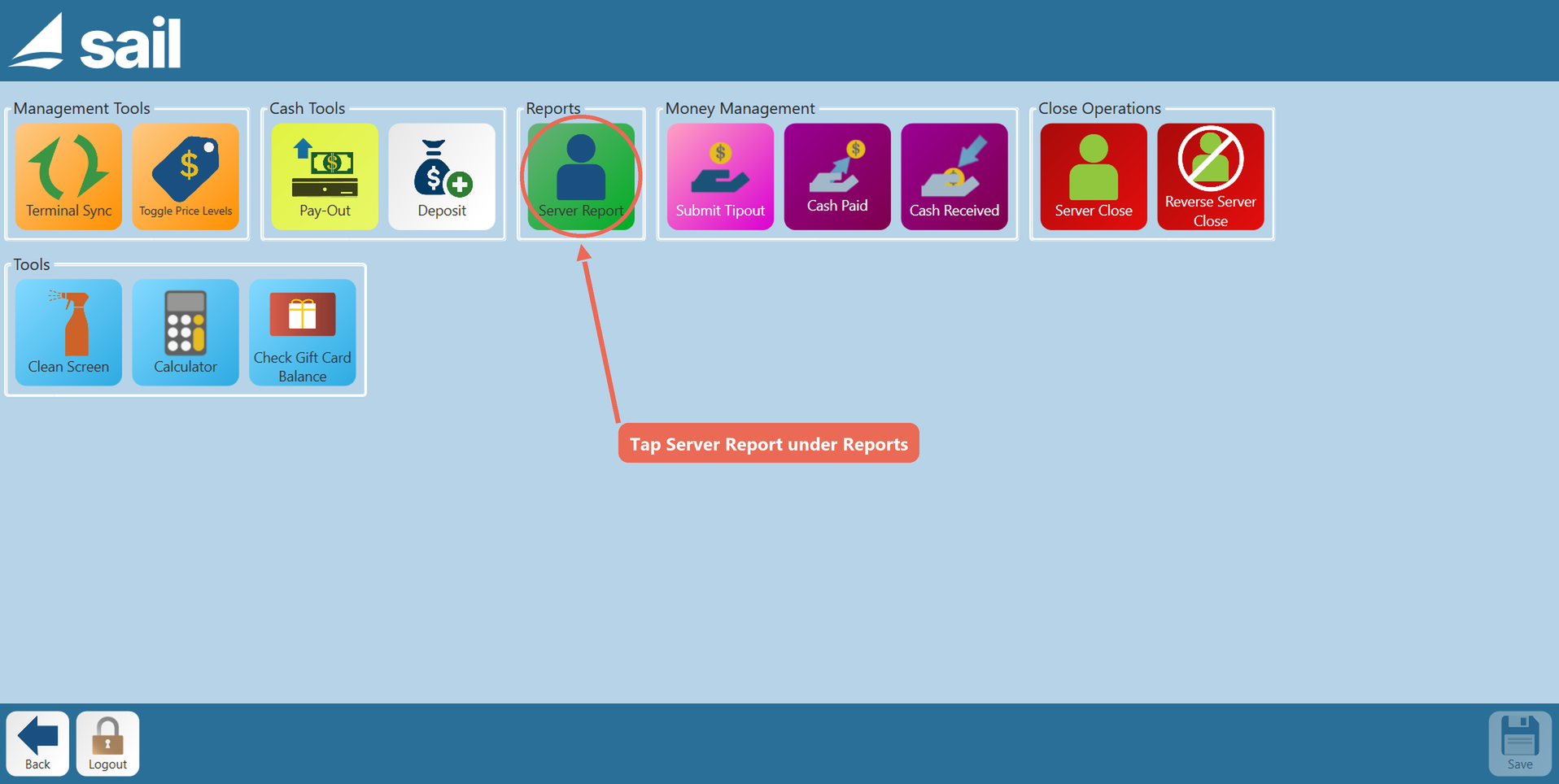
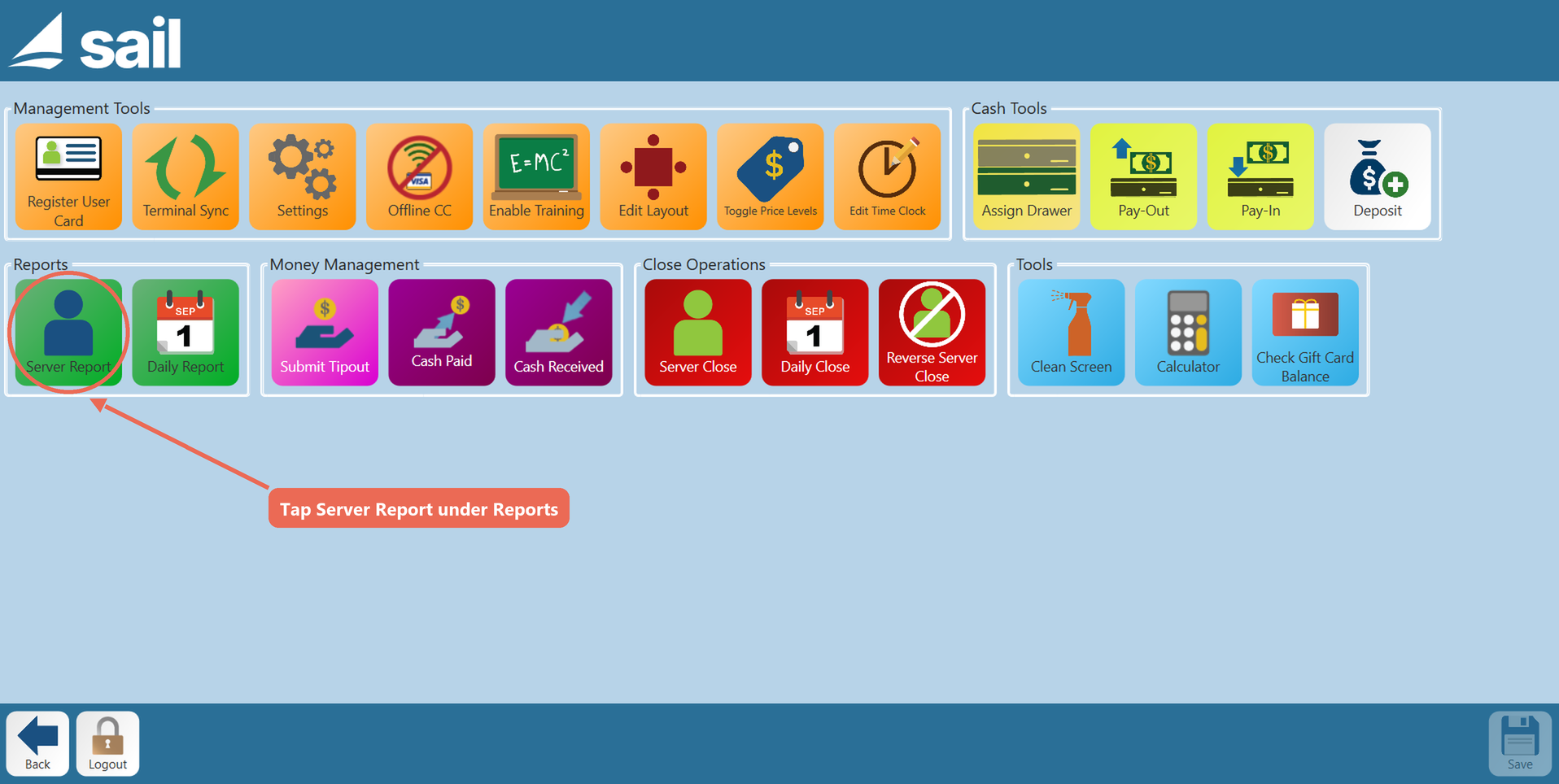
Tap Server Report under Reports.
-
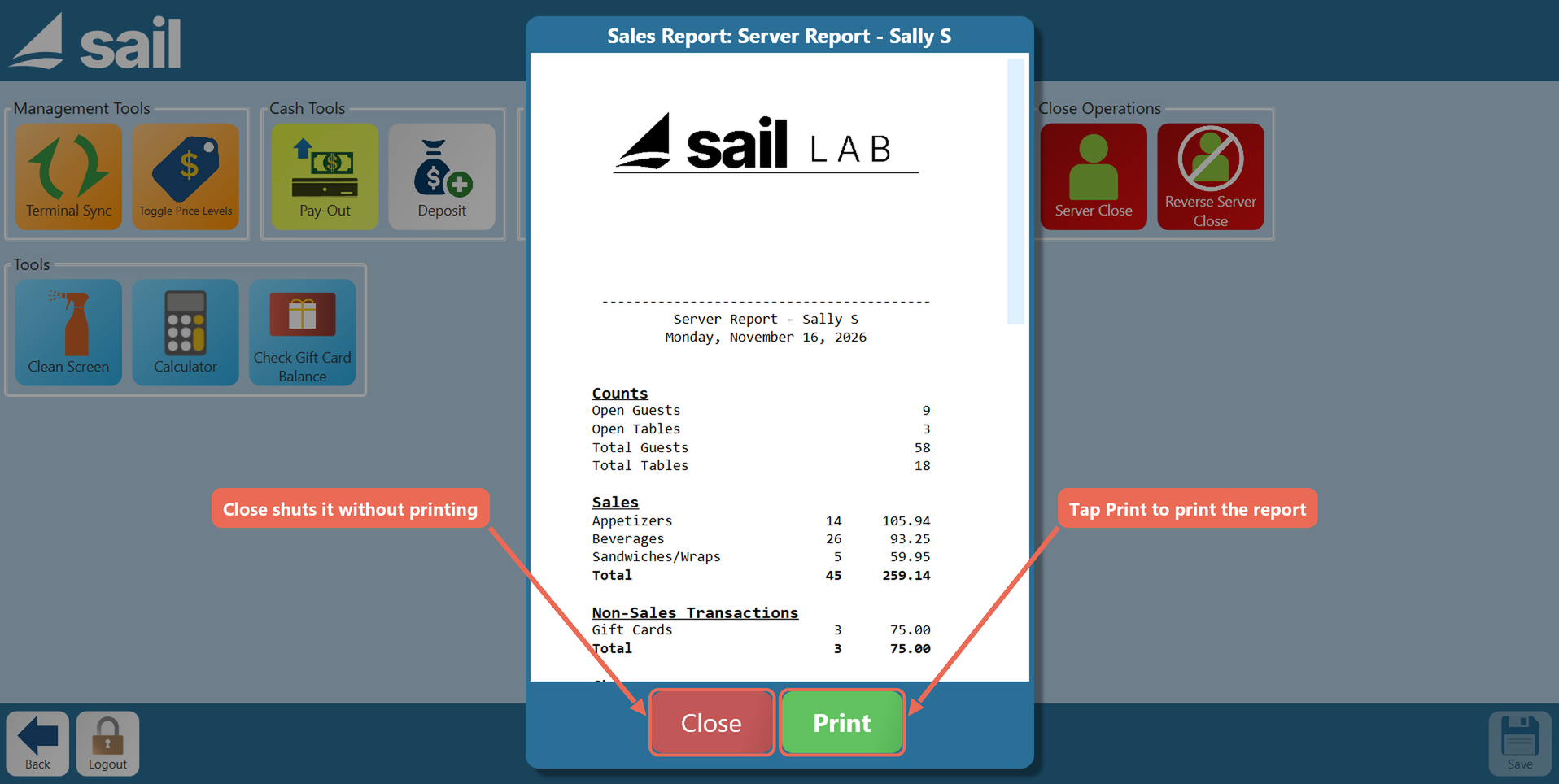
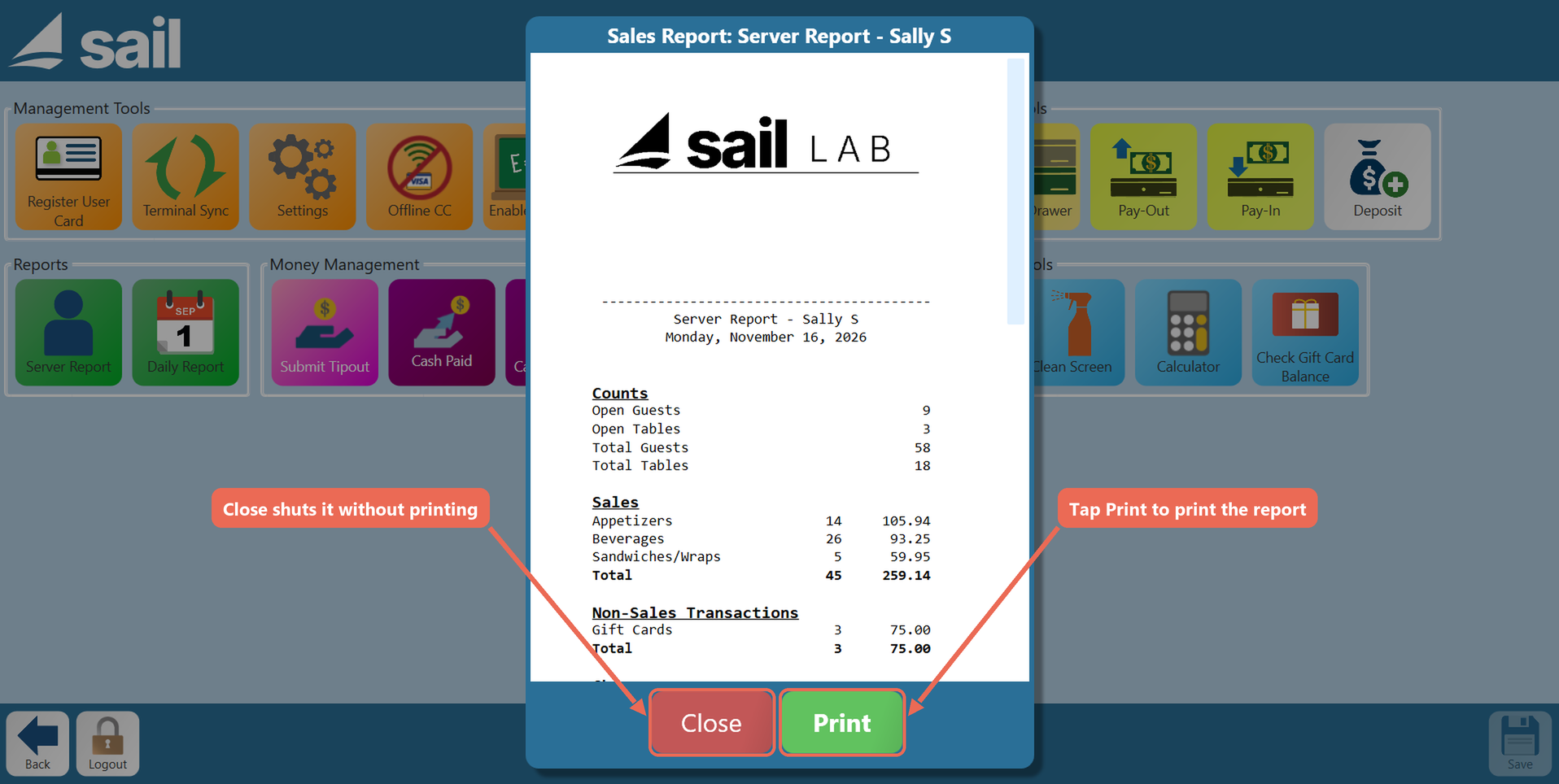
Your server report opens on the screen. Tap Print to print it, or Close to close it without printing.
-
Example of the server report.
As a Manager
A manager can run the server report for anyone at the location.
-
Log onto the terminal and tap Functions on the launch screen.
-
Tap Server Report under Reports.
-
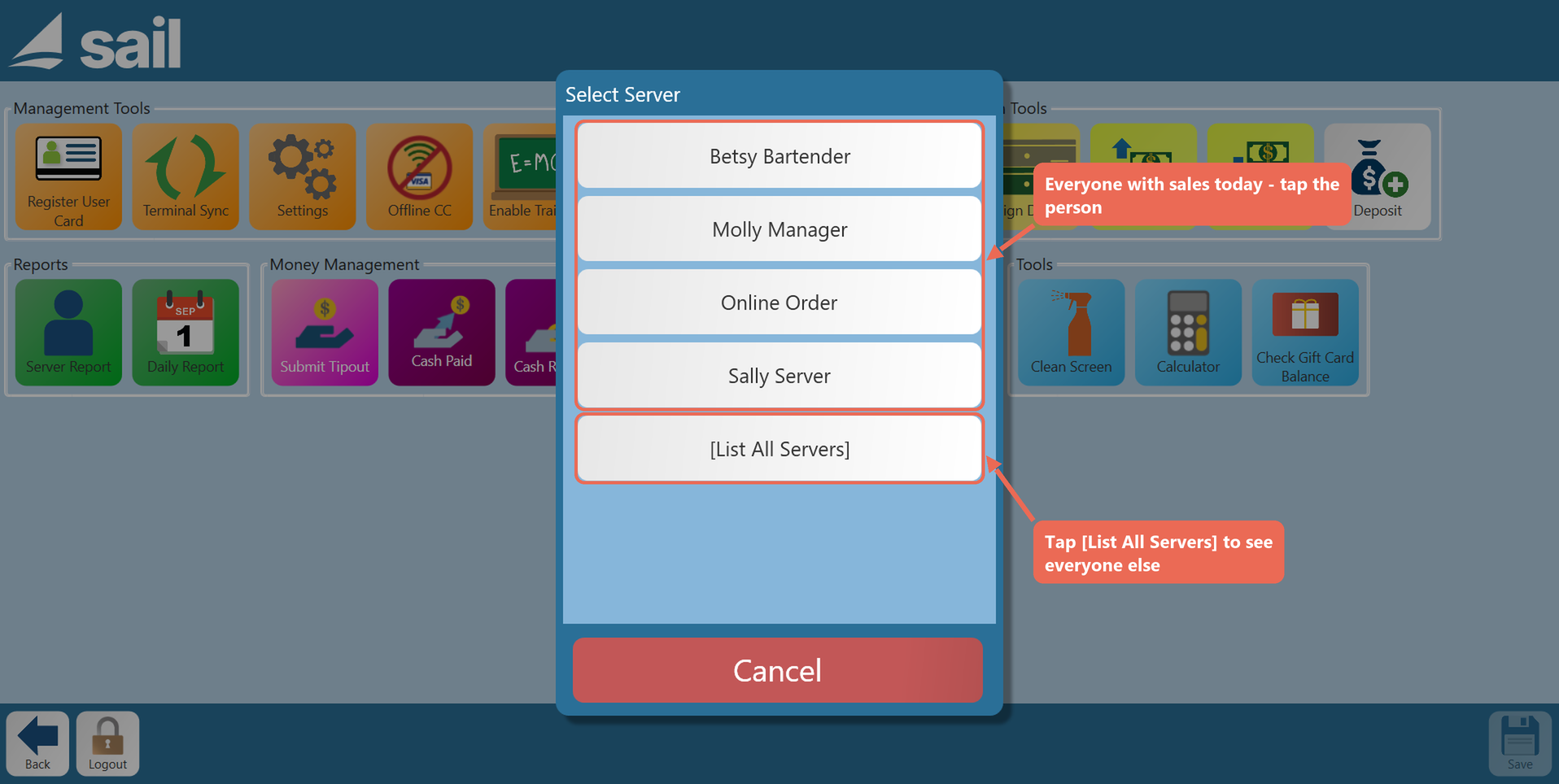
A list of everyone who has sales today appears. Tap the person you would like to run the report for. If they aren't in the list, tap [List All Servers] at the bottom to see everyone who is active at your location.
-
Their server report opens on the screen. Tap Print to print it, or Close to close it without printing.
Note: Don't see Server Report on the Functions screen? Your job role doesn't have permission to run server reports - ask your manager.
Click here to learn more about what's on the server report, or how to close a server.
No Comments