
Orders Screen
This will detail how to use the orders screen.
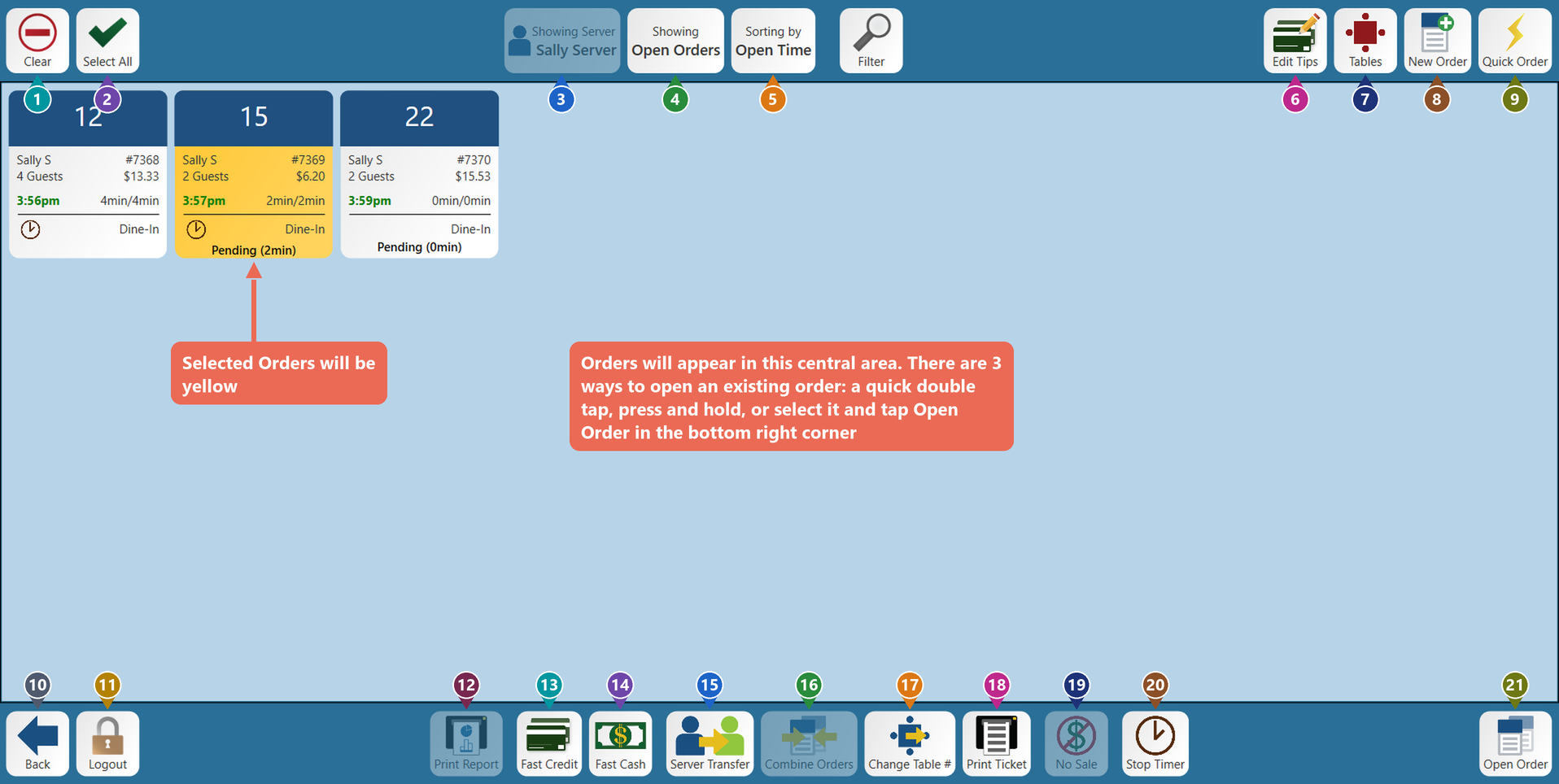

1. Clear - Un-select tables.
2. Select all - Selects all of the current servers tables.
3. Showing Server - Shows whos tables you are looking at. It will default to show the person who is signed in. Select the button to bring up the server list and change the view to another servers orders. Please keep in mind that the server list will only show you servers who are clocked in. To see additional servers you’ll need to select the server button then scroll to the bottom of the server list and click on “all servers.”

4. Showing - Defaults to showing all Open Orders. You can click the button to switch to “Closed Orders” or “All Orders”

5. Sorting by - Defaults to sort orders by the time they were opened. Click the button to change the sort. You can sort by any of the 10 fields on the button. What you are sorting by will be bolded.

6. Edit Tips - Brings you to the Edit Tips screen.

7. Tables - Brings you to table view.

8. New order - Ring in a new order with a table number and guest count.

9. Quick order - Ring in a quick order without a table number.

10. Back - Brings you back to the launch screen.

11. Logout - Signs you out of the terminal.

12. Print report - Prints the current open orders of the selected server. Does not include closed orders.

13. Fast Credit - Charges the selected order's full balance to a card and closes the order, without opening it. Select one order at a time (combine orders first to pay them together). There is no "Are you sure?" prompt: the guest inserts, taps or swipes their card on the card reader. If the order has an open tab, you choose which card to charge.

14. Fast Cash - Will fast cash the selected table(s). If a timer is still running on one, it first asks to stop it (Stop & Continue).

15. Server Transfer - Transfer selected table(s) to another server. (This will only be lit up if the person who is signed in has access to transfer tables) Depending on your access permissions it may indicate that the transfer is pending at which point the server it was transferred to would need to accept the transfer for it to be complete.

16. Combine Orders - places two (or more) selected tables under the same order.

17. Change Table # - Change table number of the currently selected order. It will prompt you to put in a new table number

18. Print Ticket - Print the receipt of a selected table. (You are able to select more than one or all of your orders and print multiple at once)

19. No Sale - Will open the cash drawer.

20. Stop Timer - Stops the timers on timed items (like a pool table) on the selected order(s), without opening them. An order with a running timer shows a clock on its button, and its total grows. The button only lights up when a selected order has a running timer. With more than one timer, the Stop which timers? window lists them all, selected: tap any you want to leave running, then tap Stop.

21. Open Order - Open the selected table to view or edit the order.
No Comments