
Sail POS: Add a new menu item
Summary. Walks a manager or owner through adding a new sellable item in Sail Backoffice, whether by duplicating a similar item or building one from scratch - useful for last-minute holiday or special-occasion items when there's no time to wait for support.
Applies to. Sail POS - all current versions.
*Making changes to buttons (new items, pricing, adjusting existing items, modifiers), is not included in after hours emergency support. Having a support technician make button adjustments for you after hours, will be billable at $60.00 per 20 minutes. Please note that emergencies that come in will take priority over menu programming changes. *
Before you start
- You'll need Backoffice access with permission to edit items.
- Know: which existing category the item belongs in (e.g., Appetizers, Entrees), the price, and whether it should be taxed as food, alcohol, or something else.
- This covers creating a basic item that can be sold and printed to the kitchen. It does not cover modifiers (like "choice of side"), online ordering setup, or advanced pricing - see "Related" below for those.
Decide: duplicate or start from scratch
Before you build anything, check whether a similar item already exists in the same category with the same kitchen routing (e.g., another appetizer that prints to the same station).
- If a similar item exists, duplicate it - it carries over the tax type, reporting group, and category, saving you that setup. Go to "Duplicate an existing item" below.
- Only build a brand-new item from scratch if nothing similar exists, or if the new item needs a different tax type, reporting group, or kitchen routing than anything already in that category. Go to "Build a new item from scratch" below.
Duplicate an existing item (recommended when a similar item exists)
- Find the existing item you want to copy. Right-click it and select Duplicate Item.
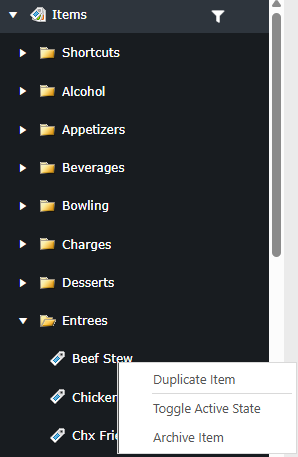
- This opens a new item pre-filled with everything from the original: name, kitchen ticket text, customer receipt text, tax type, reporting group, category, and price.
- Update the Name field.
- Update the Price field.
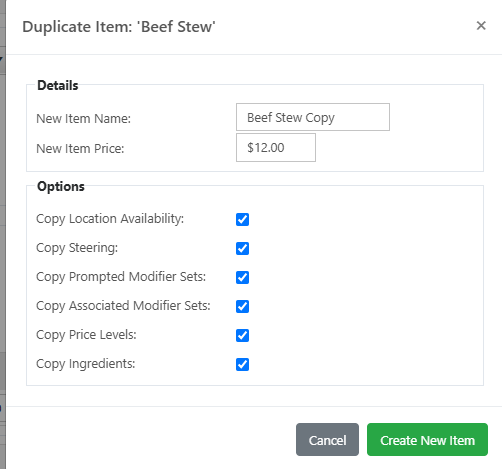
4. Hit Create New Item
-
- If the new item's tax type, reporting group, or category should differ from the item you duplicated, update those too - otherwise they'll carry over as-is.
- Click Save to create item.
Because tax type, reporting group, and routing all carry over correctly from the source item, duplicating a similar item - especially one in the same category with the same kitchen routing - usually means the only things you truly need to change are the name, kitchen ticket/receipt text, and price.
Build a new item from scratch (when nothing similar exists)
- In Backoffice, go to the POS tab, then Items in the left menu.
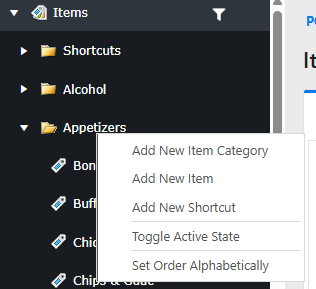
- Find the category you want the new item in (e.g., Appetizers). Right-click it and select Add New Item.
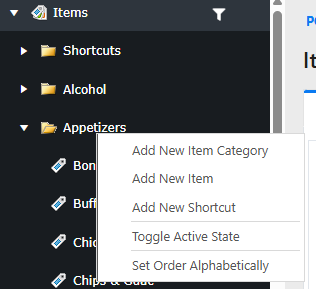
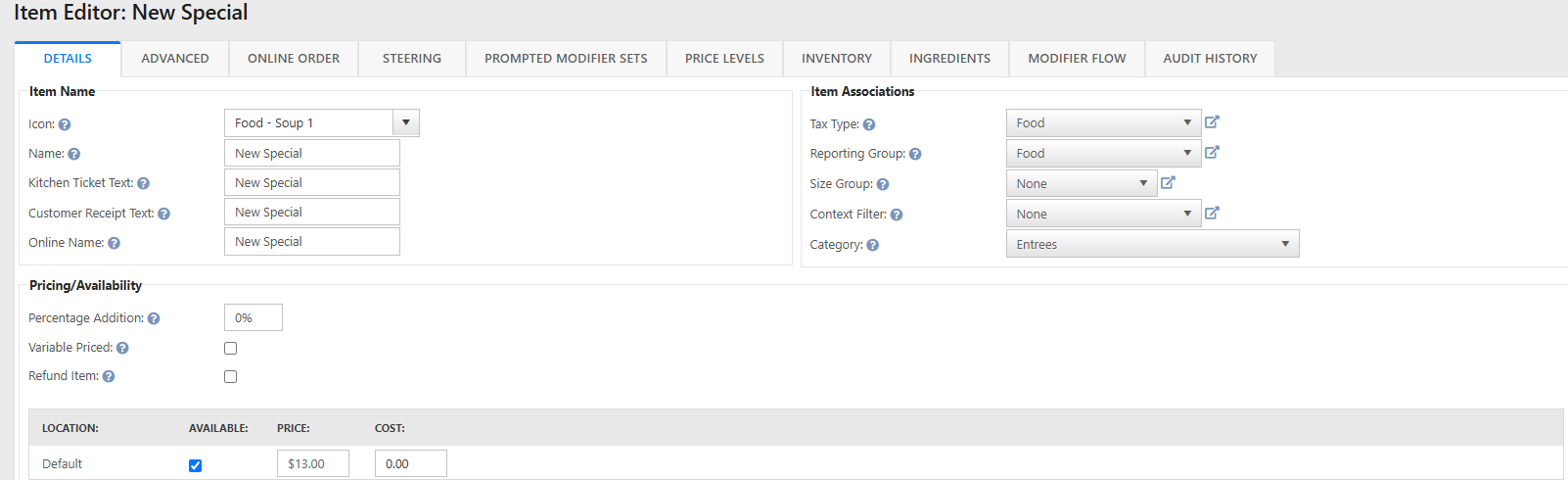
- Enter a Name for the item. This automatically fills in the Kitchen Ticket Text, Customer Receipt Text, and Online Name with the same value - edit any of those individually if you want the kitchen ticket or receipt to say something different than the item's name.
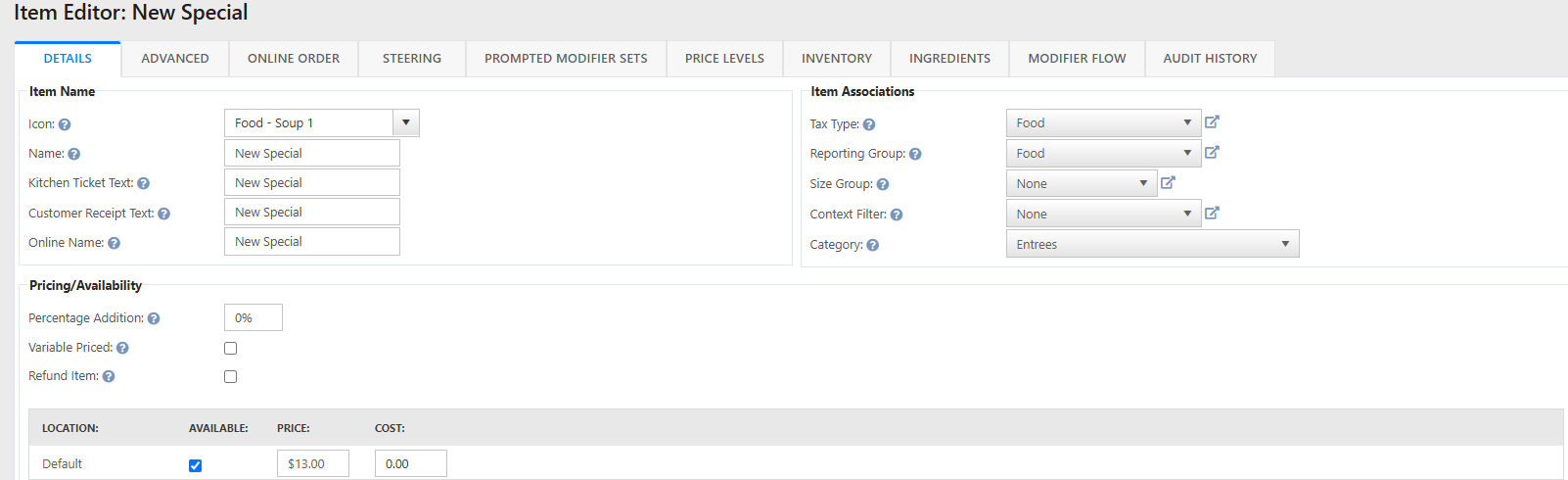
- Under Item Associations, set the Tax Type and Reporting Group to match the item (e.g., "Food" for a food item). These do not automatically match the category you placed the item in - they default to whatever was last used elsewhere in the system, which is often wrong. Setting these incorrectly can apply the wrong tax or misclassify the item in your sales reports.
- Under Pricing/Availability, enter the Price for the "Default" location. Leave "Available" checked so it's active.
- Click Save.
Verify it worked
- The new item appears in its category in the Items list.
- Terminals won't see the new item until they're refreshed - have staff log out and back in on each terminal before trying to ring it up.
- Ring up the item on a terminal to confirm it charges the correct price and prints correctly to the kitchen.
If it doesn't work
- If the item doesn't appear or ring up correctly, double-check the Tax Type, Reporting Group, and Price were saved correctly, and confirm the terminal was logged out/back in.
- For anything beyond a basic item - modifiers, online ordering, variable pricing, steering, inventory tracking - see the existing "How to make a PLU" reference in Backoffice documentation, or contact support.
No Comments