
How to update Billboards
This document will show you how to edit Billboards in Backoffice
Billboards allow you to have important notes for your staff to read before or during their shift. They are good for specials, Rotating beers, Soup of the day, upcoming events, and so much more
If you'd like to learn how to make a new billboard, click here.
Navigate to Billboards
- Backoffice --> POS --> Billboards
- Permissions you need: your job role needs the task Manage Billboards (POS --> Back Office). Click here to learn more about job roles.
- All settings are supported on the terminal and handhelds!
Changing a billboard
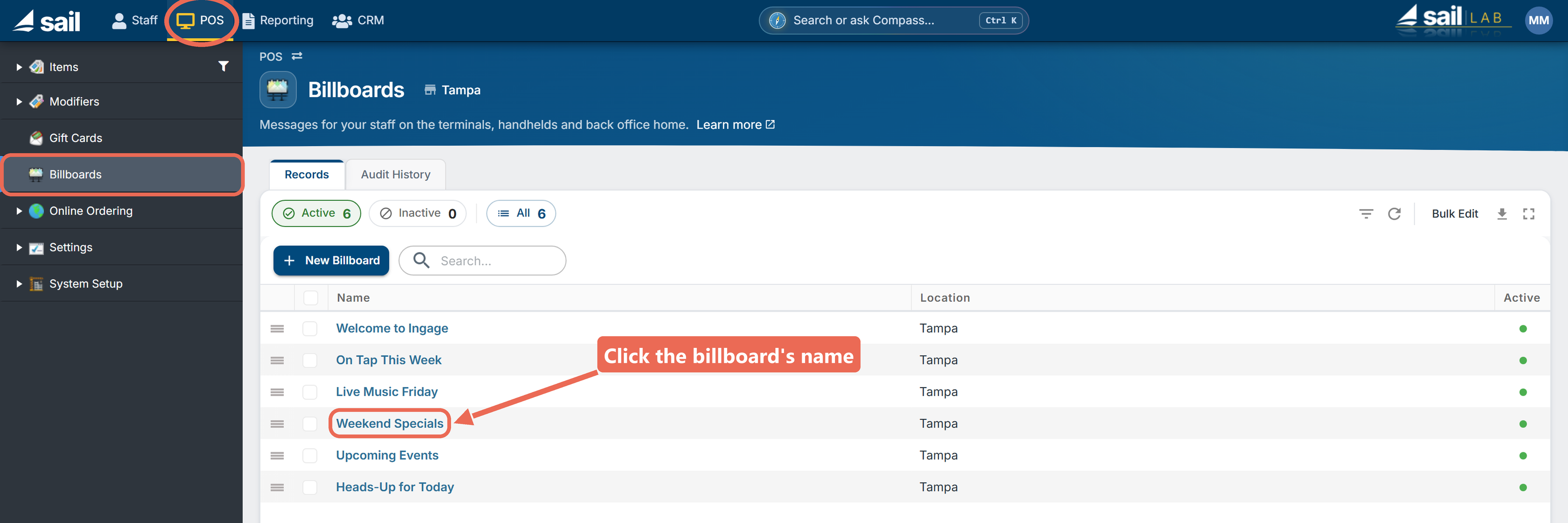
- Click POS at the top, then Billboards on the left, and click the name of the billboard you want to change.
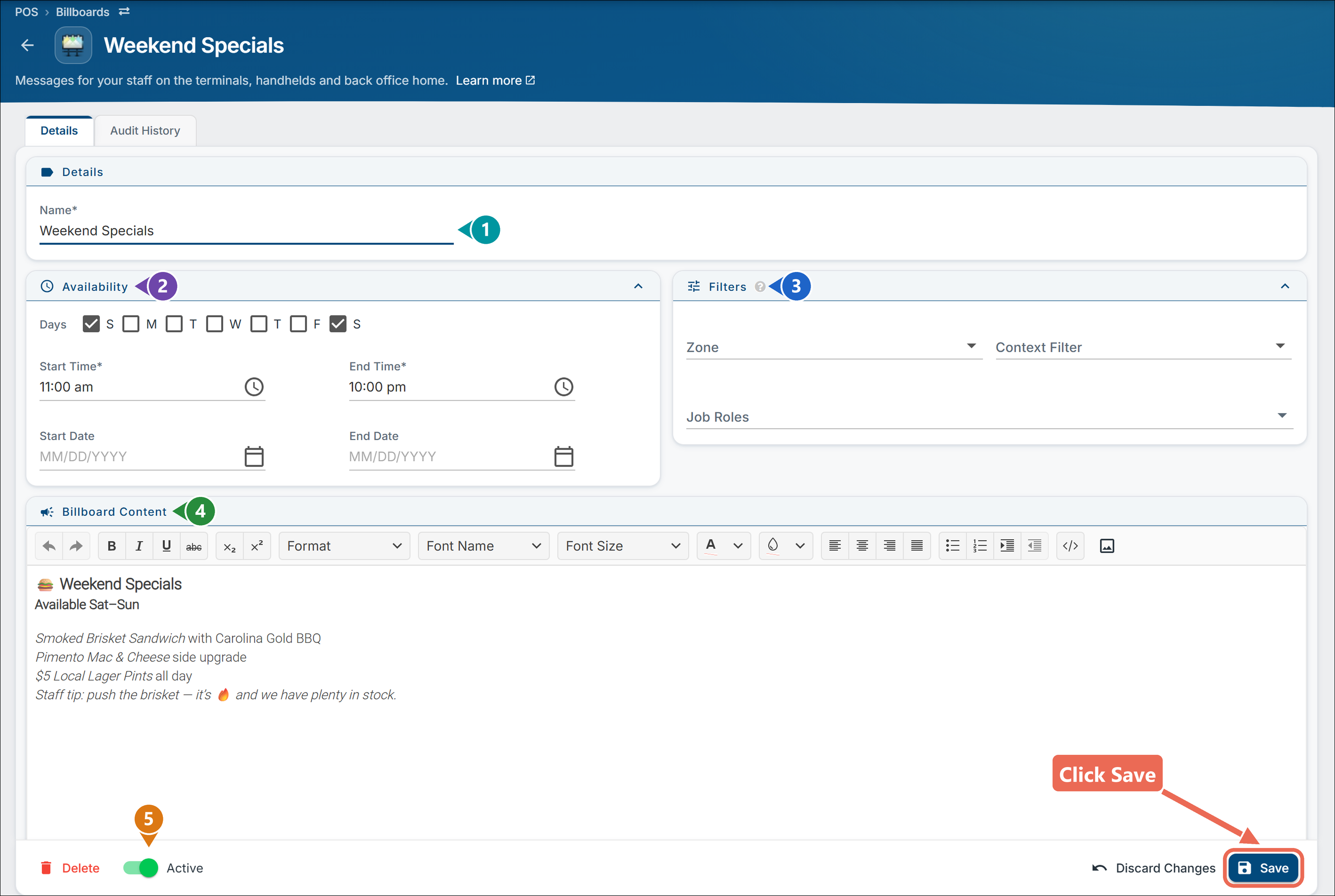
- Make your changes, then click Save. In this example, Weekend Specials is changed to show only on Saturday and Sunday, from 11:00 am to 10:00 pm.
-
Details
- Name the billboard so you know what its about
- Optionally set a location. You only see this if you have more than one location.
- With this setting you can either choose 1 location or All Locations. With All Locations you can narrow it down to a Brand or a Location Group.
- Availability
- Set it for a specific Day of the week (Daily specials)
- Set it for a specific Time Range (Daytime vs nighttime information)
- Set it for a specific Date Range (Weekly specials, or upcoming events). Leave the dates blank to keep showing it.
- Filters - leave them blank to show the billboard everywhere, to everyone
- Zone - Have the billboard only show up in specified areas of the restaurant
- Context filter - a way to do multiple filters at one time. Multiple locations, devices, Profit centers, order types, ect. Click here to learn more about context filters.
- Job roles - Have the billboard show up for specified job roles and not others
- Billboard Content
- Supports different fonts, sizes, formats, and colors!
- It even supports Emojis 😀!
- Add a picture with the Insert Image button
- Active
- Active/Inactive. This way you can Inactive ones when they're not needed and easily reactivate them so you don't need to make them again! Inactive ones are under Inactive at the top of the list.
Changing the order they show in
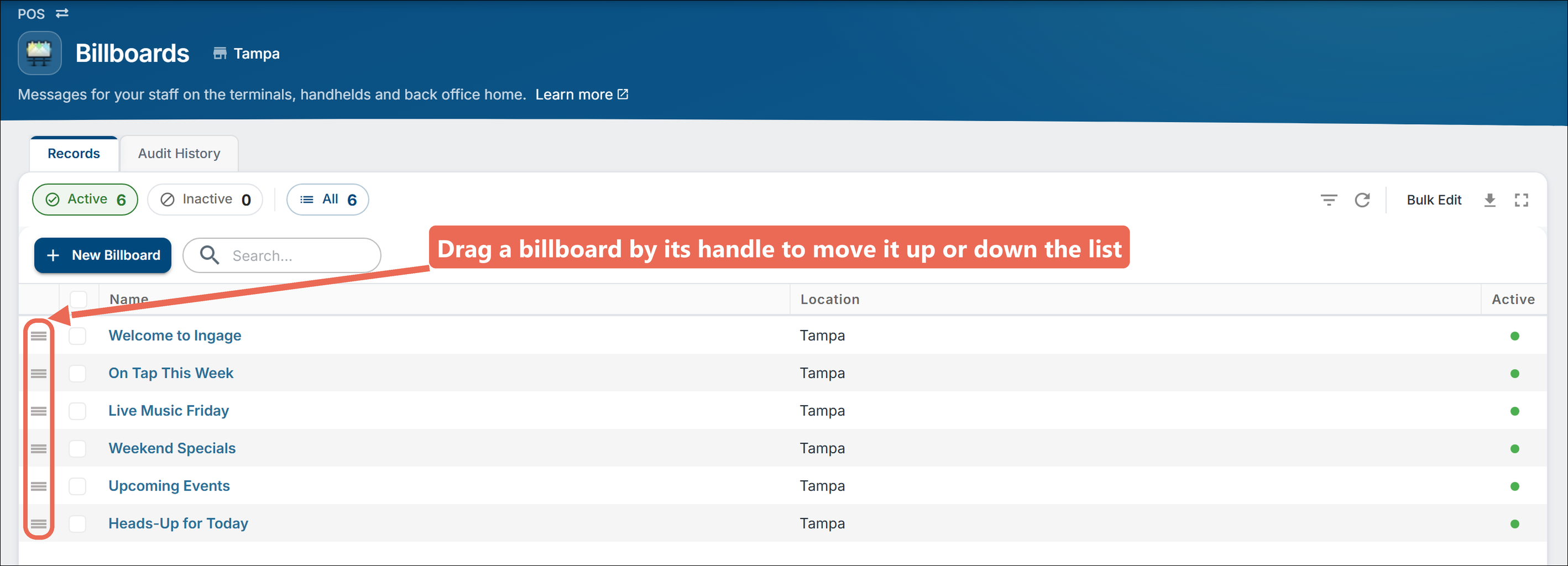
Billboards show on the terminal and handhelds in the same order as the list. To change the order, drag a billboard up or down by its handle on the left of the list. It's saved as soon as you let go ("Order updated").
Terminal Example
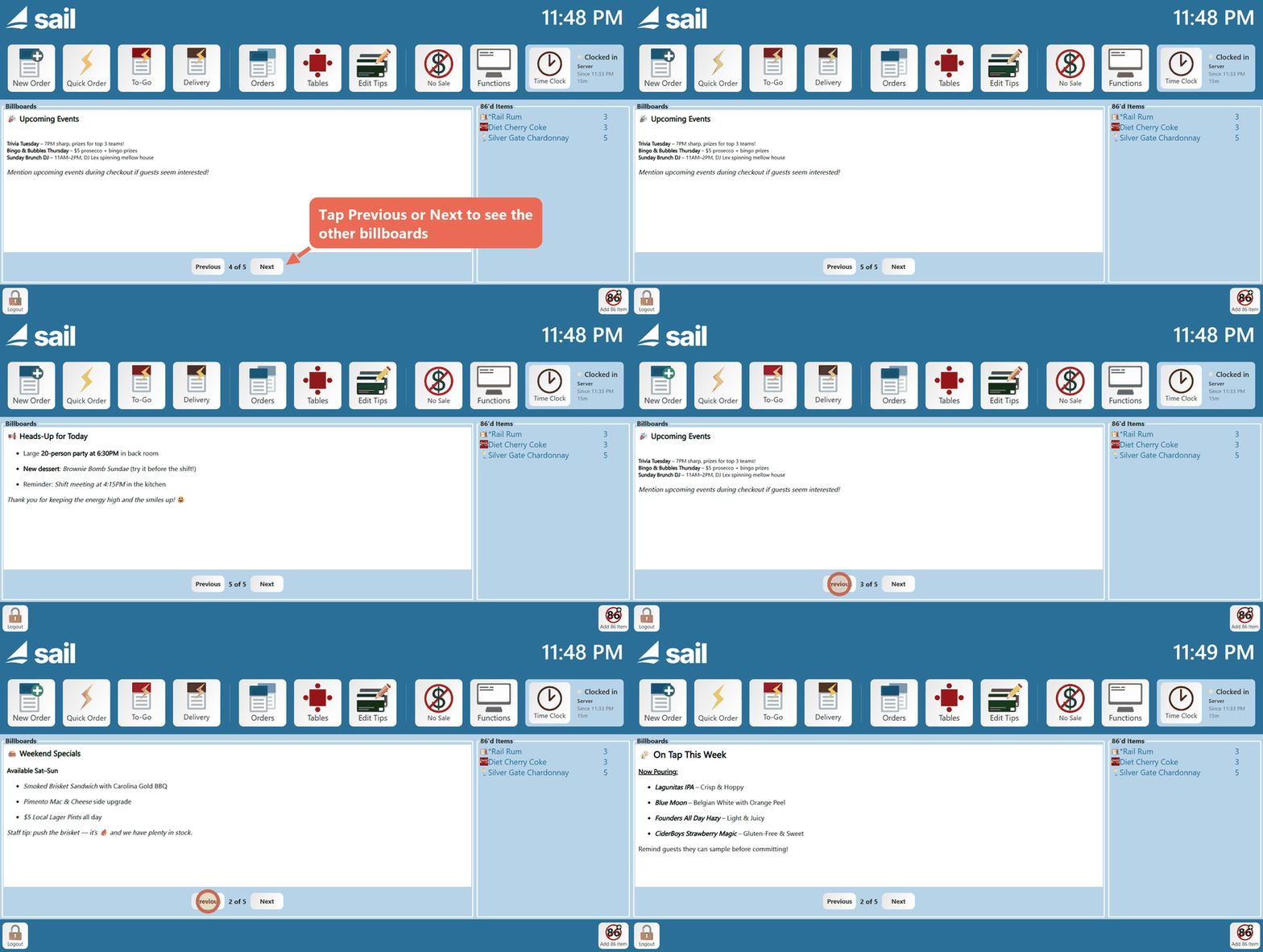
Here is an example of what Billboards look like on the terminal:
- They show on the terminal's home screen as soon as someone logs in
- They will rotate to the next one every 10 seconds
- Or you can use the "Next" and "Previous" buttons to find the one you're looking for. (if you use these buttons it will stay on the one you want and will not rotate, until you move off this screen and come back)
Handheld Example
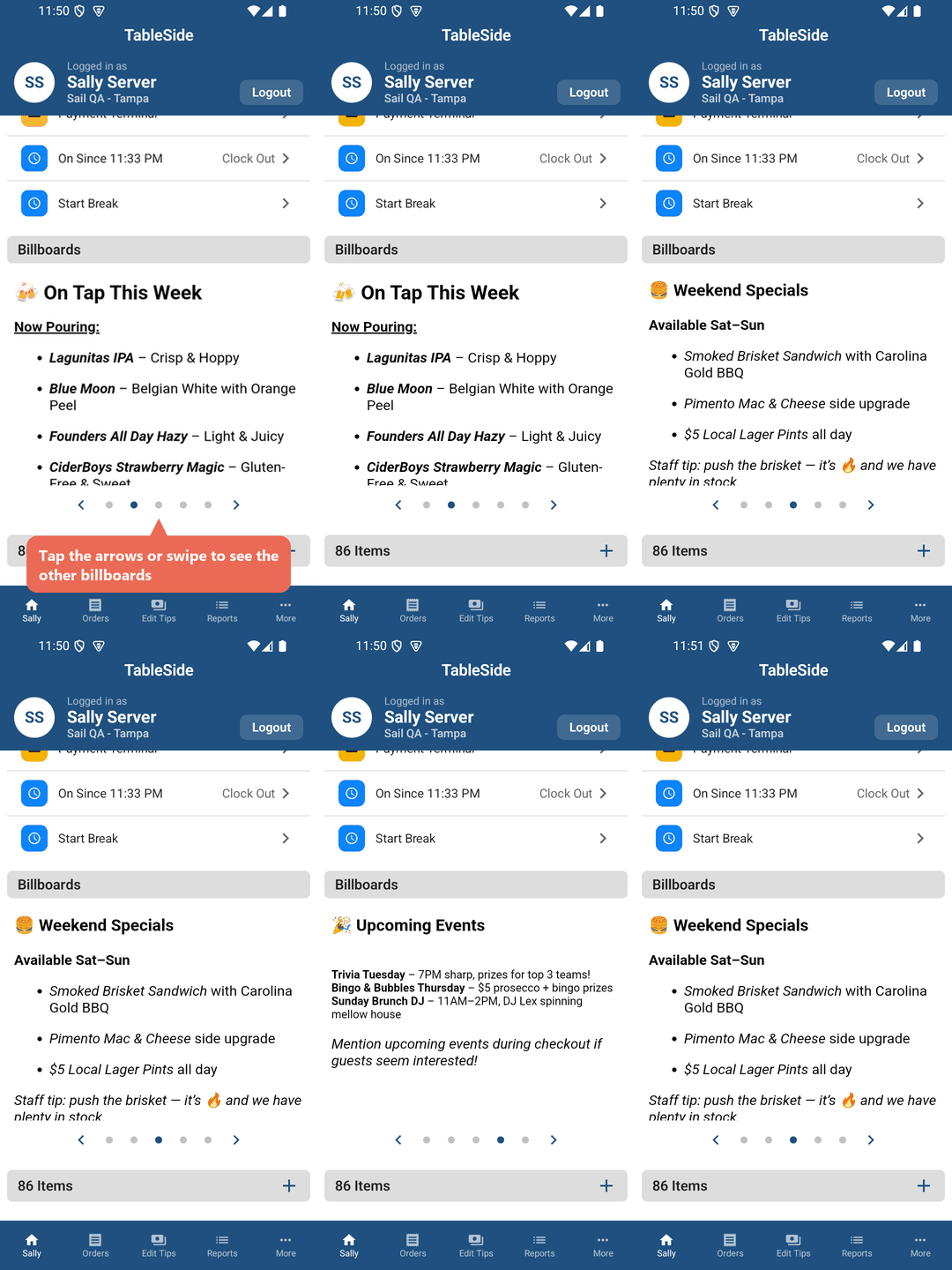
Here is an example of what Billboards look like on the handheld:
- They will not rotate through them
- They show on the handheld's home screen, under Station Settings - scroll down to see them
- You can swipe left or right, or tap the arrows under the billboard, to move through them
No Comments